

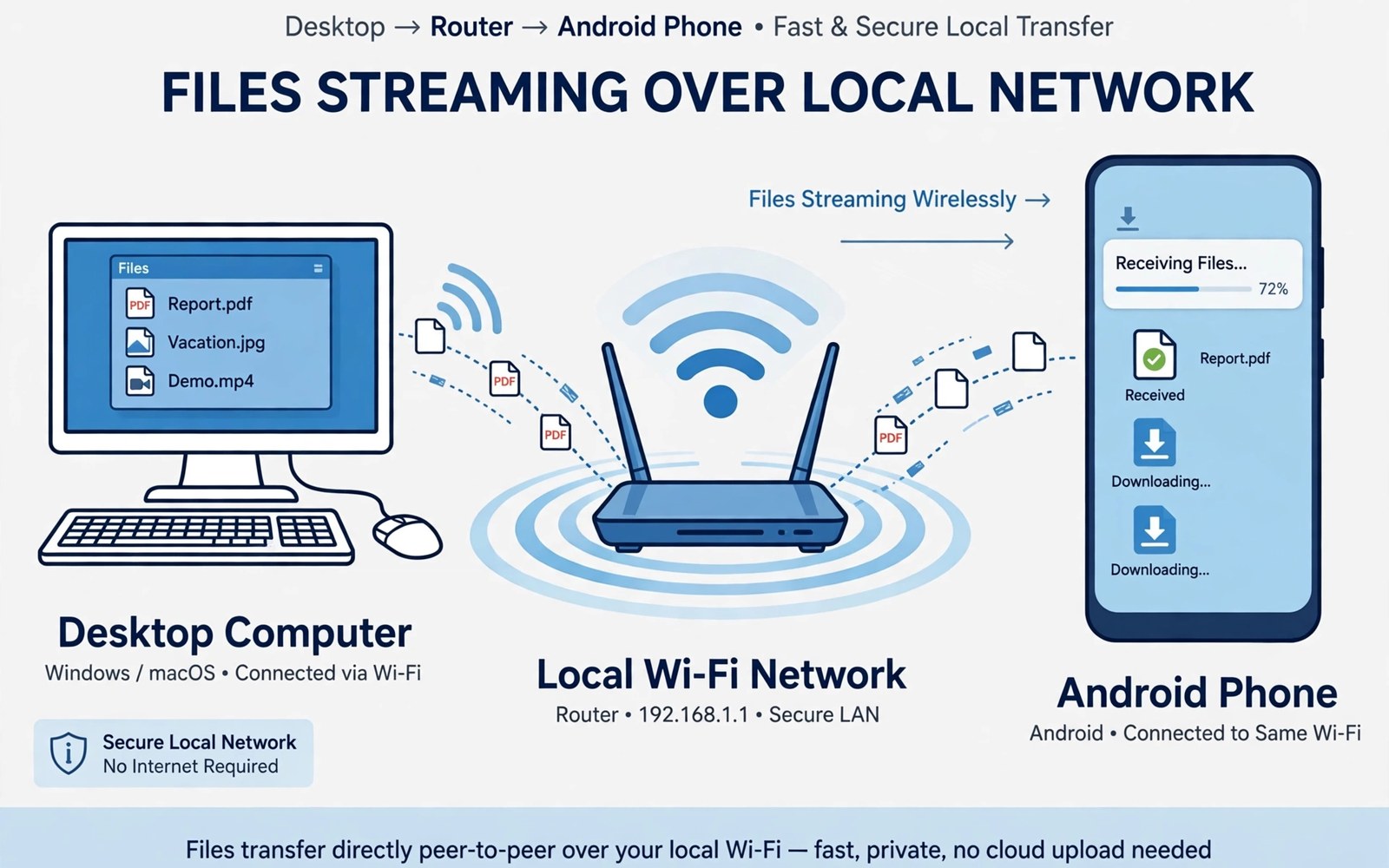
Copying every file to your phone wastes time and storage. A large video may play once and then sit forgotten on the device. A work folder may change on the computer while the phone copy grows stale. Streaming solves both problems by letting the phone read the file where it lives. The computer stays the home for the file and the phone becomes a viewer.
Local streaming works over your home network without sending files through the internet. The phone and the computer must share the same network for the simplest setup. A shared folder or a media server on the computer exposes files to approved devices. The phone then opens a video or a document through a player or a file app. Owners who prefer a wired transfer can still use automatic sync of device downloads to a personal computer drive for files that must live on the phone.
Start with one folder and one file type for the first test. Share a folder with a short video and check playback on the phone. A short test reveals network speed problems before you share a whole library. Check whether seeking inside the video feels smooth. A smooth seek means the network and the server handle the file well. A stuttering seek means you need a smaller file or a stronger connection.
Set up a shared folder on the computer
Create a dedicated share folder on the computer rather than sharing a whole drive. A dedicated folder limits what the phone can see. Give the share a clear name such as Phone Stream. Set the share permission to read only for the first test. Read only access prevents accidental changes from the phone. You can allow writing later when you trust the setup.
Use a strong password for the share when your network includes guests. A guest network should not reach your personal files. Check the firewall on the computer and allow only the sharing service that you use. A narrow firewall rule reduces exposure without breaking playback. The same network caution matters when you ways to shrink large photos and videos without losing quality over a shared home network.
Connect the phone and test playback
Open a file manager on the phone that supports network shares. Add the computer by its network name or by its local address. Enter the share username and password that you set on the computer. Browse to the test folder and open the short video. The player should start without copying the file to the phone first.
Test a document next to confirm that the connection handles more than video. Open a PDF from the share and scroll through several pages. Check whether images inside the document load promptly. A document test reveals permission problems that video playback might hide. Fix permissions on the computer before you expand the share to more folders.
Check a network share with a short script
import socket
host = "192.168.1.10"
port = 445
sock = socket.socket()
sock.settimeout(3)
print("reachable" if sock.connect_ex((host, port)) == 0 else "unreachable")
sock.close()
The snippet above follows a standard pattern for testing whether a sharing port responds on a local host. It only tests connectivity and it changes no file. You can adapt the host address for your own computer on your own network.
A connectivity test separates a network problem from a permission problem. A reachable result points to a share setting or a password issue. An unreachable result points to a firewall or a wrong address. That distinction saves time because each cause needs a different fix. Test again after each change to confirm progress.
Choose the right player for streamed files
A player that supports network shares makes streaming feel natural. A player that only opens local files forces a copy before playback. Check player settings for network browsing support before you commit to a setup. A player with a clear network section saves time. A player without that section may still play a streamed file through a file manager link.
Test subtitle support when you stream videos with subtitles. A streamed video may need a subtitle file from the same share folder. A player that loads external subtitles from the share keeps the setup simple. A player that ignores external subtitles forces a copy and a manual subtitle load. Subtitle handling matters for foreign films and for accessibility needs.
Test audio streaming separately from video streaming. A music player may handle a network share differently from a video player. A music player that caches track metadata locally feels faster on repeat plays. A music player that rescans the whole share on every open feels slow. Choose a player that balances fresh listings with cached speed.
Secure a home share against guests
A home network often includes guest devices that should not reach personal files. Separate guest Wi-Fi from the main network when your router offers that feature. A guest network that cannot reach local shares protects your files automatically. A main network password that only household members know adds a second layer. Network separation is simpler than managing permissions for every guest device.
Review share permissions after any router change. A router reset can restore default sharing settings. A firmware update can change network isolation behaviour. Check that the share still requires a password after each change. A quick permission check after a router change prevents a silent exposure.
Log out of a share on a borrowed device after you finish using it. A borrowed device may remember share credentials for future sessions. A remembered credential lets a later user reach your files without asking. Clear saved credentials on any device that you do not own. A clear logout habit protects files beyond your own home.
Advanced streaming for large libraries
A large library needs an index that makes browsing fast. A media server that indexes files by title and date and type helps a phone find content quickly. A simple shared folder without an index forces the phone to scan every time. An indexed server returns results instantly even for thousands of files. Choose a server solution that builds an index automatically when you add files. An automatic index keeps browsing fast as the library grows.
Organise a large library by category before you share it. A movies folder and a music folder and a documents folder give the phone clear browsing paths. A single mixed folder with thousands of files feels overwhelming on a small screen. Category folders also let you share only the categories that a particular phone needs. A child tablet may need only the family movies folder. A work phone may need only the documents folder.
Transcode large videos for phone streaming when the original file is very high resolution. A transcoded copy at phone friendly resolution streams smoothly over home Wi-Fi. An original 4K file may stutter even on a good network. A transcoded copy also uses less network bandwidth for other devices. Keep the original on the computer for television viewing. Keep the transcoded copy for phone viewing as a separate file.
Schedule library scans for quiet hours so indexing does not compete with playback. A scan during playback can cause stuttering. A scan at night updates the index without disturbing viewing. A quiet hour scan also gives the server time to generate thumbnails and metadata. A complete index in the morning makes daytime browsing feel instant.
Back up the media server index along with the files themselves. An index rebuild from scratch can take hours for a large library. A backed up index restores browsing speed quickly after a server change. A backup of the index is small compared with the media files. A small backup that saves hours is an easy win.
A practical streaming checklist for movie nights
A movie night streaming checklist starts with a network test an hour before guests arrive. Play a short test video from the share and check for stuttering. A test an hour early gives you time to move closer to the router or to lower resolution. A test five minutes before guests arrive leaves no time to fix a problem. An early test protects the evening from technical frustration.
Prepare a backup copy of the movie on the phone itself for a movie night. A local backup copy plays even when the network fails during the film. A backup copy is insurance that costs only temporary storage. Delete the backup copy after the movie night to restore space. A temporary local copy is a smart trade for an important viewing.
Close other network heavy apps during a movie night stream. A background download or a cloud sync can steal bandwidth from the film. A quiet network gives the stream a clear path. A clear path means smooth playback without buffering pauses. A movie night deserves a network that is dedicated to the film.
Test subtitles before guests arrive when the film needs them. A subtitle file that loads incorrectly can ruin a foreign film. A subtitle test with the first few minutes of the film confirms timing and readability. A test also confirms that subtitle size suits the viewing distance. A prepared subtitle setup lets guests focus on the story.
Common mistakes
One common mistake is sharing an entire user folder for convenience. That share exposes private documents and downloads to every device on the network. A second mistake is leaving the share open with no password. A third mistake is streaming over a weak mobile hotspot when a home network is available. Each mistake creates either a privacy risk or a poor playback experience.
Another mistake is expecting smooth 4K streaming over an old router. High resolution video needs a stable connection and a capable server. Transcode a test copy to a lower resolution when the network struggles. A smooth lower resolution stream beats a stuttering full resolution stream for most viewing.
Frequently asked questions
Does streaming use internet data?
Local streaming over your home network does not use mobile data when the phone stays on Wi-Fi. It uses local network bandwidth instead. Check that the phone is on the home network before you start a long video. A phone that drops to mobile data can use a large allowance quickly.
Can I stream when I leave home?
Remote streaming needs a secure remote access setup and it carries more risk. A simple local share is not designed for internet exposure. Use a proper remote solution with strong authentication when you need access away from home. Keep the local share closed to the internet otherwise.
Why does video stutter on my phone?
Stuttering usually comes from a weak Wi-Fi signal or a high bitrate file. Move closer to the router for a test. Try a lower resolution copy of the same video. Check whether another device is using heavy bandwidth at the same time.
Conclusion
PC to phone streaming turns the computer into a home library and the phone into a light viewer. A dedicated read only share keeps the setup safe. A short video test and a document test prove the connection before you share more. Network strength decides playback quality more than any player setting.
Your concrete next step is to create one read only share folder today with a single short video inside it. Connect the phone on the same Wi-Fi network and play that video to the end. Readers who need offline copies can then explore cloud storage integrations that work with native Android for files that must travel.

