

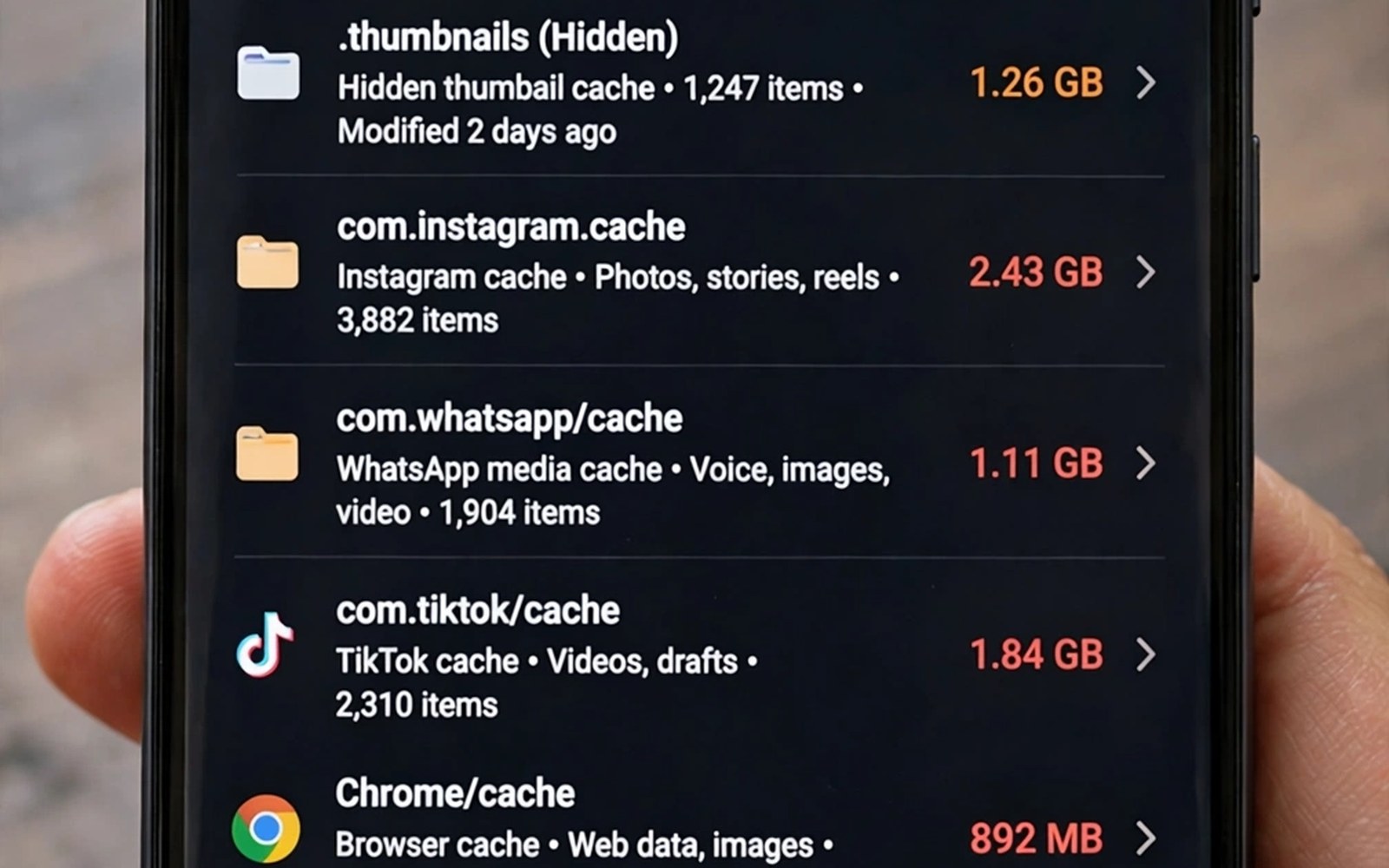
Thumbnails are small preview images that help your gallery open quickly. The system creates them for photos and videos so scrolling feels instant. Those small files add up when you browse large albums and when apps create their own previews. A thumbnail folder can grow to gigabytes while the original photos stay modest in size. Many owners never notice the growth because the folders stay hidden.
Hidden thumbnail files live in cache areas and in media folders that a normal gallery view does not show. A file manager with hidden files enabled can reveal folders with names that start with a dot. Those dot folders hold data that apps use behind the scenes. Some of them are safe to clear and some of them hold data that an app will rebuild slowly. Knowing the difference saves you from a gallery that feels broken after a cleanup. A broader view of hidden waste is covered in steps to remove hidden files that eat system storage for phones that stay full.
Start by checking total storage before you touch any hidden folder. Note the gallery app size and the media storage size in Settings. Those numbers give you a baseline for the cleanup. A thumbnail cleanup should reduce cache size without reducing your photo count. Count your photos in the gallery before and after the cleanup. A matching count proves that only previews were removed.
Find thumbnail folders safely
Enable hidden files in a trusted file manager. Look inside the pictures folder and inside the Android media folders for thumbnail subfolders. Names often include thumb or thumbnail or cache. Open the folder and check the file count and the total size. A folder with thousands of tiny files is a strong thumbnail candidate. A folder with a few large files needs a closer look before deletion.
Use a storage analyser to confirm the size before you delete anything. The analyser should show the same folder size that the file manager shows. A mismatch can mean that the folder is still growing while you inspect it. Wait for a quiet moment when no gallery app is running. Deleting files while an app rebuilds them can create a confusing mix of old and new previews. The same patient approach helps when you find giant media files sent in group messaging apps that also hide inside app folders.
Clear thumbnails without breaking the gallery
Clear the thumbnail cache through the gallery app settings when that option exists. An app managed clear tells the system to rebuild previews in an orderly way. A manual folder deletion also works but it may leave the gallery showing grey boxes until previews rebuild. Open the gallery after a manual clear and let it rebuild while the phone charges. Rebuilding on a charger avoids a slow scroll experience during the day.
Do not delete the original photo folder while chasing thumbnails. Thumbnails sit beside originals in some layouts and the names can look similar. Check the folder path twice before you confirm a deletion. A path that includes DCIM or Pictures usually holds originals. A path that includes cache or thumbnails usually holds previews. That path check is the single habit that prevents a painful mistake.
List thumbnail folders with a short script
import os
base = "/sdcard/Pictures"
for root, dirs, files in os.walk(base):
    if "thumb" in root.lower():
        print(root, len(files))
The snippet above follows a standard pattern for walking a pictures folder and listing folders with thumb in the name. It only prints folder names and counts and it deletes nothing. You can adapt the base folder for a media folder on your own test device.
Run the listing on a computer copy when you want a calm review. The output shows where thumbnail folders cluster. Use that map to decide which folders to clear through the app and which folders to leave alone. A map also helps you spot a single app that creates an unusually large preview cache.
Control gallery apps that create large previews
Different gallery apps create previews in different ways. A stock gallery may create a modest preview cache. A third party gallery may create larger previews for faster scrolling. An editing app may create previews for every imported photo. Identifying the heaviest preview creator helps you target the right app. Check per app cache size in Settings to find that creator.
Reduce preview size in app settings when the app offers that choice. A smaller preview still looks fine on a phone screen. A smaller preview also rebuilds faster after a clear. An app without a preview setting needs a different approach such as limiting the folders that it scans. A limited scan folder prevents the app from creating previews for every file on the phone.
Uninstall a gallery app that creates an enormous cache without a setting to control it. A stock gallery or a simpler alternative may meet your needs with less waste. Test the alternative for a week and compare cache growth. A lower cache growth with similar speed proves that the switch was worthwhile. Keep the app that respects both speed and storage.
Rebuild previews efficiently after a clear
Rebuilding previews takes time and battery. Rebuild while the phone charges and while you do not need the gallery urgently. Open the gallery and scroll slowly through main albums. A slow scroll lets the system create previews in order. A fast frantic scroll can create a backlog that feels slow. Patience during rebuilding pays off in smooth scrolling later.
Prioritise recent albums during rebuilding because you use them most. Open recent albums first and let their previews complete. Older albums can rebuild in the background over the next days. A prioritised rebuild means the gallery feels normal quickly even when older albums still show placeholders. That approach balances speed and completeness.
Check gallery speed after a full day of normal use rather than immediately after a clear. An immediate check will always feel slower because previews are still building. A day later check shows the true steady state. A gallery that still feels slow after a day may need a storage move or a smaller album view. A gallery that feels fast proves that the cleanup succeeded.
Advanced thumbnail management for editors
Photo editors create their own thumbnail systems in addition to the system gallery cache. An editor may create previews for every imported photo to speed up editing. Those previews can duplicate system thumbnails and double the waste. Check editor cache settings after installing a new editing app. An editor with a large preview cache needs a limit or a periodic clear. A limit inside the editor is safer than a manual folder delete that might remove editing data.
Import photos into an editor in batches rather than importing an entire library at once. A batch import creates previews only for photos that you plan to edit. A full library import creates previews for photos that you may never touch. Batch imports save both time and storage. A batch habit also keeps the editor workspace focused on current work rather than on old photos.
Clear editor previews after finishing a project. A finished project no longer needs fast previews for every source photo. The final edited images and the originals deserve preservation. Intermediate previews do not deserve the same preservation. A project end clear frees space for the next project without touching finished work. That habit keeps editor storage proportional to active work.
Use a single editor for most work when possible. Several editors each create their own preview caches for the same photos. A single editor creates one preview set instead of several. A single editor also builds familiarity that speeds up editing. Switching editors for a special feature is fine for a single project. Returning to a main editor afterwards prevents preview sprawl.
Check editor storage after a large project to learn its preview behaviour. A project with hundreds of photos may create a preview cache larger than the photos themselves. A cache larger than the source photos signals an editor setting worth changing. A smaller cache signals an efficient editor. Learning that behaviour helps you choose tools for future projects wisely.
A practical thumbnail checklist for large albums
Large albums create the largest thumbnail caches because every photo needs a preview. A large album checklist starts by splitting a huge album into smaller albums by event. Smaller albums generate previews in manageable batches. A huge album that generates thousands of previews at once can slow the gallery for a long time. Smaller albums rebuild faster and feel smoother.
Browse a large album slowly after a thumbnail clear to let previews build in order. A slow browse creates previews for photos that you actually view. A fast scroll through thousands of photos creates a backlog of previews for photos that you may never open. A backlog can make the gallery feel slow for days. A patient browse after a clear is more efficient than a frantic scroll.
Delete thumbnail caches for albums that you rarely open. A rarely opened album does not need instant previews at all times. A preview cache for a forgotten album is pure waste. A cache clear for that album frees space without affecting daily use. Previews will rebuild only when you open that album again.
Check thumbnail size after a month of normal browsing to learn your gallery behaviour. A gallery that creates a huge cache in a month may be scanning too many folders. A gallery that creates a modest cache is well behaved. A monthly size check guides a decision about gallery apps and scan folders. A data driven choice beats a guess.
Common mistakes
One common mistake is deleting every dot folder that appears in a file manager. Some dot folders hold settings and offline data that are not thumbnails. A second mistake is clearing thumbnails every day in search of speed. Daily clearing forces constant rebuilding and it can slow the gallery. A third mistake is deleting originals that sit in a folder with a similar name to a thumbnail folder.
Another mistake is judging a cleanup only by free space gained. A good thumbnail cleanup also keeps the gallery fast after rebuilding. Check scroll speed after a day of normal use. A gallery that still feels slow may need a different fix such as a smaller album view or a storage move.
Frequently asked questions
Will deleting thumbnails delete my photos?
Deleting thumbnail files alone does not delete original photos. Thumbnails are previews that the system can rebuild from originals. Check the folder path before you delete anything. Keep a backup of originals until you confirm the photo count after cleanup.
Why do thumbnails grow back after I delete them?
Thumbnails grow back because the gallery rebuilds previews when you browse albums. That regrowth is normal and it should stay modest with normal use. A huge regrowth can signal an app that scans media too often. Check which app creates the largest cache in that case.
How often should I clear thumbnail caches?
A clear every few months suits most owners. Heavy photo browsers may benefit from a clear every month. Daily clearing wastes time because rebuilding takes longer than the space saved. Match the rhythm to your storage pressure and to gallery speed.
Conclusion
Thumbnail files are useful previews that become waste only when they grow unchecked. Hidden folders and cache areas hold most of the growth. An app managed clear and a careful path check keep the cleanup safe. A photo count before and after proves that originals survived.
Your concrete next step is to check gallery cache size in Settings today and clear only the thumbnail cache for the gallery app. Then open the gallery while charging and let previews rebuild. Readers who want a wider cleanup can follow ways to free a large amount of phone storage quickly as the next step.

