

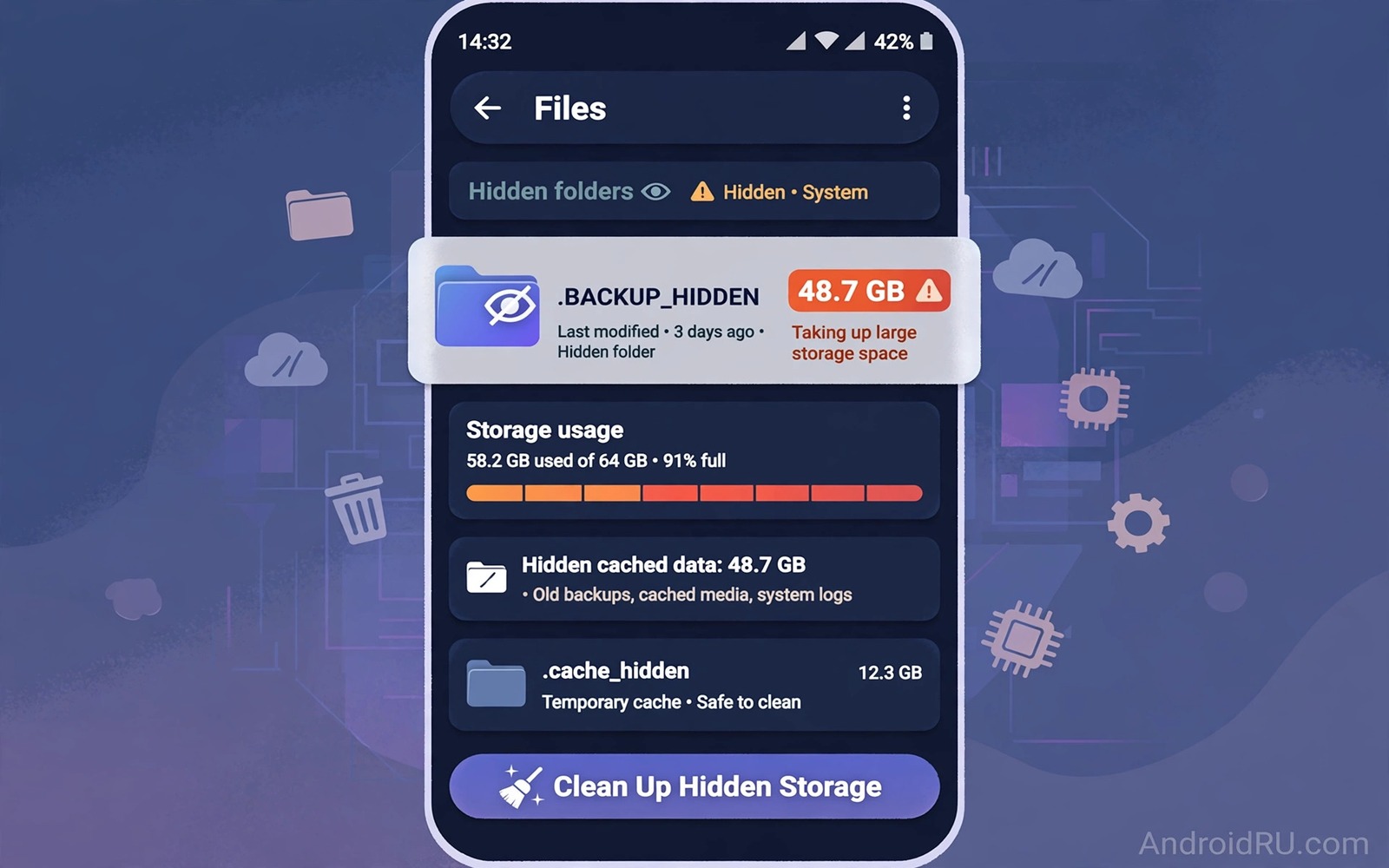
Every phone owner has faced a mystery. Storage settings say the phone is almost full yet visible photos and apps do not add up to the total. The missing gigabytes hide in a folder that no gallery shows and no simple total explains. Finding that folder feels like detective work because the culprit differs from phone to phone. It may be a chat media folder or a thumbnail cache or a game data folder or a forgotten download archive.
The secret is rarely a single malicious folder. It is usually a normal folder that grew without limits. An app that stores every viewed image can grow for years. A game that downloads new levels can keep old levels forever. A chat app that saves every forwarded video can outgrow your photo library. The folder itself is legitimate but its growth is unchecked.
This guide gives you a detective method to find the real culprit on your phone. You will sort folders by size and trace large folders to their source app. You will learn how to decide whether to delete or archive or limit the folder going forward. A one time find without a limit change only delays the next mystery.
Start with the storage breakdown and a file manager
Open Settings and Storage to see which category dominates. A large media category points to photos or videos or chat media. A large apps category points to app data or caches. A large other category points to system files and hidden data that need a file manager to explore. The category gives you a starting direction for the hunt.
Open a file manager that shows folder sizes and sort by size descending. The largest folders appear first. Ignore small folders for now because they cannot explain gigabytes of missing space. Focus on the top five folders. One of them usually accounts for a large share of the mystery total.
Tap into the largest folder and sort its subfolders by size again. Repeat the drill down until you reach files or a clear app folder. A path that leads to a chat app media folder explains forwarded videos. A path that leads to a game folder explains downloaded levels. The drill down turns a vague total into a named culprit in a few minutes.
Common culprits and how to judge them
Chat media folders are the most common culprit. They store photos and videos from every chat including groups you rarely open. A chat media folder that holds several gigabytes usually contains many forwarded videos you watched once. Delete forwarded videos after saving personal photos elsewhere. A chat cleanup often solves the mystery alone.
Thumbnail caches are another frequent culprit. A thumbnail folder stores previews for every photo you have browsed. It can reach gigabytes on a phone with a large photo history. Deleting thumbnails is safe because previews rebuild on demand. A thumbnail culprit is easy to recognise because its folder name mentions thumbnails or cache and its files are tiny previews.
Game data folders can also dominate. A game may store downloaded maps and textures and replays long after you stopped playing. If you no longer play the game then uninstalling it removes its data folder as well. If you still play then check the game settings for a way to delete old levels or replays. A game folder that grows after every update deserves a settings check.
Download archives form a quieter culprit. A downloads folder may hold installers and videos and documents from years ago. Sort downloads by size and delete installers and watched videos. A download folder is easy to judge because file names usually reveal content clearly. Readers who want a systematic tool for this hunt will benefit from storage analyzer apps that find giant hidden files because analyzers automate the size sorting step.
Decide delete archive or limit
Deletion suits forwarded media and stale caches and old installers. These files have no unique value and they can be downloaded again if needed. Delete in batches and check the app still works after each batch. A batch approach lets you stop if an app behaves strangely after a deletion.
Archiving suits personal photos and important documents that you do not need on the phone daily. Move them to a computer or an external drive or a cloud backup. Archiving frees phone space while preserving the files elsewhere. Confirm the archive copy opens correctly before deleting the phone copy. A confirmed archive is a safe deletion.
Limiting suits folders that will regrow. A chat app that auto downloads videos will refill its media folder after a cleanup. Change auto download settings to manual for videos. A game that downloads levels automatically may need a download limit setting. A limit change turns a one time cleanup into a lasting fix.
A small script to trace large folders
The script below traces large folders in a local backup tree. It prints folders above a size threshold so you can practise the drill down method on a computer. Run it on a local folder that mirrors your phone storage.
import os
threshold_mb = 500
for root, dirs, files in os.walk("phone_backup"):
    total = 0
    for name in files:
        try:
            total += os.path.getsize(os.path.join(root, name))
        except OSError:
            pass
    if total / 1048576 >= threshold_mb:
        print(f"{total / 1048576:.0f} MB {root}")
The code above was written for this guide as an original large folder tracer. It walks a local folder named phone_backup and prints folders of five hundred megabytes or more. It does not delete anything and it does not access your phone. Lower the threshold to one hundred megabytes to find smaller culprits after the largest ones are handled.
Ask which app owns a folder before deleting
Ownership is the most important question in a secret folder hunt. A folder path usually contains the app name or the developer name. A folder owned by a chat app points to media. A folder owned by a game points to levels. A folder owned by the system points to essential data. Ownership tells you whether deletion is safe or risky.
When ownership is unclear search the folder name in your file manager or in the app list. A folder that matches no installed app may be leftover data from an uninstalled app. A folder that matches a system service should stay untouched. A folder that matches an active app deserves an in app cleanup rather than a manual delete.
Archive the culprit instead of deleting it
Archiving is safer than deleting when a folder holds personal content. Copy the folder to a computer and verify the copy opens correctly. Then delete the phone copy with confidence. An archive preserves the content while freeing phone space immediately. A verified archive is the best of both worlds.
Label the archive with the app name and the date of copying. A label such as chat media archive 2026 tells you what the archive contains years later. An unlabeled archive becomes a mystery folder on a computer instead of on a phone. Good labels move the mystery out of your storage entirely.
A folder that grows after every app update may contain update packages that the app failed to clean. Check the app settings for a cache or temporary files option after an update. An update cleanup inside the app often removes those packages safely. A manual delete of update packages can break a pending update so prefer the in app option.
When a folder name is unclear take a screenshot before deleting anything. A screenshot lets you restore the name later if you need to research it. A recorded name is easier to search than a remembered approximation. Documentation before deletion is cheap insurance.
Common mistakes
The biggest mistake is deleting a large folder without checking which app owns it. A folder owned by a system service or an active app may break features when deleted. Check the folder path for the app name and research it before deletion. A named culprit is safer to handle than an anonymous large folder.
Another mistake is deleting a folder that syncs with cloud storage while sync is active. A local deletion may propagate to the cloud and delete the cloud copy as well. Pause sync before deleting a synced folder. Confirm sync behaviour after deletion before re-enabling it.
People also delete a large folder and then immediately refill it by reopening the same app. An app that auto downloads content will rebuild its folder quickly. Change the app download setting before or immediately after cleanup. A cleanup without a setting change is only a pause in growth.
Finally avoid deleting a folder based solely on a scary name. A folder named data or obb may hold essential game or app files. A large size alone does not prove waste. Content and app ownership prove waste. When in doubt leave the folder and seek a specific guide for that app.
Frequently asked questions
Why does storage settings not show the secret folder directly?
Settings groups files by category rather than by individual folder. A chat media folder may sit inside a media total and a game folder may sit inside an apps total. A file manager or analyzer shows individual folders that settings groups together. Use settings for direction and a file manager for the exact folder.
Can a secret folder be malware?
Most large folders belong to legitimate apps rather than malware. A folder with a clear app name and normal media files is almost certainly legitimate growth. A folder with random names and executable files deserves caution and a malware scan. Do not delete unknown executable files manually without a scan.
How do I stop the secret folder growing again?
Change the source app setting that feeds the folder. Turn off video auto download for chat apps and limit offline downloads for media apps. Set a monthly cleanup reminder for folders that naturally regrow such as thumbnails. A setting change plus a routine keeps the folder under control.
Conclusion
The secret folder taking up gigabytes is usually a normal app folder that grew without limits. A size sorted drill down from storage settings to file manager reveals the culprit in minutes. Chat media and thumbnails and game data and downloads cover most cases. Deleting forwarded media and archiving personal files and limiting auto downloads turns a mystery into a managed routine.
Your concrete next step is to open a file manager today and sort folders by size. Drill into the largest folder until you can name the app that owns it. Delete only forwarded media or stale cache from that folder after a backup check. Readers who want a deeper hidden file hunt will also like hidden files to delete for system storage and freeing storage quickly on Android as follow-ups.

