

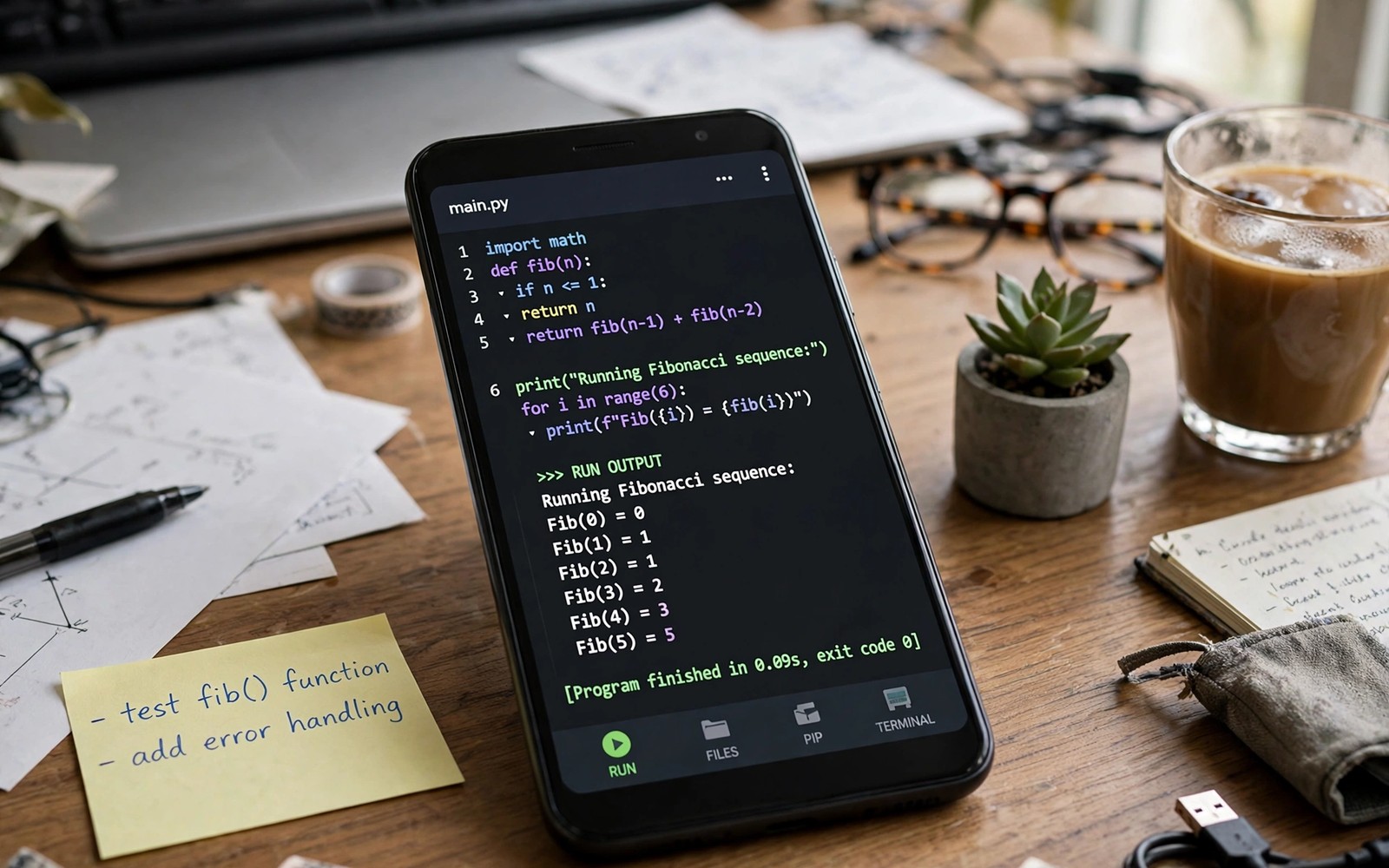
A phone can run Python scripts directly without a computer nearby. A script can rename hundreds of photos in seconds. A script can parse a text file and summarise its contents. A script can automate a calculation that a spreadsheet handles clumsily. Running Python on mobile turns a phone into a pocket workstation. This guide shows how to run complex Python scripts directly on mobile. It covers environments and file access and practical limits. It keeps the focus on scripts that help daily work rather than on toy examples.
Python on mobile works through an app that provides an interpreter and a file workspace. The app creates a private folder where scripts and data live. A script runs inside that app sandbox with permissions you grant. A script can read files in its workspace and in shared folders you allow. A script cannot freely access every system area on a stock phone. Sandbox limits protect the phone from a rogue script. Understanding sandbox limits prevents frustration when a script cannot reach a file. Work within the workspace and grant folder access deliberately.
Complex scripts need more than a simple code runner. A complex script may use libraries for data handling or image processing. A mobile Python environment should support installing common libraries. A script that imports a missing library fails at the first import line. Check library support before writing a long script. A script designed around available libraries runs smoothly. A script designed around a desktop library may stall on mobile. Library availability shapes script design on a phone.
Choose A Mobile Python Environment
Choose an environment with a clear file manager and a built in editor. An editor with syntax highlighting helps catch errors before running. A file manager with folder access helps organise scripts and data. An environment with a terminal view shows script output clearly. A terminal view also shows error messages in full. Error messages guide debugging far better than a silent failure. A good environment makes errors visible rather than hidden.
Test the environment with a short script that reads a text file and prints a summary. A short test proves file access and output display work. A short test also reveals permission prompts that a longer script would hit later. Grant folder permissions during the test rather than during a complex run. A test script with ten lines teaches more than a complex script that fails mysteriously. Small tests build confidence in a new environment.
Check how the environment handles long running scripts. A script that processes thousands of files may take minutes. A phone screen that sleeps can pause or kill a background script. Keep the screen awake during long runs or use a foreground run mode if available. A long script interrupted midway leaves partial output. Partial output can mislead you if you assume it is complete. Long run behaviour deserves a test before a real task.
Write Scripts That Fit Mobile Constraints
Break a complex script into small functions with clear names. A function that renames files should do only that job. A function that parses text should do only that job. Small functions are easier to test on a small screen. A small screen makes scrolling through a huge script painful. A modular script reads well on a phone editor. Modularity also helps reuse across scripts. A reusable function library grows with your needs.
Handle errors explicitly rather than assuming perfect input. A script that crashes on a missing file wastes a run. A script that reports a missing file and continues with other files finishes usefully. Error handling matters more on mobile because input files vary. A photo folder may contain a corrupt file. A text file may contain an unexpected character. A robust script survives real world mess. Robustness turns a script from a demo into a tool.
Save output incrementally during long processing. A script that writes results only at the end loses everything on interruption. A script that writes each result as it finishes preserves progress. Incremental output also lets you inspect partial results during a run. A run that shows progress feels trustworthy. A run that shows nothing until the end feels uncertain. Incremental writing is a simple habit with a large benefit.
import os
from pathlib import Path
folder = Path("photos")
for file in folder.glob("*.jpg"):
    print(file.name)
print("Total files:", len(list(folder.glob("*.jpg"))))
The script above follows standard Python practice for personal devices and it is presented here as a practical example for listing photo files rather than as a complete file management tool. Each line uses only the standard library so it runs in most mobile Python environments. The script lists file names first and then reports a total count. A total count after a listing helps verify that no file was skipped. Extend this pattern by adding a rename step only after the listing proves correct. Listing before modifying protects files from a logic error.
Run And Debug Scripts On A Small Screen
Run a script on a copy of your data first. A copy protects originals from a bug in a rename or delete step. A test copy with ten files reveals logic errors quickly. A full run on thousands of files after a copy test feels safe. A copy first rule is essential for any script that modifies files. Modification without a copy is a gamble. A gamble with personal photos is a poor choice.
Read error messages from the bottom up on a small screen. The final error line names the problem type. The lines above it show the call path that led there. A bottom up reading finds the cause faster than a top down reading. A small screen hides context so a focused reading helps. Note the line number and open that line in the editor. A precise line focus beats scrolling through the whole script. Debugging is a search skill as much as a coding skill.
Use print statements to trace a script that behaves unexpectedly. A print at each major step shows where execution diverges. A print of a variable value reveals a wrong assumption. Tracing with prints works in any environment without special tools. Remove tracing prints only after the script proves correct. A traced script teaches you its own behaviour. Teaching through tracing builds understanding for the next script.
Common Mistakes
One common mistake is writing a desktop script and expecting it to run unchanged on mobile. A desktop script may rely on libraries unavailable on mobile. A desktop script may assume a large screen for output. A desktop script may assume unrestricted file access. Adapt the script to mobile constraints before running it. Adaptation is part of mobile development rather than an afterthought. A script designed for mobile runs better on mobile.
Another mistake is running a modifying script on original files without a copy. A rename bug can scatter file names across a folder. A delete bug can remove files permanently. A copy test prevents both disasters. A copy costs a little storage and a little time. A disaster costs far more. Copy first is a non negotiable rule for modifying scripts.
A third mistake is ignoring battery and heat during long runs. A script that processes thousands of images heats a phone. A hot phone may throttle performance or pause the script. Run long scripts while charging and in a cool place. A cool charging phone sustains performance longer. Heat management is part of long run planning on mobile.
Frequently Asked Questions
Can Python on mobile access all phone files?
A mobile Python app runs in a sandbox with granted folder permissions. It can access its workspace and folders you explicitly allow. It cannot freely access system areas or other app private data on a stock phone. Grant folder access deliberately for each project. Sandbox limits protect the phone while they still allow useful work. Work within granted folders for reliable scripts.
Do mobile Python scripts run as fast as desktop scripts?
Mobile processors are strong but they differ from desktop processors in sustained performance. A short script runs similarly on both. A long heavy script may run slower on a phone due to heat and power limits. A script that processes large data sets should run in batches on mobile. Batching keeps memory use manageable. Performance expectations should match mobile hardware.
Can I schedule Python scripts to run automatically?
Some mobile Python environments support scheduled runs or shortcuts. A scheduled run needs background permission and battery optimisation exemption. Test a scheduled run with a harmless script first. A scheduled script that fails silently wastes a schedule slot. A tested schedule with a log file proves reliability. Scheduling adds convenience after manual runs prove stable.
Share Scripts Safely With Others
A script that works for you may fail for a friend with different files. Add a short header comment that states the expected folder structure. A header with input folder and output folder names prevents confusion. A friend who reads the header can adapt the script quickly. A script without a header forces guesswork. Documentation in the header is part of the script rather than an extra.
Remove personal paths and personal data from a script before sharing it. A script with a hardcoded home folder may fail on another phone. A script with a personal file name may expose private information. Replace personal values with variables at the top of the script. A variable at the top is easy to change for a new user. A clean script shares well and protects privacy at the same time.
Test a shared script on a fresh folder before sending it. A fresh folder test simulates a new user experience. A script that passes a fresh test is ready to share. A script that passes only on your own data is not ready. Fresh testing prevents a shared script from embarrassing you. A shared tool should work for others as well as for you.
Conclusion
Install a mobile Python environment today and run a ten line listing script on a copy of a photo folder. Verify the file count matches the folder contents. Add one modifying step only after the listing proves correct. Readers who work with command tools may also like wireless ADB access for everyday shell work for shell based workflows, and ADB tweaks for a faster system UI for system control, plus a master approach to Android power automation for routine design. Your next step is one environment and one listing script.

