

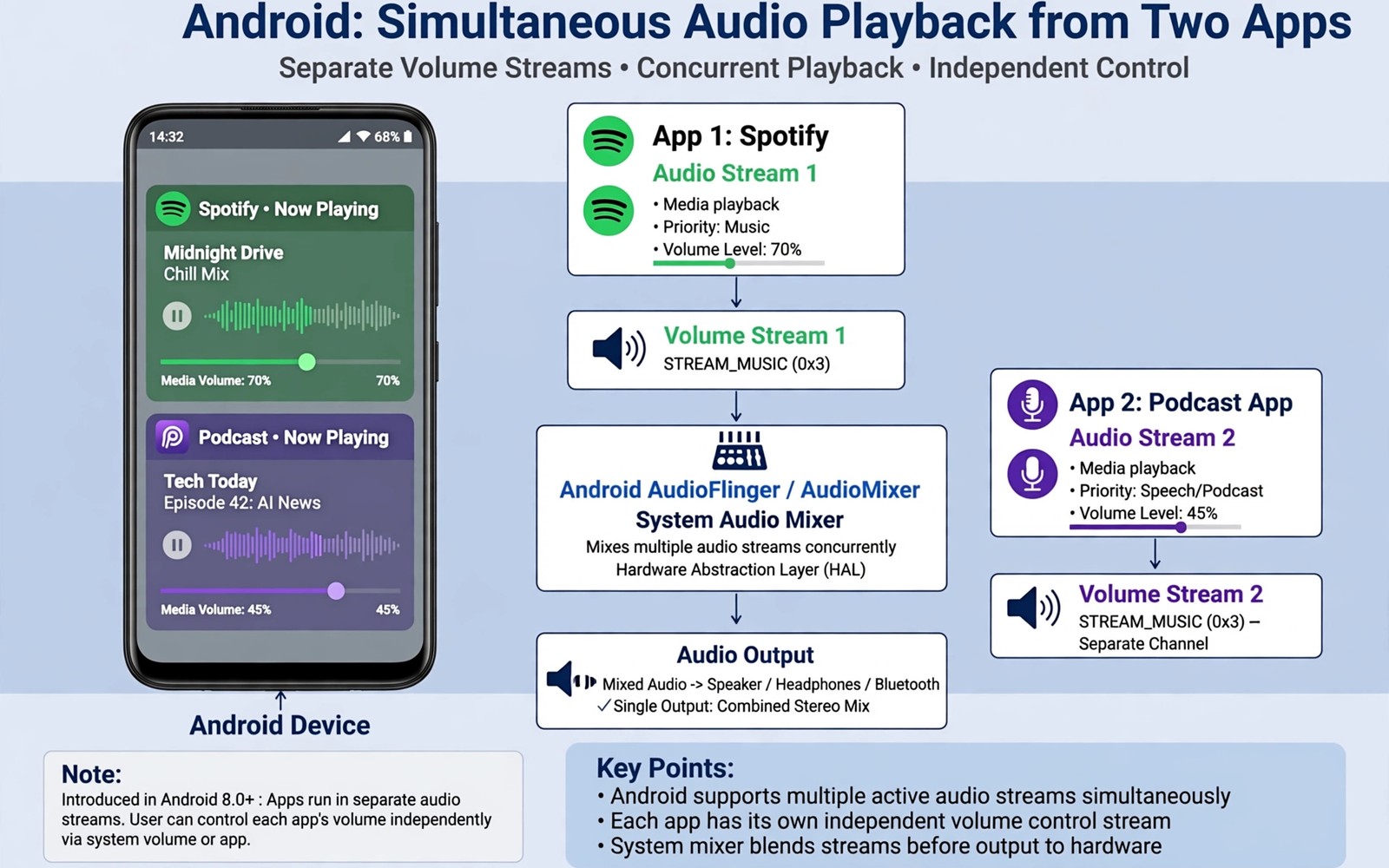
Two apps want your ears at the same time and Android usually forces a choice. A podcast keeps talking while a game waits for sound. A language lesson pauses when a video starts. A navigation voice competes with music during a drive. The system treats audio as a single foreground stream in many everyday situations. That behaviour protects clarity but it frustrates people who genuinely need two sounds at once. This guide explains what Android actually allows and how to get two app sounds working together without chaos. You will learn the difference between true simultaneous playback and clever workarounds.
Audio focus is the system rule behind most interruptions. An app requests focus when it starts playing sound. Another app that requests focus can push the first app into a paused or ducked state. Ducking lowers volume rather than stopping playback. Pausing stops playback until focus returns. Media apps follow these rules by design. Communication apps follow stricter rules because a call must stay intelligible. Understanding focus helps you predict which combinations will work and which will fight. A combination that respects focus rules will feel stable. A combination that fights focus rules will keep pausing.
Some combinations already work without any trick. A music app can play alongside a navigation app because navigation uses short voice prompts. A podcast can play while a silent game runs in the background. A video with its own volume control can share the device with a separate audio app if one app uses a different output route. The challenge grows when both apps demand full media focus. That is the case this guide targets. You need a plan for output routes and volume control before you press play on both apps.
Understand Audio Focus Before You Force Anything
Open the first app and start its audio at a comfortable volume. Open the second app and start its audio while you listen carefully. Notice whether the first app pauses or ducks or keeps playing. A pause tells you the second app requested permanent focus. A duck tells you the second app requested transient focus. No change tells you the apps use different audio categories. Write down the result for the pair you actually use. A general rule from another pair may not apply to your pair.
Communication audio behaves differently from media audio. A voice call or a voice chat app claims a special audio mode. That mode can silence media apps entirely for safety and clarity. A work call plus background music therefore needs a different approach than two media apps. Use the call app volume controls and the media app controls separately. Test the combination before an important call rather than during it. A surprise silence during a call is worse than a planned compromise.
Some manufacturers add a dual audio feature that splits output by app. That feature lets one app play through the phone speaker while another plays through headphones. It may appear under sound settings or under a special feature menu. Search settings for separate app sound or dual audio or app sound output. If your phone offers it then use it before any third party workaround. A manufacturer feature respects focus rules while it routes sound to different outputs. That routing is the cleanest path to simultaneous listening.
Split Output By Route For A Clean Result
Choose one app for the speaker and one app for headphones when the goal is personal listening plus shared listening. A language lesson through headphones can run while a family video plays on the speaker. A podcast through headphones can run while navigation speaks through the car speaker. Route choice turns a conflict into a division of labour. Each app keeps its own volume and its own destination. The brain still hears both sounds but the separation makes each one easier to follow.
Bluetooth adds another route with its own quirks. Some phones can send audio to two Bluetooth devices at once through a dual audio setting. That setting duplicates the same stream rather than splitting two apps. It helps two people hear one movie together. It does not help two apps play different sounds. Do not confuse duplication with separation. Check the exact wording of the setting before you assume it solves a two app problem. A duplicated stream is useful but it is a different feature.
Wired headphones and a USB audio device can create a second route on some phones. An app that supports a specific output device can claim that route while another app uses the speaker. Test this combination with the exact apps you need. Support varies by app and by Android version. A test with your real pair beats a generic claim about the feature. Note which app follows the route setting and which app ignores it. That note saves repeated testing later.
Control Volume And Focus With A Simple Setup
Set the primary app volume first and leave it untouched during the test. Set the secondary app volume lower so it acts as background sound. A background app at full volume competes with the primary app and creates fatigue. A background app at a gentle level adds context without stealing attention. Use the system volume panel and any in app volume slider together. Some apps ignore the system slider for their own internal level. Check both controls when a level feels wrong.
Disable auto play features that grab focus unexpectedly during the test. A video feed that auto plays can steal focus from a podcast without warning. A game that plays a loud intro can do the same. Pause auto play in feeds that you keep open beside a main audio app. A calm feed makes simultaneous playback sustainable. A noisy feed turns the experiment into a constant battle for focus. Control the feed before you blame the audio system.
adb shell dumpsys audio
adb shell cmd media_session list-sessions
adb shell settings get system volume_music
The commands above follow standard Android tooling practice for personal devices and they are included here as a practical example for inspecting audio state rather than as a way to force playback. The first command shows current audio focus and routing information. The second command lists active media sessions on the device. The third command reads the current music volume level. Use the output to understand which app holds focus during a test. Do not change values that you do not understand based on this output alone.
Build A Pair That Works For Your Routine
Pick one real routine and design the pair around it. A morning routine might pair a news podcast with a silent workout timer. A study routine might pair ambient sound with a language lesson. A driving routine might pair navigation prompts with low music. Each routine has a primary sound and a secondary sound. Name the primary sound before you start. That decision guides every volume and route choice that follows. A routine without a primary sound drifts into noise.
Test the pair for a full session rather than for thirty seconds. A combination that works for a minute can break when a notification arrives. A call or an alarm can reset focus during a longer session. Notice how the pair recovers after an interruption. A good pair returns to its previous balance without manual repair. A fragile pair needs constant attention and it fails the purpose of simultaneous playback. Choose the pair that recovers gracefully.
Automation can restore a pair after interruptions once you know the pair works. A routine can reopen the primary app and set its volume after a call ends. Readers who enjoy that kind of setup may find easier automation apps for daily routines helpful for building a calm restore step. Keep the automation simple and test it after a real interruption. A restore routine that fires at the wrong moment creates a new interruption. Simplicity keeps the benefit intact.
Common Mistakes
One common mistake is forcing two loud media apps to compete at full volume. The result is fatigue rather than productivity. Lower the secondary app until it sits clearly behind the primary app. If you cannot follow the primary app then the secondary app is too loud. A simultaneous setup should feel like background plus focus rather than like two radios in one room. Volume discipline is the core skill here.
Another mistake is assuming every app pair will behave the same way. Audio categories differ across apps and across updates. A pair that worked last month can change after an app update. Retest a critical pair after major updates. A short retest prevents a bad surprise during a lesson or a drive. Treat audio behaviour as a living setting rather than a permanent fact.
A third mistake is ignoring hearing safety during long dual sessions. Two sounds at moderate levels can still add up to a high total exposure. Take breaks and keep headphone volume modest. Use speaker output when possible for long sessions. Your ears need rest even when the setup feels comfortable. A sustainable routine protects hearing as well as productivity.
Frequently Asked Questions
Can Android play two music apps at full volume at the same time?
Most music apps request full audio focus and the second app will pause the first. A manufacturer separate sound feature can route them to different outputs. Without that feature you need one app to use a different audio category. Two standard music apps rarely play together cleanly on stock Android. Route separation is the practical path rather than a focus override.
Why does navigation duck my music instead of pausing it?
Navigation requests transient focus for short prompts. The system lowers music volume during the prompt and restores it afterwards. That ducking behaviour is intentional for driving safety. A full pause would feel jarring for every turn instruction. Ducking keeps music present while it keeps instructions intelligible. The balance is a design choice rather than a bug.
Does dual Bluetooth audio split two apps to two headsets?
Dual Bluetooth audio usually duplicates one stream to two headsets. It does not assign a different app to each headset. Two people can hear the same movie together with that feature. Two different apps need a route separation feature instead. Check your phone sound settings for the exact feature name. Wording matters because similar names hide different behaviour.
Conclusion
Test your real app pair today with one app on headphones and the other on the speaker. Set the secondary volume low and run the pair for a full session. Note how it recovers after a notification. If the pair stays balanced then save the route and volume settings as your routine. Readers building a broader desk setup may also like turning an old phone into a smart desk assistant for a dedicated listening station, and a master approach to Android power automation for restoring routines automatically. Your next step is one pair and one full session test.

