

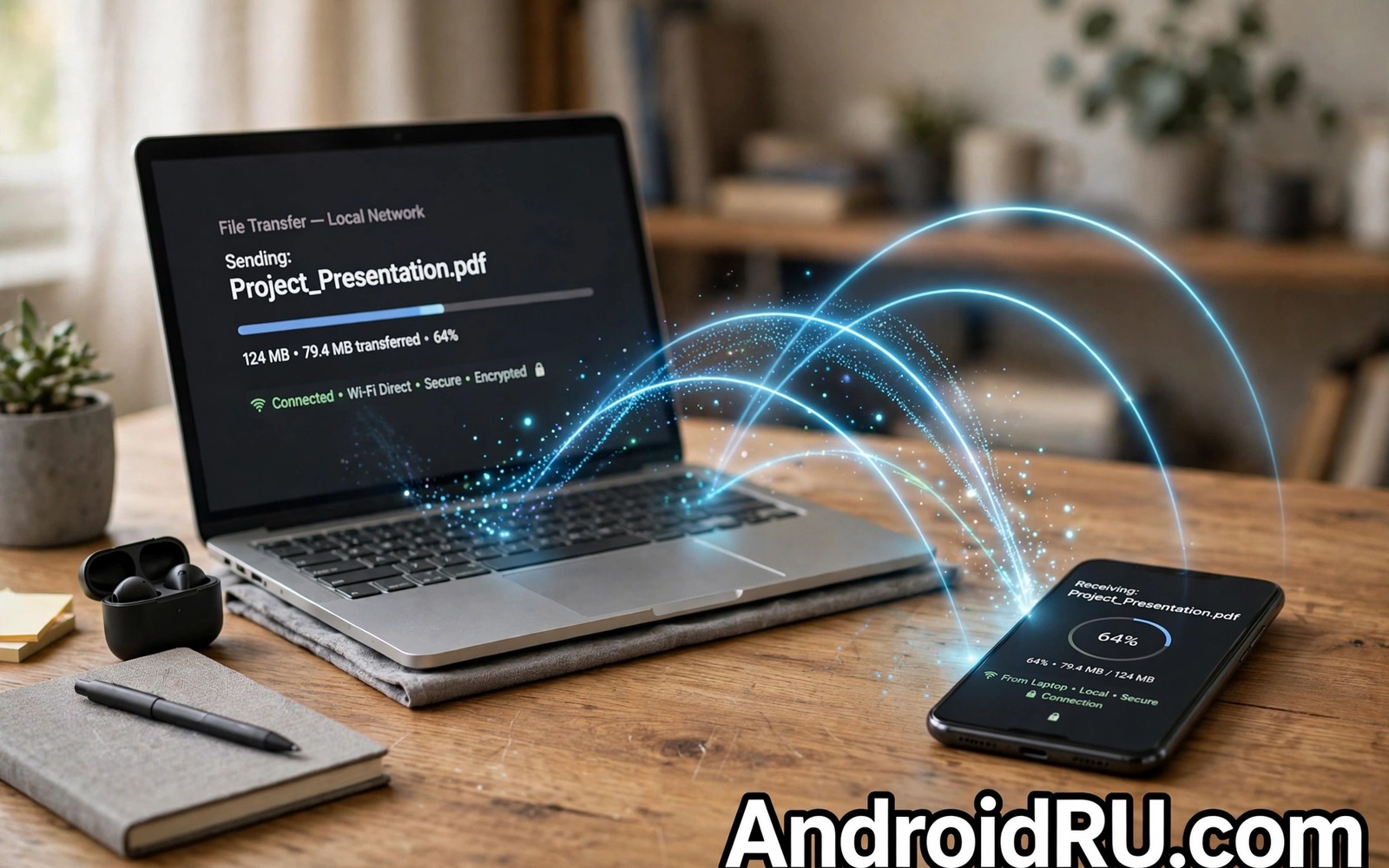
Stop Using Cable Files Transfers: Instant Local Web Server Hack
Every cable I have owned has failed at the worst possible moment. The one that worked yesterday refuses to connect today. The port on an old phone loosens after years of plugging and unplugging. A borrowed laptop has the wrong connector entirely, and the one cable in the house that fits is in another room, or another city. There is a better way to move files between your own devices, and it does not need a cable at all.
The trick is a local web server running on your phone. Your phone shares one folder over your home Wi-Fi, and any other device on the same network opens that folder in a browser and downloads what it needs. Nothing goes to a cloud account, nothing waits for an upload to finish, and nothing depends on a cable that might be broken — no cable, no account, and no waiting. I have used this method for photos, documents, music, and video for years, and it has quietly replaced the cable for almost every transfer I do at home.
This guide walks through the whole method: what you need, how to set up the server on your phone, how to move files without losing track of them, how to run the same trick from a computer with a single command, and how to keep it safe. By the end, you will be able to move a photo from your phone to your laptop in under a minute, with no cable, no account, and no waiting.
Why Cables Fail at the Worst Moment
Cables fail in ways that are hard to predict and harder to fix on the spot. The wires inside a cable break from bending, often near the connector, and the cable keeps working until the break finally separates. The port on the phone wears down a little with every plug, and one day the cable sits loose and the connection drops every few seconds. A cable can also be fine while the port on the laptop is full of dust, or while the phone is set to charge-only mode and refuses to show its files at all.
The software side is no better. A phone connected by cable asks you to pick a mode: charge only, file transfer, or photo transfer. Pick the wrong one and the files are invisible. A laptop may need a driver it does not have, or a permission it never asked for. An update on either side can change the behaviour overnight, so a transfer that worked last month stops working for no reason you can see. Each of these failures is small on its own, and together they make the cable the least reliable part of the whole process.
A local web server removes all of that. There is no connector to wear out, no mode to pick, and no driver to install, because the browser on the receiving device already knows how to download a file from a web address. The phone and the laptop only need to share the same Wi-Fi network. When the transfer is done, you stop the server, and nothing on either device has changed.
What a Local Web Server Actually Does
A web server is a program that answers requests for files. When you type an address into a browser, a server somewhere sends back the page or file you asked for. A local web server does the same job, except the server is your phone, the files are in a folder you chose, and the requests travel over your home Wi-Fi instead of the public internet. The browser on your laptop asks the phone for a list of files, the phone sends the list, and you click a file to download it.
Nothing about this is exotic. The same technology serves every web page you have ever read, shrunk down to one folder on one device. The server app on your phone shows you a local address, usually a set of numbers followed by a port number, such as 192.168.1.10:8080. You type that address into a browser on another device, and the file list appears. That is the whole mechanism, and once you have seen it work, the cable starts to feel like a relic.
How the Phone Becomes the Server
When you start the server app and pick a folder, the app opens a port on the phone and waits for requests on your local network. A port is simply a numbered door that network programs use to find each other, and the address the app shows you is the combination of your phone’s local network address and that port number. The app reads files from the folder you shared and sends them to any device that asks, using the same HTTP protocol that a normal website uses.
The phone does not need a public address, a domain name, or a certificate for this to work, because the traffic never leaves your home network. Your router already knows how to move data between devices on the same network, and it does so without sending anything to the internet. This is also why the method keeps working when your internet connection is down: the router still moves local traffic between your devices even when the line to the outside world is dead.
Why the Transfer Stays Inside Your Home
Local addresses, the ones that start with 192.168 or 10, are not reachable from the public internet. A stranger on the other side of the world cannot type your phone’s local address into a browser and see your files, because that address only has meaning inside your own network. The traffic stays between your phone, your router, and your laptop. That boundary is the main reason this method is safer than it sounds, and it is also why a password still matters, as the security section below explains.
The speed follows the same logic. A file does not travel to a distant data centre and back; it travels from your phone to your router and then to your laptop, across a few metres of air. On a modern Wi-Fi network, that path is often faster than a cloud upload followed by a download, and it is faster than a cheap cable on an old USB port. The only real limit is your router and your phone’s Wi-Fi chip, and both are usually faster than people expect.
What You Need Before You Start
The list is short: a phone, a second device with a browser, and a Wi-Fi network they both share. The second device can be a laptop, a tablet, or another phone. The server app on the phone is the only software you need to add, and there are several good ones with clear interfaces. Pick one with a simple permission model, a visible address display, and an option to set a username and password for the share. Readers who like command-line tools may also enjoy wireless ADB access for everyday shell work as a companion skill, since it covers cable-free management of a different kind, and the two methods complement each other well.
- Your phone, with the files you want to move, charged or plugged in for a long transfer.
- A second device with a browser, such as a laptop, a tablet, or another phone.
- Both devices on the same Wi-Fi network, ideally the main home network.
- A server app on the phone that shows its address and port in plain text.
- One folder to share, prepared before you start the server.
Prepare the folder before you start. Move the files you want to transfer into one folder, and give the important ones clear names that describe their content and date. A folder full of unnamed camera files becomes a puzzle on the receiving device, and the transfer itself cannot fix a messy source. A clean source folder makes the destination folder clean as well, and it makes the verification step at the end far easier.
Picking the Right Wi-Fi Network
Use your main home network, not a guest network. Guest networks often isolate devices from each other on purpose, so a phone on the guest network cannot see a laptop on the main network at all. If the file list does not appear, the network name on the two devices is the first thing to check. A phone on mobile data cannot reach a laptop on home Wi-Fi through a local address either, so turn off mobile data for the phone or confirm it is actually connected to the Wi-Fi you think it is.
Choosing a Folder to Share
Share the smallest folder that contains the files you need. A photo folder or a downloads folder covers most daily transfers. Never share the entire internal storage when a single folder will do, because a broad share exposes private photos and documents by accident, and a narrow share limits the damage if an address leaks. If the files you need live in different places, move copies into one folder first, and share that folder only.
Share Files From Your Phone in 7 Steps
These seven steps are the whole method. Read them once, then follow them with a single photo as a test. The first run takes about five minutes, and the second run takes about one. Keep a short note of the steps that worked on your network, including the network name, the server app name, and the folder you shared, so a future transfer starts from a proven recipe rather than from memory.
Step 1: Connect Both Devices to the Same Wi-Fi
Open Settings on your phone, then Wi-Fi, and check the network name. Open the Wi-Fi settings on the laptop or tablet and check the same name. The names must match exactly. If either device is on a VPN, note it, because a VPN can route local traffic away from your home network and break the connection even when the internet works normally. You can test with the VPN on first, and turn it off only if the file list fails to appear.
Step 2: Install a Server App and Pick Your Folder
Install a file-sharing server app from a source you trust, open it, and choose the folder you prepared. Look for an app that shows the local address and port in plain text on its main screen, and that offers a username and password for the share. Grant the app access only to the folder you intend to share, and decline any permission that does not match the job. A server app needs storage access to the shared folder; it does not need your contacts, your location, or your microphone.
Step 3: Set a Username and Password
If the app offers a username and password, set both, and choose a password you do not use anywhere else. A password matters even on a home network, because visitors, smart televisions, and other gadgets share the same airspace. Write the password down on paper for this session, or store it in your password manager. A share without a password is open to every device on the network, and a home network usually has more devices on it than you think.
Step 4: Start the Server and Note the Address
Tap Start in the server app and look at the address it displays. It will look like a set of numbers followed by a colon and a port number, for example 192.168.1.10:8080. Write that address down exactly, including the port number, because the port is part of the address. If the app shows more than one address, pick the one that starts with 192.168 or 10, which is the address on your home Wi-Fi. Keep the phone awake while the server runs, or set the screen to stay on during the transfer.
Step 5: Open the Address in a Browser on the Other Device
Type the address into the address bar of a browser on your laptop or tablet, exactly as shown, and press Enter. If you set a username and password, the browser will ask for them now. A file list should appear within a few seconds, showing the files in the folder you shared. If the browser shows a connection error instead, check the network name on both devices first, then check that the server is still running on the phone, then turn off any VPN for a quick test.
Step 6: Download in Small Batches and Check Each One
Download a single small file first, such as one photo, and confirm it opens correctly. That small success proves the network path and the permission setup, and it reveals any browser download setting that blocks the file. Then download the rest in batches of about twenty files. Check each batch on the receiving device before you start the next one, because a missing file is easy to spot in a small batch and easy to miss in a batch of five hundred. Batching also gives the phone time to cool during long transfers, since heat can slow Wi-Fi on older phones.
Step 7: Verify, Then Stop the Server
Compare the file count on both devices for each batch, and open a few files at random to confirm they play or display correctly. For video, play the last minute of a long file, because a video can appear complete in a file list while its final seconds are corrupt. Check the file size against the phone copy, and only delete the phone copy after the receiving copy is verified. Then stop the server in the app, and confirm the address no longer loads in the browser. A stopped server cannot leak a folder you forgot to unshare.
Run a Quick Python Server From Your Computer
Sometimes the phone is the receiving device rather than the serving one, and the files live on a computer. In that case, a short Python command can serve the current folder over the local network, with no app to install. This is useful for a quick one-off transfer, such as moving a folder of documents from a laptop to a phone, or sharing files with a friend’s laptop for an afternoon. Readers who want to go further with Python on a phone can also read running Python scripts directly on mobile for deeper local automation, but the command below needs nothing more than Python on the computer itself.
Open a terminal on the computer, move into the folder you want to share, and run the command that fits your situation. The first command binds only to the local machine, which is useful for testing that the server starts. The second command serves the folder on the local network for a short transfer window. The third line shows how another device can check that the server is reachable. Replace the example address with the address shown by your own device before you use it.
python3 -m http.server 8000 --bind 127.0.0.1
python3 -m http.server 8000
curl http://192.168.1.10:8000/
Keep the server running only while the transfer is active, and stop it as soon as the last file lands safely. A temporary server is a safer server than one left running for days, and the habit of starting and stopping on purpose matters more than any single app feature. Treat the server as a door that you open for a guest and close afterwards.
Starting the Server on Your Computer
On the computer, open a terminal, use the cd command to move into the folder you want to share, and run python3 -m http.server 8000. The terminal will print a message saying it is serving HTTP on port 8000. Find your computer’s local address in its network settings, which will look like the phone addresses above, and type that address followed by :8000 into the browser on your phone. The file list appears, and you can download from it the same way as from the phone server.
Stopping the Server Safely
Press Ctrl+C in the terminal to stop the server, and check that the address no longer loads in a browser. Do not close the terminal window and assume the server is gone, because on some systems the process can keep running. The terminal message after Ctrl+C confirms the shutdown, and a quick browser check confirms it from the other side. If you use the server often, keep a one-line note of the command and the stop key in the same place as your other network notes.
Move Large Files Without Losing Track of Them
Large files change the job. A photo moves in a second, but a video of several gigabytes tests the network, the phone’s temperature, and your patience, all at once. The method still works, and the same steps apply, but the order matters more. Move the largest files first, while the phone is cool and the battery is full, and leave the small files for the end. If a transfer fails halfway, you will know immediately, and you can retry a single file instead of a whole folder.
Verify sizes after the transfer finishes rather than trusting the download count alone. Compare the file count on both devices for each batch, and compare the size of each large file against the phone copy. A file that downloads with the wrong size is a file that needs another attempt, and it is far easier to retry it now than to discover the problem weeks later when the phone copy is gone. Delete the successful batch from the shared folder only after verification, because a verified copy on two devices is the moment when the transfer truly ends. Until then, the phone copy remains your safety net.
Keep the destination tidy as you go. Readers who move photos often may like automatic photo organisation by geolocation to keep the receiving folder organised by place and date, which makes the next transfer easier too. A tidy destination is not vanity; it is what lets you find a file a month later without searching through a folder of unnamed downloads.
Security Rules for a Local File Server
A local server is safe when you treat it as temporary, narrow, and protected, and it becomes risky when any of those three habits slip. Temporary means the server runs only during the transfer and stops the moment verification ends. Narrow means it shares one folder, not the whole storage, and that folder holds only the files for this transfer. Protected means a username and password on the share, and a home Wi-Fi password that is strong enough to keep strangers off the network in the first place.
Never run a file server on a public Wi-Fi network without a password. A cafe network exposes the server to strangers on the same network, and a stranger who finds the address can list and download everything you shared. A home network with a strong Wi-Fi password is a different situation, but even at home you should stop the server after use. A running server also drains battery while the phone waits for connections, and it invites scans from other devices on the network. A short server lifetime is a strong security control, it costs nothing, and it removes a whole class of risk.
One more habit is worth building: check what the server app can see. Open the app’s permission screen after the transfer and confirm it holds only storage access to the shared folder. If the app asked for more during setup, remove the extra permissions and test again. An app that needs only storage to share a folder should not hold your location or your contacts, and a quick check once a month keeps the setup honest.
Troubleshooting: When the Browser Cannot Reach Your Phone
Most failures have one of four causes, and checking them in order solves the problem in a few minutes. Start with the network name on both devices, because a phone on a guest network and a laptop on the main network cannot see each other at all. Next, check that the server is still running on the phone, since some phones stop background apps aggressively and the server may have closed when the screen went dark. Then turn off any VPN on either device for a quick test, because a VPN can route local traffic away from your home network. Finally, check the address itself: one wrong digit, or a missing port number, is enough to fail.
If the file list loads but downloads fail, the cause is usually on the receiving side. A browser download setting may block files from a local address, or the downloads folder may be full. Try a different browser on the same device, and try downloading one small file before retrying a large one. If the phone gets hot during a long transfer, pause for a few minutes and let it cool, because heat can slow Wi-Fi on older phones and a paused transfer is better than a failed one.
A tablet makes a useful second test device, because its browser and file manager behave slightly differently from a laptop browser. Open the same server address on the tablet and download one document from the shared folder, and notice whether the tablet saves the file to a downloads folder you can find easily. Some tablets hide downloads behind a file manager search, and learning that location during a calm test is better than learning it during an urgent transfer. A method that works on two device types is a method you can trust in daily work.
Frequently Asked Questions About Local File Transfers
Does a local server need internet access to work?
No internet access is needed when both devices share the same local network. The router moves traffic between devices without sending it to the internet, and a home router without an active internet connection can still support local transfers. A mobile hotspot from the phone can also create a local network for the transfer. The key requirement is a shared local network rather than a public internet route, so a dead broadband line is no obstacle at all.
Why does the browser show a connection error for the server address?
The devices may sit on different networks or on isolated guest networks, which is the most common cause. A VPN on either device can also block local traffic, and the server app may have stopped when the phone screen went dark. Check the network name on both devices first, disable the VPN temporarily for a test if the networks match, and confirm the server app still shows a running status. A single mismatched network name explains most connection errors, and the fix is usually a one-minute change.
Is this method faster than a cable for large files?
Modern Wi-Fi often matches or beats a slow USB connection for large media, while a fast cable still wins for very large folders on older Wi-Fi hardware. The honest answer is to test both methods with a one-gigabyte file on your own network, because your router speed and your phone’s Wi-Fi chip decide the winner. Use the cable for huge archives and use the local server for daily convenience. Each method has a place in a practical workflow, and the server wins on convenience almost every day.
Can a smart television receive files from my phone server?
Sometimes, yes, and it depends on the television’s browser. Keep the shared folder small when the television is the target, because a television browser may struggle with a long file list. Share only the video folder for that session and remove other files from the share, which also reduces the chance of a family member opening a private document by accident. A focused share loads faster on a slow television browser, and it turns the method into a simple way to watch a phone video on the big screen.
Try It Today: One Folder, One Photo
Share one folder over your home Wi-Fi today and move a single photo to your laptop as a test. Verify that the photo opens, then move one batch of real files with the same method. Stop the server after verification, and note the address pattern for next time, along with the network name and the folder you shared. That note is the whole system: one folder, one address, one verified transfer.
Once the test works, the cable can go back in the drawer for everything except the rare huge archive. Your phone becomes its own file server whenever you need it, your files never wait for a cloud upload, and a broken cable never ruins a transfer again. The next time a cable fails, you will not need a replacement cable at all.

