

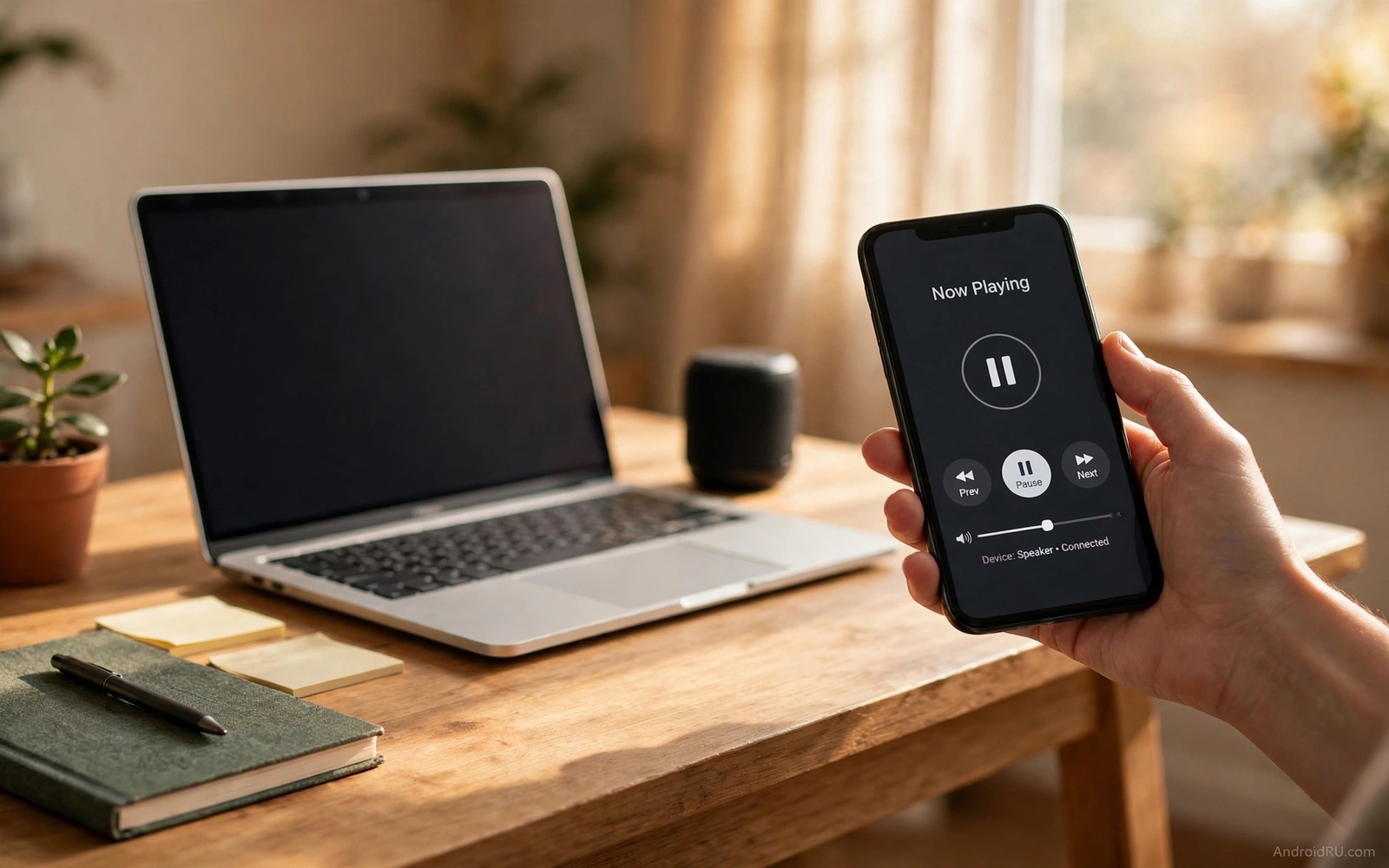
A phone can act as a wireless mouse and a sound control for a computer. That reuse helps when you sit away from the desk or when you present slides to a room. A phone mouse lets you move a cursor and click without returning to the desk. A phone sound control lets you change volume and pause music from across the room. Together they turn a phone into a simple remote for a computer.
The link between phone and computer usually runs over local Wi-Fi. Both devices join the same network and a companion app on each side talks across that network. The phone sends touch movement as mouse movement and it sends button taps as clicks. The computer receives those signals and moves its own cursor. That local link keeps latency low when the network is stable. A weak network can cause lag and lag makes mouse control feel frustrating.
A phone remote pairs well with other phone as computer tool setups. turn a smartphone into a full wireless trackpad covers a trackpad focused version of the same idea. Start with mouse plus sound because those two controls cover most presentation and media needs. Add keyboard control later only if you truly need it for a presentation.
Choose A Remote App And Link
Look for a remote app that offers mouse and media controls in one screen. A single screen with a touch pad area and volume buttons is faster than switching between screens. Check whether the app offers a PC companion for your computer system. A companion that matches your system will install cleanly and it will show a ready status when the link works. A mismatched companion can fail silently.
Choose a local Wi-Fi link for a home or office presentation. A local link needs no internet and it keeps control data inside your network. A Bluetooth link can work for short range but it may lag for fast mouse movement. Test both links in the real room when possible and pick the link with the smoothest cursor movement. A smooth cursor matters more than a long feature list.
Check security before a first use in a shared network. A remote app that allows any device on the network to control your computer is a risk. Set a pairing code or a password in the companion app when that option exists. A pairing code ensures that only your phone can move the mouse. Never leave a remote companion open on a public network without a code.
Set Up Mouse And Sound Step By Step
Install the companion on the computer and install the remote app on the phone. Connect both devices to the same Wi-Fi network and open the companion. Note the pairing code or address that it shows and enter it in the phone app. Confirm that both sides show a connected status. Move a finger on the phone touch area and watch the computer cursor move. That first movement proves the link.
Test clicks by tapping the phone touch area and watching the computer respond. Test right click if the app offers it and test scroll by dragging two fingers when the app supports it. Test volume buttons by playing a short audio clip on the computer and changing volume from the phone. Each test should feel instant. A delay of more than a second points to a weak network or a busy computer.
Set mouse sensitivity to a comfortable level before a real presentation. A sensitivity that is too high makes the cursor jump across the screen. A sensitivity that is too low forces long drags for a small move. Adjust one step at a time and test with a small target such as a window close button. A cursor that lands on a small target easily is ready for a presentation.
A Mouse Movement Example
The code below is a small developer example that shows how a touch movement can become a mouse movement. It takes a change in touch position and it adds that change to a cursor position. It does not replace a remote app and it does not run on a phone on its own. Use it only to learn how relative movement works in a remote control project. A real app adds smoothing and sensitivity scaling to that basic idea.
int newX = cursorX + deltaX;
int newY = cursorY + deltaY;
mouseMove(newX, newY);
Attribution: the code above is an original example written for this guide. It follows the standard command interface shipped with the Android platform tools and it uses only public commands that work on a normal developer setup.
After the example you can see why sensitivity matters. A raw touch change can move the cursor too far or too little depending on screen size. A sensitivity factor scales the change to a comfortable cursor speed. A smoothing step can also reduce jitter from a shaky hand. Those two tweaks turn a raw signal into a usable mouse.
Control Sound Without Disturbing Work
Sound control from a phone should change volume in small steps. A large jump in volume during a presentation can startle a room. Use the phone volume buttons or a slider with fine steps. Test the step size with a short audio clip before a presentation. A step that changes volume gently is ready for a live room. A step that jumps loudly needs a lower sensitivity setting.
Pause and play control matters as much as volume. A phone remote should pause music or video with one tap. That tap lets you stop audio instantly when a question arrives. Test pause during a real media clip and note any delay. A pause delay of more than a second can feel awkward in a live talk. Fix network lag before you rely on pause in a presentation.
Mute is a useful emergency control for a presentation. A single mute button can silence a computer instantly when an unexpected sound plays. Place mute where you can find it without looking at the phone. A mute button that needs a menu search is too slow for an emergency. Test mute by playing audio and tapping mute without looking at the screen.
Fix Lag Jitter And Disconnects
Lag usually comes from a weak Wi-Fi signal or a busy computer. Move closer to the router for a test and close heavy apps on the computer. A closer position often cuts lag at once. If lag persists then check whether another device streams video on the same network. A busy network can delay control signals even when the internet feels fine.
Jitter comes from a shaky hand or a sensitive setting. Lower sensitivity and rest the phone on a stable surface when possible. A phone held in the air will jitter more than a phone on a table. A stable surface plus a lower sensitivity gives a smoother cursor. That combination works well for a long presentation where hand fatigue grows.
Disconnects usually come from a phone that sleeps or a network that drops. Keep the phone screen on during a presentation and exclude the remote app from battery optimisation. A sleeping phone cannot send mouse signals. A battery killed app cannot reconnect fast. Those two settings prevent most disconnects. The same background care helps other remote tools and mirror an Android screen to any TV instantly needs a stable link for the same reason.
Use Phone Remote For Slides And Media Nights
A slide presentation is the classic phone remote job because the presenter stands away from the computer. A phone mouse can advance slides and a phone volume control can adjust a video clip inside the deck. That combination lets one device handle the whole talk. Test slide advance with the real deck before the talk because slide software can map clicks differently. A test with the real deck prevents a surprise during a live talk.
A media night is another good remote job because viewers sit on a sofa far from the computer. A phone remote can pause a film and adjust volume without standing up. That comfort is the main benefit for home use. A media remote should offer large buttons that are easy to find in a dark room. Large buttons beat a precise mouse pad for sofa use.
A classroom or a meeting room can also benefit from a phone remote because the teacher can walk among students while controlling slides. Walking while presenting keeps attention better than standing behind a desk. A phone remote frees the presenter to move. That freedom is worth a short setup and a network test in the room itself.
Common Mistakes
One common mistake is to use a remote app on a public network without a pairing code. Anyone on that network could move your mouse. Set a code before a public use. Another mistake is to set mouse sensitivity too high for a presentation. A jumping cursor looks unprofessional. Test sensitivity with a small target first. A third mistake is to forget battery optimisation exclusion. A killed app disconnects mid presentation.
A further mistake is to rely on phone mouse control for precise editing work. A phone mouse is fine for slides and media but it is poor for detailed design work. Use a real mouse for precision tasks. A further mistake is to test only at a desk and then present in a large room. A large room has a weaker signal and a different lag profile. Test in the presentation room itself.
A final mistake is to install a remote app without checking its permissions. A remote app needs network access but it does not need contacts or messages for mouse control. Deny extra permissions that look unrelated. The same check applies to other remote tools and keyboard shortcuts that control an entire Android device should be checked the same way.
Frequently Asked Questions
Can a phone mouse replace a real mouse for daily work?
It can replace a real mouse for presentations and media control. It struggles for precise editing and long work sessions. Use a real mouse for detailed work and use the phone remote for distance control and presentations.
Does phone remote control need internet?
It needs a local network link such as Wi-Fi. It does not need internet when both devices share a local network. A local link keeps latency low and it keeps control data inside your home or office network.
Why does my phone mouse lag?
Lag usually comes from a weak Wi-Fi signal or a busy computer. Move closer to the router and close heavy apps on the computer. Check whether another device streams video on the same network during the test.
Conclusion
Install a remote app today and pair it with your computer on the same Wi-Fi network. Test mouse movement and clicks and volume control in a short session. Adjust sensitivity until the cursor lands on small targets easily.
After the test passes try a short presentation from across the room. Use mute and pause controls and note any lag or disconnect. Fix network position or battery settings based on those notes before a real talk.
Keep the remote app for presentations and media control rather than for precise editing. That honest scope keeps the tool useful and it prevents frustration. A phone remote that serves a clear job earns a permanent place on your home screen.

