

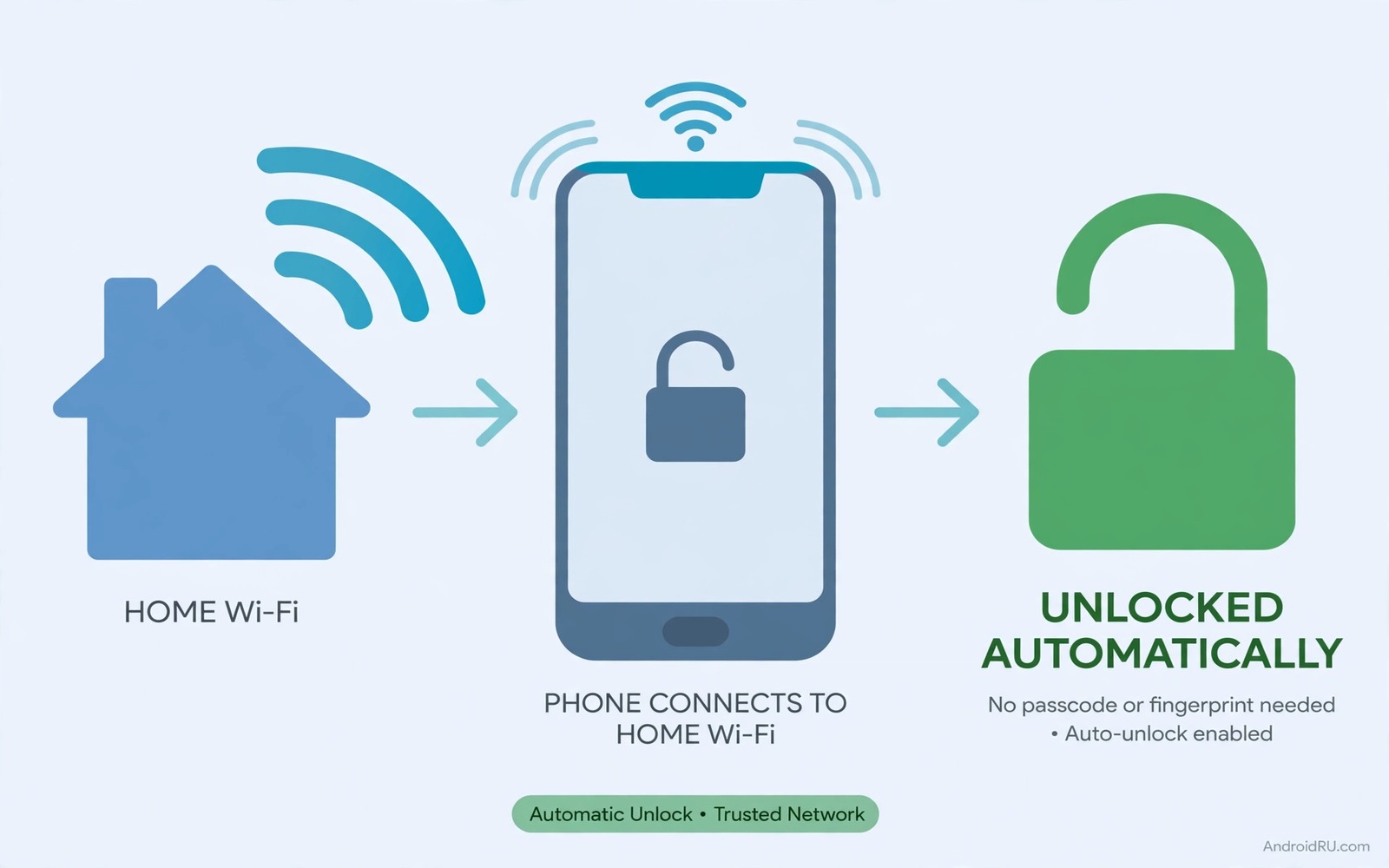
Stop Typing Passwords: Auto Unlock Device When Connected Home Wi-Fi
I type my PIN about eighty times a day. That is not a guess. I counted once, on a normal Tuesday, and the number embarrassed me. Most of those unlocks happened at home, on my own sofa, with nobody else in the room. My phone was asking me to prove who I was to an empty living room, and I was doing it out of habit rather than need. That is the exact problem Android’s auto unlock features were built to solve. When your phone knows it is at home, connected to your own Wi-Fi, it can stay open for you and still lock itself the moment you leave.
This guide walks through the whole setup on a modern Android phone. You will learn the difference between Smart Lock and Extend Unlock, how trusted places, trusted devices, and trusted networks each work, and how to test every rule so it actually holds up on a real day. You will also get the honest side of the trade-off, because a phone that opens without a PIN is only a good idea when you understand who else could pick it up.
Everything here uses settings that already exist on your phone. No extra app is required for the core setup, no root access, and no paid tool. If your phone runs Android 13 or newer, the feature is probably called Extend Unlock. On older phones it is called Smart Lock. The names changed, the idea did not.
What Smart Lock and Extend Unlock Actually Do on Android
Smart Lock was Google’s original name for a simple idea: your lock screen should relax when the situation is safe and tighten up when it is not. Instead of asking for a PIN every single time, the phone checks a set of conditions you define. Are you at home? Is your smartwatch connected? Is the phone in your pocket while you are walking? If one of those conditions is true, the phone stays unlocked, and a swipe is all it takes to get in. The moment the condition disappears, the normal lock returns.
Google renamed the feature Extend Unlock in newer Android versions, starting around Android 14 on Pixel phones and spreading to other brands through their own updates. Samsung phones show it under a slightly different path, and some brands still label it Smart Lock. The rename caused real confusion, because people searched for Smart Lock, could not find it, and assumed the feature had been removed. It had not. It had only been given a new label and a cleaner settings page.
How Extend Unlock replaced Smart Lock on newer phones
On a Pixel running Android 14 or 15, you will find the feature at Settings, then Security and privacy, then More security and privacy, then Extend Unlock. On a Samsung phone running One UI 6 or later, the path is usually Settings, then Lock screen and AOD, then Extend Unlock, or Settings, then Security and privacy, then More security settings. On other brands the label may still read Smart Lock under Settings, then Security, then Smart Lock. The menu names move between brands, but the three rule types are the same everywhere: trusted places, trusted devices, and on-body detection. If you open the page and see those three options, you are in the right place, whatever the heading says.
One thing worth knowing before you touch anything: Extend Unlock never removes your PIN, pattern, or fingerprint. It only postpones the moment your phone asks for them. Your primary lock stays in place as the fallback, and the phone will still demand it after a restart, after four hours of continuous unlocked time, or whenever the rules stop applying. That design matters, because it means you are adding a convenience layer on top of real security, not replacing security with convenience.
What “unlocked” really means when a rule is active
When a rule is active, your phone does not sit wide open on a table showing your messages to the room. The screen still sleeps, and the lock screen still appears when you wake it. The difference is that a swipe, rather than a PIN or fingerprint, opens it. Notifications still show on the lock screen according to your notification settings, and apps that need a fingerprint, like your banking app, still ask for one. Extend Unlock changes the front door of the phone, not the locks on the individual rooms inside it.
That distinction answers the worry most people have first. A phone that stays unlocked at home is not the same as a phone with no lock at all. Your banking app, your password manager, and any app you have locked separately still demand their own check. What disappears is the repeated PIN at the front door, forty or fifty times a day, in a place where the risk is already low. The trade-off is real, but it is narrower than it first sounds.
Trusted Places: Auto Unlock at Home Without Typing Your PIN
A trusted place is a location where your phone decides the lock screen can relax. Your home is the obvious one. You add the address, the phone draws a circle around it, and whenever your location sits inside that circle, the phone stays unlocked. The circle is generous, roughly a hundred metres or more across, because GPS indoors is never precise, and a tight circle would drop in and out as the signal wandered around your house.
The generous circle is both the strength and the weakness of this rule. It means the feature works from your garden and your driveway, not just from the exact spot where you set it. It also means a neighbour a few doors down may sit inside the same circle, so the rule is best used where your home is the only building inside that radius, or where you are comfortable with the small extra reach. If you live in a dense block of flats, keep reading, because the Wi-Fi rule below is a better fit for you than the location rule.
How to add your home as a trusted place
Open Settings, then Security and privacy, then More security and privacy, then Extend Unlock, and enter your PIN when asked. Tap Trusted places, then Add trusted place. A map appears, and you can search for your home address or drop the pin by hand. Check that the pin sits on your house and not on the road outside it, then save. The phone may ask for location permission set to allow all the time, because it needs to check your position in the background, even when the screen is off. Without that permission, the rule silently stops working, and that is the single most common reason people think trusted places are broken.
After saving, walk to the far end of your home, lock the phone, wait ten seconds, and wake it. A swipe should open it. Then step outside your front gate, lock the phone, wait a minute, and wake it again. This time the PIN should be back. If both checks behave as described, the rule is working. If the phone stays locked inside the house, the pin is probably in the wrong spot, or the location permission is set to only while using the app.
Getting the location pin exactly right
Drop the pin on the centre of your home, not on the edge nearest the street. The circle extends outward from the pin, so a pin on the front wall pushes half the circle out into the road, while a pin in the middle of the house keeps the coverage where you actually live. If your house is long, favour the end where you spend the most time. You can also add a second trusted place, such as a parent’s house or a partner’s flat, by repeating the same steps, and each place gets its own circle.
Why trusted places sometimes fail at the front door
The most common failure is simple: your phone thinks you are standing twenty metres away from where you actually are. GPS indoors drifts, especially in concrete buildings and basements, and the phone may briefly place you outside the circle while you are sitting in your kitchen. When that happens, the lock returns without warning, and you type the PIN once, and a minute later the phone realises where it is and relaxes again. The fix is rarely a setting. It is usually a matter of leaving Wi-Fi and location services on, because the phone blends Wi-Fi signals with GPS to pin down your position more accurately indoors. Turning either off makes the circle less reliable, which is why the Wi-Fi rule in the next sections pairs so well with the place rule.
Trusted Devices: Auto Unlock With Your Watch, Car, or Headphones
A trusted device is a Bluetooth gadget that tells your phone you are nearby. The classic example is a smartwatch. When the watch is connected, the phone stays unlocked, because the watch is on your wrist and your wrist is attached to you. The same logic works for a car’s Bluetooth system and for a pair of wireless headphones, though headphones are a weaker signal than a watch, since they spend half their life sitting on a desk.
I tested this with a smartwatch for three days before I trusted it. The result was smooth in the way good automation should be: the phone opened with a swipe whenever the watch was on my wrist, and locked itself within a minute of the watch going out of range or switching off. The only awkward moment came when I left the watch charging on the bedside table and walked to the kitchen with the phone. The watch was still connected through the wall, so the phone stayed unlocked in a room where I was not. That taught me the rule to follow: pick a trusted device that moves with your body, not one that sits on a charger.
Which devices work best as trusted devices
Smartwatches are the best choice, because they are worn, they stay charged for a day or more, and they disconnect quickly when you walk away. Fitness bands work the same way. A car’s Bluetooth system is a good second choice, because it only connects when you are sitting in the car, which is exactly when you want the phone open for navigation and music. Headphones are the weakest of the three, and I would only use them as a trusted device if they are the only option you own, because they stay connected from across a room and from inside a bag. If you use headphones as a hands-free companion anyway, this guide on auto answer for handsfree calls with headphones pairs naturally with the same setup, since both ideas are about the phone getting out of your way when your hands are busy.
What happens when the trusted device disconnects
The moment the Bluetooth connection drops, the phone does not lock instantly. It waits a short grace period, usually a minute or two, in case the connection flickers. After that, the next time the screen wakes, the PIN is back. That grace period is a kindness on a walk, when a watch briefly loses connection through a wall, but it is also a window to remember. If you lose your watch, or someone takes your phone while the watch is still in range, the phone stays open for that short window. Keep the window in mind, and do not rely on a trusted device as your only layer when you are out in a crowd.
Trusted Wi-Fi and Home Network Unlock: How It Works in Practice
Here is the catch that surprises most people: Android does not ship a built-in rule called trusted Wi-Fi. There is no official toggle that says stay unlocked while connected to my home network. The title of this guide promises auto unlock when connected to home Wi-Fi, and the honest way to deliver that promise is to combine the rules Android does provide, because trusted places plus your home Wi-Fi give you almost exactly the same result. Your phone already uses your home Wi-Fi signal to sharpen its location, so the place rule works best when Wi-Fi is on, and the place rule stops working well when Wi-Fi is off.
That said, there is a second route. Some phone makers add their own version of the feature. Samsung’s Routines, for example, can change settings based on your Wi-Fi connection, and automation apps can watch for your home network and adjust the lock behaviour. The cleanest version of this idea uses a routine that turns Wi-Fi off when you leave home, which also tightens the place rule, because the phone notices the change. A practical example is a macro that turns off Wi-Fi when leaving home, and the same logic works in reverse: when the phone rejoins your home network, the conditions for staying unlocked are all met at once.
If you want the phone to react directly to the Wi-Fi name itself, rather than to the location, an automation app is the way to do it. The well-known options are MacroDroid, Automate, and Tasker, and the trade-off between them is real: Tasker can do almost anything, but it asks for patience, while the simpler apps cover this exact job with a fraction of the setup. If that sounds like your kind of shortcut, this roundup of automation apps that are easier than complex Tasker is a good place to compare them, because the app you pick decides whether the Wi-Fi rule takes five minutes to build or an evening of fiddling.
In practice, my recommendation is to start with the built-in place rule and keep Wi-Fi on at home. That combination delivers the experience the title promises, with no extra app and no extra battery drain, and it works on every Android phone. Add an automation app only if you live in a flat where the location circle reaches too far, or if you want the phone to react to the network name itself. Start simple, test it for a week, and only add complexity when the simple version proves it needs help.
How to Set Up Auto Unlock on Your Phone Step by Step
Follow these steps in order. Each one takes less than a minute, and the checks at the end of each step tell you whether to move on or fix something first.
- Set a strong primary lock first. Open Settings, then Security and privacy, then Screen lock, and choose a PIN of at least six digits. Extend Unlock will not work without a primary lock, and a four-digit PIN is far easier to guess over your shoulder. Check: the phone asks for the new PIN once before it saves it.
- Add your fingerprint if your phone has a sensor. Go to Settings, then Security and privacy, then Fingerprint unlock, and register the same thumb twice, once straight and once at an angle. Check: the phone opens with that finger three times in a row from the lock screen.
- Turn on location services. Open Settings, then Location, and switch Use location on. Check: open a maps app and confirm the blue dot sits on your house, not a street away.
- Connect to your home Wi-Fi and make sure the phone remembers it. Open Settings, then Network and internet, then Internet, and confirm your network name shows as connected. Check: switch mobile data off for a minute and confirm a web page still loads, which proves the Wi-Fi connection is carrying the traffic.
- Open the Extend Unlock page. Go to Settings, then Security and privacy, then More security and privacy, then Extend Unlock. If your phone still calls it Smart Lock, use Settings, then Security, then Smart Lock instead. Enter your PIN. Check: you can see the three rule types, trusted places, trusted devices, and on-body detection.
- Add your home as a trusted place. Tap Trusted places, then Add trusted place, and drop the pin in the middle of your house. Grant location permission set to allow all the time when the phone asks. Check: your home address appears in the trusted places list with the pin where you put it.
- Add your smartwatch as a trusted device if you wear one. Tap Trusted devices, then Add trusted device, and pick the watch from the list of paired Bluetooth devices. Check: the watch name appears in the trusted devices list, and the phone stays unlocked while the watch is connected.
- Decide about on-body detection. This rule keeps the phone unlocked while it senses movement in your pocket, and it is the least precise of the three, because it cannot tell whose pocket the phone is in. For most people at home, I would leave it off. Check: if you turn it on, walk around the house for two minutes and confirm the phone stays unlocked, then set it down for one minute and confirm the lock returns.
Before you start: the two settings that must be on first
Two settings quietly decide whether any of this works, and both are easy to miss. The first is location permission set to allow all the time, which the place rule needs to check your position while the screen is off. The second is a battery setting: some phones put location services or the security service to sleep to save power, and an app or service that has been put to sleep cannot check where you are. Open Settings, then Battery, then Battery optimisation, find the system services tied to location, and make sure they are not optimised into silence. If your rules stop working after a phone update, this battery setting is the first place to look, because updates sometimes reset it.
How to Test Each Rule So It Works Every Time You Walk In
Setting up the rules takes ten minutes. Trusting them takes a week of small tests, and that week is worth doing properly, because a rule that works nine times out of ten is a rule you stop relying on. Run these tests in order, one rule at a time, so that when something fails you know exactly which rule failed.
- Test the place rule alone. Turn off Bluetooth so the watch cannot interfere, then lock the phone in your living room, wait ten seconds, and wake it. A swipe should open it. Then walk outside your front gate, lock the phone, wait one minute, and wake it. The PIN should be back. If the phone stays unlocked outside, your pin is too close to the street, or the circle is wider than you expected, so move the pin toward the centre of the house.
- Test the device rule alone. Remove the trusted place temporarily, then connect your watch, lock the phone, and wake it. A swipe should open it. Then switch the watch off, wait two minutes, and wake the phone again. The PIN should be back. If the phone stays unlocked after the watch is off, the grace period is still running, so wait one more minute and test again.
- Test the walk-in moment. This is the one that matters most in daily life. Leave the house with the phone, walk around the block until the PIN returns, then walk back through the front door and wait thirty seconds. Wake the phone. A swipe should open it without you touching a single setting. If it does not, your location services may be sleeping, or your Wi-Fi may be off, and the phone cannot confirm it is home yet.
- Test the four-hour limit. Android forces a PIN after four hours of continuous unlocked time, even at home. You do not need to sit and watch a clock. Just notice the first morning after a long evening at home: the phone will ask for the PIN once, and after that the rules take over again. That single morning PIN is normal, and it is not a sign that anything broke.
- Test after a restart. Restart the phone and wake it. The PIN is required, and the rules do nothing until you enter it once. That is by design, and it is the most important safety behaviour in the whole feature. After that first unlock, the rules resume, and the phone behaves as before.
Keep a small note of what you tested and what happened. I know that sounds fussy, but when a rule stops working three weeks from now, after an update or a settings change, that note tells you whether the place rule or the device rule is the one that changed. Without it, you will be guessing, and guessing is how people end up deleting all their rules and starting again from scratch.
The Risks of Auto Unlock and How to Keep Them Small
Every convenience feature trades a little security for a little comfort, and Extend Unlock is no exception. The risk is not that a stranger on the internet can reach your phone. The risk is physical and local: someone who picks up your phone inside your home, or within range of your trusted device, finds it open. At home, that someone is usually a child, a guest, or a flatmate, and the question is whether you are comfortable with them swiping into your phone. For most people, in their own house, the answer is yes, but it is worth asking the question out loud rather than assuming it.
The risk grows in two situations. The first is a shared home with people you would not hand your unlocked phone to, such as a short-term rental guest or a large shared house where the front door is often open. The second is a stolen phone: if a thief takes your phone while you are at home and runs, the phone stays unlocked until it leaves the trusted place or loses the trusted device, which gives the thief a window of a few minutes. That window is short, and the phone locks itself as soon as it travels far enough, but it is not zero. The mitigation is the same in both cases: use the place rule only where you genuinely control who walks in, and use a trusted device that leaves with you, such as a watch, so the phone locks the moment the thief gets away from you.
Who can pick up your phone at home
Think about the real people in your house. Children are the most common surprise, because a child who picks up a parent’s phone can open apps, send messages, and make purchases before anyone notices. If you have small children, turn on a separate app lock for your banking app, your email, and your shopping apps, so the front door can stay relaxed while the important rooms stay locked. Guests are the second group, and the honest fix is simple: when guests arrive, lock the phone with the power button and do not leave it on the coffee table. A phone that is asleep and face down is a phone nobody picks up by accident.
What to do the moment your phone goes missing
If your phone disappears, open Find My Device from any browser or another Android phone, sign in with your Google account, and lock the device remotely. Remote locking overrides every Extend Unlock rule at once, and the phone will demand your Google account password before it opens again. Do this within minutes, not hours, because the place rule gives a thief a short window while the phone is still near your home. After the phone is locked remotely, you can also play a sound to find it in the house, or erase it if you are sure it is gone for good. Write down the Find My Device web address now, before you need it, because searching for it in a panic is exactly when you will mistype it.
Smart Lock vs Extend Unlock vs Other Ways to Skip the Lock Screen
There is more than one way to open your phone faster, and they are not equal. The table below compares the main options, so you can see where Extend Unlock sits and when a different approach is the better call.
| Method | How it opens the phone | Works at home | Main risk | Best for |
|---|---|---|---|---|
| Extend Unlock trusted place | Stays unlocked inside a location circle | Yes, hands-free | Circle reaches beyond the house | Houses with a private garden |
| Extend Unlock trusted device | Stays unlocked while a watch or car is connected | Yes, while the device is near | Stays open if the device is left behind | Smartwatch owners |
| On-body detection | Stays unlocked while movement is sensed | Yes, while carried | Cannot tell whose pocket it is in | People who walk a lot at home |
| Fingerprint unlock | One touch on the sensor | Yes, fast | Wet or dirty fingers fail | Everyone, as the daily default |
| Face unlock | Looks at your face | Yes, very fast | Can be less secure on some phones | Hands-free moments |
| Automation app Wi-Fi rule | Reacts to the home network name | Yes, precise to the network | Needs an extra app and setup | Flats where GPS circles are too wide |
| No lock at all | Swipes open anywhere | Yes, everywhere | No protection if lost or stolen | Nobody, in my view |
Reading the table as a whole, the pattern is clear. Extend Unlock wins on convenience at home, fingerprint wins on speed everywhere else, and no lock at all loses on every measure that matters. The sensible setup is a combination: a fingerprint for the daily default, a trusted place for the sofa, and a trusted device for the car. Each method covers the weakness of the others, and none of them asks you to give up the primary PIN that guards the phone when everything else fails.
Troubleshooting: When Auto Unlock Stops Working
Most failures have one of four causes, and they are all fixable in under five minutes. Work through them in order, and test after each one, so you know which fix did the job.
The rule worked yesterday and stopped today
A phone update is the usual suspect. Updates sometimes reset battery optimisation, location permission, or the Extend Unlock toggle itself. Open the Extend Unlock page and confirm your rules are still listed and still switched on. Then check Settings, then Location, and confirm the permission for the security service is still set to allow all the time. If both look right, remove the trusted place and add it again, because a saved place can go stale when the maps data behind it changes. I have done this twice in two years, and both times the fresh place worked immediately.
Your phone asks for a PIN after four hours
This is the four-hour re-authentication rule, and it is not a fault. Android requires a PIN, pattern, or fingerprint at least once every four hours, even when a trusted place or device is active. The rule exists so that a phone left unlocked on a table all day cannot stay open forever. You will notice it most on quiet days at home, when the phone sits unlocked for hours without a single PIN. Type the PIN once, and the rules take over again for the next four hours. Nothing is broken, and there is no setting that turns this off, because it is a deliberate safety limit.
Your phone locks the moment you walk between rooms
This is usually a location problem, not a lock problem. The phone is losing its sense of where it is, and each time it drifts outside the circle, the lock returns. Leave Wi-Fi on, leave location services on, and make sure your home network is saved and connected, because the phone uses nearby Wi-Fi networks to sharpen its position indoors. If the problem only happens in one room, such as a basement, the signal in that room is probably too weak for a reliable fix, and a trusted device rule will cover that room better than a place rule.
Frequently Asked Questions About Auto Unlock on Home Wi-Fi
Does auto unlock on home Wi-Fi work without mobile data?
Yes. The place rule uses GPS and nearby Wi-Fi signals to work out where the phone is, and it does not need mobile data to do that. Your home Wi-Fi connection itself is enough, and the phone does not need to send anything over the internet to decide it is at home. That said, the first time you add a trusted place, the phone does need a data connection to load the map and save the address, so do the setup while you are connected, and the daily use will work fine afterwards, even if your mobile data is off.
Can someone else’s phone use my home Wi-Fi to stay unlocked?
No. A trusted place or trusted device rule lives on your phone, not on your router. Someone else connecting to your Wi-Fi changes nothing on their phone, because they have not set up the rule, and it changes nothing on your phone either, because your rule is tied to your location and your devices. The Wi-Fi network is only a signal your phone uses to sharpen its position. It is not a key, and sharing the Wi-Fi password does not share your unlock rules with anyone.
Will Extend Unlock drain my battery?
Only slightly. The place rule checks your location in the background, and the device rule keeps a Bluetooth connection alive, but both of those things are already running on most phones for other reasons. In my own use, turning the rules on made no difference I could measure from one day to the next, and the battery screen showed no new entry worth worrying about. If you do see unusual drain, check whether a battery optimisation setting has been reset, or whether a third-party automation app is polling your location every few seconds, because that kind of polling drains far more than the built-in rules ever will.
Is it safe to use trusted places if I live in a flat?
It can be, with care. The location circle is wide, and in a block of flats it may cover your neighbours’ homes as well as yours. If that bothers you, use the trusted device rule instead, or pair the place rule with a Wi-Fi automation that reacts to your own network name. You can also shrink the risk by adding a separate app lock for banking and email, so the front door can stay relaxed while the sensitive apps demand a fingerprint. The honest answer is that flats are the one home where the place rule is weakest, and the Wi-Fi based approach is the better tool for that exact situation.
What happens to Extend Unlock if I change my PIN?
Changing your PIN does not delete your rules, but the phone will ask you to confirm the new PIN the first time you open the Extend Unlock page afterwards. Your trusted places and devices stay saved, and they start working again as soon as you confirm. If you change your Google account password, or remove your Google account from the phone, some rules may need to be set up again, because the feature is tied to the account that configured it. After any account change, open the page and check that your rules are still listed before you assume they are still active.
Typing your PIN eighty times a day is a tax on your attention, and it is a tax you do not have to keep paying at home. Set up a trusted place, add your watch if you wear one, keep your Wi-Fi on, and test the rules the way this guide describes. Then give it a week. If the phone opens with a swipe on your sofa and asks for a PIN the moment you step outside, the setup is doing its job, and the only thing left to do is enjoy the small daily win of a phone that knows when it is home.

