

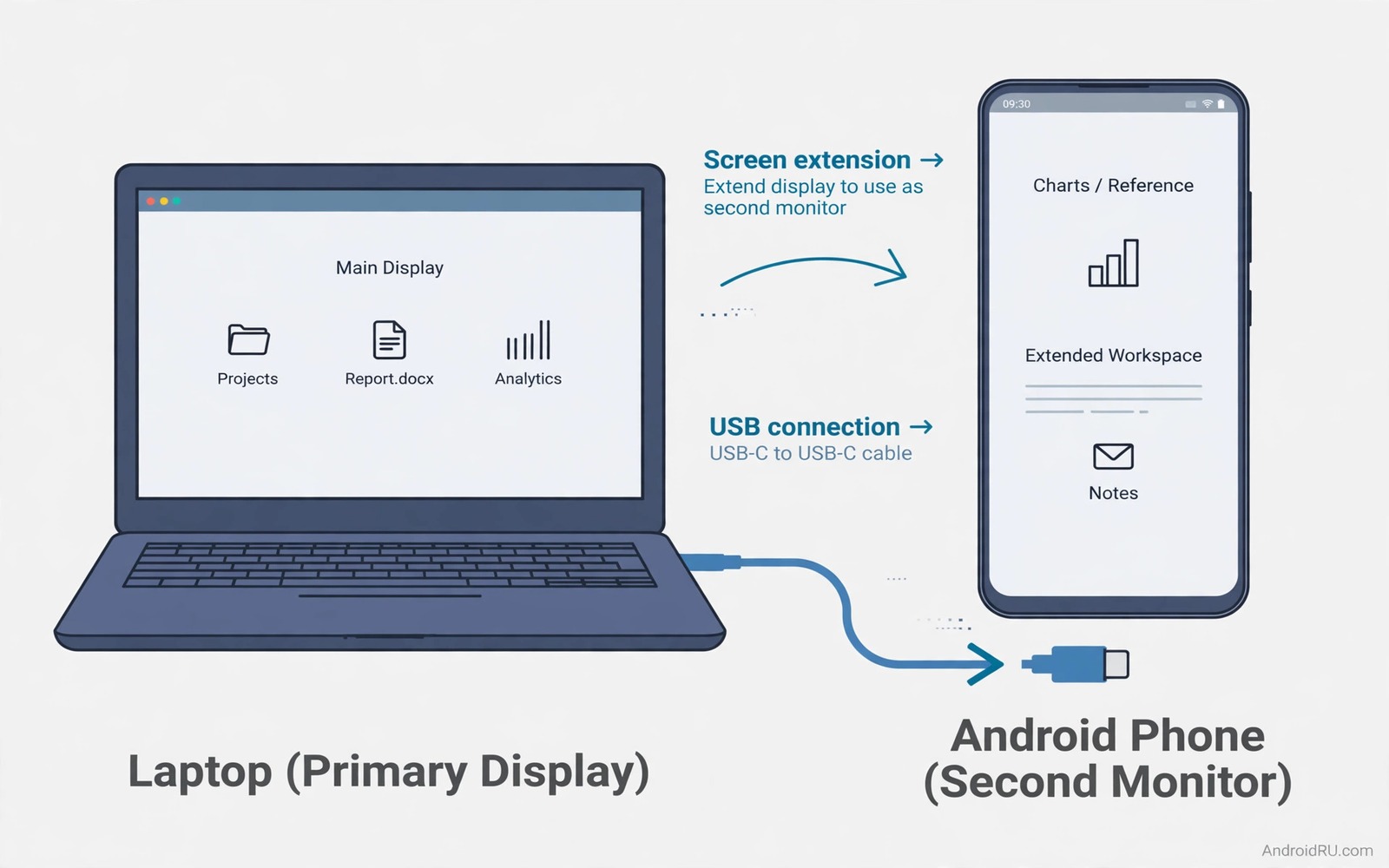
A phone screen is small for a long document or a spreadsheet or a photo edit. A second screen can change that work but a second monitor costs money and desk space. Your phone can act as that second screen through a USB link to a computer. The phone shows a window from the computer and you can drag notes or chat or a reference page onto it. The setup is useful for travel because the phone is already in your bag and it needs no extra power brick for a short session.
USB display mode works in two broad ways. One way mirrors the computer screen onto the phone and the other way extends the desktop so the phone holds its own window. Extension is more useful for real work because you can keep the main task on the computer and keep a reference on the phone. Mirroring is useful for a quick demo or for showing a slide to a small group. Check which mode your chosen tool offers before you buy or install anything.
A phone as a display pairs well with other ways to reuse a phone as a computer tool. A phone can also act as an input device or a media bridge when the main computer needs a hand. turn a smartphone into a full wireless trackpad shows one such reuse and it uses the same idea of letting a small device serve a larger screen. Start with one reuse at a time so each tool stays stable.
Check What Your Phone And Computer Support
First check the USB port on your phone and on your computer. A USB data cable is required because a charge only cable cannot carry video data. A USB C port usually works best but an older USB port can still work with the right adapter and software. Check the computer operating system as well because display tools differ between systems. A tool that works on one system may not work on another system without a different driver.
Next check the phone display settings for a wired display or a desktop mode option. Some phones offer a desktop mode when connected to a screen and that mode can improve the layout on a larger display. A phone used as a second screen is the reverse case so the computer side drives the layout. Still worth checking both sides because a phone setting can block a USB video link or can force a mirror mode when you wanted an extended mode.
Set Up Extension Step By Step
Install a USB display tool on the computer and install its companion app on the phone if the tool needs one. Connect the phone with a data cable and grant the USB permission that appears on the phone. Open the display settings on the computer and look for the new display that represents the phone. Choose Extend these displays if the option appears and drag the phone display to the side that matches its real position on your desk. That drag step matters because a wrong position makes mouse movement feel strange.
Set the phone display to a readable scale and a comfortable brightness. A tiny phone screen with a full desktop scale can make text hard to read. Increase the scale or lower the resolution for that display until text looks clear. Test the setup with a notes window and a chat window on the phone display. If text stays sharp and the mouse moves smoothly across the edge then the layout is ready for real work.
A Developer Check For Display Output
The command below is a simple developer check for connected displays on an Android device. It lists display information and it can help a developer confirm that a display link is active. It does not set up a USB display on its own and it does not replace the display tool that you installed. Use it as a diagnostic step when a link fails to appear in computer settings.
adb shell dumpsys display | grep -i displayAttribution: the code above is an original example written for this guide. It follows the standard command interface shipped with the Android platform tools and it uses only public commands that work on a normal developer setup.
After the check you can compare the output with the computer display list. If the phone display appears in one list but not the other then the problem sits in the link between them rather than in the phone alone. Try a different cable and a different port and restart the display tool. A restart often clears a stale display entry and it lets the computer detect the phone display again.
Choose The Right Window For A Small Screen
A phone screen rewards simple windows with large text and few controls. A notes app and a chat app and a music control fit well on a small display. A full spreadsheet with many columns does not fit well because columns shrink and headers become hard to read. A code editor with long lines also struggles on a small screen because lines wrap in odd places. Put simple reference windows on the phone and keep complex editing on the main computer screen.
Test a window for five minutes before you trust it for a full work session. A window that looks fine at a glance can strain your eyes after a few minutes of reading. Increase the text scale for that window if the tool allows it and move the window back to the main screen if scaling fails. Eye comfort matters more than a clever layout and a window that hurts to read will slow your work rather than speed it up.
Fix Lag Flicker And Wrong Layout
Lag on a USB display usually comes from a weak cable or a high resolution or a busy computer. Lower the phone display resolution first and close heavy apps on the computer second. A lower resolution still shows notes clearly and it cuts the data load a lot. Flicker often comes from a loose cable or a low power USB port. Try a direct port on the computer rather than a hub and try a shorter cable. A stable link feels instant and a flickering link will distract you all day. Similar layout care helps when a phone drives a bigger screen and control a PC mouse and sound directly from Android uses the same idea of matching the tool to the screen size.
Wrong layout usually comes from a display position that does not match the real desk. Open display settings and drag the phone display to the correct side of the main display. Test mouse movement across the edge in both directions. If the mouse jumps to an odd place then the position is still wrong. Fix the position once and save the layout so the computer remembers it next time.
Protect Battery And Eyes During Long Sessions
A phone second screen can tempt you into long sessions with a small bright screen. Take a break every thirty minutes and look away from both screens for a short moment. Lower the phone brightness to a comfortable level rather than a maximum level. A comfortable brightness reduces eye strain and it also reduces battery drain during a USB session. A screen that feels bright in a dark room often feels harsh after an hour.
Keep the phone charging during a long session but watch for heat. A phone that grows hot while charging and driving a display needs a break. Unplug the display link and let the phone cool on a hard surface. Heat over time can age a battery faster than normal use. A short cooling break protects the battery and it also protects the display link from a sudden shutdown.
Set a clear end time for a second screen session. A phone display is a helper for a task and it should not become a permanent tiny monitor. When the task ends disconnect the phone and return it to normal use. That habit keeps the phone charged and ready for calls and messages. It also keeps your desk clear for the next task that needs full attention.
Common Mistakes
One common mistake is to use a charge only cable and then blame the software. Always test with a known data cable first. Another mistake is to set the phone display as the main display. That choice can move your taskbar and your main windows onto a tiny screen and it can confuse the whole desktop. Keep the computer screen as the main display and use the phone only for reference windows. A third mistake is to run a high resolution on a small phone screen. Text becomes tiny and eye strain grows fast. Lower the scale until reading feels easy. Good display habits also matter for other phone roles and mirror an Android screen to any TV instantly covers a larger screen case with similar layout lessons.
A further mistake is to leave the phone display on for hours on battery power. A USB link can drain a phone faster than normal use because the screen stays lit and data flows all the time. Keep the phone charging during a long session or limit the second screen to short tasks. A short session still helps a lot and it keeps the phone ready for calls after work.
Frequently Asked Questions
Does every Android phone work as a USB display?
No. Support depends on the phone hardware and the display tool that you choose. Check the tool requirements before you install it and test with a trial if one exists. A phone with a modern USB C port has the best chance.
Is a USB display fast enough for video work?
It works well for notes and chat and reference pages. It can lag for fast video or games because USB carries less video bandwidth than a direct monitor link. Keep fast motion on the main computer screen.
Can I use the phone touch screen to control the computer window?
Some tools support touch input on the phone display and some tools show only a picture. Check the tool description for touch support before you rely on it. A mouse on the computer remains the safest control method.
Conclusion
Connect your phone by USB today and set it as an extended display for one work session. Put a notes window on the phone and keep your main task on the computer. Test the mouse edge and the text scale and adjust them until the layout feels natural. That one session will tell you whether a phone second screen earns a place on your desk.
After the session write down which window worked best on the small screen and which window felt cramped. Keep the best window on the phone for the next session and move the cramped window back to the main screen. That short note turns a fun test into a repeatable desk layout that you can set up in minutes.
Repeat the test once with a different cable and a different USB port if the first session felt unstable. A cable or port change often fixes a flicker that software settings cannot fix. Once the link feels stable you can trust the layout for longer work sessions.

