

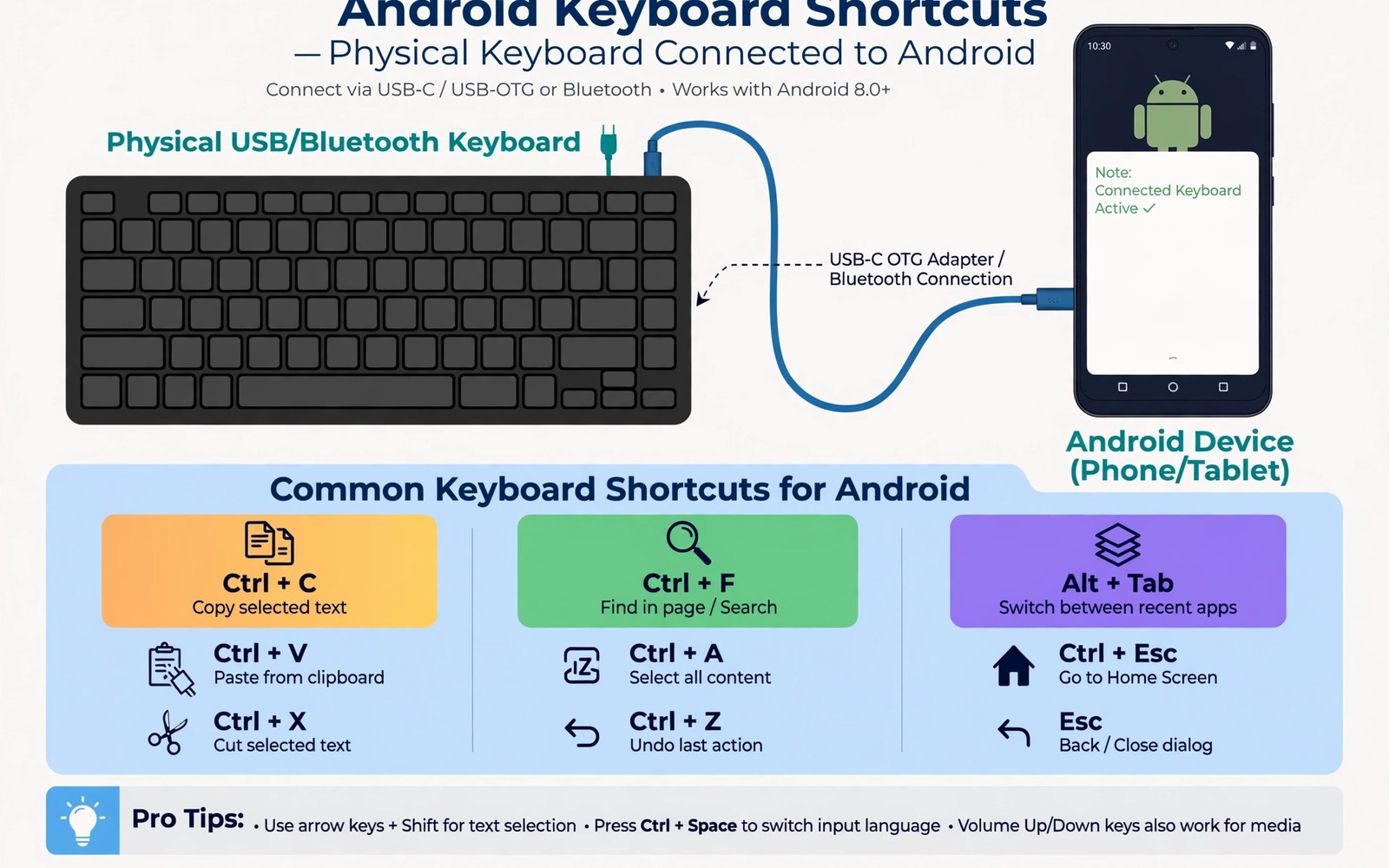
A physical keyboard turns an Android device into a faster workstation for writing and navigation. Shortcuts replace long taps through menus and let you switch apps and select text with precision. A keyboard also helps owners who struggle with touch targets or with on screen typing.
Android supports standard shortcuts for home and back and app switching and text editing. Many apps add their own shortcuts for search and formatting and navigation. Learning a small core set first gives most of the speed benefit without memorising a huge list.
This guide covers connecting a keyboard and learning the core shortcuts and customising the setup. You will practice shortcuts in stages so muscle memory builds naturally. A keyboard that feels awkward at first can become the fastest way to control a phone within a week.
Connect a keyboard by Bluetooth or USB
Open Bluetooth settings and put the keyboard into pairing mode. Select the keyboard name when it appears and confirm any pairing code shown on screen. A successful pair should let you type in any text field at once.
A USB keyboard works through an adapter on phones that support USB host mode. Connect the adapter and the keyboard and wait for the phone to recognise the input device. A wired keyboard avoids battery worries and pairing delays.
Test the connection in a notes app by typing a short sentence and using the arrow keys. Arrow keys should move the cursor and the backspace key should delete text. A keyboard that types yet ignores arrows may need a different layout setting.
Learn the core navigation shortcuts
The home shortcut returns you to the home screen from any app without a swipe. The back shortcut moves you back one step inside an app or closes a dialog. The recent apps shortcut opens the overview so you can switch to another app fast.
Alt and Tab together cycle through recent apps in a familiar way for desktop users. Hold Alt and tap Tab to move through the list without lifting your hands. Release both keys on the app you want to open.
Use arrow keys with a modifier to move by word rather than by character when you edit text. That movement speeds up corrections in long messages and documents. Practice word movement in a notes app until it feels natural.
Master text editing shortcuts
Copy and paste shortcuts work across most Android apps when a keyboard is connected. Select text with Shift and arrow keys and then copy the selection. Paste the text into another field with the paste shortcut and check the result.
Undo and redo shortcuts rescue a mistake without reaching for an on screen menu. A single undo step can restore deleted text in many editors. Learn undo early because it gives you confidence to edit faster.
Readers who want to cut typing time further will like text expansion hacks for long emails because shortcuts and expansion together remove repetitive typing. A shortcut moves you fast and expansion fills text fast. Both skills reward a small amount of practice.
Customise shortcuts for your workflow
Some launchers and automation apps let you map a key combination to an action. Map a shortcut to your most used app or to a frequent action such as opening search. A personal shortcut saves more time than a generic shortcut you rarely use.
Keep custom mappings simple and avoid overriding core system shortcuts. A custom shortcut that blocks copy or paste will cause frustration in every app. Test a new mapping in several apps before you rely on it daily.
Write your custom shortcuts in a short note inside the phone. A note prevents forgotten mappings after a break from keyboard use. Update the note whenever you change a mapping so the list stays accurate.
Use the keyboard as a trackpad alternative
Arrow keys and Tab can navigate many interfaces without touching the screen. Tab moves focus between buttons and fields in forms and settings. Enter activates the focused button in most dialogs.
A keyboard can also control media playback in some apps with dedicated media keys. Play and pause and volume keys work when the app supports them. Those keys help during workouts or while driving with the phone mounted safely.
A phone with a keyboard pairs well with how to turn a smartphone into a wireless trackpad for a complete desk setup. A keyboard handles typing and shortcuts while a trackpad phone handles pointer control. Together they turn a tablet or a TV setup into a workstation.
A small code check for keyboard layout
A quick command can show the current keyboard layout on a phone with debugging enabled. Connect the phone and run the command below once to view input method settings. The output helps you confirm the layout after a change.
adb shell settings get secure default_input_method
adb shell ime list
The snippet above was written for this article to show a safe read only way to review keyboard settings. It leaves keyboard settings unchanged while it lists input methods. You can run it again after pairing a new keyboard to confirm the layout. Keep a note of the output when you switch between keyboards.
Use shortcuts in browsers and documents
A browser shortcut can open a new tab and focus the address bar in one action. That shortcut speeds up research without touching the screen. Practice the shortcut in a browser until it feels automatic.
A document shortcut can apply bold or italic formatting without opening a menu. Formatting shortcuts save time during long writing sessions. A document that needs frequent formatting benefits most from shortcut mastery.
Learn find shortcuts to jump to a word inside a long page or document. A find shortcut replaces scrolling through pages of text. That jump saves minutes during research and editing.
Navigate settings faster with a keyboard
Settings search accepts keyboard input directly when a keyboard is connected. Type a setting name and press enter to open it without tapping through menus. That search method beats browsing nested settings lists.
Tab navigation in settings forms moves focus between toggles and fields. A Tab press followed by space can toggle a switch without a tap. That method helps owners who prefer keyboard control for accessibility.
Use arrow keys to adjust sliders in settings when the slider has focus. Arrow keys give fine control over brightness and volume sliders. Fine control beats a coarse finger drag on a small slider.
Build a keyboard practice routine
A ten minute daily practice session builds shortcut memory faster than occasional use. Practice one new shortcut each day alongside the core set. A daily habit turns a list of shortcuts into muscle memory within weeks.
Create a cheat sheet note with your five most used shortcuts and keep it on the phone. A cheat sheet helps during the first weeks when memory is fragile. Remove a shortcut from the sheet once it feels automatic.
Teach a shortcut to a colleague or a friend to reinforce your own memory. Teaching forces you to explain the shortcut clearly. That explanation deepens your own understanding and reveals gaps. Readers who want to reduce typing will also like text expansion hacks for long emails because shortcuts and expansion together cut typing time.
Use keyboard shortcuts for accessibility
Keyboard shortcuts help owners with motor difficulties who find touch targets hard to hit. A keyboard gives precise control without precise finger placement on a small screen. That precision makes a phone usable for people who struggle with touch gestures. Accessibility is a core benefit of keyboard control rather than a side effect.
Customise shortcut keys to match hand comfort rather than accepting defaults blindly. A shortcut that requires an awkward stretch can cause strain over time. Choose key combinations that feel natural for your hand size and typing style. Comfortable shortcuts get used daily while awkward ones get abandoned.
Pair a keyboard with voice control for tasks that shortcuts cannot cover easily. Voice control can open apps by name while a keyboard handles text editing. That combination covers navigation and typing with two accessible methods. A mixed method approach suits varied daily tasks.
Teach keyboard shortcuts to a family member who helps with phone setup. A helper who knows shortcuts can configure a phone faster for an owner with accessibility needs. Shared knowledge also helps when the owner needs remote guidance. A short teaching session pays off during future setup.
Common mistakes
The biggest mistake is trying to learn every shortcut at once. A huge list overwhelms memory and slows you down. Learn five core shortcuts first and add new ones only when the core set feels automatic.
Another mistake is using a keyboard layout that does not match the physical keys. A mismatched layout produces wrong characters for symbols and punctuation. Check layout settings right after pairing a new keyboard.
People also forget to charge a Bluetooth keyboard until it dies during important work. A keyboard with a low battery may drop keys or disconnect without warning. Charge the keyboard weekly as part of a simple routine.
Frequently asked questions
Can any Bluetooth keyboard work with Android?
Most standard Bluetooth keyboards work with Android for typing and basic shortcuts. Some special function keys may behave differently across apps. Test core shortcuts in your favourite apps after pairing.
Do shortcuts work in every app?
Core system shortcuts work widely yet app specific shortcuts vary by developer. A text editor may support formatting shortcuts while a game may ignore them. Check the help menu inside an app for its own shortcut list.
Can I use a keyboard and touch together?
Yes. Touch remains available while a keyboard is connected. Use touch for gestures and use the keyboard for typing and navigation. A mixed approach often beats either method alone.
Conclusion
Keyboard shortcuts give Android owners a faster and more precise way to control a device. Connection and core navigation and text editing together cover most daily tasks. Custom mappings and practice turn a basic keyboard into a personal productivity tool.
Your concrete next step is to pair a keyboard today and practice home and back and app switching shortcuts for ten minutes. Add copy and paste practice tomorrow. Readers who want hands free control will benefit from how to auto answer handsfree calls with headphones as a useful companion skill.

