

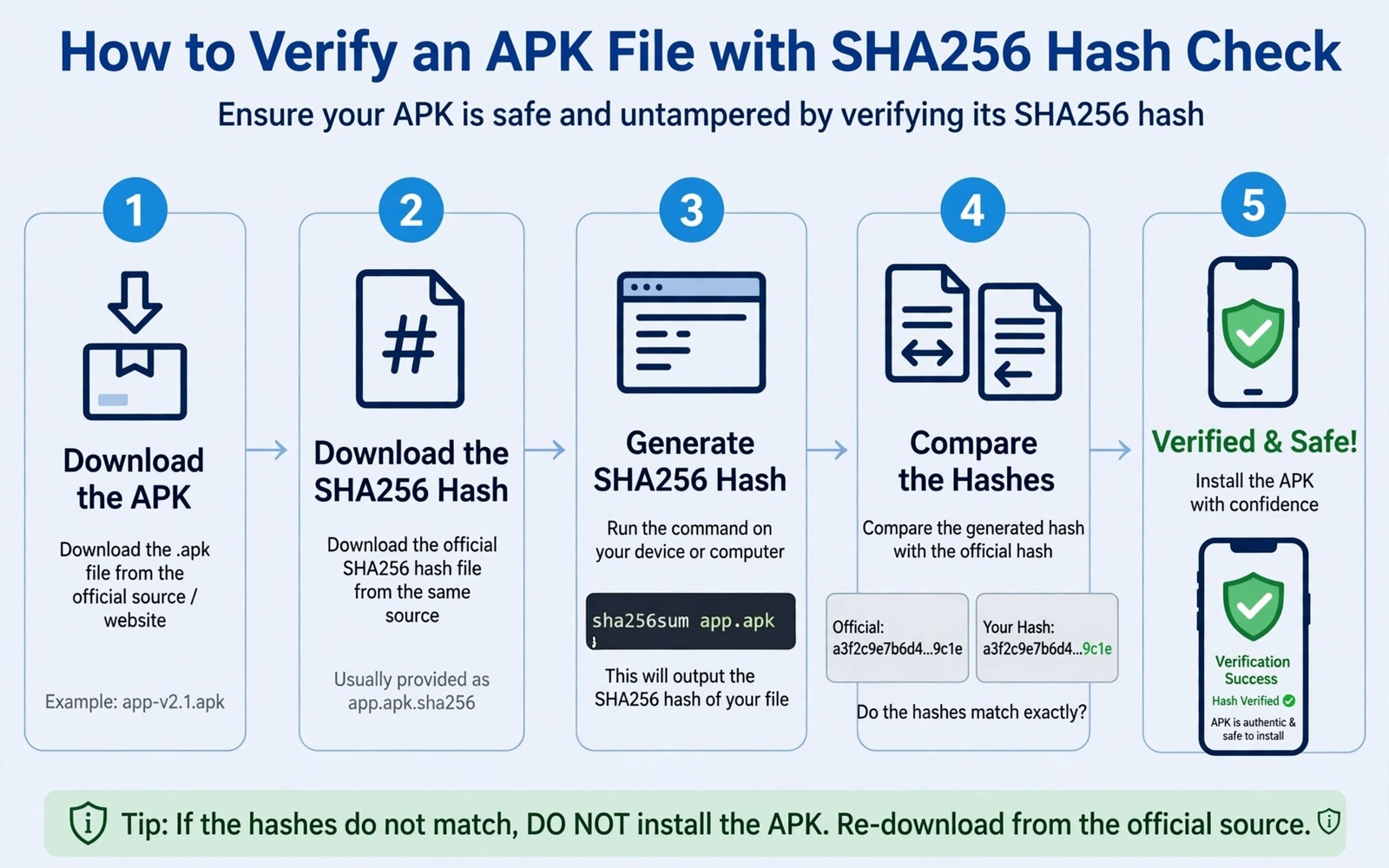
Stop Unverified APK Installs: How to Hash Verify SHA256 Packages
An APK file from outside the official store can look identical to the real app while hiding altered code inside. The icon matches. The name matches. The version number matches. Only the bytes differ, and you cannot see bytes by looking at a file name. A hash check gives you a way to prove that the file you downloaded matches the file the developer published, and without that proof you install on trust alone.
SHA256 creates a unique fingerprint for a file based on every byte inside it. A single changed byte produces a completely different fingerprint, which is why the method works even against a careful attacker. When your fingerprint matches the published fingerprint, you know the file arrived intact and unaltered. When it does not match, you know something changed, even if you cannot see what changed.
This guide shows the full verification routine using tools that already exist on most computers and phones. You will find the published hash, compute your own hash, and compare the two values with care. The routine takes a few minutes, yet it prevents a compromised install, and after you have done it twice it becomes a habit you barely notice.
What SHA256 Hash Verification Actually Proves About an APK File
A hash is a one-way fingerprint. You feed a file into the SHA256 algorithm and it returns a fixed-length string of 64 hexadecimal characters, letters a to f and digits 0 to 9. The same file always produces the same string. A different file, even one that differs by a single byte, produces a wildly different string. You cannot reverse the string to rebuild the file, and you cannot guess the file from the string alone.
That property makes SHA256 ideal for checking downloads. The developer computes the hash of the genuine file and publishes it. You compute the hash of the file you received and compare. A match means the two files are identical, byte for byte, as far as anyone can practically prove. A mismatch means they are not the same file, and the reason could be tampering, a corrupt download, a wrong version, or a file that was altered during transfer. The habit that protects you is a full 64-character comparison every single time, not a glance at the first few characters.
Keep the limits in mind from the start. A matching hash proves the file arrived intact from the source that published the hash. It does not prove that the source itself is honest, or that the app is safe to use. A malicious developer can publish a correct hash for a malicious app and the check will still pass. Hash verification is a file integrity check, not a full safety verdict, and it works best alongside source checks, permission reviews and the habits in the links below.
SHA256, MD5 and SHA1: why SHA256 is the standard to use
Older hashes such as MD5 and SHA1 still appear on some download pages, but both have known weaknesses that let attackers craft two different files with the same fingerprint. SHA256 has no such practical weakness today, and it is the value serious developers publish. If a page offers only MD5, treat that as a warning sign and look for a SHA256 value on the official page or in the release notes. If a page offers both, compare the SHA256 value and ignore the MD5 one.
What a 64-character hash looks like, and how to read it
A SHA256 hash looks like a long run of letters and digits, for example 9f86d081884c7d659a2feaa0c55ad015a3bf4f1b2b0b822cd15d6c15b0f00a08, which is the well-known SHA256 of the short text “test”. Real APK hashes are the same shape: 64 characters, no spaces, no dashes. Copy it as one block. If a published hash is shorter than 64 characters, it is probably MD5 or SHA1, not SHA256, and you should ask for the SHA256 value before you trust the comparison.
Why comparing only the first few characters is not enough
Two different files can share the first eight or even sixteen characters of a hash by chance or by design, and attackers can craft files that share a short prefix. Compare the full 64 characters every time, even when the start looks identical. A text comparison tool or a simple paste into a notes app makes the full check easy, and the extra minute is the whole point of the routine.
Where to Find the Published SHA256 Hash for an APK
A developer who cares about verification publishes a SHA256 value on an official download page, in a signed release note, or in a checksum file placed beside the download. The checksum file often has a name such as checksums.txt, SHA256SUMS or app-release.apk.sha256, and it contains one line per file with the hash followed by the file name. Copy that value exactly and keep it in a text file for comparison.
When no published hash exists, you cannot verify the file against the developer intent. In that case you must decide whether the source deserves trust based on reputation and history. A missing hash is not proof of tampering, yet it removes your best verification tool, and for a banking app, a messenger or a work tool that gap should make you pause and look for an official source that does publish hashes.
Watch for hashes that appear only inside the same download page as a suspicious file. An attacker who replaced the file can also replace the hash shown beside it. Cross-check the hash through a second channel when the app matters: the developer release notes, a signed announcement, or a checksum file hosted on a different domain. Readers who want a wider safety routine will find daily security habits that protect a smartphone useful alongside hash checks, because verification catches a tampered file while habits catch the social tricks that push you to install it.
How to spot a fake hash page before you trust it
A fake page often copies the design of the real one but hosts the file on a different domain, uses a slightly misspelled brand name, or shows a hash with no matching release note. Check the address bar, check that the version number beside the hash matches the version in the file name, and check that the date of the release note matches the date of the file. Any mismatch is a reason to stop and find the official page rather than to proceed and hope.
How to Hash Verify SHA256 on Windows Step by Step
Windows includes a built-in tool for this job, so you do not need to install anything. The steps below use PowerShell, which is present on every modern Windows computer, and they work for any APK file you have already downloaded.
- Open the folder that holds the APK file in File Explorer, then hold Shift, right-click an empty area of the folder, and choose Open PowerShell window here, or open PowerShell from the Start menu and use the cd command to move into that folder.
- Type the command
Get-FileHash .app-release.apk -Algorithm SHA256, replacing app-release.apk with your exact file name, then press Enter and wait for the result. - Read the Hash value in the output, which is a 64-character string, and copy it into a text file or a notes app beside the published hash.
- Compare the two strings character by character, from the first character to the last, and do not rely on a quick glance, because the two strings look similar even when they differ in the middle.
- If the values match exactly, keep the note with the app name and version, then install the file. If they differ at all, delete the file and do not install it.
An older alternative on Windows is the certutil command. Open Command Prompt, move into the download folder, and run certutil -hashfile app-release.apk SHA256. The output shows the hash in the same 64-character form. PowerShell is the cleaner choice on current Windows versions, but certutil works when PowerShell is unavailable, and both compute the same value for the same file.
Checking a hash on Windows without a terminal
If you prefer no terminal at all, several well-known file tools add a hash tab to the file properties window, and some file managers show a checksum option in the right-click menu. Use only a tool you already trust, check that it reports SHA256 rather than MD5, and confirm the result once with PowerShell if the file matters. A graphical tool is convenient, but the built-in command is the reference result when two tools disagree.
What to check after the Windows hash matches
After a match, check the file size against the size shown on the official page, and check the version number in the file name against the version in the release notes. A hash match already proves the bytes are identical, so these extra checks are a safety net for the case where you compared against the wrong published hash, for the wrong version, by mistake.
How to Hash Verify SHA256 on macOS and Linux Step by Step
macOS and Linux both ship with a SHA256 command in the terminal, and the routine is a single command in each case. The examples below use a file named app-release.apk in your Downloads folder, and you should replace that name with your exact file name.
- Open Terminal on macOS, or your terminal app on Linux, and move into the folder that holds the file with the command
cd ~/Downloads, changing the path if your file is elsewhere. - On macOS, run
shasum -a 256 app-release.apkand press Enter, then wait for the 64-character hash to appear at the start of the output line. - On Linux, run
sha256sum app-release.apkand press Enter, then wait for the same 64-character hash to appear at the start of the output line. - Copy the hash into a text file beside the published hash, compare the full string character by character, and install only when every character matches.
- To verify against a checksum file automatically, run
sha256sum -c checksum.txton Linux, orshasum -a 256 -c checksum.txton macOS, from the same folder that holds both the APK and the checksum file, and look for the word OK beside the file name.
sha256sum app-release.apk
sha256sum -c checksum.txt
The snippet above was written for this article to show a safe read-only hash check for an APK file. It changes nothing inside the APK and it leaves your phone untouched. You can run the same check again after any re-download to confirm that the new file matches, and you should keep the published hash in a separate note so a tampered download cannot alter both values at once.
Verifying several APK files at once with a checksum file
When a developer publishes a checksum file with one line per APK, you can verify a whole folder in one command instead of checking each file by hand. Place the checksum file in the same folder as the APK files, run the -c command from step 5 above, and read the result for each file. A line that says OK passed. A line that says FAILED needs a fresh download, and you should delete that file before you do anything else.
How to Verify an APK Hash Directly on Android
A file manager with hash support or a small verification app can compute SHA256 directly on the phone. Open the APK file inside the tool, choose SHA256 from the list of hash types, and wait for the fingerprint to appear. That method helps when you downloaded the file straight to the phone without a computer nearby, and it is the right check to run after a transfer from a computer, because a transfer can change a file without a visible warning.
Avoid granting broad storage access to a verification tool you have never used before. A hash tool only needs read access to the single APK file you want to check, so refuse full access to all files when the tool asks, and choose a tool with a clear reputation. Remove the tool after the check when you do not need it again, and keep a note of the verified hash beside the app name and version so future updates can be compared quickly.
Android itself offers a partial check through the package installer, which refuses an update signed with a different key from the installed app, but that check is not a hash check, and it does not help for a first install. Use the installer check as a second layer, not as a replacement for comparing the SHA256 value against the published one.
Hash apps on Android: what to look for before you install one
Look for an app that lists SHA256 clearly, shows the full 64-character result, lets you copy the result to the clipboard, and asks for as little permission as possible. Avoid a hash app that demands network access, contact access or permission to install other apps, because a hash tool has no honest need for those. Read recent reviews for reports of wrong results, and test the app once on a file with a known hash before you trust it with a real APK.
What to Do When SHA256 Hashes Do Not Match
A mismatch always means stop. Delete the file and download again from a different trusted mirror or contact the developer for a fresh link. Never install a mismatched file in the hope that the difference is harmless, because a small change can hide a large threat, and a file that differs by one byte is a different file, whatever the cause.
Work through the cause in order. First, check that you compared the right hash for the right version: a hash for version 2.4 will not match a file for version 2.5, and that is the most common innocent cause. Second, download the file again, because a partial or interrupted download is the next most common cause. Third, check the file after transfer: if you moved the APK from a computer to a phone, compute the hash again on the phone, because a USB transfer or a cloud sync can corrupt a byte without a visible warning.
If the mismatch repeats after a fresh download from the official source, contact the developer, because the published hash or the file may be wrong, and other users may be hitting the same problem. Do not work around a repeated mismatch by installing anyway, and do not ask a stranger in a forum for a copy of the file, because that copy carries the same trust problem you are trying to solve. Readers who want a wider safety plan will also like early warning signs of ransomware on a phone because verified files and early warning together reduce install risk.
When a mismatch is innocent, and when it is not
An innocent mismatch comes from a wrong version, a partial download, or a transfer error, and it disappears after a fresh download of the correct version. A mismatch that survives a fresh official download, a different network, and a second device is not innocent, and it deserves a report to the developer rather than another install attempt. Keep a short note of what you tried, so your report is useful: file name, version, published hash, computed hash, and where you downloaded it from.
How to delete a mismatched APK safely
Delete the file from your Downloads folder and from any cloud folder that synced a copy of it, then empty the trash or recycle bin so the file cannot be installed by accident later. If you already tapped the file and the installer opened, cancel the install, delete the file, and run a malware scan with your usual security app before you download anything else.
APK Signatures, Certificates and Second Checks Beyond SHA256
A digital signature proves that a file came from a known developer key. A hash proves file integrity, yet a signature proves authorship as well. Together they answer two different questions about the same file, and you should use both when the app matters.
Check the signer information in the APK details when your verification tool shows it. A signer that differs from previous versions deserves caution even when the hash matches a published value, because a changed signer can signal a repackaged app. Keep a record of the expected signer for important apps, and compare it during every update, not only during the first install.
On a computer, the apksigner tool from the Android SDK can print the signer certificate, and several APK analysis tools show the same information in a readable form. You do not need to understand every field in the certificate: the name of the signer, the certificate fingerprint, and whether it matches the previous version are the three facts that matter for a quick check.
Permissions and behaviour checks after a verified install
After a hash match and a signer check, review the permissions the app asks for on first run. A torch app that asks for contacts, a wallpaper app that asks for SMS access, or a game that asks for full device administration should make you pause, even when the file is genuine. Genuine does not mean harmless, and a verified install is still an install you chose, so check what it can do once it runs.
Common SHA256 Mistakes, Troubleshooting and FAQ
The biggest mistake is comparing only the first few characters of a hash. Attackers can craft files that share a short prefix yet differ elsewhere, so compare the full string every time even when the start looks identical. Another mistake is copying a hash from the same untrusted page that hosts the file, because a compromised page can show a hash that matches a compromised file. Verify through an official channel or a second independent source whenever possible.
People also forget to recheck after a download resumes or after a file transfer between devices. A transfer can corrupt a file without any visible warning, so run the hash check on the final file that you actually install rather than on an earlier copy. The same rule applies to updates: an update file deserves the same hash check as a first install, because an update can carry tampered code, and a version history note lets you spot a reissued file that claims to be the same version yet carries a different hash.
Keep a simple log. For each app, note the name, the version, the published hash, the computed hash, the date, and where you downloaded it from. A log takes a minute to keep and it turns a future mismatch from a mystery into a quick comparison. Teach the routine to a friend in five minutes with a live demo: change one byte in a copy of a harmless text file, show how the hash changes completely, and the reason for a full comparison before every install becomes obvious without any lecture.
Where do I find a published SHA256 hash?
Look on the official download page or in the release notes for the app version you downloaded. Some developers include a checksum file beside the APK download, often named checksums.txt or SHA256SUMS. When no hash exists you cannot complete a full verification for that release, and you should weigh the reputation of the source before you install.
Does a matching hash mean the app is safe?
A match proves file integrity against the published hash, yet it does not prove the app is benign. A developer can publish a correct hash for a harmful app, and a genuine app can still ask for risky permissions. Review permissions, check the signer, and consider the reputation of the source alongside the hash result.
What should I do when hashes do not match?
Delete the file at once and do not install it. Download again from the official source and compute the hash again, making sure you compare the hash for the correct version. When the mismatch repeats, contact the developer, because the published hash or the file may be wrong, and other users may need the same warning.
Can I verify an APK hash without a computer?
Yes. Use a reputable hash tool on Android, open the APK inside it, choose SHA256, and compare the full 64-character result with the published value. Pick a tool that asks for minimal permission, test it once on a file with a known hash, and remove it after the check if you do not need it again.
Do I need to verify every update, or only the first install?
Verify every update the same way as the first install. An update runs with the permissions of the app it replaces, so a tampered update is more dangerous than a tampered first install. Keep a note of the hash for each version you install, and investigate any version that reappears with a different hash.
SHA256 verification turns blind trust into a concrete check that takes only minutes. A published hash and a computed hash together prove that a file arrived intact, and that proof matters most for apps installed from outside the official store. Your concrete next step is to take your next APK, compute its SHA256 fingerprint before you install it, compare the full value with the published hash, and delete any file that mismatches. Readers who want to hide sensitive tools can also explore how to hide secure apps from the launcher drawer as a useful next layer.

