

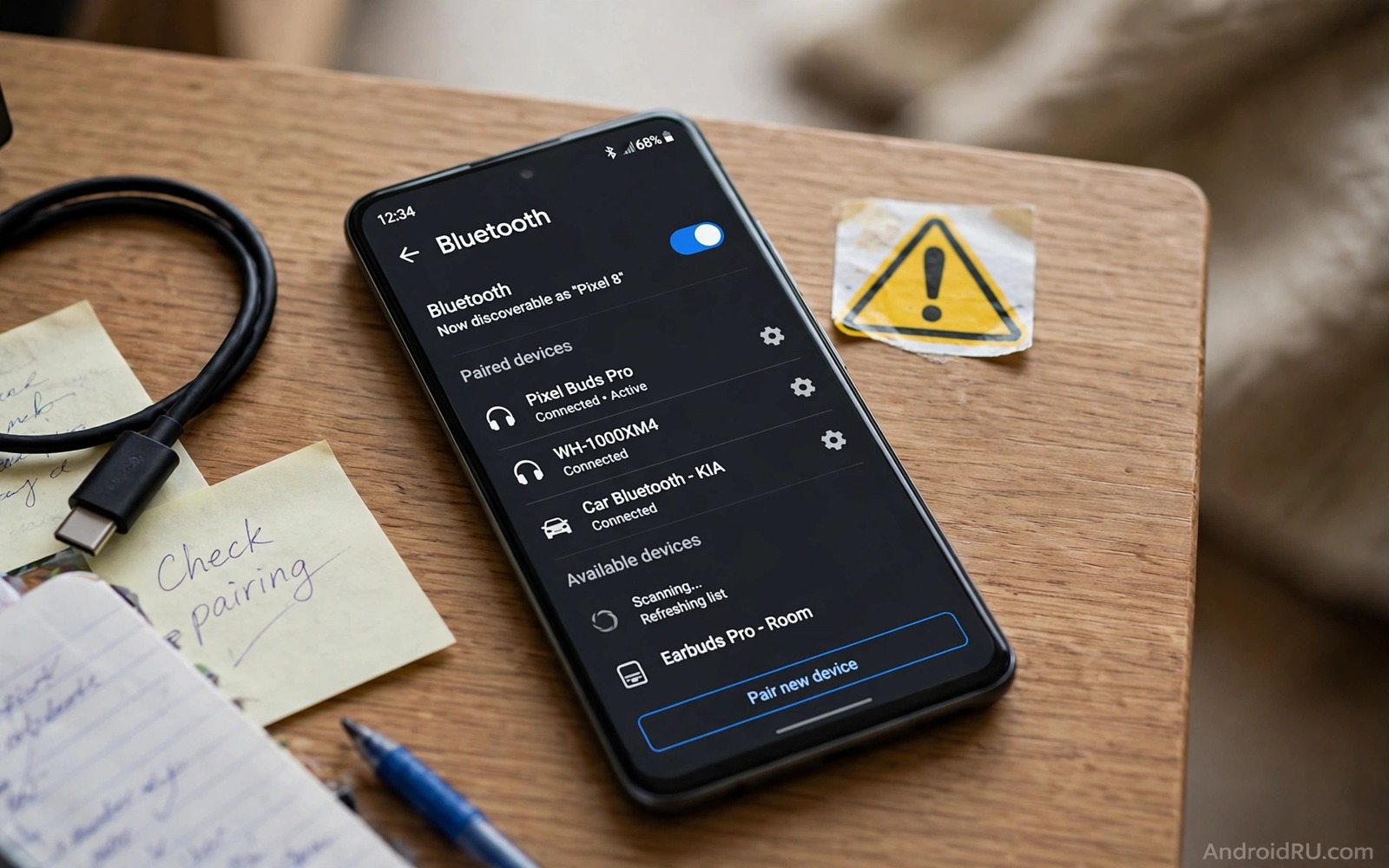
Stop Leaving Bluetooth Visible: The Hacking Risks Explained
Last summer I sat in a busy airport lounge and opened my phone’s Bluetooth settings out of boredom. The list of nearby devices scrolled on for longer than I expected: headphones, speakers, smartwatches, a car stereo, and a dozen phones with names I did not recognise. Then I noticed something worse. My own phone was sitting there with discovery on, announcing itself to every stranger in the room. I had turned it on weeks earlier to pair a speaker and never turned it off. That is how most people end up visible. Not through a decision, but through forgetting.
Bluetooth feels harmless because it is short range and familiar. We use it for music, for calls, for our watches, and it rarely causes trouble. The trouble, when it comes, is quiet. A stranger does not need to touch your phone to learn things about it, to send it unwanted files, or to try the door handles on its Bluetooth profiles. This guide explains what can actually happen, which risks are real and which are exaggerated, and the exact steps that close the gaps.
You do not need to switch Bluetooth off forever. That would be bad advice, because your headphones and your watch would stop working, and you would switch it back on within a day. What you need is a setup where Bluetooth works for your devices and stays invisible to everyone else. That is a small job, and it starts with understanding what visibility actually means.
What Bluetooth Visibility Really Means on Android
Bluetooth visibility, also called discoverability, is the setting that lets other devices see your phone when they scan for something to connect to. When it is on, your phone answers every scan with its name, and sometimes with extra details about what it can do. When it is off, your phone is silent to strangers, but it still talks happily to devices it already knows. That distinction is the heart of this whole guide: turning off visibility does not break your headphones. It only stops new strangers from finding you.
On modern Android, the visibility window is short. When you open Settings, then Connected devices, then Pair new device, the phone becomes visible for a couple of minutes, and then it goes quiet again on its own. That is a big improvement over the old days, when visibility stayed on until you remembered to switch it off. The risk today is not usually the two-minute window. It is the phones where an older setting, a paired device, or a third-party app has left discovery on, or where the phone is set to be visible to all nearby devices without a time limit.
How to check whether your phone is visible right now
Open Settings, then Connected devices, then Bluetooth, and look at the state of the page. If you see a list of available devices, your phone is currently scanning, which also means it is visible to others during that window. Step back out of that page, wait two minutes, and check again. On most phones the scanning stops on its own. If your phone has a separate toggle labelled Visible to all nearby Bluetooth devices, or Discoverable, and it is switched on, turn it off now. That toggle is the one that matters. Check: after closing the settings page, ask a friend to scan for Bluetooth devices nearby. Your phone should not appear in their list.
Why your phone name gives away more than you think
Your Bluetooth name is often your real name, your phone model, or both. A name like John’s Galaxy S24 tells a stranger your first name and exactly which phone you carry. That is useful information for someone planning a targeted attack, because different phone models have different known weaknesses, and a name makes you a person rather than an anonymous device. Change the name to something neutral. Open Settings, then About phone, then Device name, and pick a word that means nothing to a stranger, such as Bluebird or Kettle. Check: after renaming, scan from another device and confirm the new name is what appears, not the old one.
Bluejacking, Bluesnarfing, and Other Bluetooth Attacks Explained
The names sound like a joke, and that is part of the problem. Bluejacking and bluesnarfing are real attacks with silly names, and people dismiss them because the words sound harmless. They are not the same thing, and the difference matters, because one is annoying and the other is serious.
What bluejacking is and why it is mostly a nuisance
Bluejacking is the act of sending an unsolicited message, contact card, or file to a visible Bluetooth device. It works because the Bluetooth OBEX protocol, which handles file transfers, used to accept incoming items with little or no checking. The classic version sent a stranger a contact card with a rude message on it, and the victim’s phone displayed it without warning. Modern Android phones have largely closed this door: incoming files now need your approval, and the two-minute visibility window makes it hard for an attacker to find you in the first place. Bluejacking today is mostly a historical curiosity, and if someone tries it on a modern phone, you will see a pairing or transfer request you can simply decline. Annoying, but not dangerous.
What bluesnarfing is and why it is the serious one
Bluesnarfing is the unauthorised copying of data from a Bluetooth device: contacts, messages, photos, and calendar entries, pulled silently over a Bluetooth connection. It exploits weaknesses in the way some devices handle incoming OBEX requests, and it works best against older phones and devices that have never been updated. The attacker needs to be within about ten metres, and they need your phone to be visible, which is why this guide keeps coming back to the same point: visibility is the door, and closing it is the lock. Modern Android phones are far harder to bluesnarf than the phones of fifteen years ago, because pairing now requires confirmation and the data channels are better guarded. The risk has not vanished, though. It has moved to the devices around your phone that still run old software, such as car stereos, old headsets, and cheap smart gadgets.
Bluebugging and the attacks that take control
Bluebugging goes a step further than bluesnarfing. Instead of copying data, the attacker takes control of the phone: making calls, sending messages, and reading what is on the screen. It relies on a flaw in the phone’s Bluetooth software, and it is rare on patched, up-to-date Android phones. The same family includes attacks with names like BIAS and KNOB, which target the pairing process itself, tricking two devices into agreeing on a weak encryption key. These are the attacks that security researchers demonstrate at conferences, and they are the reason phone makers push Bluetooth security patches. They are also the reason the simplest advice in this guide matters so much: keep your phone updated, keep visibility off, and never accept a pairing request you did not start yourself.
How close does an attacker need to be?
Standard Bluetooth works over roughly ten metres, which is the length of a cafe or a train carriage. That sounds like a small area, but in a crowded place it can hold fifty people. Directional antennas can stretch that range much further, and researchers have demonstrated Bluetooth connections from hundreds of metres away with the right equipment. The practical point is that ten metres is the normal case, not a guarantee. In a crowd, assume someone nearby could reach your phone if it is visible, and act accordingly. The fix is the same either way: do not be visible, and do not accept requests you did not expect.
Which phones are most at risk from Bluetooth attacks?
Old phones are the most at risk, because they run Bluetooth software that has not been patched for years. A phone stuck on Android 9 or 10, with no security updates, is a much softer target than a current phone on the latest patch. Cheap accessories are the second group: a budget pair of earbuds or a no-brand smartwatch may run Bluetooth code that was never updated after it left the factory. The third group is any device that is always discoverable by design, such as some car stereos and portable speakers. Your phone can be fully patched and still be exposed through a weak accessory, because the accessory is the door the attacker walks through.
Malicious Bluetooth Profiles: The Risk Nobody Mentions
When you pair a Bluetooth device, your phone and the device agree on a set of profiles, which are the rules for what each side is allowed to do. A headset uses the hands-free profile to carry calls and the media profile to carry music. A keyboard uses the input profile. The risk appears when a device asks for a profile it has no business using. A pair of headphones has no reason to ask for access to your contacts, but some cheap headsets and car systems do exactly that, because they want to show caller names on a screen. If you approve the request without reading it, you have given a speaker the right to read your address book.
I learned this the unglamorous way, by pairing a rental car and watching my phone ask whether the car could access my contacts and messages. The car wanted that access so it could show who was calling on the dashboard. I said no, and the car still played music and handled calls, because those features use different profiles. That is the lesson: profiles are separate, and saying no to one does not break the others. When a pairing screen asks for contacts, messages, or call history, stop and ask whether the device genuinely needs that information to do its job. A watch needs notifications. A speaker does not need your address book.
How to read a pairing request before you accept it
When a pairing request appears, read the whole screen, not just the big Accept button. Android shows the device name and, for many devices, the access it is asking for. If the screen mentions contacts, messages, or phone calls, and the device is a speaker or a pair of headphones, decline the extra access and see whether the device still works. Most of the time it does. If the request appears out of nowhere, while you are not pairing anything, decline it outright and check your surroundings. A pairing request you did not start is the clearest warning sign in Bluetooth security, and it deserves a refusal every single time.
The hidden danger in public Bluetooth accessories
Shared accessories are a special case. A Bluetooth speaker in a holiday rental, a headset left in a hotel room, or a car you have rented for a day may have been paired with other people’s phones before yours, and some of them remember those connections. Worse, a tampered accessory can be set up to request more access than it needs, or to stay connected to your phone after you walk away. The rule is simple: treat a shared accessory like a shared computer. Pair it, use it, and then remove it from your paired list when you are done. The thirty seconds that takes is the cheapest insurance in this guide.
How to Turn Off Bluetooth Visibility Step by Step
Follow these steps in order. Each one closes a different gap, and the checks at the end of each step prove the gap is closed.
- Open Settings, then Connected devices, then Bluetooth. Check: you can see the list of your paired devices, and Bluetooth is on.
- Leave the Pair new device page. If you opened it to look around, go back now, because being on that page is what makes the phone visible. Check: after two minutes away from that page, your phone no longer appears when a friend scans for devices.
- Turn off any toggle labelled Visible to all nearby Bluetooth devices or Discoverable. Not every phone has this toggle, because newer Android versions hide discovery behind the pairing page, but if yours has it, it must be off. Check: the toggle stays off after you leave the page and come back.
- Change your device name to something neutral. Open Settings, then About phone, then Device name, and replace your name and model with a single neutral word. Check: scan from another device and confirm only the neutral name appears.
- Turn off Bluetooth when you are not using it, especially in crowds. Use the quick settings tile: swipe down twice from the top of the screen and tap the Bluetooth tile. Check: the tile goes grey, and your headphones disconnect, which proves the radio is off rather than just hidden.
- Review which apps can control Bluetooth. Open Settings, then Apps, then See all apps, and look for apps you do not recognise that hold the nearby devices permission. A shopping app or a game has no reason to scan for Bluetooth devices. Check: after removing the permission from apps that do not need it, open one of those apps and confirm it still works normally.
What to do with the quick settings tile
The quick settings tile is the fastest way to control Bluetooth, but it has a trap: on some phones, tapping the tile once does not switch Bluetooth off, it only disconnects the current device, and the radio keeps running in the background. Long-press the tile to open the full Bluetooth settings page, and switch the radio off there, if you want it genuinely off. The difference matters in a crowd, because a radio that is on but disconnected can still be seen by a scanner. Make the full settings page your habit, and treat the tile as a shortcut for disconnecting, not for switching off.
How to Pair Safely and Forget Devices You No Longer Use
Pairing is the moment when your phone decides to trust a new device, and it deserves more attention than it usually gets. A safe pairing follows a simple pattern: you start it, you check the code, and you approve only the access the device needs. Everything else is a variation on that pattern.
- Start pairing from your phone, not from the device. Open Settings, then Connected devices, then Pair new device, and pick the device from the list. Check: the device name in the list matches the device in your hand, including the model number where it is shown.
- Compare the pairing code. When both screens show a six-digit number, read it on both devices and confirm they match. Check: if the numbers do not match, or if only one device shows a number, cancel the pairing and start again.
- Read the access request before you accept it. If the device asks for contacts, messages, or call history, and it is a speaker or a pair of headphones, decline that part. Check: after pairing, test the device. Music and calls should work even without the extra access.
- Forget devices you no longer use. Open Settings, then Connected devices, then Bluetooth, tap the gear icon next to a device you have not used in months, and tap Forget. Check: the device disappears from the list, and your phone no longer connects to it automatically when it comes into range.
- Forget shared devices immediately after use. Rental cars, hotel speakers, and borrowed headsets should be removed the same day. Check: after forgetting, the device no longer appears in your paired list, and a scan from that device does not find your phone automatically.
Why old paired devices are a quiet risk
Every device in your paired list is a device your phone will reconnect to without asking you. That is convenient for your own headphones and dangerous for a speaker you used once in a shop three years ago. If that speaker is still powered on and in range, your phone may connect to it, and your audio, and sometimes your calls, can route through it. The fix is a regular clear-out. Once every few months, open the paired list and remove anything you cannot name, anything you have not used in six months, and anything that belonged to someone else. A short list is a safe list.
How to spot a pairing request you did not start
An unexpected pairing request you did not start is the single clearest warning sign in this guide. It usually appears as a small pop-up with a device name you do not recognise and a code to confirm. Decline it, and then look around: you are probably in a place with many strangers, and someone nearby is scanning. After declining, turn Bluetooth off for a while, and check your paired list for anything new. If something unfamiliar has appeared there, forget it immediately. You do not need to understand how the request happened to act on it correctly. Decline first, investigate second.
Bluetooth in Public Places: Cafes, Airports, and Crowds
Public places are where the risk concentrates, because the range is short and the crowd is dense. A cafe table, a train carriage, and an airport lounge all put dozens of strangers within ten metres of your phone. That does not mean you should panic. It means you should have a simple routine for public places, and the routine is short enough to become a habit.
When I travel, I follow three rules. First, Bluetooth is off unless I am actively using headphones or a watch. Second, I never pair a new device in a crowd; if I buy headphones at an airport shop, I pair them at home, not at the gate. Third, I decline every pairing request I did not start, without reading it twice, because a request I did not start has no legitimate reason to exist. Those three rules have kept me out of trouble for years, and they cost nothing, because they are decisions, not purchases.
Public Wi-Fi deserves a mention here, because the same crowd that can reach your Bluetooth can also reach your network traffic. The two risks are different, but the habit is the same: assume the crowd is listening, and use protection. If you want the full version of that habit, this guide on how to lock down mobile browsing on public Wi-Fi covers the network side in the same practical style, and the two guides together cover the two radios that leak the most information in a public place.
What to do if you think someone is probing your phone
The signs are subtle: a pairing request you did not expect, a file transfer request, or your phone suddenly connecting to a device you do not recognise. If any of those happen, turn Bluetooth off immediately, walk away from the crowd if you can, and check your paired list for anything new. Then check your recent files and messages for anything you did not send. In most cases, nothing will have happened, because the attacker was only scanning and your phone refused the connection. The check is still worth doing, because it takes a minute and it turns a vague worry into a definite answer.
Bluetooth vs Wi-Fi vs GPS Tracking: Which Leaks More About You
Bluetooth is not the only radio in your phone that gives away information, and it helps to see how it compares with the other two. The table below lines them up, so you can judge where Bluetooth sits in the real ranking of risks.
| Signal | What it reveals | Typical range | Main attack | Simple fix |
|---|---|---|---|---|
| Bluetooth | Device name, model, paired services | About 10 metres | Bluesnarfing, malicious profiles | Turn off visibility, forget old devices |
| Wi-Fi | Network names, browsing traffic | About 50 metres | Fake hotspots, traffic snooping | Avoid open networks, use a VPN |
| GPS location | Where you are, where you have been | Satellite, anywhere | Location tracking, stalking | Limit app permissions, review history |
| NFC | Payment and tag data | A few centimetres | Skimming at close range | Turn off when not paying |
| Mobile data | Approximate location via towers | Kilometres | Stingray-style interception | Keep software updated |
Reading the table as a whole, the pattern is clear. Bluetooth is the most personal of the short-range radios, because it names your device and lists its services, but it is also the easiest to control, because turning off visibility and clearing old pairings closes most of the gaps. GPS is the most revealing in the long term, because a location history tells a story about your life, and if that worries you, this guide on how to know if someone is secretly tracking your GPS location is the right next read, because it covers the signs that someone is following your movements rather than just scanning for your phone. The point of comparing them is not to rank your fears. It is to spend your effort where it does the most good, and Bluetooth visibility is one of the cheapest wins on the list.
Permissions Beyond Bluetooth: Camera, Sensors, and the Bigger Picture
Bluetooth is one door. The sensors and permissions on your phone are the rest of the house, and the same thinking applies to them: if an app or a device does not need access, it should not have it. A flashlight app does not need your location. A game does not need your contacts. A Bluetooth speaker does not need your camera. The habit of saying no to unnecessary access is the same habit, whatever the permission is called.
The permission that surprises most people is the camera, because so many apps ask for it and so few of them need it. A barcode scanner needs it. A social app that lets you take a photo needs it. A calculator does not. The same logic covers the microphone, the motion sensors, and the nearby devices permission that lets apps scan for Bluetooth gadgets. Review them the way you review your paired devices: once every few months, open Settings, then Privacy, then Permission manager, and look for apps holding permissions they have no business holding. If you want a step-by-step version of that review, this guide on how to secure camera and sensor permissions walks through it setting by setting, and it pairs well with everything in this article, because a phone that is quiet on Bluetooth and careful with permissions is a phone that leaks very little.
How to review the nearby devices permission
Open Settings, then Apps, then Permission manager, then Nearby devices, and look at the list. Your headphones app and your watch app belong there. A shopping app, a game, or a free wallpaper app usually does not. Tap any app that should not be scanning, and change its permission to Don’t allow. Check: open the app afterwards and confirm it still works. If it complains, it was using the permission for a feature you may not want, such as finding nearby shoppers, and you can decide whether that feature is worth the access.
Troubleshooting: When Bluetooth Keeps Turning Itself Back On
The most frustrating Bluetooth problem is not an attack. It is a phone that keeps switching Bluetooth back on after you turned it off. The causes are usually ordinary, and they are all fixable once you know where to look.
Your watch or car keeps switching Bluetooth on
Some watches and cars are set to reconnect automatically, and they send a wake-up signal that switches your phone’s Bluetooth back on. The fix is on the accessory, not the phone: open the watch app or the car settings and turn off automatic reconnection, or remove the phone from the accessory’s remembered devices. Check: after changing the setting, turn Bluetooth off on the phone, wait five minutes, and confirm it is still off.
A system feature is turning Bluetooth back on
Features such as Nearby Share, location accuracy, and Find My Device can switch Bluetooth on as part of their work. Nearby Share uses Bluetooth to find nearby phones, and the location service uses Bluetooth beacons to sharpen its position indoors. If you want Bluetooth to stay off, open Settings, then Location, then Location services, and turn off Bluetooth scanning. Then open Settings, then Connected devices, then Connection preferences, and check whether Nearby Share is set to turn Bluetooth on by itself. Check: after changing both settings, restart the phone, and confirm Bluetooth is still off when it boots.
An app is turning Bluetooth on without asking
A few apps, usually smart home apps or fitness apps, hold a permission that lets them switch Bluetooth on. Open Settings, then Apps, then Permission manager, then Nearby devices, and look for apps with access that should not have it. Remove the permission, and the app loses the ability to switch the radio on. Check: after removing the permission, turn Bluetooth off, use the app for a day, and confirm the radio stays off. If the app genuinely needs Bluetooth to work, it will ask you to turn it on, which is the correct behaviour, because the decision should be yours, not the app’s.
Frequently Asked Questions About Bluetooth Hacking Risks
Can someone hack my phone through Bluetooth without me knowing?
On a modern, updated Android phone, a silent hack over Bluetooth is very unlikely. Pairing requires your confirmation, incoming files require your approval, and the visibility window is short. The realistic risks are different: an attacker can learn your device name and model, they can try to send you a file you will hopefully decline, and they can exploit an old accessory that has not been patched. Keep your phone updated, keep visibility off, and decline unexpected requests, and the silent hack stays in the realm of conference demonstrations rather than daily life.
Is it safe to leave Bluetooth on all the time if visibility is off?
Mostly yes. With visibility off, your phone does not answer scans from strangers, but it still talks to devices it already knows, which is what your headphones and watch need. The remaining risk is small: a known device could be compromised, or a nearby attacker could try to exploit a flaw in the Bluetooth software itself. Those risks exist, but they are much smaller than the risk of leaving discovery on. If you want the maximum safety, turn Bluetooth off when you are not using it, especially in crowds. If you wear a watch all day, leave it on with visibility off, and accept the small remaining risk as the price of the convenience.
Does turning off Bluetooth visibility break my headphones or smartwatch?
No. Visibility only controls whether new devices can discover your phone. Devices you have already paired remember your phone and reconnect to it directly, without needing a scan. Your headphones will still connect when you switch them on, and your watch will still sync, because neither of them needs your phone to be discoverable. The only time you need visibility is the two minutes when you are pairing something new, and the phone handles that automatically when you open the pairing page.
Should I worry about Bluetooth tracking in shops and malls?
Shops and malls use Bluetooth beacons to count visitors and sometimes to send offers to nearby phones, and that tracking is real, though it is usually less precise than people fear. A beacon can tell that a phone passed nearby, but it cannot read your messages or your contacts. If the idea bothers you, turn Bluetooth off while shopping, or turn off the nearby devices permission for shopping apps, so they cannot use Bluetooth to work out where you are. The beacon itself cannot force your phone to reveal anything, because it can only talk to apps that have permission to listen.
How often should I clear my paired devices list?
Once every three months is a good rhythm, and immediately after using a shared device such as a rental car or a hotel speaker. Open the paired list, remove anything you cannot name, anything you have not used in six months, and anything that belonged to someone else. A short list means fewer devices that can connect without asking, and it means you will notice immediately if something unfamiliar appears there. Put a reminder in your calendar, because this is the kind of job everyone means to do and nobody remembers.
Bluetooth visibility is a small setting with an outsized effect. Turning it off takes ten seconds, renaming your device takes another ten, and clearing your paired list takes a minute. Those three actions close the door that bluejacking, bluesnarfing, and malicious profiles all need to walk through. Do them today, before the next crowded train or airport lounge, and your phone will keep working with your headphones and your watch while staying silent to everyone else in the room.

