

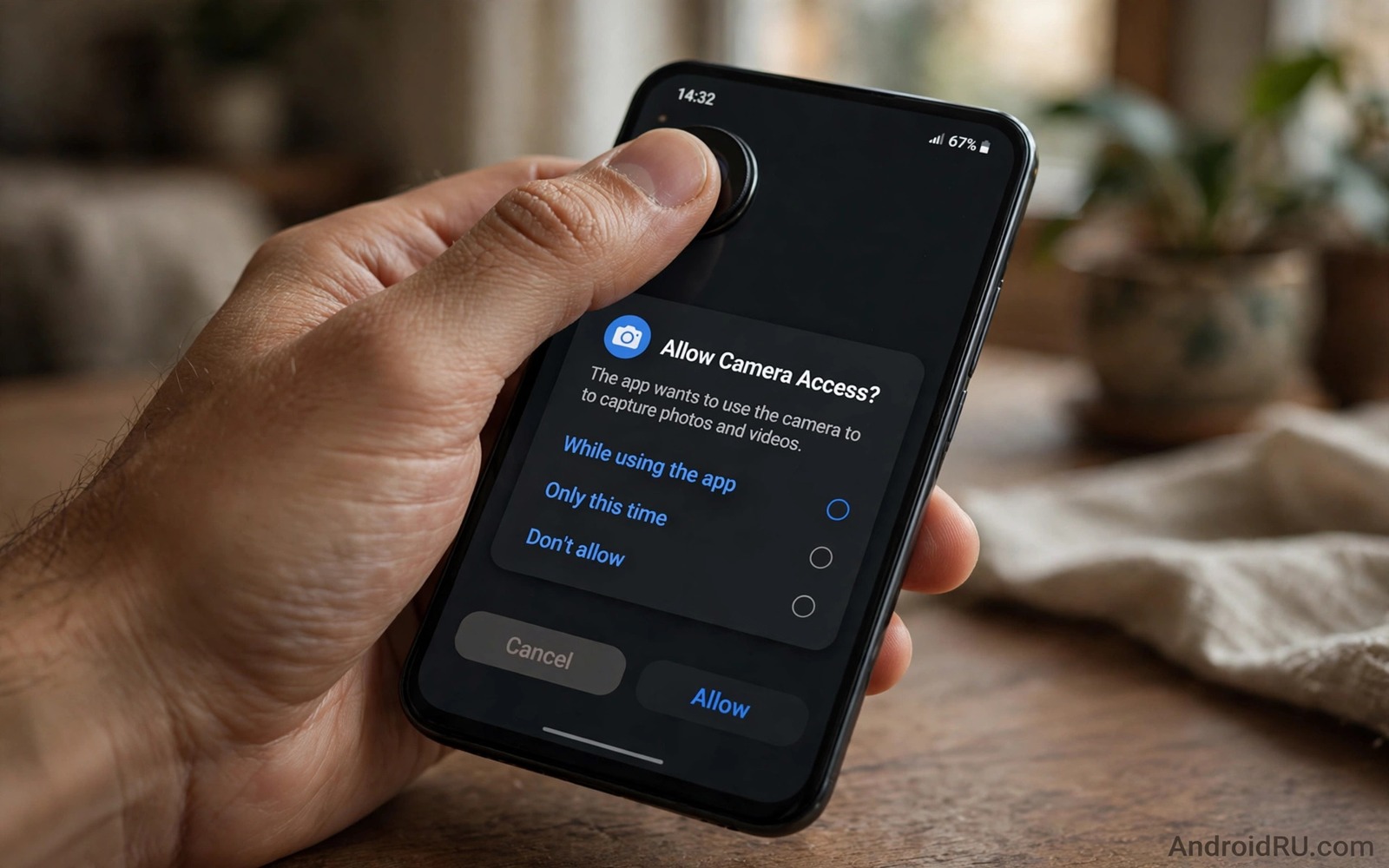
Camera and microphone access are among the most sensitive permissions on a phone. A camera can capture your surroundings. A microphone can capture your conversations. A motion sensor can reveal activity patterns. Most apps do not need all of those sensors to do their job. Yet many apps request them during setup and many users grant them without a second thought.
This guide shows how to secure sensors with a least access rule. Give an app only the sensor that its core job requires. Give it that access only while the app is in use. Revoke background access for every app that does not need to record while you do something else. Those three rules cover most sensor risks.
Start with a full sensor review rather than a single app fix. Open the permission manager and work through camera and microphone and body sensors in turn. A full review takes about fifteen minutes. The result is a phone where each sensor grant has a clear reason behind it.
Audit camera access first
Open Settings and then open Privacy and then open Permission manager and then open Camera. The list shows which apps can use the camera at any time and which can use it only while in use. Change every grant to only while in use unless an app truly needs background camera access. Very few consumer apps need that level.
Look for apps that should never need a camera at all. A music player or a calculator or a simple note app has no camera job. Deny camera access for those apps completely. The app will still work for its real job. A denial only blocks the sensor and it does not break the core function of a well built app.
Check the camera indicator during daily use. Android shows an indicator when the camera is active. An indicator that appears while you use an unrelated app points to a problem. Tap the indicator to see which app triggered it and revoke that grant at once. A camera that turns on without a clear reason should never be ignored.
Secure the microphone the same way
Open Permission manager and then open Microphone. Apply the same only while in use rule to every app that passes the review. A messaging app may need the microphone for voice notes. A keyboard app may need it for dictation. A shopping app rarely needs it at all. Deny access where the job does not match the sensor.
Background microphone access is the highest risk grant. An app with background access can listen while you use other apps. That level should stay rare and it should belong only to a trusted assistant or recorder that you use daily. Revoke background access for any app that gained it through a careless setup tap.
Voice assistant settings need separate attention. An assistant that listens for a wake word keeps the microphone ready at all times. That readiness is a trade off for hands free use. If you rarely use voice commands then turn off wake word listening and open the assistant manually instead. For voice privacy details read how to stop unwanted listening to daily conversations and apply its controls alongside the permission review.
Control motion and body sensors
Motion sensors seem harmless yet they can reveal walking patterns and sleep patterns and activity changes. Open Permission manager and check body sensors and physical activity access. A fitness app needs activity access for step counting. A news app does not need it. Deny activity access for apps outside fitness and health.
Nearby device permissions can also expose sensor data through Bluetooth and Wi-Fi scans. An app that scans for nearby devices can infer location and social contact patterns. Grant nearby device access only to apps that truly connect to headphones or watches or other hardware that you own. Deny it for apps that offer no device feature.
Clipboard access deserves a note as well. An app that reads the clipboard can capture passwords and codes that you copy. Modern Android limits clipboard access yet some apps still request broad access. Avoid copying sensitive codes while an untrusted app runs in the foreground. Paste the code and clear the clipboard habit after sensitive tasks.
A simple sensor checklist
The checklist below gives a repeatable routine for sensor security. Work through it in order and record each app that you change. A written note helps you restore a grant when a trusted app asks for it again with a clear reason. Do not restore a grant just because an app requests it during an update.
1. Set camera access to only while in use or deny
2. Set microphone access to only while in use or deny
3. Revoke background access for camera and microphone
4. Deny body sensor access for non fitness apps
5. Deny nearby device access for apps without hardware
6. Check camera and microphone indicators during daily use
This checklist follows the standard controls built into Android and it uses only the menus that ship with the system. No extra tool is required to complete the six steps. The order matters because camera and microphone come first and the less obvious sensors close the list.
Test sensor grants with real daily use
A sensor review on paper can miss a grant that only activates in a specific feature. Test sensor grants by using the phone normally for a day after the review and checking the privacy dashboard in the evening. The dashboard shows which apps used the camera and microphone and when they used them. An app that used the microphone during a period when you made no voice notes deserves a grant change. That evening check turns a settings list into a behaviour record that reflects real use rather than assumed use.
Test each sensor grant with the feature that supposedly needs it. Open a messaging app and record a voice note and confirm that the microphone works with only while in use access. Open a camera app and take a photo and confirm that the camera works with the same limited grant. A feature that works with a limited grant proves that background access was never needed. A feature that fails with a limited grant reveals a genuine need that you can grant with full understanding rather than blind trust.
Review sensor grants after you install a new app that requests camera or microphone access. A new app may request both sensors during setup even when only one sensor matches its job. Deny the unmatched sensor at setup and grant it later only when a specific feature asks for it. That setup discipline prevents a new app from joining the phone with broad sensor access that you never intended to give. A phone where every sensor grant has a tested feature behind it is far safer than a phone where grants accumulate through rushed setup taps.
Handle sensor access in video and voice apps
Video and voice apps legitimately need camera and microphone access yet they do not need that access outside a call. Set every video call app to only while in use access and test a call after the change. A call should connect normally with video and audio working during the call. Background access after the call ends is unnecessary and it should be revoked. That test proves that a limited grant supports the real feature while blocking background use that no user would expect from a call app.
Check sensor access for apps that add a voice feature as a minor extra. A shopping app may add voice search as a small feature and request microphone access for the whole app. Deny microphone access for such an app and use typed search instead. Typed search works well for shopping and it avoids a broad microphone grant for a minor feature. That trade off favours privacy when the voice feature adds little real value to the shopping task.
Build a sensor habit for new devices
A new phone starts with default sensor grants that favour convenience over privacy. A new user who accepts defaults during setup grants camera and microphone access to many apps at once. A first day sensor review on a new phone prevents those defaults from becoming permanent. Open the permission manager on the first day and deny sensor access for every app that lacks a clear sensor job. That first day review sets a clean baseline for the whole life of the device.
Transfer sensor habits when you move to a new phone by reviewing permissions after a data transfer. A transfer can restore old grants from the previous phone without a fresh review. A post transfer review catches restored grants that you had revoked on the old phone. That review takes fifteen minutes and it ensures that a new phone does not inherit the permission drift of an old phone. A clean transfer is a fresh start rather than a copy of old mistakes.
Check sensor grants for children and family members who share a device. A shared tablet may hold sensor grants from apps installed by different family members. A child app with microphone access may record in a shared living room without adult awareness. Review shared device sensor grants together as a family and deny access for apps that no member uses. That family review protects every member who uses the shared device.
Common mistakes
One mistake is granting all permissions during a rushed setup. A setup screen that asks for camera and microphone and location at once invites a single tap approval. Slow down during setup and deny each grant that does not match the app job. You can grant a needed permission later when the feature actually asks for it.
Another mistake is trusting a sensor cover as a full fix. A camera cover blocks the lens yet it does not stop microphone access or motion data. Physical covers help for one sensor only. Permission controls cover every sensor together and they should remain the main defence.
A third mistake is ignoring updates that add new permission requests. An update can add a sensor request that the original install did not have. Review permissions after major updates and revoke new grants that lack a clear reason. For photo safety read the secret way to passcode protect any photo album and protect images that a camera app may have already captured.
Frequently asked questions
Will denying camera access break my apps?
No and a well built app keeps its core job working without a sensor. A camera app needs camera access to take photos. A music app does not need it to play songs. Deny with confidence when the job does not match the sensor.
How do I know if an app used my camera?
Android shows a camera indicator when the camera is active. Tap the indicator to see the app that triggered it. Permission history in the privacy dashboard also shows recent camera and microphone use by app.
Should I deny all sensor access?
No and some apps need sensors for real features. A video call app needs camera and microphone access during calls. Grant those sensors only while in use. Deny them for apps that offer no matching feature.
Conclusion
Sensor security is a habit of least access. Camera and microphone grants should match a real job and they should stay limited to while in use. Body sensors and nearby device access should stay limited to apps that truly need them. A fifteen minute review can enforce those rules across the whole phone.
Your concrete next step is to open Permission manager today and set camera and microphone access to only while in use for every app that passes review. Deny both sensors for apps that fail review. For location safety read how to know if someone is secretly tracking your GPS location and apply its checks after the sensor review.

