

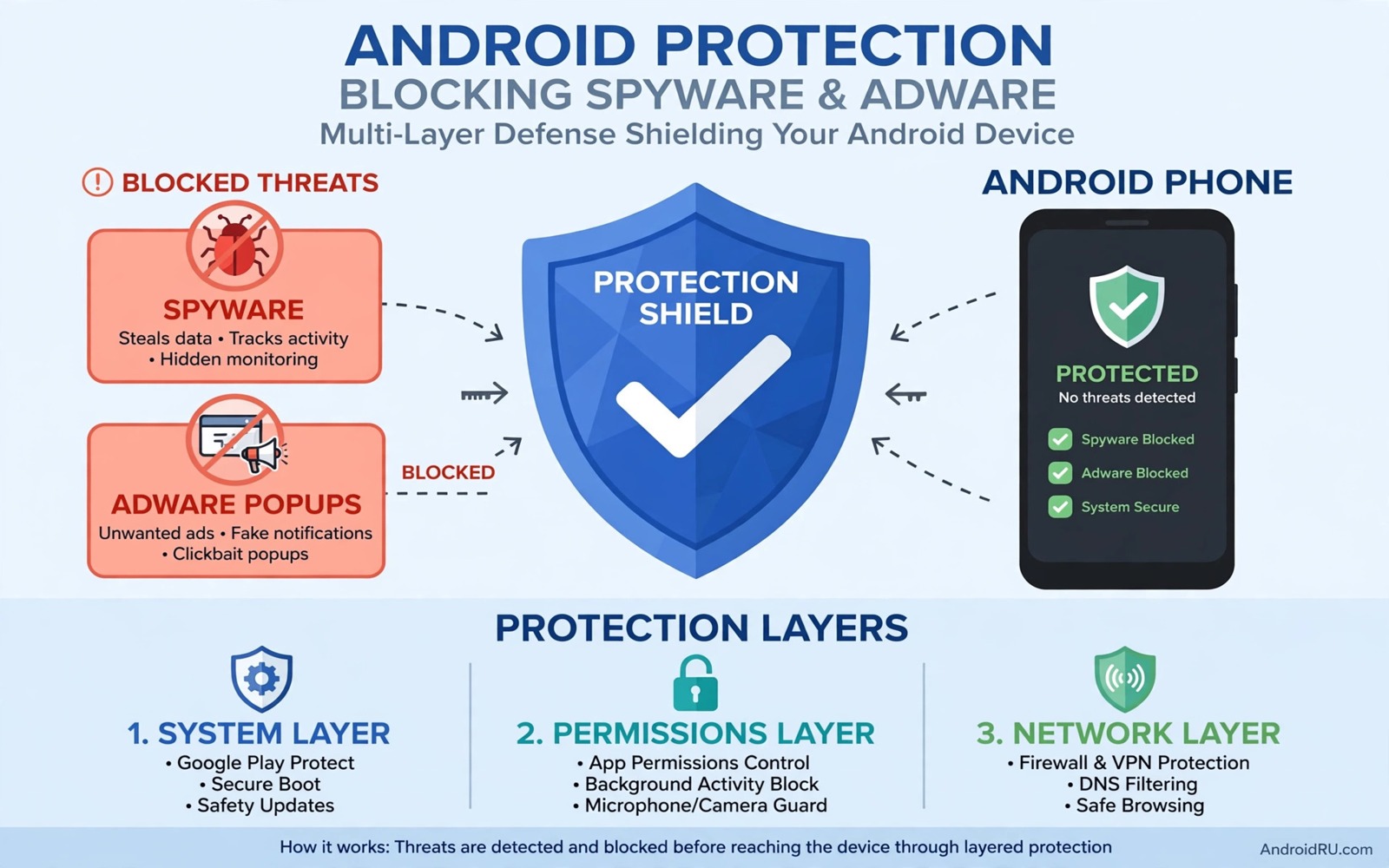
Spyware and adware share one goal. They want to run on your phone without your full understanding. Spyware collects data quietly. Adware pushes ads aggressively. Both types drain battery and data and both types erode trust in a device that should serve you alone. The good news is that most of them can be blocked without root access.
Root access once seemed necessary for strong blocking. Modern Android offers private DNS and permission controls and special app access settings that cover most of the same ground. Those tools work together as layers. No single layer stops everything. Combined layers leave far fewer gaps for harmful apps to exploit.
Start with the source of the problem rather than the symptoms. Most spyware arrives through a careless install or a risky permission grant. A phone that installs only trusted apps and grants only needed permissions already blocks a large share of threats. The blocking steps in this guide build on that foundation.
Use private DNS as a first layer
Private DNS can block many ad and tracker domains before they load. Open Settings and then open Network and then open Private DNS. Choose the hostname option and enter the hostname of a reputable blocking provider that you trust. Save the setting and test browsing for a day to confirm that normal sites still load well.
A blocking DNS provider stops requests to known ad and tracker domains at the network level. That approach works across apps rather than inside one browser alone. It will not block every ad. It will reduce tracking and it will cut a large share of intrusive ad traffic without a separate app running in the background.
Test the result with apps that showed heavy ads before the change. A clear drop in ads confirms that the DNS layer works. A site that breaks after the change may rely on a blocked domain for a real function. You can switch back to automatic DNS for a quick test and then restore the blocking hostname after the test.
Review permissions and special access
Open Settings and then open Privacy and then open Permission manager. Review the apps that can access location and messages and contacts and call logs. Revoke background access for any app that does not need it for its core job. A game does not need background location. A photo app does not need message access.
Special app access deserves a separate review. Open Settings and then open Apps and then open Special app access. Check the lists for draw over other apps and install unknown apps and device admin apps. Adware often uses draw over other apps to push full screen ads. Spyware often uses device admin rights to resist removal. Remove any grant that you cannot justify.
Install unknown apps is a key control for blocking future threats. Turn it off for browsers and messaging apps unless you have a specific reason to keep it on. An app that can install other apps can bring in a partner threat without a store check. Keeping that right off closes a common path for silent installs. For permission details read which dangerous permissions to revoke from unused apps and apply that review alongside the special access check.
Clean up apps and browser data
Open the full app list and remove any app that you do not recognise or no longer use. Unused apps still hold permissions and they can still receive updates that change their behaviour. A smaller app list is easier to review and it leaves fewer places for harmful code to hide. Restart the phone after a large cleanup.
Browser data can carry adware trackers as well. Clear cookies and site data for browsers that show aggressive popups. Check browser extensions and notification permissions for sites that push ads. A site with notification permission can push ads to the phone even when the browser is closed. Revoke that permission for any site that abuses it.
Check notification history for ads that appear without an app open. Long press the notification and open its app info to find the source. That source app is often the adware culprit. Uninstall it and then check whether the popups stop for a full day before you declare the cleanup complete.
A simple blocking checklist
The checklist below gives a repeatable routine for a phone that shows spyware or adware signs. Work through it in order and test the phone after each layer. A layer that causes a real problem can be reversed from the same menu. Keep notes on each change so you can restore a setting for a trusted app.
1. Enable private DNS with a reputable blocking hostname
2. Revoke risky permissions in Permission manager
3. Review draw over apps and device admin apps
4. Turn off install unknown apps for browsers and chats
5. Uninstall unknown apps and restart the phone
6. Clear browser data and revoke abusive notification rights
This checklist follows the standard controls built into Android and it uses only the menus that ship with the system. No extra tool is required to complete the six steps. The order matters because network blocking and permission cleanup together stop both the traffic and the access that spyware needs.
Keep blocking layers active over time
Blocking layers lose power when settings drift after updates. A system update can reset a DNS setting or restore a permission that you revoked months ago. A new app install can add a fresh tracker domain that an old blocklist does not cover. A monthly check of the blocking layers prevents that slow drift from reopening gaps. Open the private DNS menu and the permission manager on the first day of each month and confirm that both still match your choices. That monthly habit takes ten minutes and it keeps the layers honest.
Test blocking with a real browsing session each month. Open a news site that showed heavy ads before blocking and count the ads that appear now. Open an app that pushed full screen ads in the past and use it for ten minutes. A clear reduction confirms that the layers still work. A sudden return of ads points to a setting change or a blocklist gap that needs attention. That practical test beats a settings screen that claims protection without proof in daily use.
Share the blocking routine with family members who use the same phone or a similar phone. A child or an older relative may install apps without checking permissions or DNS settings. A short walkthrough of the permission manager and the private DNS menu helps them avoid the same traps. A household where everyone checks permissions creates a safer environment for every device on the same network. That shared habit also means that a new threat found on one phone can be checked on every other phone in the house.
Review new apps before they weaken blocking
Every new app install can weaken blocking layers when it requests broad permissions or installs a partner tracker. Review each new app in the permission manager on the day that you install it. Deny background location and message access at install time unless a specific feature needs them. That day one review prevents a new app from joining the phone with a broad access profile that you will forget to check later. A new app that shows heavy ad behaviour in its first day deserves removal even when its store rating looks strong.
Check the private DNS setting after you install a VPN or a security app because those apps can override system DNS settings. A VPN app may replace private DNS with its own DNS service that does not block trackers. A security app may route DNS through its own servers for scanning. Open the private DNS menu after such an install and confirm that your chosen blocking hostname still applies. That confirmation takes seconds and it prevents a trusted security tool from silently disabling your blocking layer.
Teach blocking habits to new phone users
A new phone user who learns blocking habits early will avoid many threats that experienced users learn through damage. Show a new user how to open the permission manager and how to set private DNS in a single ten minute walkthrough. That walkthrough should include a live example of revoking a risky permission and a live example of enabling blocking DNS. A live example teaches more than a written list because the new user sees the menus and the result in real time.
Encourage a new user to ask before installing apps from ads or links. A simple rule that every install waits for a developer check prevents most harmful installs. That rule feels strict at first yet it becomes natural after a few weeks. A new user who follows the rule for a month will rarely need help with spyware removal later. That prevention is far cheaper than a cleanup after a harmful install.
Check in with a new user after a month of blocking habits. Ask whether ads dropped and whether any app broke after blocking started. A broken app may need a DNS provider change or a permission restoration for a genuine feature. That check in solves small problems before they push the new user back to unprotected defaults. A month of supported blocking habits usually becomes a permanent habit.
Common mistakes
One mistake is installing a random anti spyware app from an ad. That app may itself collect data while it claims to protect the phone. Use the built in tools first and choose a security app only after checking its developer history and privacy policy with care. A trusted tool should not need your messages or contacts to do its job.
Another mistake is blocking only the ads while leaving the source app installed. Ad blockers can hide symptoms while spyware keeps collecting data. Always find and remove the source app. Blocking without removal leaves the real threat in place.
A third mistake is granting every permission during setup without reading the request. Setup speed is not worth the risk. Read each permission request and deny any grant that does not match the app job. If you need a full device check read the five signs that show a phone has been hacked and run its checks after the blocking steps.
Frequently asked questions
Can I block all spyware without root?
You can block most spyware without root using DNS and permissions and careful installs. A deeply embedded threat may still need advanced help. The layers in this guide stop the common spyware that arrives through apps and ads.
Will private DNS break my apps?
Most apps work normally with a blocking DNS provider. A few apps may fail when a blocked domain serves a real function. Switch to automatic DNS for a quick test when an app breaks. Restore blocking DNS after the test if the app works again.
Do I need an antivirus app too?
A trusted security app can add a useful scan layer. It is not a replacement for permission reviews and safe installs. Use it as one layer among several and keep its permissions minimal. No single app can replace careful habits.
Conclusion
Blocking spyware and adware without root is a matter of layers. Private DNS cuts tracker traffic. Permission reviews cut data access. Special access reviews cut ad delivery and install paths. Cleanup removes the source apps that feed the problem.
Your concrete next step is to enable private DNS today and revoke background location for apps that do not need it. Then review special app access this week. For ongoing tracker control read how to use private DNS to block ads and trackers systemwide and keep that setting as your permanent first layer.

