

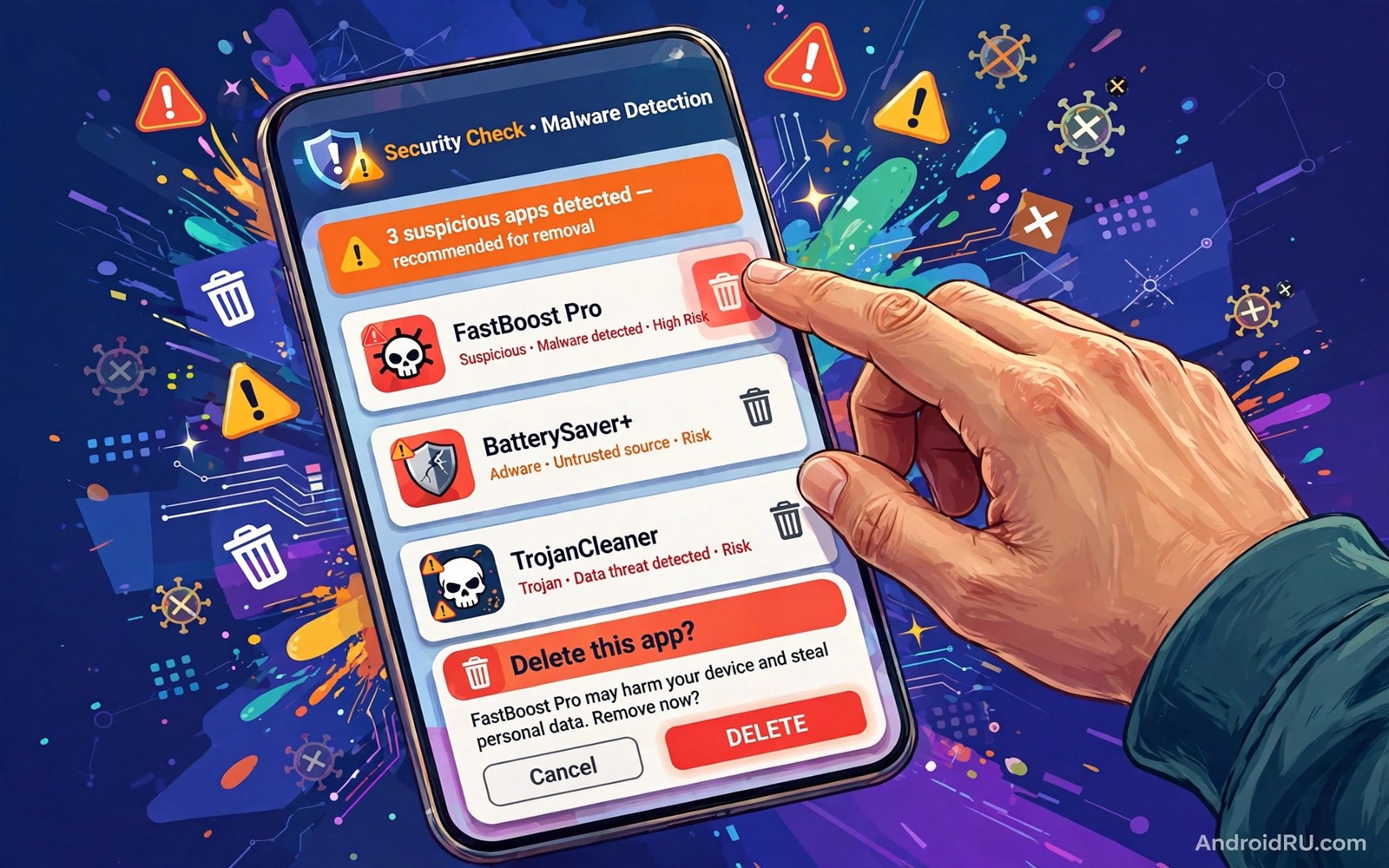
Some harmful apps look useful at first glance and that is exactly why they survive on so many phones. A free cleaner or a bright flashlight app can hide code that steals data or pushes ads or signs you up for paid services. The app icon may look plain and the name may sound helpful. The behaviour behind the icon tells the real story.
This guide does not list brand names as a magic blacklist because harmful apps change names fast. A list of names from last year will miss the new versions that use the same tricks today. The safer method is to learn the patterns that mark a harmful app and then apply those patterns to every app on your phone.
Start with the apps that you did not choose with care. Apps installed from ads or from links in messages deserve the closest look. Apps that came with a free offer or a prize claim deserve the same scrutiny. If you cannot remember why you installed an app then that app should be first in the review queue.
Spot the patterns of a harmful app
A harmful app often asks for far more access than its job requires. A simple torch app has no reason to read your messages. A wallpaper app has no reason to track your location in the background. A calculator has no reason to access your contacts. When the permission request does not match the job then trust should drop at once.
Behaviour after install is the second pattern. A phone that shows ads on the home screen after a new install has a clear suspect. A battery that drains fast after a new install points to the same suspect. A data bill that jumps after a new install adds more weight. Note the date of each install and compare it with the date that problems began.
Store signals help as well when you use them with care. A new app with few reviews and a vague description is riskier than a long lived app with a clear developer history. A developer name that changes often or a contact page that leads nowhere should raise doubt. None of these signals alone proves harm. Together they build a case for removal.
Check cleaners and booster apps first
Cleaner and booster apps are a common hiding place for harmful code. Android already manages memory and storage without a third party booster. An app that claims to speed up the phone by closing background apps often does the opposite. It may run constantly and it may collect data while it claims to protect the phone.
Look at the cleaner apps on your phone and ask what real value each one adds. If the answer is vague then the app is a candidate for deletion. The built in storage tool can free space without extra permissions. The built in battery tool can show which apps use power without a booster running in the background.
Free VPN and free security apps from unknown developers belong in the same review group. A free service still needs to pay its costs somehow. Some pay those costs by selling data or by showing aggressive ads. A trusted paid option or a well known free option with a clear privacy policy is a safer choice than an unknown app with bold promises.
Remove a harmful app safely
Open Settings and then open Apps and then open See all apps. Find the suspect app and open its detail page. Tap Force stop first so the app cannot resist removal while you work. Then tap Uninstall and confirm the removal. Restart the phone after the uninstall so any background process tied to the app ends cleanly.
Some harmful apps gain device admin rights to block uninstall. Open Settings and then open Security and then open Device admin apps. Turn off admin rights for the suspect app and then return to the app page to uninstall it. If the uninstall button stays grey then check the admin list again because another entry may protect the app.
After removal check the permission grants that remain for similar apps. A harmful app sometimes works with a partner app that stays behind. Review the full app list once more and remove any partner app that shares the same developer name or the same odd permission pattern. For a full review read the five signs that show a phone has been hacked and compare your phone against each sign after removal.
A simple removal checklist
The checklist below keeps the removal process calm and complete. It moves from stopping the app to removing it to checking for leftovers. Do not skip the restart step because a running process can recreate files after uninstall. Do not skip the password step when the app held sensitive permissions.
1. Force stop the suspect app from its detail page
2. Remove device admin rights if uninstall is blocked
3. Uninstall the app and restart the phone
4. Review remaining apps from the same developer
5. Change passwords for accounts the app could reach
6. Check battery and data use for one week after removal
This checklist follows the standard controls built into Android and it uses only the menus that ship with the system. No extra tool is required to complete the six steps. The order matters because stopping the app first prevents it from fighting the uninstall while you work through the list.
Rebuild a clean app list after deletion
Deleting a harmful app leaves a gap that a careless reinstall can fill again. Rebuild the app list slowly over the following week rather than restoring everything at once. Install only the apps that you need for daily work and daily communication first. Add entertainment apps later after the core list proves stable. That slow rebuild makes it easy to spot a new problem because each new install has a clear date attached to it. A problem that appears after a specific install points directly to that install as the cause.
Check the store listing again for every app that you reinstall. A listing can change after an app changes ownership or after a developer adds new permissions. A listing that looked safe a year ago may now carry a different developer name or a vague description. A fresh check takes two minutes and it prevents a trusted name from carrying a new risk onto a clean phone. Keep a short note of each reinstall date and each permission grant that you approve during the rebuild.
Test each reinstalled app for a day before you add the next one. Open the app and use its main feature and then check battery and data use in the evening. A clean app should show use that matches the time that you spent inside it. An app that shows heavy background use after light foreground use deserves removal again even when its name looks familiar. That discipline feels slow at first yet it produces a phone that you can trust because every app on it earned its place through a test.
Check the phone after a week of clean use
A week of clean use after deletion proves more than a single clean day. Check battery and data use each evening during that week and look for a return to normal patterns. A phone that stays clean for seven days with normal use has likely lost its harmful app for good. A phone that drifts back toward heavy background use needs a second app review with a focus on partner apps. That second review should look for apps installed on the same date as the deleted app because partner apps often share an install date and a developer pattern.
Review account activity at the end of that week as well. Check email and social and payment accounts for logins from unknown devices or locations. A login that appears after deletion may come from a stolen password rather than a remaining app. Change that password again from a clean device and revoke the unknown session at once. That account check closes the loop between app removal and account recovery and it ensures that deletion alone is not treated as a complete fix when credentials already leaked.
Keep a clean install habit for the next month
A clean phone after deletion needs a new install habit to stay clean. Pause before every new install for the next month and check the developer and the permission list first. That pause becomes automatic after a few weeks and it replaces the rushed tap habit that allowed the harmful app in the first place. A month of careful installs builds a new baseline where every app on the phone passed a check. That baseline is worth more than any single deletion because it prevents the next harmful app from arriving at all.
Check the app list at the end of the month and compare it with the list from deletion day. A list that grew slowly with trusted apps shows a healthy habit. A list that grew fast with apps from ads shows a relapse into rushed installs. Remove any app from the fast growth list that lacks a clear daily purpose. That monthly comparison turns a vague intention into a measurable result that you can see in the app count alone.
Share the clean install habit with anyone who uses your phone or a similar phone. A family member who installs apps from ads can introduce a harmful app to a shared network or a shared account. A short conversation about checking developers before install helps the whole household. That shared habit also means that a harmful app found on one phone can be checked on every other phone before it spreads through shared links.
Common mistakes
One common mistake is deleting only the visible icon from the home screen. Removing an icon does not uninstall the app. The app keeps running in the background after the icon disappears. Always uninstall from Settings so the code and data are removed together.
Another mistake is installing a second unknown cleaner to remove the first harmful app. That swap often replaces one problem with another. Use the built in tools for removal and use a trusted security app only when you have checked its developer history and its privacy policy with care.
A third mistake is restoring the same app from a backup after a reset. A backup can carry the harmful app back onto the phone without a warning. Review the backup app list before you restore it. If you are unsure about a related threat read how to spot fake store apps that steal credentials and apply its checks to every app that you plan to restore.
Frequently asked questions
How do I know an app is malware?
No single test proves that an app is malware. Look for a pattern of odd permissions and battery drain and data spikes and ads outside the app. An app that shows several of those patterns at once is unsafe to keep even without a formal label.
Can I delete system apps?
Most system apps cannot be uninstalled without advanced tools. You can disable many of them from the app detail page. Disable only apps that you understand and leave core system services alone. Disabling the wrong service can break calls or messages or updates.
What should I do after deleting a harmful app?
Change passwords for accounts that the app could reach and check payment history for unknown charges. Watch battery and data use for a week. Reinstall only apps from trusted developers and review permissions after each new install.
Conclusion
Malware apps survive because they look helpful and they ask for trust that they do not deserve. The patterns in this guide give you a way to judge any app without relying on an outdated name list. Permission mismatch and odd behaviour and weak store signals together mark an app for removal.
Your concrete next step is to open the full app list today and delete one app that you cannot justify keeping. Then review permissions for the apps that remain. For stronger ongoing protection read how to use private DNS to block ads and trackers systemwide and set it up after the cleanup is complete.

