

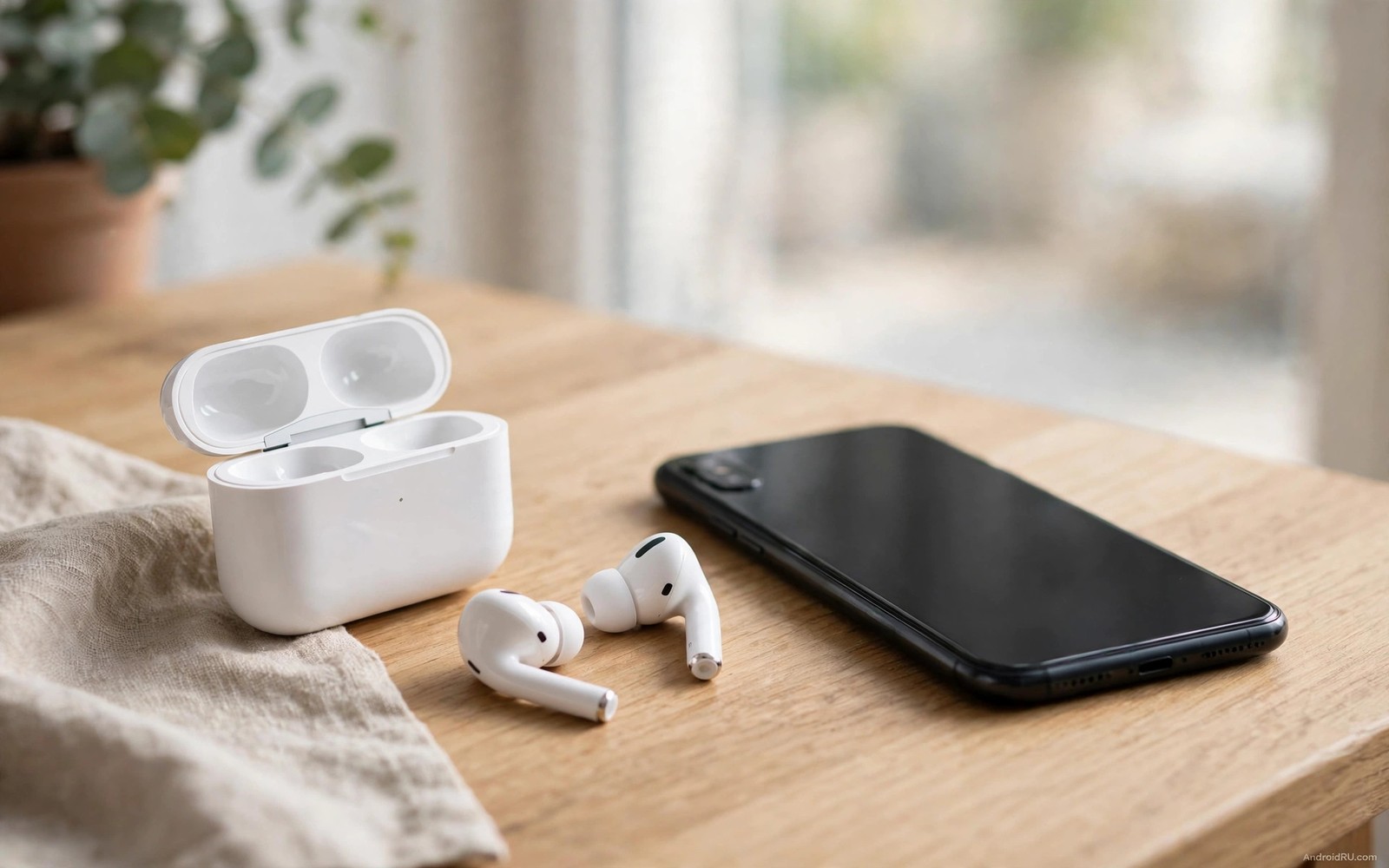
Unbalanced earbuds ruin music and calls. One side sings clearly while the other whispers. The fault feels like a broken earbud but the cause is often simple. A balance setting can shift sound to one side. Earwax can block one speaker mesh. A loose fit can break the seal on one ear. A Bluetooth glitch can drop one channel. Each cause has a quick test and the seven fixes below work through them from settings to hardware.
Start by confirming which side is quiet. Play a song with a strong stereo image and note the quiet side. Swap the earbuds between ears if the design allows it. Sound that follows the earbud proves an earbud fault. Sound that stays with the same ear proves a hearing or fit difference. That swap test takes seconds and it prevents a long settings hunt for a hardware fault. Imbalance during calls can also involve echo and noise during phone calls on the same audio path.
Test the earbuds on a second device as well. A phone balance setting affects only that phone. Earbuds that stay unbalanced on a second phone point to the earbuds themselves. Earbuds that sound balanced on a second phone point to the first phone settings or Bluetooth stack. Keep both tests in mind as you work through the fixes.
Fix one and two: balance and mono audio settings
Open Settings then Accessibility then Audio and check the left right balance slider. A slider shifted to one side explains the whole fault instantly. Centre the slider exactly and test music again. Also check whether mono audio is enabled. Mono audio mixes both channels into each earbud and it can make a stereo fault less obvious but it does not fix a true volume imbalance. Turn mono off for a proper stereo test.
Check media volume and app specific volume next. Some music apps have their own balance or equaliser settings that override system balance. Reset the app equaliser to flat for one test. A custom equaliser preset that boosts one channel can mimic a hardware fault. Also test with a different music app to confirm that the imbalance is not app specific. If calls also darken the display, a black screen during calls may share the call fault.
Fix three and four: fit and cleaning
Check ear tip size and fit on the quiet side. A tip that is too small breaks the seal and bass disappears first. That loss makes the side sound quieter even when the speaker works perfectly. Try a larger tip on the quiet side and press the earbud gently into place. A proper seal should restore bass and overall loudness immediately. Try different tip materials if the earbud supports them because foam tips seal differently from silicone tips.
Clean the speaker mesh on the quiet earbud gently. Earwax and dust can block sound output gradually. Use a dry soft brush and light strokes across the mesh. Do not push a pin into the mesh because that action can damage the speaker. Also clean the charging contacts because a dirty contact can leave one earbud partially charged. A partially charged earbud may play quieter before it disconnects entirely.
Fix five: reset Bluetooth pairing
Forget the earbuds in Bluetooth settings and pair them again from scratch. A stale pairing can hold a faulty audio profile that affects one channel. Place both earbuds in the case and close the lid for thirty seconds before re-pairing. That pause lets the earbuds reset their link to each other. After re-pairing test stereo sound with a song that pans clearly between left and right. Audio alerts that feel uneven can be confused with a phone vibrating randomly without notifications during calls.
Check for a firmware update for the earbuds through the maker app if one exists. Firmware updates often fix channel balance faults and connection drops. Install the update with both earbuds in the case and fully charged. After the update forget and re-pair once more if the imbalance persists. When call audio also sounds uneven the steps for echo and noise during phone calls help you separate an earbud fault from a call audio fault.
Fix six and seven: charge check and hardware test
Check battery levels for each earbud separately in the maker app or Bluetooth settings. A quiet earbud with low battery may be entering a power saving mode that limits volume. Charge both earbuds fully and test again. A full charge test rules out power related volume limits quickly.
Test each earbud alone by placing the other earbud in the case. Play music through the quiet earbud alone and note whether volume returns to normal. A single earbud that stays quiet alone likely has a speaker or mesh fault. A single earbud that sounds normal alone may have a stereo link fault that pairing reset should fix. If one earbud stays quiet after all fixes then contact the maker about warranty repair rather than opening the earbud yourself.
Inspect audio balance with a diagnostic command
An audio settings query can confirm system balance values. Connect the phone with debugging enabled and read the audio balance setting if exposed. The output helps confirm that the system slider is truly centred. A centred system value with persistent imbalance points back to fit or hardware.
adb shell settings get system master_balance
adb shell dumpsys audio
The commands above are part of the standard platform tooling used to inspect audio settings on Android devices. They only read state and they do not change balance. Use the output to confirm the system balance value before you replace earbuds. If the value is centred then focus on cleaning and fit and pairing.
Related alert faults that can mask earbud imbalance
Phantom vibration can confuse an earbud test. A buzz from the phone may feel like an earbud alert. The steps for a phone vibrating randomly without notifications use a table test to prove a real buzz. Place the phone on a table during an earbud test. A buzz on the table proves a phone alert rather than an earbud fault. A silent table test lets you focus on balance and fit.
An emergency kit approach helps you test earbuds systematically. The guide on a complete emergency Android repair kit lists a second device as a core kit item. Test the earbuds on that second device. Balanced sound on a second device proves a phone setting fault. Unbalanced sound on both devices proves an earbud fault. That comparison saves a needless replacement.
Test each earbud alone after a full charge. A single earbud test removes stereo link variables. A quiet earbud alone likely has a mesh or speaker fault. A normal earbud alone likely has a pairing or balance fault.
What to do when one earbud stays quiet after cleaning and pairing
An earbud that stays quiet after cleaning and pairing may have a blocked internal mesh that surface brushing cannot clear. Some earbuds allow tip removal to expose the mesh fully. Remove the tip and brush the mesh again with the tip off. A mesh that clears with the tip off proves wax was trapped under the tip. A mesh that stays blocked may need maker service rather than deeper home cleaning.
Check for a firmware difference between the two earbuds. A pair that updated unevenly can behave differently on each side. Open the maker app and confirm that both earbuds report the same firmware version. A version mismatch deserves a firmware update with both earbuds in the case. After the update forget and re-pair the pair once more.
Test the earbuds with a mono test tone that plays equally in both channels. A test tone removes music mixing variables. A tone that sounds quiet on one side proves a hardware or fit fault. A tone that sounds even proves the earlier imbalance came from a specific song mix or app equaliser. Use the tone result to decide between service and settings.
- Remove the ear tip and brush the exposed mesh again gently.
- Confirm that both earbuds report the same firmware version in the maker app.
- Test with a mono test tone to remove music mixing variables.
- Charge both earbuds fully and test each earbud alone.
- Contact maker support if one earbud stays quiet after all fixes.
Before you replace the earbuds
When earbuds louder on one side persists after every fix the warranty check comes first. Check the purchase date and warranty terms for the earbuds. A pair within warranty may qualify for a free replacement. Contact maker support with the test results you recorded. A support agent can authorise a replacement without a shop visit in many cases.
Test the earbuds with a different phone and a different music app before a warranty claim. A claim that fails because the fault was a phone setting wastes time. A second phone test and a second app test together prove an earbud fault. Bring both test results to the claim. A well documented claim moves faster than a vague complaint.
Keep the charging case and all ear tips for any return. A return without the case or tips may be rejected or delayed. Pack the earbuds in the case with the original tips if you still have them. Note the serial number before you send the pair away. That number helps track the return if it goes missing.
- Check purchase date and warranty terms before you buy a replacement.
- Test on a second phone and a second music app before a claim.
- Keep the case and ear tips and note the serial number for returns.
Common mistakes
- Replacing earbuds before checking the balance slider. A shifted slider explains imbalance instantly and costs nothing to fix.
- Pushing a pin into the speaker mesh. That action damages the speaker and turns a cleaning job into a repair.
- Testing only on one phone. A phone setting fault looks like an earbud fault until a second device is tried.
- Ignoring ear tip fit. A broken seal removes bass and makes one side sound much quieter.
- Skipping a full charge test. A low battery earbud can play quieter before it disconnects.
Frequently asked questions
Can earwax really make one earbud quieter?
Earwax on the speaker mesh blocks sound waves and reduces volume gradually. The effect often appears on one side first because wax buildup differs between ears. Gentle brushing usually restores volume if the mesh is the only fault.
Why does imbalance appear after an update?
An update can reset accessibility balance or change Bluetooth audio profiles. Check the balance slider and re-pair the earbuds after any update that coincides with imbalance. Firmware updates for the earbuds can also change channel behaviour.
Should I use mono audio to fix imbalance?
Mono audio mixes channels but it does not fix a volume difference between earbuds. It can make music listenable while you investigate. Fix balance and fit and pairing first and keep mono off for a true stereo test.
Conclusion
One sided earbud sound usually traces to balance settings or fit or mesh blockage or Bluetooth pairing. Centre the balance slider and test ear tip fit. Clean the mesh gently and re-pair the earbuds. Check battery levels and test on a second device. Those seven steps restore even sound in most cases without a replacement.
Your concrete next step is to centre the balance slider in Accessibility settings and swap ear tips on the quiet side. Then play a stereo song and note whether loudness evens out. That pair of checks separates a settings fault from a fit fault.

