

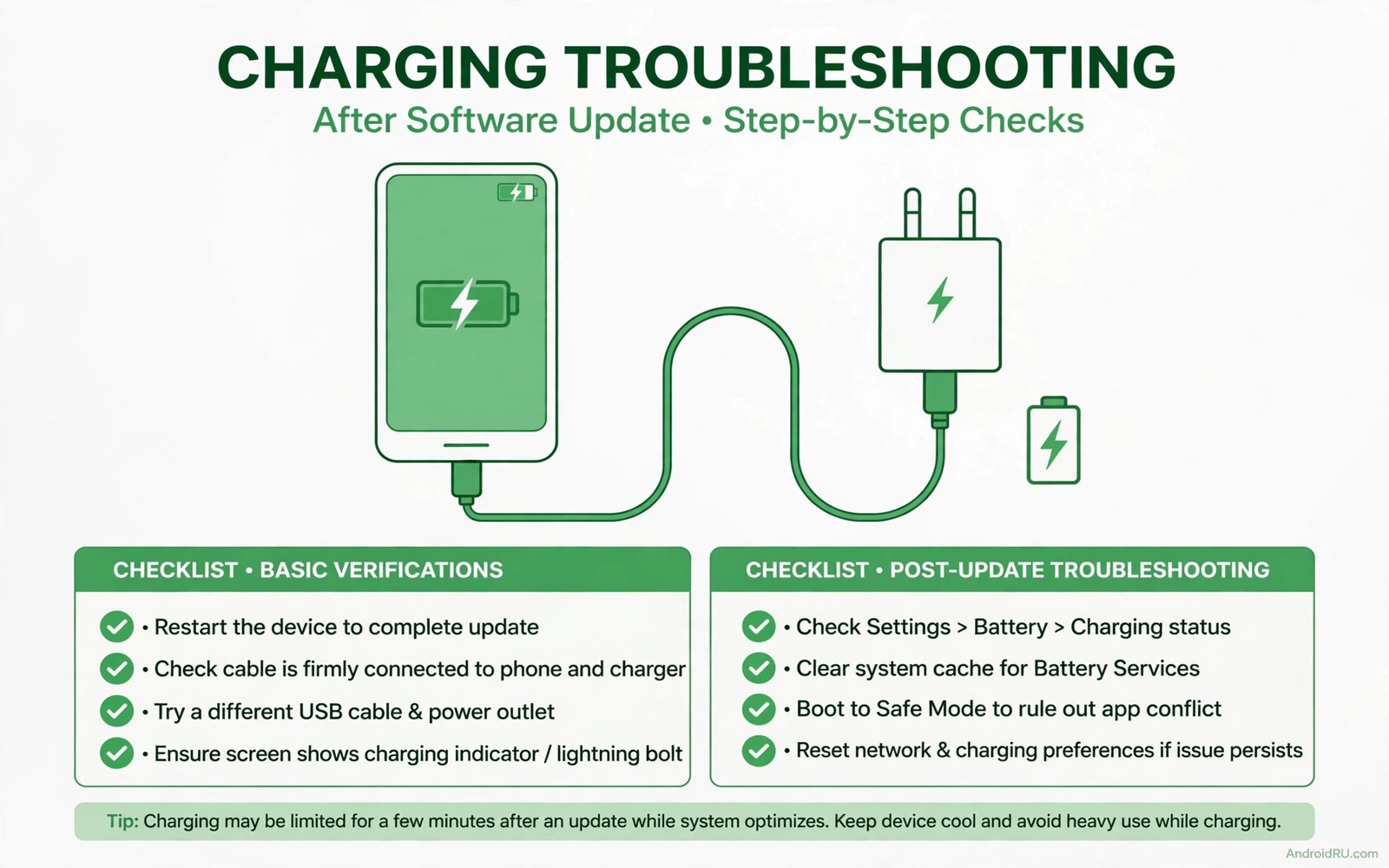
Fast charging feels like a promise that the phone breaks overnight. You plug in the same charger and the same cable after an update and the phone charges slowly. The charging icon may show a normal charge instead of a fast charge label. The battery percentage climbs at a crawl. The update did not damage the charger. It may have changed charging rules or reset a power profile or introduced a driver fault. Sorting software causes from hardware causes protects you from buying a new charger for no reason.
Fast charging is a negotiation between the phone and the charger. The charger offers power levels and the phone accepts the highest safe level. Heat and battery age and cable quality all affect that negotiation. An update can change the temperature limits or the accepted power profile. A dirty port can break the negotiation by weakening the data pins that carry the fast charge signal. A worn cable can do the same. The steps below test each link in that negotiation in order. Heat during charging can overlap with a phone that overheats while playing video when the same battery is stressed.
Measure charging speed before you change anything. Note the battery percentage and the time when you plug in. Check again after fifteen minutes. A fast charge should add a large chunk in that window while a slow charge adds only a few percent. Repeat the measurement with the screen off because screen use consumes power and hides the true charge rate. A consistent slow measurement gives you a baseline to compare after each fix.
Test charger and cable before blaming the update
Try the original charger and cable that came with the phone if you still have them. Third party chargers may support a different fast charge standard than your phone uses. An update can tighten standard checks and reject a charger that previously worked loosely. If the original charger restores fast charging then the third party charger is the weak link. If the original charger also charges slowly then the phone or its software deserves attention.
Inspect the cable for kinks and fraying near both ends. A damaged data wire can still carry power while failing the fast charge handshake. Try a second high quality cable that is rated for your phone fast charge standard. Clean the phone charging port gently with a dry wooden toothpick or compressed air. Lint in the port prevents full plug insertion and that partial contact often drops fast charging to normal charging. Never use a metal tool inside the port. Charging faults that start after an update can trace back to a stuck system update rather than the cable.
Check software settings that limit charging speed
Open Settings then Battery and look for fast charging toggles. Some updates reset the fast charging switch to off. Turn it back on if you find it disabled. Check battery protection settings as well because some phones limit charging speed to protect long term battery health. A protection mode that caps charging at a lower rate can look like a fault when it is actually a deliberate setting.
Check for a follow up update that fixes the charging fault. Manufacturers often release a patch shortly after a faulty update. Install pending updates over WiFi and test charging after a restart. Also check whether a power saving mode is active. Power saving modes can limit charging speed and background activity together. Turn power saving off for one charging test to see whether it affects the rate. When the phone also overheats during use the guide on a phone that overheats while playing video helps you separate heat limits from a charging fault.
Reset charging behaviour with a clean power cycle
Power off the phone completely and charge it while off for thirty minutes. Charging while off removes app load and lets you measure the true hardware rate. If fast charging works while off but not while on then a background app or a system service is interfering. Boot normally and check battery usage for apps that drain power heavily during charging. Restrict background activity for the worst offender and test again. For repeat charging faults, a complete emergency Android repair kit keeps a known good cable ready for testing.
Clear cache for the system battery app only if your phone exposes it. Avoid clearing data for battery services because that action resets learned battery patterns. A cache clear removes stale charging profiles without erasing usage history. After clearing cache restart the phone and run the fifteen minute charging measurement again. Compare the new result with your baseline to judge whether the step helped.
Inspect battery health with a diagnostic command
A battery dump can show health status and charge counter and temperature. Connect the phone with debugging enabled and query battery state. A battery with degraded health may accept only slower charging for safety. A battery with normal health and slow charging points back to software or cable faults. Temperature readings also matter because hot batteries charge slowly by design.
adb shell dumpsys battery
adb shell dumpsys batteryproperties
The commands above are part of the standard platform tooling used to inspect battery state on Android devices. They only read state and they do not change charging behaviour. Use the output to confirm health and temperature during a slow charge. If temperature is high then let the phone cool before you judge the charge rate.
Related update faults that can mask slow charging
A system update that sticks can leave power profiles in a mixed state. The steps for a system update that gets stuck separate download stalls from installation stalls. Check whether fast charging failed only after a fully completed update. A completed update with slow charging points to a reset toggle or a changed profile. A stuck update with slow charging points to an incomplete installation that needs recovery first.
An emergency kit approach helps you test charging without panic. The guide on a complete emergency Android repair kit lists a spare cable and a known good charger as core kit items. Test charging with the kit cable before you buy anything new. A kit test separates a cable fault from a software fault in minutes. A phone that charges fast with the kit cable needs a new cable rather than a software fix.
Measure charging with the screen off and with the same start percentage each time. A consistent measurement makes comparisons meaningful. A fifteen minute window is enough to spot fast versus slow charging. Record the start and end percentages for each cable test.
What to do when fast charging stays slow after settings checks
A charging fault that survives settings checks may involve a worn charging port. Inspect the port with a torch for bent pins or corrosion. A bent pin can reduce contact enough to break the fast charge handshake while still allowing slow charging. Do not bend pins back with a metal tool. A damaged port needs professional repair rather than a home fix.
Test charging with a wireless charger if your phone supports it. Wireless charging bypasses the port entirely. A phone that charges normally wirelessly but slowly by cable points to the port or cable. A phone that charges slowly both ways points to battery health or software limits. That comparison separates port faults from battery faults quickly.
Check battery health through Settings if your phone reports it. A battery below a healthy threshold may accept only slower charging for safety. A degraded battery also drains faster during normal use. A battery fault explains both slow charging and short battery life together. A healthy battery with slow charging points back to cable or port or software.
- Inspect the charging port with a torch for bent pins or corrosion.
- Test wireless charging if available to bypass the port entirely.
- Check battery health in Settings and compare it with normal use drain.
- Try a second rated cable that supports your phone fast charge standard.
- Measure charging with the screen off for fifteen minutes each time.
Before you replace the charger or the phone
When fast charging not working after update remains slow the next purchase decision matters. Test with a borrowed original charger before you buy a replacement. A borrowed charger test costs nothing and it proves whether your charger is at fault. A phone that charges fast with a borrowed original charger needs a new charger. A phone that charges slowly with every charger needs a different fix.
Check warranty status before you pay for a port or battery repair. An update related charging fault may fall under maker support even when the warranty period is short. Contact maker support with the update version and the charging measurements you recorded. A support agent can check for a known charging fault for your model. A known fault may qualify for a free repair that a shop would charge for.
Keep a charging log for a week if the fault is intermittent. Note the start percentage and the end percentage and the charger used each time. An intermittent fault often follows a pattern such as a specific cable or a hot environment. A log reveals that pattern while memory hides it. Bring the log to any service visit as evidence.
- Test with a borrowed original charger before you buy a replacement.
- Check warranty status and ask maker support about known charging faults.
- Keep a charging log for a week if the fault is intermittent.
Common mistakes
- Buying a new charger before testing the original charger and cable. A software fault survives a new charger purchase.
- Cleaning the port with a metal pin. Metal can short contacts and damage the port permanently.
- Judging charge speed with the screen on and apps running. Screen and app load hide the true charge rate.
- Ignoring the fast charging toggle after an update. Updates can reset that toggle without any warning.
- Charging a hot phone and expecting fast speed. Heat limits exist to protect the battery and they slow charging by design.
Frequently asked questions
Can an update permanently break fast charging?
Updates rarely cause permanent charging damage. They can change power profiles or reset toggles or introduce a driver fault. A follow up patch or a settings fix usually restores fast charging. Hardware damage from heat or a bad port is a separate cause.
Why does fast charging work sometimes and not others?
Fast charging depends on temperature and battery level and cable contact. A hot phone or a nearly full battery charges more slowly by design. A loose cable can also switch between fast and normal charging as the plug moves.
Should I calibrate the battery after an update?
Full drain calibration is rarely needed on modern phones and it stresses the battery. A clean power cycle and a settings check are safer first steps. Use battery health data to judge whether the battery itself needs replacement.
Conclusion
Slow charging after an update usually traces to a reset toggle or a tightened charger standard or a dirty port. Test the original charger and cable first. Check fast charging settings and power saving modes. Measure charging with the screen off to get a true baseline. A follow up patch may already fix a genuine update fault.
Your concrete next step is to clean the port gently and test the original charger with the screen off for fifteen minutes. Note the percentage gain and compare it with a second cable test. That pair of measurements separates a cable fault from a software fault.

