

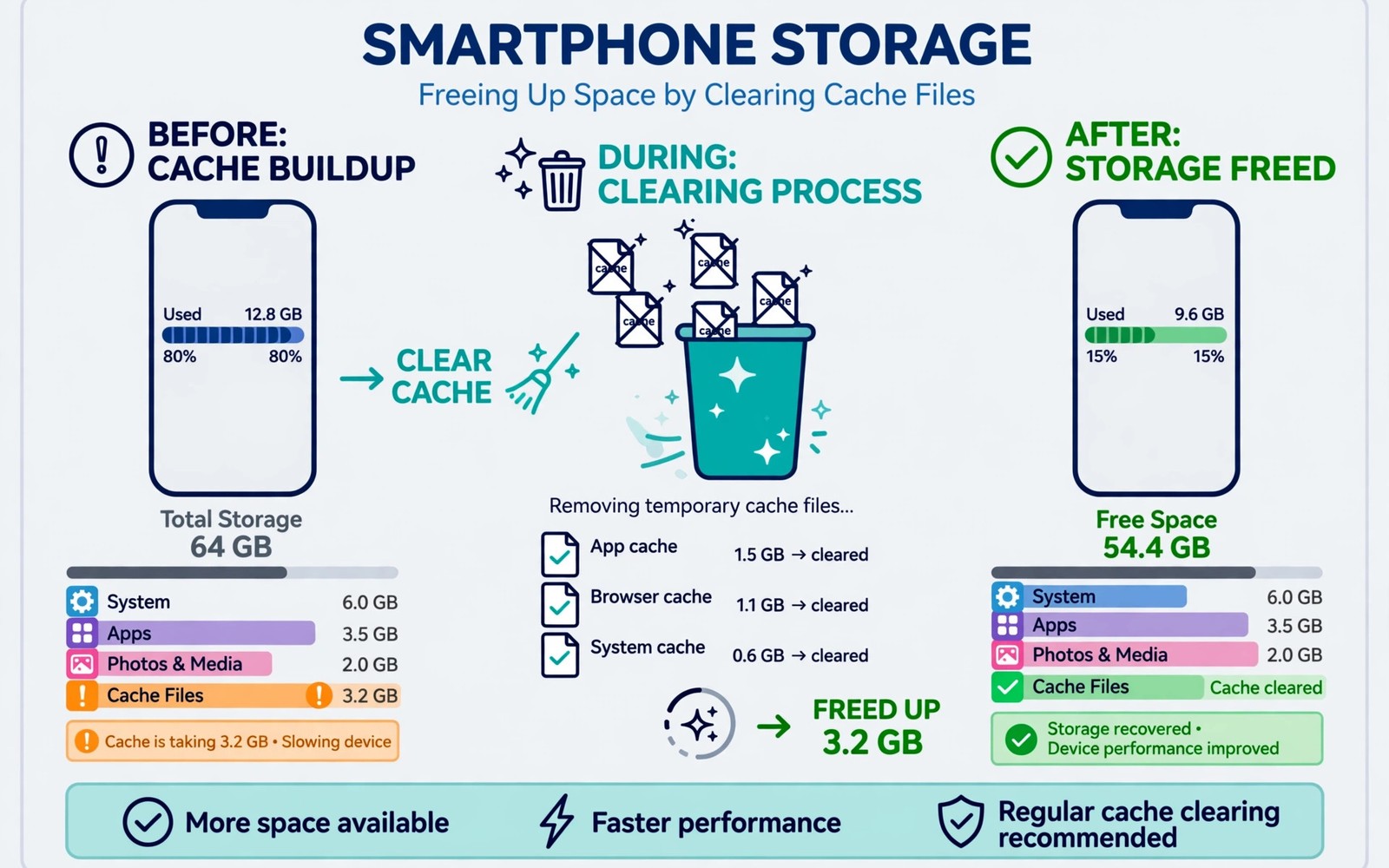
The insufficient storage error feels like a lie. Settings show gigabytes free yet the phone refuses an install or an update. The contradiction comes from how Android divides storage. Free space in one partition does not help another partition that is full. Cached system data and app data and reserved space each consume room invisibly. This guide explains the hidden divisions and fixes the error without deleting your photos.
First verify the free space figure carefully. Open Settings and then Storage and note total free space and the breakdown by category. A phone can show several gigabytes free overall while the app install partition sits nearly full. System updates need working room beyond the update size. App installs need room for unpacking as well as the final app size. The installer refuses when working room falls short even if the headline free figure looks generous.
Distinguish three storage states before fixing. Genuine full storage means every partition nears capacity. Partition full storage means one area fills while others stay free. Phantom full storage means a corrupted cache or a stale account quota reports full wrongly. Each state needs a different fix. Deleting photos helps only the first state. Cache and partition fixes help the other two states far more.
Free Working Room Without Deleting Memories
Clear cached data for heavy apps first. Open Settings and then Apps and then sort by size. Open social apps and browsers and streaming apps and clear cache only. Cache clearing removes temporary files without deleting logins or saved content in most apps. A single social app can hoard gigabytes of cache. Clearing several heavy caches can free working room instantly without touching a single photo.
Delete downloaded files and offline content next. Open the Files app and check Downloads for large forgotten files. Check streaming apps for offline videos and music that you no longer need. Offline content counts against storage just like photos do. Removing a few large offline videos frees more room than deleting dozens of small photos. Keep photos safe while targeting bulky disposable files first.
Uninstall unused apps completely rather than merely disabling them. Disabled apps still occupy storage in many cases. Sort apps by last used date where your phone offers it. Remove apps untouched for months. Each removal frees app data and cache together. Reinstalling later from the store takes minutes if you ever need the app again. Unused apps are the easiest painless storage win available.
Cache Partition And System Data Bloat
System cache bloat can trigger the error even with ample user free space. Wipe the cache partition from recovery to clear stale system temporary files. Power off fully and hold power plus volume up until recovery appears. Select wipe cache partition and reboot. Cache wiping does not delete personal files. It frees system working room and often clears the phantom full error at once. Judge results after a full day because the system rebuilds cache gradually.
Check system data size in storage settings. System data includes logs and temporary files that grow after updates. A system data figure far larger than usual suggests stale logs or a failed update residue. A system update or a cache wipe usually trims that figure. Avoid third party cleaner apps that promise deep system cleaning. Many cleaners delete useful cache aggressively and cause more faults than they fix. Built in storage tools and cache wiping handle system bloat safely.
Move media to a computer or cloud storage if user storage truly nears full. Back up photos and videos first and then delete local copies only after verifying the backup. A verified backup protects memories while freeing large room. Never delete local photos on an unverified backup promise. Open the cloud library on another device and confirm recent photos appear there before deleting locally. That verification step prevents the most painful storage mistake of all.
App Specific And Account Quota Traps
Some insufficient storage errors come from a single app rather than the whole phone. An app with a huge private data folder can fail its own update while the phone shows free space. Open the app info screen and check its storage breakdown. Clearing that app cache or clearing its data where safe can restore its updates. Clearing data logs you out and removes local app content so back up within the app first where possible.
Work profile and multi user storage can confuse the headline figure. A work profile holds its own apps and data under separate accounting. Personal free space does not cover work profile installs. Check work profile storage separately if your phone uses one. Ask IT support before deleting work profile data. Personal fixes should never touch managed work data without approval.
Cloud storage quotas can also mimic device storage errors in some apps. A photo backup app may refuse uploads when its cloud quota fills even though device space stays free. Check cloud account storage separately from device storage. Free cloud space or upgrade the plan if uploads stall. Device storage fixes cannot solve a cloud quota fault. Separating the two quotas saves hours of pointless device cleaning.
Partition Limits And When To Seek Repair
Older phones divide internal storage into partitions with fixed sizes. The data partition holds apps while other partitions hold system files. A data partition that fills blocks installs even when a system partition holds spare room. That spare room cannot move between partitions without advanced modification. Cache clearing and app removal are the safe tools for a full data partition. Partition resizing risks bricking and voids warranties. Avoid it on a daily phone.
Check whether an SD card set as internal storage causes the fault. Adopted storage merges card space with internal space in a fragile way. A failing adopted card can report free space wrongly and fail installs. Move important data off an adopted card promptly if errors persist. Replace a failing card with a quality card. Better still use the card as portable storage and keep apps on internal storage for reliability.
Seek professional diagnosis when the error persists after freeing several gigabytes and wiping cache and clearing app caches. Persistent phantom full errors can signal failing storage hardware. Failing storage corrupts data gradually. Back up everything immediately when hardware failure is suspected. A repair shop can test storage health and advise replacement before total failure. Early backup beats any later recovery attempt. For related storage faults read how to fix a device dropping out of storage space daily and for install faults read how to fix app not installed errors.
free_cache_first = true
free_downloads_next = true
wipe_cache_partition = true
# verify cloud backup before deleting photos
# never resize partitions on a daily phone
The snippet above is an original example written for this guide. It shows generic storage notes you can adapt to your own phone. It does not copy code from any outside source.
Use the notes in order and verify backups before deleting memories. Cache first. Downloads second. Cache partition third. Photo deletion last and only after a verified backup. That order protects irreplaceable files while freeing working room fast.
Messaging app media often dominates hidden storage on social phones. WhatsApp and similar apps store every received photo and video by default. Years of group media can fill gigabytes without a single personal photo. Open each messaging app storage settings and review media size. Delete large forwarded videos that you never need again. Turn off automatic media download for large groups going forward. That single setting prevents future storage bloat more effectively than repeated manual cleaning.
App data audits reveal which apps truly consume space versus which apps merely cache temporarily. Open storage settings and sort apps by total size including data. A navigation app with huge offline maps may deserve map deletion rather than cache clearing. A game with huge downloaded content may deserve content removal inside the game. Targeted in app cleanup frees more room than blind cache clearing. Review the top five apps by size monthly to keep storage pressure permanently low.
Common Mistakes
Many owners delete precious photos first while gigabytes of cache sit untouched. A second mistake is trusting the headline free figure without checking partitions. A third mistake is using aggressive cleaner apps that cause new faults. A fourth mistake is deleting local photos before verifying a cloud backup.
A fifth mistake is resizing partitions on a daily phone. A sixth mistake is ignoring a failing adopted SD card that reports space wrongly. Each mistake risks data or device health. Cache first discipline avoids all six.
Frequently Asked Questions
Question: Why does my phone refuse installs with 2GB free?
Answer: Installs need working room beyond app size for unpacking and system operations. A nearly full data partition can also block installs despite free space elsewhere. Freeing cache and a full gigabyte usually clears the block.
Question: Does clearing cache delete my logins?
Answer: Usually no. Cache holds temporary files. App data holds logins and saved content. Clearing cache alone keeps logins in most apps. Clearing data logs you out and should be used cautiously.
Question: Should I buy an SD card to fix internal storage errors?
Answer: An SD card helps for media storage on portable mode. It rarely fixes app install partition errors. Free internal working room first. Use a card for photos and videos rather than as an install fix.
Conclusion
Insufficient storage errors with free space usually come from cache bloat or partition limits or app specific data rather than missing photos. Clear heavy app caches and delete large downloads and wipe the cache partition. Verify backups before deleting any memories. Your concrete next step is to open Settings and sort apps by size right now. Clear cache for your three largest apps and check whether the install succeeds. If it still fails then wipe the cache partition and retest before touching photos. For related storage help read how to fix a device dropping out of storage space daily and how to repair corrupted SD cards without data loss.

