

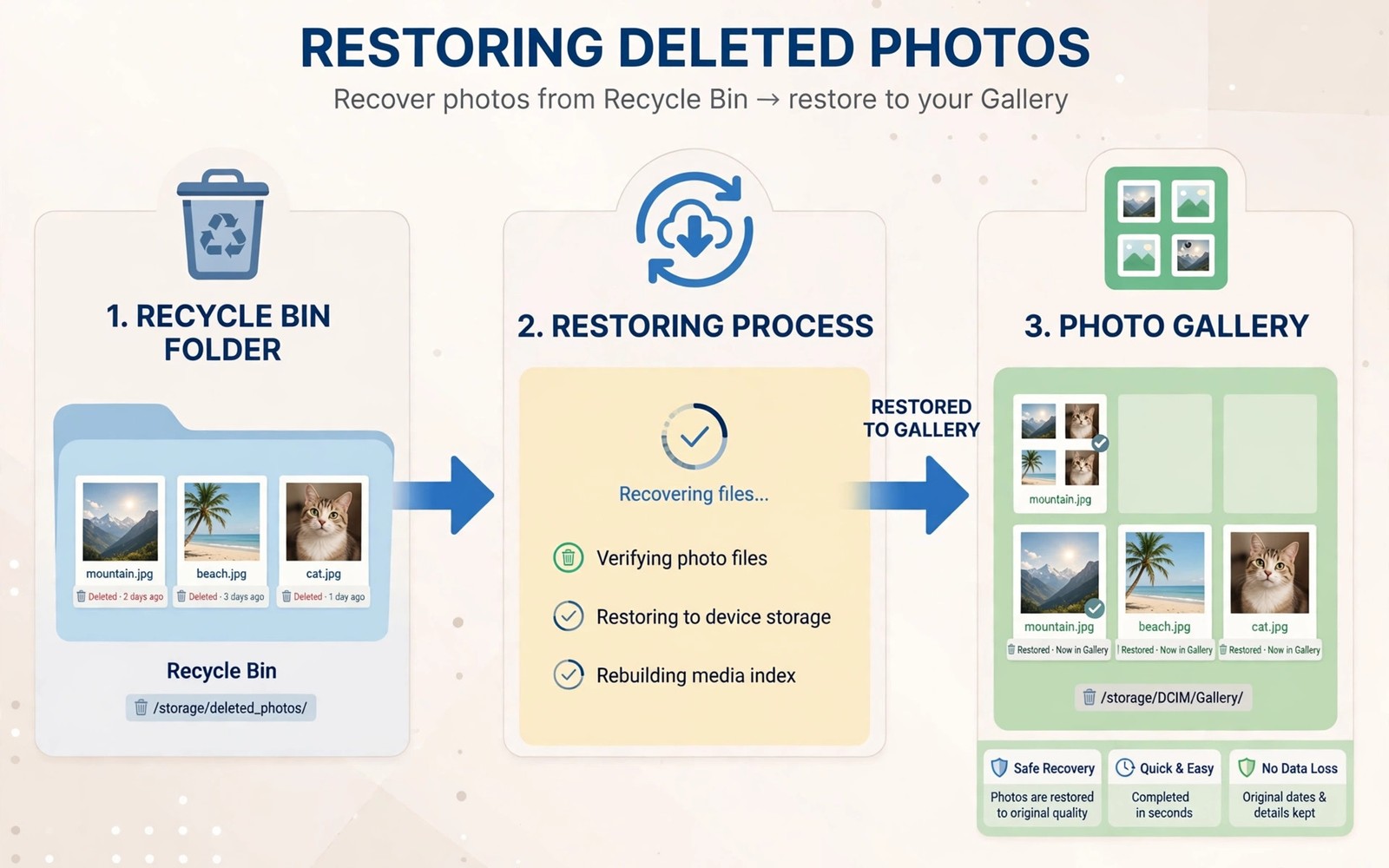
Deleting a photo by accident feels final. On modern Android it usually is not final yet. Most gallery apps move deleted photos to a trash bin for thirty days. Cloud backup apps keep their own trash bins too. Recovery during that window takes minutes. Recovery after permanent deletion takes far more effort and often fails. This guide shows you where trash bins hide and how to restore photos before the window closes.
Act quickly but calmly. Do not take many new photos before recovering. New photos can overwrite storage space that held deleted files. Overwriting matters mainly after permanent deletion. Trash bin recovery does not depend on overwriting because the file still exists. Still, quick action protects you if the photo already left the trash. Stop heavy camera use until you check every trash location.
Check every gallery and cloud app separately. A photo deleted from the gallery may still live in a cloud trash bin. A photo deleted from a cloud app may still live in the device gallery trash. Each app manages its own trash rules and retention days. Checking only one app misses recoverable copies elsewhere. Work through each location in order below.
Check The Gallery Trash Bin First
Open your main gallery app and look for a Trash or Bin or Recently deleted folder. The location varies by maker. Samsung Gallery places Trash under the menu. Google Photos places Trash under Library or Collections. Some galleries hide Trash under Albums at the bottom of the list. Open that folder and look for your photo by date. Deleted photos sort by deletion date rather than capture date in many galleries.
Tap the photo to preview it and confirm it is the right file. Select it and tap Restore. Restoration returns the photo to its original album usually. Check the original album after restoring to confirm success. If the photo does not appear there then search the gallery by date. Some restores place photos in a general camera folder rather than the original album. A quick date search finds them.
Restore multiple photos at once by selecting all needed items before tapping Restore. Batch restore saves time when you deleted a whole shoot accidentally. Check the trash retention warning shown in the folder. It states how many days remain before permanent deletion. A photo with one day left deserves immediate restore. A photo with twenty nine days left still deserves prompt action because retention clocks keep running.
Check Cloud Trash Bins Second
Open Google Photos trash if you use Google backup. Deleted backed up photos move there for thirty days. Restore from Google Photos trash returns the photo to your library and to synced devices. Open the cloud trash on the web as well if the app trash looks empty. Web trash sometimes shows items that the app view hides due to sync delays. A web check takes a minute and catches sync gaps.
Check other cloud apps you use for photos. Samsung Cloud and OneDrive and Dropbox each keep their own deleted item folders with their own retention rules. A photo backed up to two clouds may survive in one trash even after the other trash empties. Work through each cloud app you have ever enabled for photo backup. Disable nothing during recovery. Disabling a backup app can trigger cleanup that removes trash items sooner.
Check messaging apps too if the photo arrived through a chat. WhatsApp and Telegram keep received media in their own folders. Deleting a gallery photo does not always delete the chat copy. Open the chat and look for the media in the shared media view. Save a copy from the chat back to the gallery. That chat copy may be compressed but it beats losing the memory entirely. Save it before the chat media expires or gets cleaned.
When Trash Is Empty: Deeper Recovery Options
When every trash bin is empty the photo may still exist as unallocated storage data. Recovery software can sometimes rebuild such files if new data has not overwritten them. Success drops sharply with every new photo and app install since deletion. Stop using the phone heavily and consider recovery promptly if the photo matters greatly. Professional recovery services offer the highest success chance for valuable photos. They also cost the most.
Consumer recovery apps from the store offer mixed results without root access. Modern Android restricts direct storage access for security. That restriction limits what an app can recover. Apps that promise guaranteed recovery without root often exaggerate. Read recent reviews carefully before installing any recovery app. Avoid apps that demand excessive permissions or payment before showing any preview. A legitimate tool previews recoverable files before charging.
Rooted phones offer deeper recovery tools that scan raw storage. Rooting a phone after deletion risks overwriting the very data you seek. Rooting also voids warranties and weakens security. Only consider root recovery when the photo holds exceptional value and professional service is unavailable. Back up everything else first. Understand that even raw scanning cannot recover data that new writes have overwritten. No tool can rebuild overwritten bytes.
Prevent The Next Accidental Deletion
Enable cloud backup for photos before the next accident. Automatic backup copies photos to the cloud within minutes on Wi-Fi. A backed up photo survives device loss and device damage as well as accidental deletion. Check backup status monthly. A backup paused by a full cloud account or a changed password protects nothing. Confirm that recent photos actually appear in cloud storage rather than assuming backup works.
Turn on trash confirmation where your gallery offers it. A confirmation dialog slows deletions slightly and prevents pocket deletions. Organise important photos into albums that you rarely bulk delete. Bulk delete operations cause most accidental losses. Deleting one album by mistake removes dozens of photos at once. Separate your best photos into a favourites album as a second layer of protection.
Export truly irreplaceable photos to a computer or an external drive periodically. Cloud trash windows expire. Devices fail. Accounts lock. A local copy on separate storage survives all three risks. A monthly export habit takes minutes and protects family memories for decades. Treat cloud backup as convenience and local export as archive. Both layers together give real safety. For related file recovery see how to recover lost files from a water damaged phone and for storage faults see how to repair corrupted SD cards without data loss.
check_gallery_trash = true
check_cloud_trash = true
check_chat_media = true
# restore before 30 day window ends
# stop heavy camera use until recovery finishes
The snippet above is an original example written for this guide. It shows a generic recovery order you can adapt to your own phone. It does not copy code from any outside source.
Follow the order and restore promptly. Gallery trash first. Cloud trash second. Chat media third. Deeper recovery only after every trash check fails. That order finds the easiest copy first and avoids risky tools when a simple restore works.
SD card trash folders hide another recovery location on phones with expandable storage. Some gallery apps move deleted card photos to a trash folder on the card itself. Check the card through a file manager for a trash or deleted folder. Restore from there before formatting or replacing the card. A card removed too soon after deletion can also carry unflushed trash data. Keep the card inserted until recovery finishes. Eject it safely through settings rather than pulling it out mid operation.
Google Photos backup settings decide whether a deleted photo survives in the cloud at all. Open backup settings and confirm that backup completed for the date of the photo. A photo taken while backup paused never reached the cloud. A photo taken on mobile data with Wi-Fi only backup enabled also never uploaded. Change backup settings to include the conditions you actually use. A backup that only runs under conditions you never meet protects nothing. Verify the next upload after changing settings.
File manager trash folders add one more location worth checking on some phones. Certain file managers keep their own deleted items folder separate from the gallery trash. Open your file manager and look for a recycle bin or trash section in its menu. A photo deleted through the file manager may sit there even when gallery trash looks empty. Restore from the file manager trash back to the pictures folder and then open the gallery to confirm the photo reappears. That extra check takes a minute and rescues files that gallery only searches miss.
Common Mistakes
Many owners empty trash manually to free space and then regret it. A second mistake is checking only one trash bin when several exist. A third mistake is taking many new photos before attempting deeper recovery. A fourth mistake is trusting a recovery app that promises guaranteed results without a preview.
A fifth mistake is assuming cloud backup worked without verifying it. A sixth mistake is deleting an entire album without checking its contents first. Each mistake turns a recoverable loss into a permanent one. Slow deliberate checks prevent all six.
Frequently Asked Questions
Question: How long do deleted photos stay in trash?
Answer: Most gallery and cloud trash bins keep photos for thirty days. Some makers use sixty days for certain apps. Check the retention notice inside each trash folder for the exact window.
Question: Can I recover photos after emptying trash?
Answer: Sometimes with raw storage scanning before overwriting occurs. Success is uncertain and drops fast with new use. Professional services offer the best chance for valuable photos.
Question: Does restoring from trash need internet?
Answer: Gallery trash restore works offline because the file stays on the device. Cloud trash restore needs internet to download the backed up copy. Chat media restore may need internet if the media was not downloaded locally.
Conclusion
Deleted photos usually survive in a trash bin for thirty days. Check gallery trash and cloud trash and chat media in order. Restore promptly and confirm the photo in its album. Your concrete next step is to open your gallery trash right now and restore any photo you still want. Then verify cloud backup status for recent photos. Set a monthly export habit for irreplaceable memories so the next accident costs nothing. For deeper file loss cases read how to recover lost files from a water damaged phone and how to fix a device dropping out of storage space daily.

