

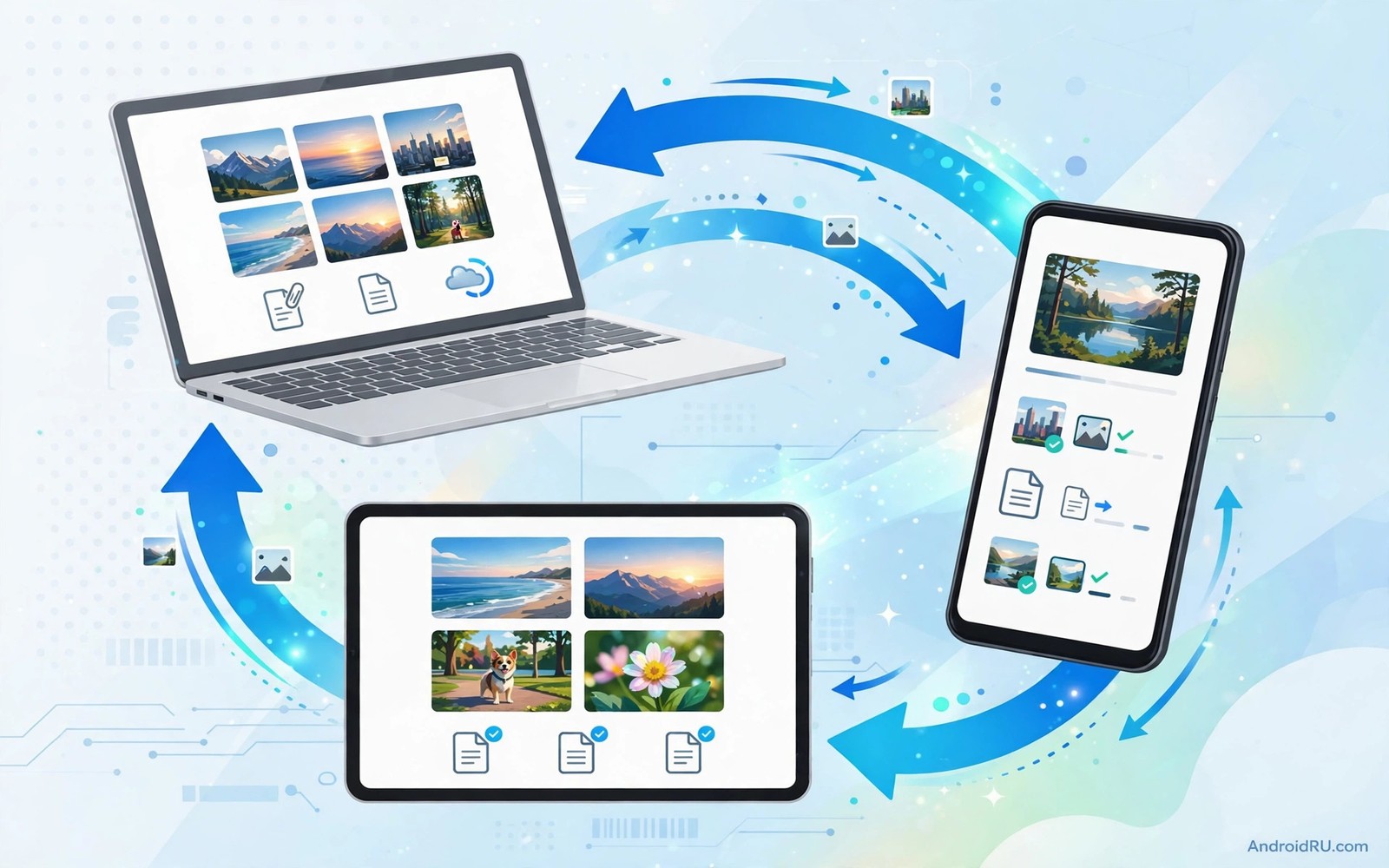
You edit a document on your phone during a commute. You open your laptop at home. The old version stares back at you. The new version never arrived. That moment of confusion is the whole reason sync apps exist. A good sync app makes every device show the same files. A bad one makes you guess which copy is newest.
Cross-platform sync means more than a cloud folder. It means Android and Windows and Mac and Linux all agree. It means a photo taken on a phone appears on a tablet without a cable. It means a note edited offline uploads when the network returns. It means conflicts get handled clearly instead of silently overwriting your work.
The stakes are higher than convenience. A lost file can mean a lost contract. A duplicated file can mean two versions of a report. A sync app that deletes a file on one device may delete it everywhere. Understanding sync rules before you trust an app protects your work. This guide rates the approaches and not only the brand names.
Start by naming your real devices. List every phone and tablet and computer you use weekly. List the operating system on each one. A sync app that ignores one of your systems is not cross-platform for you. It is a partial solution. A true solution covers your full set or it fails the first test.
Cloud sync versus direct sync
Cloud sync stores a master copy on a server. Each device downloads from that server. Changes upload to the server first. Other devices then download the change. This model works well when devices are often offline. The server holds the truth while a device sleeps. The downside is storage limits and subscription costs. Large photo libraries can exceed a free plan quickly.
Direct sync moves files between your own devices without a central server. A phone syncs to a laptop over the local network. No third party holds your files. This model suits people who value privacy. It also suits large libraries because no cloud quota applies. The downside is that both devices must be online at the same time for a fast sync. A device left at home cannot sync while you travel.
Hybrid sync mixes both ideas. A cloud copy handles travel and backup. Direct sync handles fast local transfers at home. Some apps offer both modes in one tool. A hybrid setup is more complex to configure. It also gives the best of both worlds when set up well. Choose hybrid only if you truly need both speed and remote access.
Speed differs between models in a predictable way. Local direct sync is fastest on a home network. Cloud sync speed depends on your internet upload rate. A slow upload connection makes cloud sync feel sluggish for large videos. Test with a real video file before you commit. A test with a tiny text file tells you nothing about real use.
What to check before you trust an app
Check conflict handling first. Edit the same note on two devices while both are offline. Reconnect both and watch what happens. A good app keeps both versions or asks you which one wins. A bad app silently overwrites one version. That silent loss is the worst sync failure. It feels like the app worked while your work vanished.
Check selective sync next. Selective sync lets you choose which folders sync to a small phone. A laptop may hold a full photo archive. A phone may need only the current year. Without selective sync the phone fills up fast. With it you control space precisely. This feature matters most on phones with limited storage.
Check version history next. Version history keeps older copies of a file for a set time. Delete a file by mistake and restore it from history. Overwrite a good draft with a bad one and roll back. History turns a disaster into a minor annoyance. Check how long history lasts. Thirty days is a common limit. Longer history costs more storage.
Check sharing controls as well. Sharing a folder with a colleague should be simple and safe. You should control whether they can edit or only view. You should revoke access at any time. A sync app with weak sharing invites accidental edits. Readers who organise many folders should also try file manager apps that make Google Files look amateur because a clear folder plan makes sync rules easier to follow.
Photos notes and documents need different rules
Photos need automatic upload. A camera roll grows every day. Manual sync cannot keep up. Set photo upload to Wi-Fi only to save mobile data. Set it to original quality only if you have space. Use a lower quality setting when storage is tight. Check that uploads complete before you delete originals from the phone. Deleting too early loses the only copy.
Notes need instant sync. A note edited on a phone should appear on a laptop within seconds. Notes are small so speed should not be a problem. If notes lag then the app has a deeper issue. Test notes by editing on one device and watching the other. A delay of more than a minute suggests a sync problem worth fixing.
Documents need version control and offline access. Mark key folders for offline use on the phone. An offline folder opens on a plane and in a tunnel. Edits made offline should queue cleanly. They should upload in order when the network returns. A document app that loses offline edits is worse than no app at all.
Large videos need a separate plan. Syncing every video to every device wastes space. Sync videos to a laptop only. Keep only favourites on the phone. Use a shared folder for family videos that everyone needs. A tiered plan keeps storage sane while important files still sync everywhere.
A setup you can copy this weekend
Create three top folders with clear names. Call them Work and Personal and Archive. Put active projects in Work. Put family photos in Personal. Put finished projects in Archive. Sync Work and Personal to every device. Sync Archive to the laptop only. Clear names prevent files landing in the wrong place.
Turn on version history for the Work folder. Turn on offline access for the current project folder on the phone. Turn on Wi-Fi only uploads for photos. Turn on notifications for sync errors only. Too many sync notifications train you to ignore them. Error-only alerts keep your attention for real problems.
rsync -avz --dry-run /sdcard/Documents/ user@laptop:/home/user/Documents/
rclone check /sdcard/Documents/ remote:Documents/
ls -lh /sdcard/Documents/ | head -20
The snippet above is an original example written for this guide. It shows how an advanced user can preview a sync and compare folders from a computer. It is not a required step for normal sync use.
Test the setup with a real file. Create a test document on the phone. Edit it on the laptop. Edit it again on the phone. Check that every edit survives in order. Delete the test file and restore it from history. A setup that passes this test is ready for real work. A setup that fails needs fixing before it holds anything important.
Sync on a slow connection without frustration
Slow upload speeds change sync strategy. Large files should queue overnight. Small files should sync first during the day. Most sync apps already prioritise small files. Check the queue when a file seems stuck. A large video at the front can block smaller files behind it. Pause the large file and let small files pass. Resume the large file at night.
Metered connections need strict rules. Set sync to pause on mobile data for large folders. Allow only notes and small documents on mobile data. A single video upload can consume a monthly data allowance. Data warnings in the sync app help. Set a warning at a low threshold so you notice early.
Partial sync failures are normal on weak networks. A file may upload halfway and retry. A good app resumes from the breakpoint. A poor app restarts from zero each time. Check resume behaviour with a large test file on a weak link. Resume support matters more than raw speed on a rural connection. Patience plus resume beats speed alone.
Common mistakes
The first mistake is syncing the entire phone storage. A full sync copies caches and app data you never need. It fills the cloud quota fast. It slows every sync. Sync only folders you created. Leave system folders alone unless you know exactly what they hold.
The second mistake is ignoring conflict files. Many apps save a conflict copy instead of overwriting. People ignore those copies for months. The folder fills with duplicates. Review conflict files weekly. Keep the correct version and delete the rest. A weekly review takes five minutes.
The third mistake is deleting a file on one device to free space. Sync may interpret that delete as a command to delete everywhere. Use selective sync to remove a folder from a device. Selective removal frees space without deleting the master copy. Deletion and deselection are different actions with very different results.
The fourth mistake is trusting sync as a backup. Sync mirrors changes including deletions and corruption. A backup keeps a separate copy that sync cannot touch. Use both sync for access and backup for safety. One tool cannot do both jobs well on its own.
FAQ
How do I stop sync from using all my mobile data?
Set uploads to Wi-Fi only in the app settings. Set photo uploads to Wi-Fi only as well. Allow small notes to sync on mobile data if you need instant notes. Large files should wait for Wi-Fi. This rule alone saves most mobile data.
What happens if I edit the same file offline on two devices?
A good app creates a conflict copy or asks you to choose. Open both copies and merge the changes by hand. Save the merged file with a clear name. Delete the conflict copy after merging. Never assume the newest timestamp always wins.
Can I sync without any cloud server?
Yes with a direct sync app that moves files between your own devices. Both devices must be online for a direct sync to complete. A device left offline will catch up when it returns. Direct sync suits privacy focused users with devices that meet often.
Conclusion
The best sync app is the one that covers all your devices and handles conflicts honestly. Cloud sync suits travel and backup. Direct sync suits privacy and large libraries. Selective sync and version history protect you from the classic disasters. Test conflict handling before you trust any app with real work.
Your concrete next step is to create a test file today and edit it on two devices while offline. Reconnect both and check how the app handles the conflict. If it preserves both versions then keep the app. If it silently overwrites one version then switch before real files are at risk. Readers who want instant file access should also explore the universal search app that finds files instantly and the ultimate automation app that will do work for you because sync and search together make any device feel like home.

