

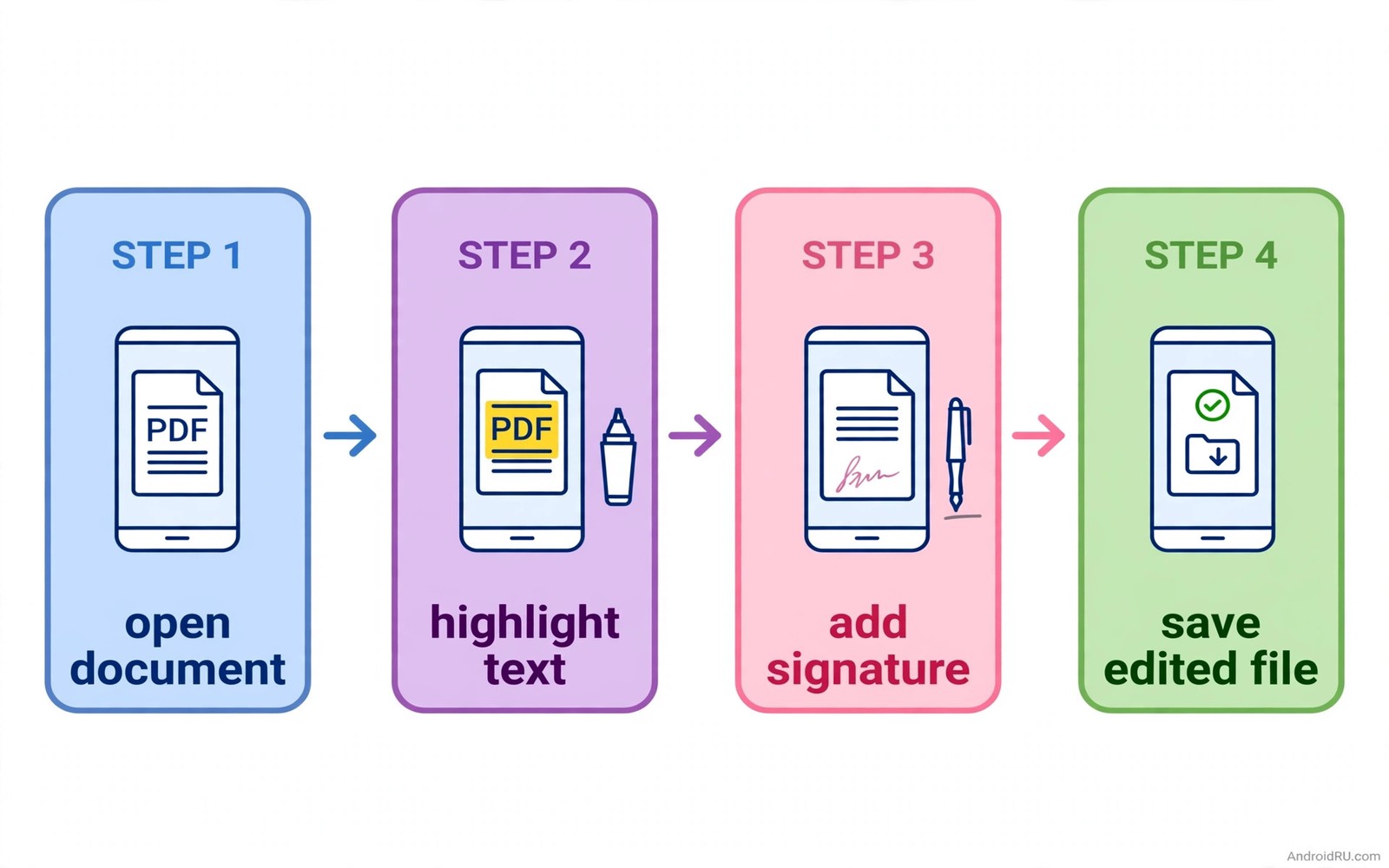
A PDF arrives in your inbox at the worst time. You must sign it and send it back today. Your computer is at home. Your phone is in your hand. A good free PDF reader turns that panic into a five minute task. You open the file and sign it and send it onward. No printer and no scanner and no trip home.
Many people think PDF editing needs paid desktop software. That belief is outdated for everyday tasks. A modern Android reader can highlight text and add comments. It can fill a form and sign a page. It can merge pages and split a long file. It can compress a large scan for email. Those jobs cover most real life needs.
The catch is the word free. Some apps call themselves free but lock signing behind a paywall. Some apps add a watermark to every saved file. Some apps limit you to three edits per day. This guide shows how to spot those traps early. You will learn which features should truly be free. You will learn a workflow for contracts and forms and school papers.
Start with the file types you handle most. A student handles lecture slides and journal papers. A freelancer handles quotes and contracts. A parent handles school forms and permission slips. Each type needs slightly different tools. Annotation matters most for study. Signing matters most for contracts. Form filling matters most for official papers. Pick a reader that shines for your main type.
Reading and annotation done well
Good annotation starts with fast scrolling. A reader should open a large file without a long wait. Pages should render sharply when you zoom in. Text should stay selectable even in a scanned file with an embedded text layer. A reader that renders pages as blurry images will frustrate you on every page. Test it with your largest real file before you trust it.
Highlighting should take one gesture. Select text and tap a colour. The highlight should save at once. A reader that asks many questions for each highlight slows down study. Colour choice matters too. Use yellow for key facts and green for definitions and pink for questions. A consistent colour code turns a messy paper into a clear study map.
Comments should sit close to the text they discuss. A sticky note on the margin is easy to miss. An inline comment tied to a sentence is easy to follow. Check that comments export with the file. Some readers store comments only inside the app. That trap means your notes vanish when you share the file. Always test sharing before you annotate a whole book.
Bookmarks and search complete the reading toolkit. A bookmark saves your place in a long report. Search finds every mention of a term in seconds. An outline view jumps to chapters without scrolling. These tools sound boring. They save more time than any fancy pen colour. Readers who manage many documents should also try file manager apps that make Google Files look amateur because a good folder system supports a good reader.
Filling forms and signing pages
Form filling needs fields that actually work. Tap a field and type. Tab to the next field without losing text. Check boxes should toggle with one tap. Dropdown fields should open a clear list. A reader that treats a form as a flat image fails this test. You will end up typing over the layout by hand. That looks messy and wastes time.
Signing needs care and a steady hand. Create your signature once with a stylus or a finger. Save it inside the reader for reuse. Place it on the signature line and resize it to fit. A signature that is too large looks unprofessional. A signature that is too small looks uncertain. Test the size on a copy first. Send the real file only when the copy looks right.
Initials and dates need the same care. Many contracts ask for initials on every page. A saved initials stamp speeds up that job. A date stamp keeps every page consistent. Check the final file page by page before sending. A missing initial on one page can delay a whole deal. A quick review takes two minutes and prevents a week of back and forth.
Security matters for signed files. A signed PDF should not be easy to edit again without a trace. Some readers offer a flatten option. Flattening merges annotations into the page itself. It stops casual edits after signing. Use flattening for final contracts. Keep an unflattened copy for your own records. That pair gives you both safety and flexibility.
Page tools: merge split and compress
Merging is the most common page job. You scan three pages of a form. You need one file to send. A merge tool joins them in the order you choose. Drag pages into place before you save. Check the order twice. A merged file with pages out of order looks careless. It can also confuse the reader on the other end.
Splitting helps when a file is too large or too mixed. Split a long report into chapters for different readers. Split a scanned bundle into single forms. A good split tool lets you pick exact page ranges. It should not force you to split every page alone. Ranges save time on a fifty page file.
Compression helps with email limits. A scanned PDF can exceed the size limit of a mailbox. A compression setting reduces image quality slightly to shrink the file. Choose a medium setting for forms and receipts. Choose a low setting only when legibility still holds. Always open the compressed file and read one page. A file that shrinks to unreadable text is worse than a large file.
Page rotation and deletion round out the toolkit. A scanned page often arrives upside down. Rotate it once and save. A blank page from a scanner wastes space and looks sloppy. Delete it before sending. These small cleanups take seconds. They make your files look professional without any extra software.
A workflow for contracts on a phone
Open the contract and read it fully first. Do not sign a file you have not read. Use highlights to mark clauses that need attention. Add a comment where a term looks unclear. Ask the sender about unclear terms before you sign. A signed file is hard to undo. A question before signing is free.
Fill every form field in order. Save a copy after filling but before signing. That copy is your draft. Sign the draft copy next. Review every page after signing. Check that no field lost its text during signing. Export the final file with a clear name that includes the date. A clear name helps you find it months later.
cp contract_draft.pdf contract_signed.pdf
ls -lh contract_signed.pdf
md5sum contract_signed.pdf contract_draft.pdf
The snippet above is an original example written for this guide. It shows how an advanced user can copy a file and check its size and hash from a computer. It is not a required step for normal signing.
Send the file through a secure channel when it holds personal data. Email is fine for a school form. A contract with bank details deserves a more secure method. Ask the sender which channel they prefer. Keep your own copy in a backed up folder. Delete the draft from shared folders when the deal is done.
Working with scanned PDFs on a phone
Scanned PDFs behave differently from born digital files. Text may not be selectable. Search may find nothing. Annotation may sit on top of an image. Optical character recognition fixes much of this. It reads the image and adds a hidden text layer. Some readers include this feature. Others need a separate scan app first. Check for text selection after processing. Selectable text proves the layer exists.
Scan quality decides the result. A scan at low resolution blurs small print. A scan with shadows hides edges. Rescan a poor page when possible. Hold the phone steady and use good light. A clean scan saves editing time later. A dirty scan creates errors that no app can fully fix.
Large scanned files need compression before sharing. A fifty page scan can exceed email limits. Compress in steps and check legibility after each step. A medium setting usually keeps print readable. A very low setting may blur signatures. Signatures matter most in scanned contracts. Keep signature pages at higher quality when you split a file for sending.
Common mistakes
The first mistake is annotating in an app that does not export notes. Your highlights look perfect on screen. They vanish in the shared file. Test sharing with a small file first. Send it to yourself and open it elsewhere. Only then annotate a long document.
The second mistake is signing with a huge signature image. A signature photo with a white background covers nearby text. Crop the signature tightly before saving it. Use a transparent background when the reader supports it. A clean signature looks professional and stays readable.
The third mistake is trusting a free app that watermarks exports. A watermark on a contract looks unprofessional. It can also cover important text. Check the exported file before you rely on the app. A truly free reader for everyday tasks should not watermark a signed page.
The fourth mistake is editing the only copy of an important file. Always keep the original untouched. Work on a copy for edits and signatures. If an edit goes wrong you can start again from the original. This habit saves many documents from accidental damage.
FAQ
Can a free PDF reader really sign a legal document?
Yes for most everyday contracts and forms. A drawn signature placed in a PDF is widely accepted for routine agreements. High value deals may need a certified signing service instead. Ask the other party which method they accept before you sign.
Why do some PDFs refuse to accept text input?
Some PDFs are flat scans with no form fields. The reader sees them as images and not as text. You can still add text boxes over the image in many readers. You can also use optical character recognition when the reader offers it. A true form field works better than a text box placed by hand.
Is it safe to edit bank forms on a phone?
Yes when you use a reputable reader and a secure send method. Avoid readers that upload every file to an unknown server. Prefer readers that edit locally on the device. Delete temporary copies after sending. Keep the phone system updated for extra safety.
Conclusion
A free PDF reader on Android can handle most daily document jobs. Annotation helps study. Form filling helps official papers. Signing helps contracts. Page tools help sharing. The key is testing exports early and keeping originals safe. A reader that passes those tests earns your trust.
Your concrete next step is to test one reader today with a real form from your inbox. Fill it and sign a copy and send the copy to yourself. Open that copy on another device and check every field. If everything survives then you have found your reader. If anything vanishes then try the next candidate. Readers who organise many files should also explore the universal search app that finds files instantly and note apps that work as productivity engines because finding a file fast matters as much as editing it.

