

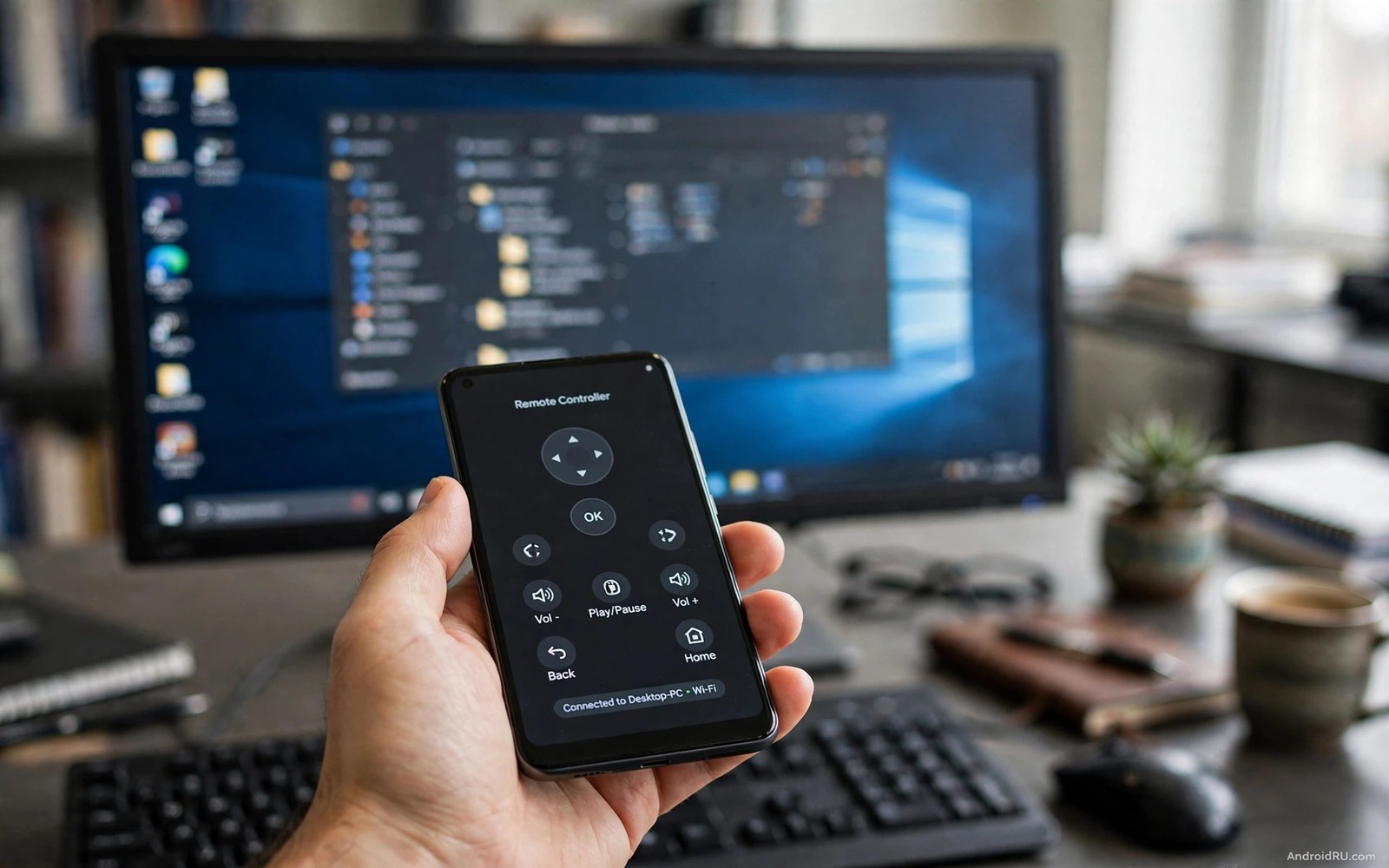
Your computer sits across the room. Your presentation starts in two minutes. The wireless mouse battery just died. Your phone is already in your hand. It can take over as a touchpad and a keyboard in less than a minute. That simple rescue is why a desktop controller app earns a permanent place on many phones.
A controller app links your phone to your computer over the same Wi-Fi network. Some apps also work over Bluetooth when Wi-Fi is unavailable. The phone screen becomes a trackpad. A tap becomes a click. A two finger drag becomes a scroll. A keyboard button opens a full keyboard on the phone. Media buttons pause music and change volume without walking to the desk.
The best use is not everyday typing. Long documents still belong on a real keyboard. The best uses are short bursts of control. Skip a song from the kitchen. Advance slides during a talk. Pause a film from the sofa. Control a media centre hidden behind the television. Each task takes seconds on a phone. Each task takes a walk without one.
This guide walks through setup and daily use in plain steps. You will learn how to pair safely on a home network. You will learn which features matter for presentations and media. You will learn how to fix the lag that ruins a smooth demo. You will also learn the security limits that matter on a shared network.
How pairing works on a home network
Most controller apps use two parts. One part runs on the phone. One part runs on the computer as a small server. Both parts must join the same network. The phone finds the computer by scanning the local network. You confirm a code on both screens. That code proves that you own both devices. It stops a stranger on the same network from taking control.
Install the computer part first. Download it only from the app maker inside the phone app when possible. A direct link inside the app reduces the risk of a fake download. Run the installer and allow it through the firewall when asked. The firewall prompt can look scary. It is normal for a local server to ask for network access. Deny it only if you plan to use Bluetooth instead.
Open the phone app and wait for the computer name to appear. Tap the name and check the code. The code should match on both screens. Confirm on both devices. Test a mouse move at once. Move one finger slowly across the phone screen. The cursor on the computer should follow smoothly. If it jumps or lags then check the network advice later in this guide.
Some apps offer a direct hotspot mode. The computer creates its own Wi-Fi signal. The phone joins that signal instead of the home network. This mode helps in a meeting room with no shared network. It also helps when a guest network blocks device discovery. The downside is that the phone loses internet access while joined. Use hotspot mode only for short sessions.
Features that matter for presentations
A presentation mode turns the phone into a slide remote. Large buttons move forward and back. A small preview shows the current slide number. A timer shows how long you have spoken. A blank screen button hides the slide during a break. These features let you face the audience instead of the laptop. Eye contact improves every talk.
A laser pointer mode is useful in a large room. Move the phone and a dot follows on the screen. Use it briefly to highlight one point. Holding it on for a whole slide distracts the audience. A pointer is a spice and not a main course. Use it sparingly and your points will land harder.
Volume control matters more than people expect. A presenter often needs to raise a video clip quickly. Fumbling for a laptop volume key breaks the flow. A phone volume slider solves it in one gesture. Test volume before the audience arrives. Test it with the actual video clip you will play. A clip at full volume can startle a quiet room.
Practice the full flow once before a real talk. Pair the devices in the actual room. Walk to the spot where you will stand. Advance ten slides from that spot. Check that the signal reaches through the room. A rehearsal catches dead zones that a desk test never shows. Readers who present from a tablet should also see apps that transform a tablet into a laptop workstation because the same pairing ideas apply there.
Media control from the sofa
Media control is the most common daily use. Play and pause buttons sit on the main phone screen. Skip buttons move to the next track. A volume slider changes sound without a menu. A mute button silences an advert instantly. These controls work even when the computer screen is off. That makes them ideal for music in another room.
Some apps show the current track on the phone. You can see the artist and the title without turning on the television. You can build a queue from the sofa. You can search for a song without standing up. A good media view updates within a second of a change. A slow media view causes double taps and skipped tracks.
Keyboard shortcuts add power for advanced users. A controller app can send common shortcuts to the computer. Space pauses most video players. Arrow keys skip forward and back. Function keys change brightness on some laptops. Learn three shortcuts that you use daily. Ignore the rest until you need them. A small set of shortcuts beats a long list you never memorise.
Touchpad sensitivity deserves a minute of tuning. Set sensitivity low if the cursor races across the screen. Set it high if you must drag your finger many times for one move. Turn on tap to click if you dislike pressing hard. Turn it off if you click by accident while scrolling. A tuned touchpad feels like a real mouse. An untuned touchpad feels like a chore.
A safe setup you can copy
Pair only on networks you trust. A home network with a strong password is a good place. A public café network is not a good place. A stranger on a public network could see your computer name. They could try to pair while you are distracted. Use Bluetooth mode or a personal hotspot in public places. Keep the computer server closed when you are not using it.
Set a connection password inside the app when the option exists. A password adds a second check beyond the pairing code. Change it if you ever pair in a shared office. Close the server app after each session. A closed server cannot accept a new connection. An open server waiting all day invites trouble.
ping -c 4 192.168.1.50
ss -tlnp | grep 8080
adb shell dumpsys wifi | grep -i ssid
The snippet above is an original example written for this guide. It shows how an advanced user can check network reach and listening ports from a computer. It is not a required step for normal pairing.
Keep both apps updated. Updates fix pairing bugs and security flaws. An old computer server may fail with a new phone app. An old phone app may fail with a new computer system. Update both parts on the same day. Test pairing again after any major update. A two minute test prevents a failed demo later.
Fixing lag and dropouts during control
Lag usually comes from the network and not the app. A crowded Wi-Fi network delays every command. Move the computer closer to the router when possible. Close video streaming on other devices during a presentation. A quiet network responds faster. Test lag by moving the cursor in slow circles. Smooth circles mean a healthy link. Jerky circles mean network trouble.
Bluetooth mode helps when Wi-Fi is crowded. Pair the phone directly to the computer. Bluetooth range covers a normal meeting room. It avoids the shared network entirely. The downside is slower file transfer. Control commands are tiny so speed rarely matters. A direct link often feels more responsive than a busy Wi-Fi link.
Restart both apps when pairing fails repeatedly. Close the phone app fully. Close the computer server fully. Open the server first and then the phone app. A fresh start clears stale discovery data. Check that both devices show the same network name. A phone on a guest network and a computer on a main network will never find each other.
Common mistakes
The first mistake is pairing on a guest network that blocks discovery. Many guest networks isolate each device. The phone cannot see the computer at all. People then blame the app. The network is the real cause. Join the main home network or use hotspot mode instead.
The second mistake is leaving the server running forever. A server left open on a laptop in a shared office is a risk. It also drains a small amount of power. Close it when the session ends. Open it again only when you need it. A closed server is a safe server.
The third mistake is expecting phone typing to replace a keyboard. A phone keyboard is fine for a search term. It is slow for a long email. It is painful for code. Use the controller for short input and media control. Switch to a real keyboard for long work. Each tool has a job it does best.
The fourth mistake is ignoring lag until a live demo. Lag often comes from a weak Wi-Fi signal. It can also come from a busy computer. Close heavy programs before a presentation. Move closer to the router when possible. A laggy pointer during practice will be worse in front of an audience.
FAQ
Does a controller app work without Wi-Fi?
Some apps work over Bluetooth. Bluetooth range is shorter than Wi-Fi range. It suits a single room and a single computer. Wi-Fi suits a whole house and a media centre. Choose Bluetooth when no trusted Wi-Fi network exists.
Can someone else control my computer through the app?
Only if they pass the pairing code and any password you set. Keep the code private during pairing. Close the server after each session. Never pair on a public network without a password. These three habits block casual abuse.
Will the app work with any computer system?
Most major controller apps support the common desktop systems. Check the app page for your exact system before you install. Some features differ between systems. Media keys and shortcuts may vary. Core touchpad and keyboard features usually work everywhere.
Conclusion
A phone controller turns a pocket device into a remote for your whole desk. It saves walks across the room. It improves presentations. It makes media nights easier. It costs little and sets up in minutes. The value comes from using it for short tasks where a phone truly shines.
Your concrete next step is to pair your phone and computer tonight and run a ten slide practice from the far side of the room. Test the touchpad and the volume slider and the slide buttons. If every control responds smoothly then keep the app installed. If lag appears then move closer to the router and test again. Readers who want more phone automation should also explore the ultimate automation app that will do work for you and system monitor apps that check hardware health because a smooth controller needs a healthy host computer.

