

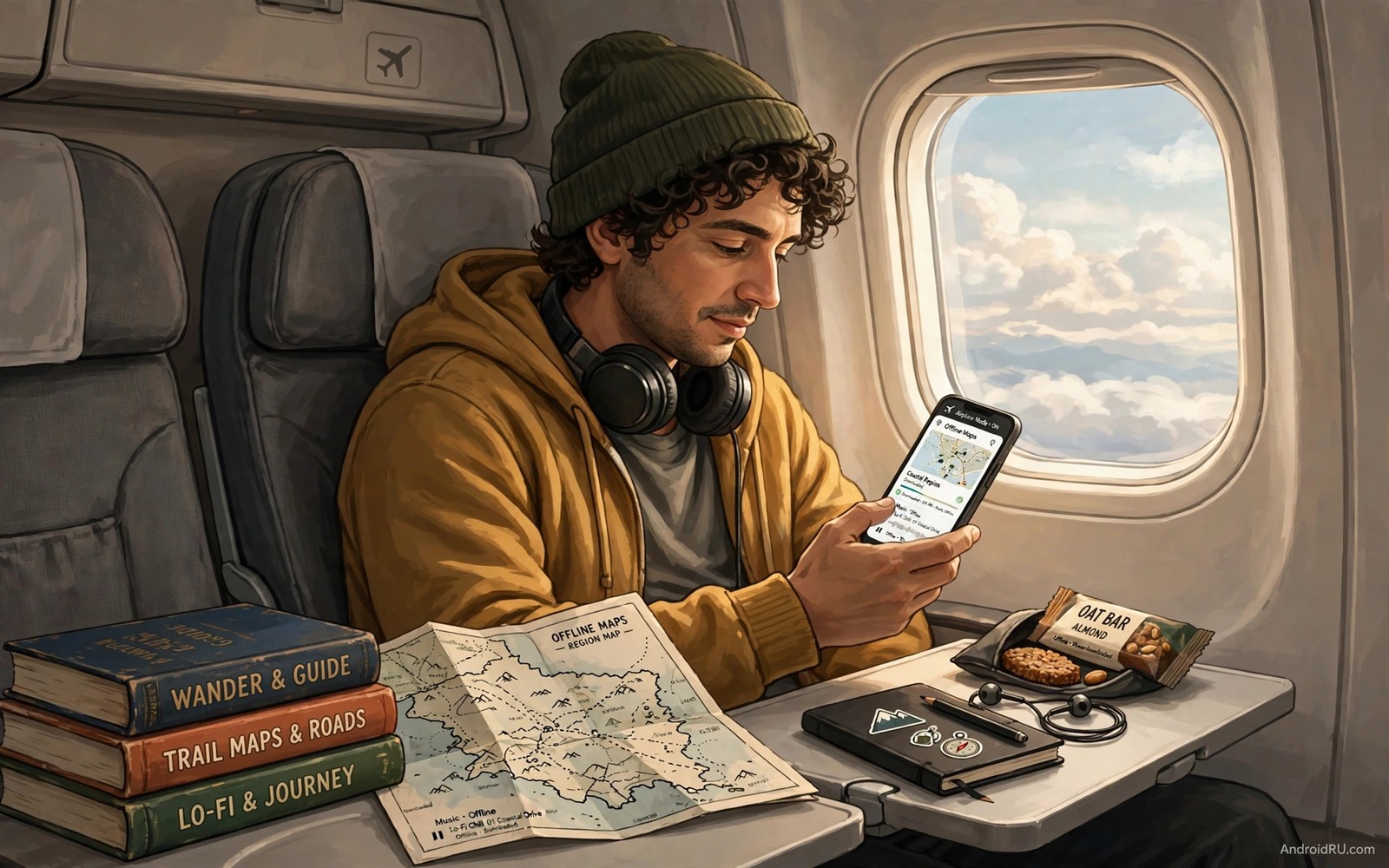
7 Offline Apps You Must Download Before Going on Long Flights
A long flight exposes every gap in your phone setup. The Wi-Fi costs more than lunch, the signal drops over the ocean, and the seat screen shows a film you have already seen. Your phone becomes your cinema, your library, and your map all at once. The only question is whether you prepared it before takeoff.
Preparation beats panic every time. A traveller who saves everything the night before relaxes when the cabin door closes. A traveller who waits until boarding scrambles for a weak airport signal. The airport network slows down when hundreds of people join it at once. Large files fail halfway through, small apps update instead of the films you actually need, and the boarding call comes before anything finishes. A checklist done at home avoids all of that stress.
This guide gives you that checklist in a practical order. You will meet seven named apps that genuinely work with no signal at all, one for films, one for music, one for maps, one for books, one for translation, one for your own video files, and one for games. You will also learn how much storage each type really needs and how to test everything in airplane mode before you leave home. The goal is simple: your phone should work perfectly with no signal for the whole flight.
How to Prepare Your Phone for a Long Flight Without Wi-Fi
Start with storage math before you save anything. Check how much free space your phone has right now under Settings, then Storage. A two-hour film in high quality can take several gigabytes, a full offline map of a large region can take a similar amount, and music and books take far less space. Delete old downloads you will not watch again. Move photos to a backup first if space is tight. A phone with no free space cannot save anything new at the airport, no matter how fast the network is.
Save in the right order. Films first, because they are the biggest files and the most likely to fail on a slow network. Maps and language packs second, because they are the tools you need the moment you land. Music and books last, because they are small and quick. Do it all on home Wi-Fi the night before, and leave the airport network for small top-ups only. Readers who travel light should also check lightweight apps that take less than 10MB of storage because small apps leave more room for films.
Check your free space before you save anything
Open Settings, then Storage, and look at the free space number before you start. Aim for at least 20 GB free for a long-haul flight: two films in standard quality, a music playlist, a few books, a city map, and a language pack fit comfortably in that space. If you have less than 10 GB free, delete the largest old films first, then clear the cache of streaming apps, then move photos and videos to a computer or a cloud backup. Check the number again after each round of deleting, because the number is what decides how much you can take with you.
Save everything on home Wi-Fi, not at the airport
Home Wi-Fi is faster, more stable, and free. Airport Wi-Fi is shared with hundreds of travellers, it often caps speeds per device, and it can drop out right in the middle of a large file. A film that fails at 90 percent usually restarts from the beginning, which wastes the time you thought you had. Save everything at home, then use airport time only to check that the files open and to grab anything small you forgot.
Why airport Wi-Fi fails large downloads
Airport networks limit each device to a small share of the total bandwidth, and that share shrinks as more travellers join. Video streaming is often blocked or throttled outright. A connection that looks fine for messaging can still be far too slow for a 2 GB film. The network can also force you through a login page that times out, which breaks downloads that need a steady connection.
The order that saves the most time
Films first, maps second, language packs third, music fourth, books last. That order puts the slowest, largest files at the start of the evening when you have the most time, and the quickest files at the end when you are packing your bag. Tick each item off a list as it finishes, and open every file once at home, because an unopened file may still need a licence check that only works with a signal.
The 7 Offline Apps for Your Next Long Flight
These seven apps cover everything a long flight can throw at you: films for the awake hours, music and podcasts for the drowsy ones, maps and translation for arrival, books for the quiet stretches, and a game for the last hour when your eyes are tired of video. Each one works fully offline once it is set up, and each one has been tested in airplane mode. Pick the ones that fit your trip, skip the ones that do not, and set them up the night before.
1. Netflix: films and shows that wait for you offline
Netflix lets you save films and series episodes to your phone inside the app, so they play with no signal at all. Open the app, find a title, and tap the download icon. Choose standard quality if your flight is very long and your storage is small: it still looks good on a phone screen and takes roughly half the space of high quality. Most plans allow a limited number of offline titles per account, and saved titles usually expire after 30 days, or 48 hours after you start watching, so save them the night before rather than a week early.
Netflix is for travellers who want proper films and series without relying on the seat screen or onboard Wi-Fi. It suits night flights especially well, because you can watch with headphones and the screen dimmed while the cabin sleeps. Smart Downloads can also replace a finished episode with the next one automatically when you have Wi-Fi, which is handy on a trip with several legs.
Pros
- A huge catalogue of films, series, and documentaries, with new titles added every week.
- Standard quality saves look good on a phone screen and take far less space than high quality.
- Saved titles play instantly with no signal, no login check, and no buffering.
- Smart Downloads replaces finished episodes with the next one when Wi-Fi returns.
Cons
- Not every title can be saved offline, because some licences exclude downloads.
- Saved titles expire after 30 days, or 48 hours after you start watching them.
- The number of offline titles per account is limited by your plan.
Verdict: the first app to set up for any long flight. Save two films and a few episodes the night before, in standard quality, and you are covered for the whole journey.
2. Spotify: music and podcasts without a signal
Spotify Premium lets you save playlists, albums, and podcast episodes for offline listening. Open a playlist, switch on the download toggle, and wait for the green arrow that means the files are on your phone. A playlist of favourite songs is safer than a radio station that needs a signal, and a podcast series is even better, because one episode can fill an hour without any screen time at all.
Spotify is for travellers who want sound more than pictures: sleepers, readers, and anyone who finds ten hours of video tiring. Save at least two playlists with different moods, one calm for sleeping and one upbeat for staying awake, plus one podcast series you have been meaning to start. Your eyes will thank you on a night flight.
Pros
- Offline playlists, albums, and podcasts work with no signal once saved.
- Normal audio quality takes very little space, so hours of music fit in under a gigabyte.
- Podcasts fill long stretches of a flight without any screen time.
- Your library, liked songs, and daily mixes all travel with you.
Cons
- Offline listening needs a Premium subscription, because the free plan cannot save music.
- Saved songs need a Wi-Fi check at least once every 30 days to stay available.
- Very large playlists take a while to save, so start them early in the evening.
Verdict: the best companion for sleeping and reading on a flight. Save two playlists and a podcast series, and your ears are sorted for ten hours.
3. Google Maps: offline maps for the city you land in
Google Maps lets you save whole regions for offline use, so you can navigate after landing with no mobile data at all. Search for your destination city, tap the place name, then tap the three dots and choose Download offline map. Pick the area that covers your hotel, the airport, and the train station, then let it finish processing before you close the app. A map that looks ready may still need extra data for street names, so open it once at home and zoom in to check.
Offline maps are for every traveller, not just drivers. Save your hotel address inside the app, save the airport and the train station as well, and those saved places work offline even when search does not. The phone GPS receiver finds your position from satellites alone, with no mobile data, so you can walk to a saved pin without typing an address in a language you cannot read. That small step saves a lot of stress after a tiring flight.
Pros
- Saved regions and saved places work with no signal, and GPS still finds your position.
- Turn-by-turn directions for driving work offline in most saved regions.
- Hotel, airport, and station pins guide you without typing an address on arrival.
- Maps update automatically when you have Wi-Fi, so they stay fresh before a trip.
Cons
- Live traffic, live transit times, and live search need a signal and will not work offline.
- A large region takes hundreds of megabytes, and very large regions can exceed the size limit.
- Saved maps expire after about a year, and the app may delete old ones automatically.
Verdict: the most useful app after landing. Save your destination region and three pins the night before, and you will never be lost at an airport again.
4. Kindle: a whole library that weighs almost nothing
Kindle turns your phone into a library that fits in your pocket. A single novel takes only a few megabytes, so you can carry ten books in less space than one minute of video. Open the app, tap a book in your library, and wait for it to finish downloading before you close the app. Download three books if you read fast, or one long book if you read slowly, and switch on dark mode with a warm screen filter so you can read without disturbing the passenger beside you.
Kindle is for readers and for anyone who wants quiet entertainment that costs no battery. A book needs far less power than a film, and it works in every phase of the flight, including takeoff and landing when larger screens must be stowed. Your reading position, highlights, and notes sync back to your account when you have Wi-Fi again, so nothing is lost.
Pros
- Books are tiny files, so a whole library fits in a few hundred megabytes.
- Dark mode and adjustable text size make long reading sessions comfortable.
- Reading uses far less battery than video, so it stretches a charge across a long flight.
- Your position, highlights, and notes sync when Wi-Fi returns.
Cons
- Books bought elsewhere need converting before Kindle can open them.
- Comics and illustrated books take far more space than plain novels.
- The free catalogue is large but the newest bestsellers cost money.
Verdict: the lightest entertainment on this list. Three books weigh less than one film, and they never need a signal.
5. Google Translate: read menus and signs with no signal
Google Translate with a downloaded language pack is worth its weight on arrival. Open the app, tap your profile picture, then Downloaded languages, and save the language of your destination before you fly. The pack is usually around 40 to 50 MB, it includes the camera translation that reads menus and train signs through your phone camera, and it works fully offline once installed. Test the camera mode on a photo at home and the voice mode in a quiet room, because a pack that has never been tested may still be missing data.
Google Translate is for travellers landing somewhere they do not speak the language. It reads a menu, a street sign, or a ticket machine through the camera, and it holds a simple spoken conversation in voice mode. It cannot help you if you only try to save it after landing, so this is one pack to grab the night before, along with your map.
Pros
- Camera translation reads menus, signs, and ticket machines with no signal.
- Voice mode handles simple spoken conversations with people you meet.
- Language packs are small, around 40 to 50 MB each, and they stay on the phone.
- Saved phrasebooks keep your hotel address and key questions handy.
Cons
- Translations are good for menus and signs but rough for long, complex sentences.
- Camera mode needs decent light, so it struggles in a dark restaurant or train.
- Each language is a separate pack, so a multi-country trip needs several downloads.
Verdict: the smallest app on this list and one of the most useful on arrival. Save the language pack before you fly, not after you land.
6. VLC for Android: play films you already own
VLC for Android plays almost any video or audio file you already have on your phone, with no account, no subscription, and no signal needed. Copy films, home videos, and music from your computer to the phone over USB, open VLC, and the files appear in its library automatically. It handles subtitles, multiple audio tracks, and odd file formats that other players refuse, and it remembers your position in every film, so a paused film picks up exactly where you left it.
VLC is for travellers who already own films or who record their own videos and want a player that just works. It suits people who distrust streaming licences, because a file on your phone plays forever, with no expiry date and no 48-hour countdown after you press play. It also plays audio files and podcasts saved as MP3, so it can double as a music player on a flight.
Pros
- Plays almost any video or audio format, including subtitles and multiple audio tracks.
- No account, no subscription, and no expiry date on files you own.
- Remembers your position in every film, so pausing costs nothing.
- Completely free, with no ads and no in-app purchases.
Cons
- You have to supply your own files, because VLC has no catalogue of its own.
- Copying large films over USB takes time and a cable you must remember to pack.
- The interface is plain and functional rather than pretty.
Verdict: the reliable backup player. If a streaming title expires or refuses to play, your own files in VLC always work.
7. Monument Valley 2: a puzzle game that never needs a server
Monument Valley 2 is a quiet puzzle game that runs fully offline from the first minute to the last. You guide a mother and child through impossible architecture, rotating towers and shifting staircases to open a path. There are no timers, no lives, no ads, and no server check, so it plays exactly the same at 35,000 feet as it does on your sofa. The whole game takes a few hundred megabytes, and a single chapter fills twenty calm minutes without any screen glare from video.
Monument Valley 2 is for travellers who want a game that respects their attention. It suits the last hour of a flight, when your eyes are tired of films and your brain wants something gentle. It also suits parents, because a child can play it without stumbling into purchases or online chat. Many popular games need a server check even for single player mode, so test any game in airplane mode before the flight, and a game that shows a connection error on the ground will show the same error in the air.
Pros
- Fully offline from start to finish, with no server check and no ads.
- Calm, beautiful puzzles that fill time without tiring your eyes like video does.
- Short chapters suit the gaps between meals, films, and sleep on a long flight.
- Safe for children, with no purchases, no chat, and no online strangers.
Cons
- It is a paid game, so it costs a few dollars before you can play it.
- The main story lasts only a few hours, so fast players may finish it before landing.
- Puzzle games are not for everyone, and action fans may find it too slow.
Verdict: the best game for a long flight. Calm, offline, and beautiful, it covers the hours when video feels like too much.
How Much Storage Do Offline Films, Maps, and Music Really Need
Storage is the one number that decides how much entertainment you can take with you, and it is easy to get wrong. People either save one film and run out of things to watch, or they fill the phone so full that it cannot work well. A phone with almost no free space runs slowly, and it may fail to save a photo or a note at the worst moment. Leave at least a few hundred megabytes free after all your downloads, and delete the largest old film if you must choose between space and comfort.
| What you save | Standard quality size | High quality size | What it covers |
|---|---|---|---|
| Two-hour film | About 700 MB | About 1.5 to 2 GB | One evening of watching |
| One-hour TV episode | About 300 MB | About 700 MB | One episode of a series |
| Ten hours of music | About 500 MB | About 1 GB | A full day of listening |
| One podcast episode | About 40 MB | About 80 MB | About one hour of listening |
| One ebook | About 2 to 5 MB | About 2 to 5 MB | One whole novel |
| Offline city map | About 100 to 300 MB | About 100 to 300 MB | One city and its surroundings |
| One language pack | About 40 to 50 MB | About 40 to 50 MB | One language, camera and voice |
| One puzzle game | About 200 to 500 MB | About 200 to 500 MB | Several hours of play |
A realistic storage budget for a 10-hour flight
Two films in standard quality plus music and books usually fit in about ten gigabytes. Add a few gigabytes for maps and language packs, and a phone with twenty gigabytes free gives you a comfortable margin. Standard quality still looks good on a phone screen, and it is worth choosing when your flight is very long and your storage is small. High quality is worth it only when you have space to spare, because the extra sharpness is hard to see on a six-inch screen in a dim cabin.
Do not trust a single film for a very long flight. A film ends sooner than you expect, a delay can add hours to your journey, and a film you have already seen feels longer the second time. Save at least one extra film and one extra book. Extra content weighs nothing in a phone, and it weighs a lot in boredom when you have nothing left to watch.
Where to find space when your phone is nearly full
Start with the biggest files. Open Settings, then Storage, and sort by size. Old films and series episodes are usually the largest items, followed by downloaded podcasts you already heard and offline maps of places you visited months ago. Delete those first, because each one frees hundreds of megabytes at once. Then clear the cache of streaming apps, which can hold gigabytes of temporary files you will never miss.
Delete old downloads you will not watch again
A film you watched on the last trip is dead weight on the next one. Streaming apps keep saved titles until you delete them, and the titles expire anyway after 30 days, so deleting them costs nothing. Check the downloads screen inside each streaming app, not just the phone storage screen, because some apps hide their saved files from the general storage view.
Move photos to a backup before you pack films
Photos and videos are the silent storage eaters on most phones. A week of holiday photos can take several gigabytes, and they sit there while you try to save a film. Move them to a computer or a cloud backup the night before, confirm the backup opened correctly, and only then delete the phone copies. A backup you have not checked is not a backup.
Test Every Offline App in Airplane Mode Before You Leave Home
The classic mistake on a long flight is trusting an app that claims a download is ready when it still needs a licence check. A map may claim a region is saved when street names are missing. A game may need a server check on first launch. Ten minutes of testing at home catches all three problems, and anything that fails tonight can still be fixed at home, while anything that fails in the air cannot be fixed at all.
The 10-minute airplane mode test
Run this test the evening before your flight, after everything is saved. It takes ten minutes, and it is the single most valuable step in this whole guide.
- Turn on airplane mode, then turn Wi-Fi and Bluetooth off as well, so the phone has no connection of any kind.
- Open Netflix and play the first minute of each saved film, then close it and open the next one.
- Open Spotify and play one song from each saved playlist, then play the first minute of a saved podcast.
- Open Google Maps, search for your hotel by name, and check that street names and the saved pin appear.
- Open Kindle and turn three pages of each saved book, checking that the text loads instantly.
- Open Google Translate, point the camera at a printed page, and check that translation appears.
- Open VLC and play thirty seconds of a film you copied yourself, with subtitles on.
- Open Monument Valley 2 and finish the first puzzle, checking that no connection error appears.
- Turn airplane mode off and fix anything that failed, then repeat the test for that app only.
What to do when an app fails the test
A failed test is good news at home and bad news in the air, so treat every failure as a gift. A film that asks for a licence check needs to be opened once with Wi-Fi before it will play offline, so open it, watch a minute, and close it. A map with missing street names needs to be saved again with a slightly larger area. A game that asks for a server check is not an offline game at all, so replace it with one that is. Do not board the plane hoping a failed app will fix itself.
A film that asks for a licence check
Streaming apps check your subscription before they let a saved title play offline, and that check needs Wi-Fi the first time. Open the film at home, watch at least a minute, and the licence check completes. If the film still asks for a check, delete it and save it again, because a broken save is more common than a broken account.
A map that looks saved but has no street names
A map region can look saved while the detail data is still processing in the background. Open the map, zoom in to street level, and wait a minute. If street names never appear, delete the region and save it again with Wi-Fi on, then leave the app open for five minutes so the processing finishes. Test it again in airplane mode before you trust it.
Battery and Comfort Tips for a 10-Hour Flight
Battery planning starts the night before. Charge the phone fully and charge a power bank as well. A power bank with one full charge can double your screen time. Keep the cable in your personal bag and not in the overhead bin, because you will need it during the flight. A short cable is easier to manage in a tight seat than a long one, and a second pair of wired earbuds is a cheap backup when wireless earbuds run out of power at the worst moment.
Stretch the battery with airplane mode and dark mode
Use airplane mode wisely during the flight. Airplane mode stops the phone from searching for a signal, and that search drains the battery fast at high altitude. Turn on Wi-Fi only if you buy onboard access, turn Bluetooth on only for your headphones, and turn off background refresh for apps you will not use. Screen brightness is the biggest battery drain after the processor, so set brightness to a comfortable low level for films and use dark mode in every app that offers it. An OLED screen saves real power with dark pixels, and your seat neighbour will also prefer a dimmer screen at night.
Comfort gear that costs less than onboard Wi-Fi
Noise cancelling headphones change a long flight completely, and a phone stand or a folded jacket can hold the phone at eye level so your neck does not ache. A neck pillow helps you sleep without dropping the phone, and an eye mask helps more than any app when the cabin lights come on. Put the phone on do not disturb once you settle to sleep, because a buzzing phone ruins the one chance to rest before arrival.
Brightness is the biggest battery drain after the processor
The screen eats more battery than any app on a long flight, and brightness is the dial that controls it. Drop the brightness to the lowest level you can still read comfortably, and use dark mode in every app that offers it. On an OLED screen, dark pixels draw almost no power, so a dark reading app can run for hours on a small charge.
A short cable beats a long one in a tight seat
A long cable tangles around armrests, seatbelts, and your own legs, and it pulls the phone off the tray table when you move. A short cable of about 30 cm stays tidy, keeps the phone close to the power bank, and never reaches the floor. Pack the short cable in your seat pocket and the long one in your main bag.
Offline Apps for Kids on Long Flights
Children on a long flight need a separate plan, because a bored child is louder than any engine. Download two shows they already love, add one new show as a surprise, and add a drawing app that works offline. A familiar show calms a tired child faster than a new game, and a drawing app fills time when screens tire their eyes. Pack headphones made for small heads, because adult headphones slip off and break the spell.
Two shows they already love, one surprise
Familiar shows work because a tired child wants comfort, not novelty. Save two episodes of a show they already watch at home, in standard quality so they take less space, and add one new episode as a surprise for the middle of the flight when the familiar ones run out. Test each episode in airplane mode, because a child who taps play and sees an error will not wait patiently for you to fix it.
Drawing and puzzle apps that work without a signal
A drawing app that works offline fills the gaps between shows, and it rests their eyes from video. Look for apps with no ads and no purchases, because a child tapping through an ad at 35,000 feet is a problem you cannot solve quickly. Simple puzzle apps work the same way: quiet, offline, and easy to pause when food arrives.
Headphones made for small heads
Adult headphones slip off a small head and let the sound leak into the cabin, which annoys neighbours and breaks the child’s focus. Volume-limited headphones made for children stay on, protect young ears, and keep the sound where it belongs. Pack them in the seat pocket, not the overhead bin.
A white noise track for sleeping children
A steady white noise track masks cabin noise and helps a child fall asleep when the lights dim. Save one long white noise track in Spotify before the flight, or use a dedicated white noise app with an offline mode. Put the phone on do not disturb first, so a notification does not wake them five minutes after they finally sleep.
Frequently Asked Questions About Offline Apps for Long Flights
How much storage do I need for a ten hour flight?
Two films in standard quality plus music and books usually fit in about ten gigabytes. Add a few gigabytes for maps and language packs, and a phone with twenty gigabytes free gives you a comfortable margin. Delete old downloads first if you are short of space, and leave a few hundred megabytes free so the phone itself keeps running smoothly.
Can I save films on the airport Wi-Fi?
You can try, but it is risky. Airport networks slow down under heavy use, a large file may fail halfway and restart from the start, and some networks block video streaming entirely. Home Wi-Fi is faster and more stable. Save at home whenever you can, and use airport time only for small top-ups.
Do offline maps work without any signal at all?
Yes, when the region is fully saved and tested. The phone GPS receiver works without mobile data, because it finds your position from satellites alone. Saved places and downloaded streets then guide you. Live traffic and live search need a signal and will not work offline, so save your hotel and the station as pins before you fly.
Will my saved films still play if my subscription ends mid-trip?
No. Saved titles need an active subscription, and the app checks your account when you open a saved film. If the subscription ends while you are away, the saved films stop playing. Check the renewal date before a long trip, and renew early if it falls in the middle of your holiday.
Your Night-Before Checklist for a Long Flight
A great flight phone is built the night before. Films and music cover entertainment, maps and translation cover arrival, and a power bank and airplane mode cover battery life. Each piece is simple on its own, and together they turn a long flight into useful rest or real fun. Run the airplane mode test tonight, because ten minutes at home is worth ten hours of boredom in the air.
Your concrete next step is to open your phone now and start with the biggest file: save two films in standard quality, then save your destination map and language pack, then test everything in airplane mode. Readers building a full travel toolkit should also explore essential apps every Android power user installs first and must-have Android apps you did not know you needed for ideas beyond the flight itself.

