

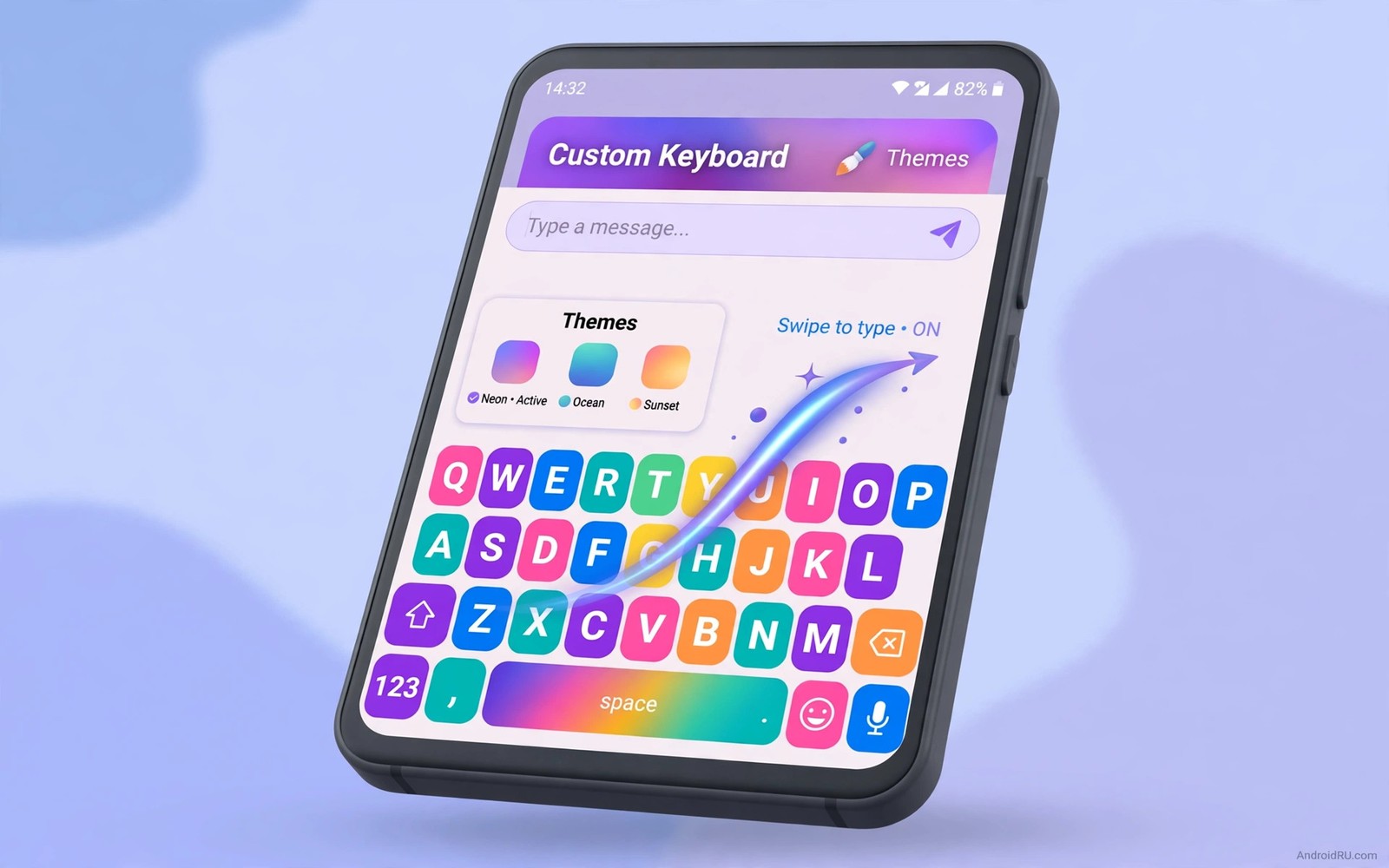
The default keyboard works well enough for short messages. It starts to feel limited when you type long notes or switch languages often. A feature packed keyboard adds swipe typing and clipboard history and custom themes. It also adds shortcuts that cut down on repeated phrases. This guide compares three strong alternatives without pushing you toward one brand.
Typing speed depends on prediction more than on key size alone. A good keyboard learns your common words and suggests the next word accurately. It should also correct obvious slips without changing a correct unusual word. Test prediction with your own vocabulary rather than a demo sentence. A keyboard that learns your work terms will feel faster within days.
Swipe typing changes the feel of one handed use completely. Dragging a finger across letters can produce a whole word in one motion. It works best for short common words and short messages. It struggles with names and technical terms that the dictionary does not know. A keyboard that lets you mix tap and swipe freely suits most people better than a swipe only design.
Clipboard history inside a keyboard saves repeated copying between apps. It lets you paste an earlier address without switching apps to copy it again. It also raises a privacy question because it stores what you copied. Set a short history limit and clear sensitive items by hand. A keyboard with a clear clipboard policy earns trust for that powerful feature.
Three keyboard styles compared
The first style focuses on speed and prediction for fast typists. It offers strong autocorrect and next word suggestions. It also offers a number row and punctuation shortcuts on the main layout. That style suits a person who writes long messages and emails on the phone. It may feel busy at first because many suggestions appear at once.
The second style focuses on privacy and offline typing. It processes predictions on the device without sending keystrokes to a server. It may offer fewer cloud sync features as a trade. That style suits a person who types passwords and sensitive notes often. Offline prediction can still learn well from local typing history over time.
The third style focuses on customisation and themes for a personal look. It offers colours and layouts and key shapes and sound options. It also offers gesture shortcuts for common actions like undo and cursor moves. That style suits a person who spends hours typing and wants the keyboard to feel personal. Customisation should never hide the keys or slow down the response.
Setting up a new keyboard safely
Install the new keyboard and enable it in system settings rather than through a popup alone. Check the input method screen to confirm only keyboards you trust appear there. Disable the old keyboard only after the new one works for a full day. Keep a fallback keyboard enabled during the test week. A fallback prevents a lockout if the new keyboard crashes on a login screen.
Review permissions before you type a password with the new keyboard. A keyboard needs input access by design because it replaces typing. It does not need contacts or location or full network access for basic typing. Reject any extra permission that does not match a feature you enabled. A careful permission check matters more for a keyboard than for most other apps.
Train the keyboard with real typing rather than a settings tour alone. Type your common phrases and names and work terms in a notes app. Correct wrong suggestions promptly so the model learns your style. After three days compare typing speed and error rate with the old keyboard. A real typing test beats a feature list every time.
adb shell ime list -a | grep -A2 mIdThis short command was prepared to list input methods on a connected device. It shows a simple command that lists input methods on a connected device. You can use the output to confirm which keyboards are enabled before you change the default.
A keyboard also interacts with every other app you install. A note app that opens fast still needs a good keyboard for comfortable writing. That is why the guide to productivity note apps that work well pairs naturally with a keyboard test. Try the new keyboard inside your actual note app rather than in a demo field alone.
Typing in multiple languages without frustration
A keyboard that handles two languages well switches dictionaries without a manual toggle for every sentence. It should recognise a word from either language based on context and recent typing. Test bilingual typing with real messages that mix languages naturally. A keyboard that forces a language switch for every word will slow a bilingual user dramatically. A keyboard that learns mixed phrases will feel natural within a week of real use.
Prediction quality differs sharply between common languages and less common ones. A keyboard may offer excellent suggestions for a major language and weak suggestions for a smaller one. Test prediction with your less common language first because that weakness matters more. A keyboard that handles both languages equally deserves a permanent place. A keyboard that handles only one language well will frustrate half of your daily typing.
Voice typing offers a useful alternative when hands are busy or typing feels slow. A keyboard with accurate voice input can capture a long message in seconds. Test voice typing in a noisy room as well as in a quiet room. Accuracy in noise matters for real life use outside a demo. A keyboard that fails in noise still helps indoors but should not be your only input method.
Customising without slowing the keyboard
Themes should change colours and key shapes without adding animation that delays key response. A heavy animated theme can make a fast keyboard feel sluggish on an older phone. Choose a simple theme first and test typing speed with a stopwatch if needed. A theme that looks beautiful but slows typing by a fraction of a second per key costs minutes across a day. Speed should win over decoration for a tool you use hundreds of times daily.
Key height and layout adjustments help different hand sizes and grip styles. A taller key row reduces accidental taps for larger thumbs. A split layout helps two handed typing on a large phone. Test layout changes for a full day rather than a few minutes because muscle memory needs time to adapt. A layout that feels odd at first can feel natural by the second day once your thumbs adjust.
Note taking benefits most from a comfortable keyboard because capture speed shapes every idea. A note app that opens fast still needs a keyboard that types fast. That pairing is why productivity note apps that work well belongs beside any keyboard trial. Test the keyboard inside your actual note app with real notes rather than in a demo field.
Keyboard shortcuts and cursor control
Cursor control separates a good keyboard from a frustrating one during long edits. A space bar swipe that moves the cursor precisely saves countless taps on a small screen. Arrow keys on a dedicated row help when you need to fix a single letter in a long word. Test cursor control with a real paragraph that contains several typos. A keyboard that makes correction easy will feel faster even if its prediction is average.
Shortcuts for common phrases save time for anyone who types the same address or greeting daily. A text expansion shortcut can turn a short code into a full paragraph in one tap. Set up three expansions for your most repeated phrases and test them in messages and email. Expansions work best for formal phrases that never change. Avoid expansions for sensitive text such as passwords because clipboard history could expose them.
A utility that manages clipboard history complements keyboard shortcuts because it stores phrases you copied earlier. A clipboard tool with pinning keeps your three most used phrases ready without retyping. That is why a secret utility app pairs well with a new keyboard during a trial week. Test keyboard and clipboard together with real messages rather than in isolation.
A broad collection of useful tools helps keyboard testing because typing happens inside notes and messages and search. That is why must-have Android apps deserves a look when you judge a keyboard by daily use rather than a demo field.
Keyboard for one-handed typing
One-handed typing needs a keyboard that adapts to a smaller width without shrinking keys too far. A one-handed mode that shifts the keyboard to one side helps thumbs reach every key. Test one-handed mode while walking or holding a bag because real one-handed use happens in motion. A keyboard that works well seated at a desk may fail while moving. Real motion testing reveals whether one-handed mode truly helps.
Swipe typing shines for one-handed use because a single finger can produce whole words. Tap typing with one hand requires more thumb travel and more errors. A keyboard that mixes swipe and tap freely suits one-handed users best. Practice swipe on common phrases for a few days before judging speed. Muscle memory for swipe forms faster than most users expect.
Common mistakes
The biggest mistake is enabling a keyboard and granting every permission on first launch. A keyboard with network access can in theory send typing data elsewhere. Grant only the access needed for the features you use. Review those permissions again after a major update changes the feature set.
Another mistake is judging a keyboard after ten minutes of typing. Prediction improves as it learns your words and phrases. Give a new keyboard three days of real messages before you decide. A keyboard that feels odd on day one can feel natural by day three once it adapts.
Frequently asked questions
Can I use two keyboards at once?
Yes. You can switch between enabled keyboards from the keyboard switcher. Keep a simple fallback enabled during the test period. Switch back instantly if a keyboard misbehaves on a specific app.
Does a custom keyboard slow down my phone?
A lean keyboard adds very little load. A heavy keyboard with animated themes can lag on an older phone. Choose a simple theme if you notice delay when keys appear.
How do I keep clipboard history private?
Set a short retention limit and pin only non sensitive items. Clear the history after pasting a password or a code. Disable clipboard history completely if you handle sensitive text daily.
Conclusion
Install one alternative keyboard today and use it for all messages for three days. Test swipe and prediction and clipboard history in real conversations. Keep it only if typing feels faster and more comfortable than the default by day three.

