

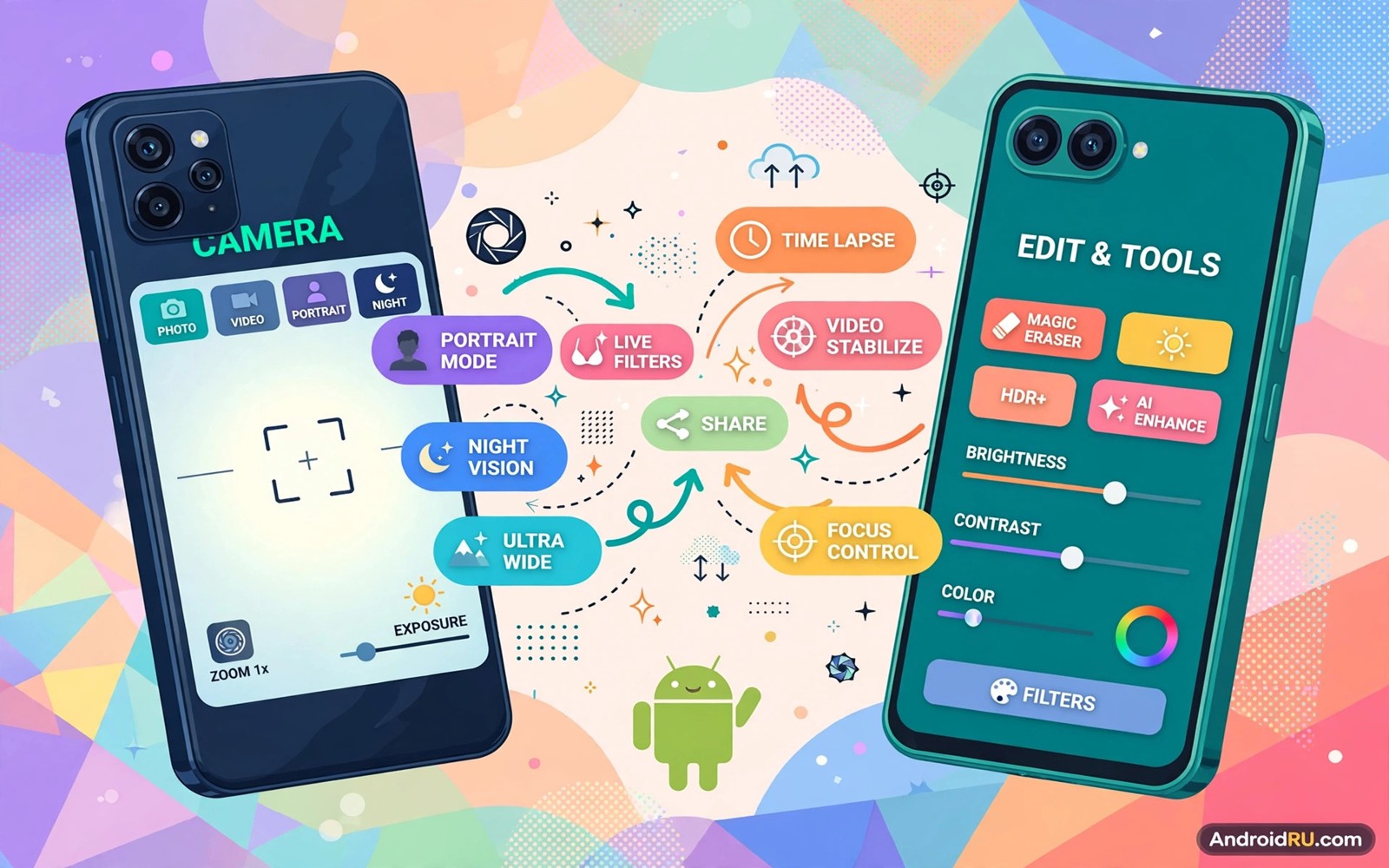
Pixel phones ship software that other phones lack. A camera app with advanced processing. A call screening tool that filters spam. A smart widget that shows calendar and weather together. A recorder with live transcription. Those features feel like Pixel exclusives. Many of them run on other rooted phones with the right port.
Porting means adapting Pixel software to different hardware. A port may install a Pixel app directly. It may add libraries that the app needs. It may spoof a Pixel device profile for one app. Each method has limits. Camera ports depend on camera hardware. Call features depend on telephony support. Widget ports depend on launcher support.
This guide covers the realistic ports first. It explains camera ports and widget ports and call features separately. It gives compatibility checks for each. It warns about ports that look good but break core functions. A port that breaks calls is not worth a nicer camera.
Start with one feature you actually use daily. A camera port suits a user who photographs often. A call screening port suits a user who receives spam calls. A widget port suits a user who checks the home screen often. One feature at a time keeps testing clear.
Camera ports and what they need
Pixel camera ports use the Pixel camera app adapted for other hardware. They bring advanced HDR processing. They bring night mode. They bring portrait mode. Results vary by sensor. A phone with a similar sensor to a Pixel gets closer results. A phone with a very different sensor gets mixed results.
Camera ports need configuration files for the specific model. A config file tunes processing for that sensor. A generic config gives average results. A model-specific config gives better results. Find a config for your exact model before judging a port. Test the same scene with stock camera and ported camera. Compare detail and colour and noise.
Some camera features need hardware support. Astrophotography needs long exposure stability. Motion photos need fast storage. Video features need encoder support. A port cannot add missing hardware. It can unlock software processing that the hardware already supports. Expect software gains not hardware miracles.
Keep the stock camera app installed alongside a port. A port may fail in one mode. The stock camera remains a fallback. A fallback matters for important photos. Test the port for a week before relying on it for events. A week reveals crashes that a quick test misses.
Call screening and recorder ports
Call screening filters unknown callers automatically. It answers with an assistant voice. It transcribes the caller response. It lets you decide whether to pick up. That feature needs telephony integration. Some phones support it through a ported dialer. Others lack the telephony hooks entirely.
Test call screening with a friend first. Ask a friend to call from an unknown number. Check whether screening activates. Check whether transcription appears. Check whether you can pick up mid-screening. A screening port that drops calls is worse than no screening. Test thoroughly before enabling it for all unknown callers.
Recorder transcription ports need language support. A transcription model for your language must exist. A port without your language gives empty transcripts. Check language support before installing. Test transcription with a short clear recording. Check accuracy for names and numbers. A transcript that mangles numbers is risky for notes.
Call features interact with attestation and permission checks. A ported dialer may need phone permission grants. A screening service may need accessibility access. Grant only what the feature needs. The attestation guide on passing hardware attestation checks helps if a ported app fails integrity checks.
Widgets launchers and system features
Pixel widgets port more easily than camera features. A smart widget shows weather and calendar and reminders. It needs a launcher that supports its size and updates. A Pixel launcher port can provide that support. A third-party launcher may also support the widget through a companion app.
System features like Live Caption and Now Playing port unevenly. Live Caption needs on-device speech models. Now Playing needs a music recognition database. Those models may be large. They may need specific hardware acceleration. Check model size and battery impact before installing. A feature that drains battery constantly is not a free upgrade.
Theme and font ports from Pixel software are usually safe. A Pixel theme changes colours and shapes. A Pixel font changes text style. Those ports affect appearance only. They rarely break core functions. Test them with your daily apps. Check readability in messaging and email.
Desktop mode users can also benefit from Pixel widgets. A clean widget on a large external display improves glanceability. The guide on enabling desktop mode on outdated ROMs covers desktop layouts. Pair a widget port with a desktop layout for a tidy workspace.
Device profile spoofing risks
Some ports spoof a Pixel profile to unlock a feature. Spoofing changes what apps see as the device model. That change can affect other apps. A banking app may see an unexpected model. A game may load wrong graphics settings. Scope spoofing to the ported app only. Systemwide spoofing creates broad side effects.
Fingerprint spoofing for attestation is a related but different technique. It presents a certified profile for integrity checks. It should not be confused with app-level Pixel spoofing. Keep those two spoofs separate in your mind. One targets integrity. The other targets feature unlocking. Mixing them causes confusing failures.
Revert spoofing if an unrelated app misbehaves. Disable the spoof for that app first. Test the app again. If it recovers then the spoof caused the issue. A scoped revert fixes the problem without losing the port for its target app. That precision is why scoping matters.
Screen care also matters when testing new widgets. A bright widget shown all day can contribute to uneven wear. The guide on extending AMOLED screen lifespan covers screen protection. Use dark widget themes where available.
Testing a Pixel port like a reviewer
Test a Pixel port with a fixed set of scenes. Photograph a daylight landscape. Photograph an indoor portrait. Photograph a low-light street scene. Use the same scenes for stock and ported cameras. Fixed scenes make comparison fair. Random scenes make comparison guesswork.
Compare detail at full zoom. Look at edges and textures. Look at noise in shadows. Look at colour accuracy for skin tones. A port may improve one area and worsen another. Full-zoom comparison reveals those trade-offs. A thumbnail comparison hides them.
Test video separately from photos. Record a short walking video with each camera. Check stabilisation. Check focus transitions. Check audio quality. A photo port may not improve video at all. Video needs its own verdict.
Test launch speed and reliability. Open the ported camera fifty times over a week. Note any crash or freeze. A camera that crashes once a week is unreliable for events. Reliability matters as much as image quality. A beautiful photo missed due to a crash has no value.
Test battery impact during a photo day. A heavy processing port can drain battery faster. Note battery level after a photo session with each camera. A port that drains much faster needs a usage limit. Use it for special scenes. Use stock for casual shots.
Keep a port verdict note per feature. Note camera verdict and call verdict and widget verdict separately. A single overall verdict hides mixed results. Separate verdicts let you keep good ports and drop bad ones. That precision keeps the phone stable.
Check port compatibility after each Pixel app update. An update can break a ported feature silently. Test the feature after updating the ported app. A quick test after each update prevents a surprise during an important photo moment.
Keep ported apps separate from stock equivalents in your launcher. A separate folder prevents opening the wrong camera by habit. Clear labelling helps during fast moments. A labelled folder is a small organisation win.
Test ported widgets on the home screen for a full week. A widget that updates reliably for a week is worth keeping. A widget that stalls or drains battery should go. A week of home screen use reveals widget reliability clearly.
Common mistakes
- Judging a camera port without a model-specific config file for the exact sensor.
- Enabling call screening for all unknown callers before testing it with a friend.
- Spoofing a Pixel profile systemwide and then blaming unrelated apps for failures.
- Removing the stock camera before a port proves stable for a full week.
- Installing a large speech model for a feature in a language it does not support.
Frequently asked questions
Will a Pixel camera port match a real Pixel photo?
It can come close on similar hardware. It rarely matches exactly. Sensor differences and tuning differences remain. Expect a clear improvement over stock in many scenes. Do not expect identical Pixel output.
Why does a ported feature work for one app but not another?
Ports often target a specific app version. A newer app version may change the feature path. A different app may use a different API. Match the port version to the app version it supports.
Can porting break system updates?
A port can conflict with an update that changes system libraries. Disable ports before a major update. Re-enable them one by one after the update. Test each port again on the new version.
adb shell dumpsys package com.google.android.apps.photos | grep -i version -m 3
# Check an installed app version on your own device as an example.
# Replace the package name with the ported app you test.
The commands above are generic inspection examples written for this guide. They show how to check an app version. They do not change the app. They do not share data anywhere.
Conclusion
Pixel ports bring real value when matched to hardware. Camera ports need model configs. Call ports need telephony testing. Widget ports need launcher support. Scope spoofing narrowly. Keep stock fallbacks until a port proves stable.
Your concrete next step is to pick one Pixel feature you use daily. Find a port and a model-specific config for it. Test it alongside the stock equivalent for a week before you switch fully.

