

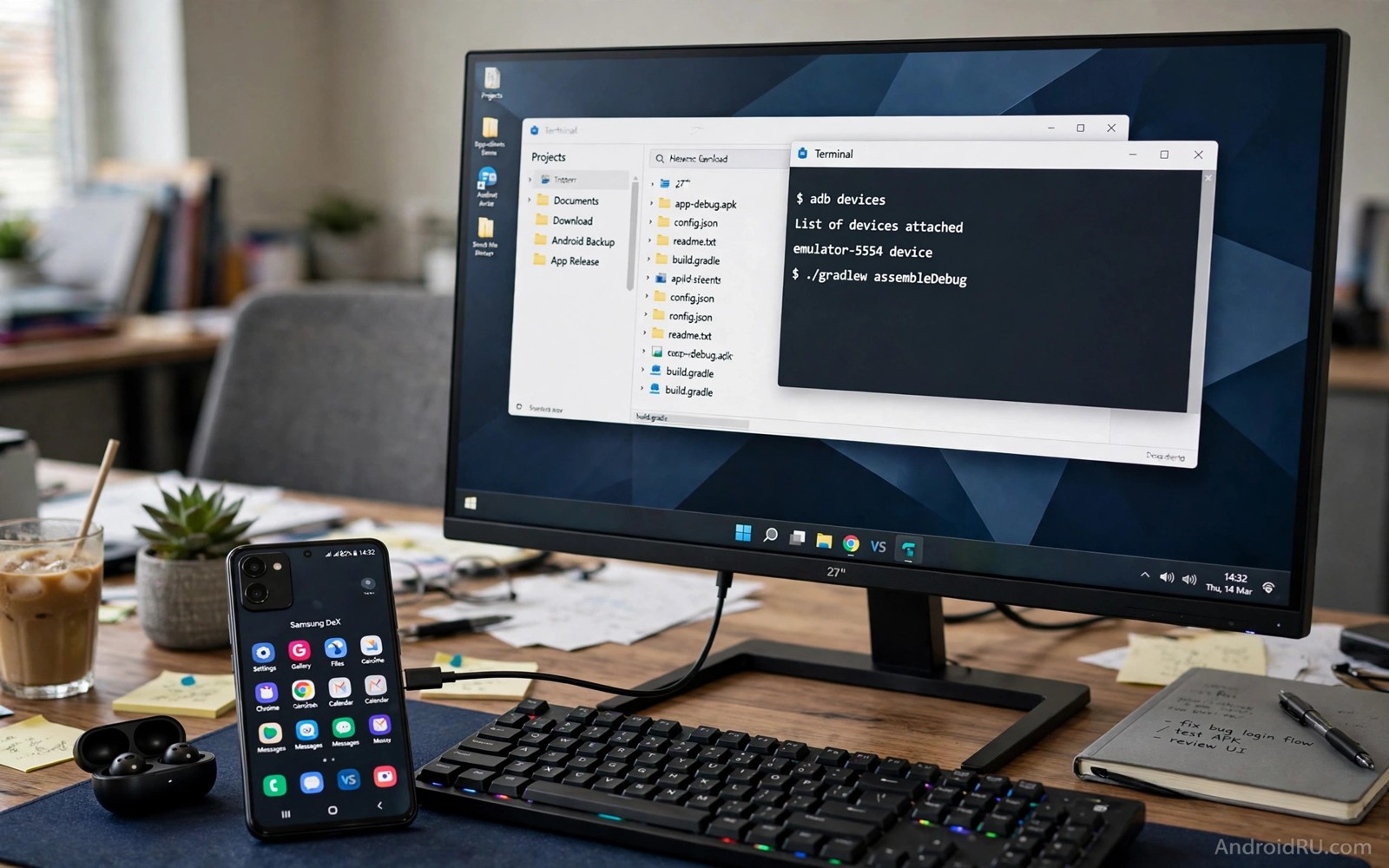
An old phone can still drive a desktop workspace. The screen is small. The processor may be slow. The software may lack a modern desktop mode. Yet the hardware can often output video and accept a keyboard and a mouse. A root tweak can unlock the desktop interface that the vendor hid. That interface turns a spare phone into a light workstation.
Outdated ROMs pose a specific problem. They may lack freeform window support. They may lack external display settings. They may force mirroring instead of extending the screen. A tweak must enable the missing pieces one by one. It cannot add hardware that does not exist. It can unlock software paths that already exist in the system. Before you flash anything new for that workspace, the warning about flashing custom ROMs is worth weighing, since a bad flash can leave an old phone with no working system at all.
This guide explains that unlocking process. It covers display output and input devices and window behaviour. It explains what to expect on an old phone. It sets realistic limits for office work and browsing. It does not promise gaming performance on old hardware. A desktop mode makes old hardware useful. It does not make it new.
Start with the connection method. A USB-C to HDMI adapter works on phones with video output. A wireless display works on phones without wired output. A tablet with a large screen can run desktop mode on its own display. Each method has trade-offs. Wired output is stable. Wireless output adds latency. On-device mode needs a large screen to feel useful.
What desktop mode actually changes
Desktop mode changes how Android draws windows. Phone mode stacks one app full screen. Desktop mode places apps in resizable windows. It adds a taskbar or a dock. It adds a mouse pointer. It adds keyboard shortcuts for switching windows. Those changes make multitasking feel like a desktop.
Freeform windows are the core feature. An app window can move and resize like a desktop window. Not every app supports freeform well. Some apps force a fixed size. Some apps restart when resized. Test your key apps in windowed mode before you rely on them. A browser and a document editor usually work well. A game usually does not.
External display handling is the second core feature. A good desktop mode shows a separate workspace on the monitor. A weak mode only mirrors the phone screen. Mirroring still helps for presentations. It does not help for multitasking. Check whether your ROM supports a separate display workspace after the tweak.
Input handling is the third core feature. A mouse needs a visible pointer and right-click support. A keyboard needs shortcuts for copy and switching. A touchpad needs gestures that map to desktop actions. A tweak that enables windows without input support feels broken. Test all three inputs together.
Enabling desktop mode with root tweaks
A system property can enable desktop features on many ROMs. A build property tweak can turn on freeform windows. A settings change can enable a desktop taskbar. A module can bundle those changes into one toggle. Use a module designed for your Android version. A property for a new version may not exist on an old ROM.
Check developer options after the tweak. Freeform window settings may appear there. Force activities to be resizable is a useful developer toggle. It lets stubborn apps enter windowed mode. It can also break apps that assume a fixed size. Enable it for testing. Disable it for apps that break.
Reboot after applying the tweak. Desktop mode changes load at boot on many ROMs. A simple app restart may not apply them. Test after a full reboot. Connect the display after boot. Check whether the taskbar appears. Check whether windows resize.
Some old ROMs need a launcher that supports desktop mode. A desktop launcher draws the taskbar and the app grid. A phone launcher may not adapt to a large screen. Install a desktop-capable launcher as a test. Set it as the default for external display if the ROM allows that choice.
Display and resolution setup
Set the external display resolution to match the monitor. A mismatched resolution causes blur or black bars. A 1080p monitor suits most old phones. A 4K monitor may strain an old graphics chip. Choose 1080p for stability even if the monitor supports more. Smooth output beats a sharp but stuttering output.
Adjust display scaling for readability. Small text on a large monitor strains the eyes. Large text wastes workspace. A scaling value near desktop norms works well. Test with a document and a browser side by side. That pair reveals whether scaling suits real work.
Check refresh behaviour on the external display. An old phone may output at a fixed rate. A refresh tweak can change the phone screen rate. It may not change the external output rate. The guide on overriding display refresh rate caps explains refresh control on the phone itself. Do not expect it to fix external display limits automatically.
Audio output needs attention too. Video over HDMI usually carries audio. Wireless display may delay audio. A wired speaker or a headset can fix sync issues. Test a video call before a work meeting. A sync problem during a call is worse than a sync problem during a video.
Keyboard mouse and window workflow
Pair a Bluetooth keyboard and mouse before a work session. Wired USB input through an adapter also works. Bluetooth avoids cable clutter. Wired input avoids pairing delays. Choose the method that your adapter supports. A hub that combines video and USB ports simplifies the whole setup.
Learn the window shortcuts for your launcher. A shortcut to switch windows saves constant mouse travel. A shortcut to maximise a window speeds up focus work. A shortcut to snap windows side by side helps document work. Practice those three shortcuts first. Other shortcuts matter less for daily use.
Arrange a simple workspace. Put a browser on one side. Put a document editor on the other side. Keep a notes app in a small window on top. That layout covers most light office work. Avoid opening ten windows on old hardware. Each window uses RAM and graphics resources. A tidy workspace runs faster.
Pixel-style features can improve the desktop feel. A clean launcher and a smart widget help on a large screen. The guide on porting Pixel software features to any rooted phone covers porting ideas that also suit a desktop layout. Use only the features that run smoothly on your hardware.
Limits on outdated hardware
Old processors struggle with many browser tabs. Keep tab count low. Close tabs you finished. Use a lightweight browser if the main browser stutters. A desktop mode does not add processor power. It only changes window layout. Respect the hardware limit.
RAM limits window count directly. Each windowed app stays in memory. A phone with four gigabytes of RAM holds fewer windows than a modern tablet. Watch for app reloads when you open a new window. A reload during document work can lose unsaved changes. Save often in desktop mode.
Battery drain rises with external display use. A phone driving a monitor and a hub drains faster than a phone in a pocket. Keep the phone charging during desktop sessions. A powered hub can charge the phone while it outputs video. That setup avoids a mid-session shutdown.
Some apps refuse windowed mode entirely. Banking apps and some games force full screen. That refusal is a design choice. Forcing those apps into windows can break them. Leave full-screen apps alone. Use desktop mode for apps that support it well.
Choosing hardware for an old-phone desktop
A good adapter matters more than a fancy tweak. A USB-C hub with HDMI and USB ports and charging covers most needs. A hub without charging forces a battery trade-off. A hub with weak video output causes flicker. Buy a hub that matches your phone port standard. Check reviews for your exact model when possible.
A compact keyboard and mouse suit a portable desktop kit. A full-size keyboard suits a fixed desk. A Bluetooth set avoids cable clutter. A wired set avoids pairing issues. Choose based on where you will use the desktop most. A portable kit needs compact gear. A fixed desk can use full-size gear.
Monitor size affects usability on old hardware. A 24-inch 1080p monitor is a sweet spot. It gives enough workspace without straining graphics. A larger 4K monitor demands more from an old chip. A smaller monitor wastes the desktop layout benefit. Match monitor to hardware capability.
Storage for documents matters in desktop mode. A phone with little free space struggles with large documents. Move documents to external storage or a cloud folder before a work session. Free internal space also speeds app launches. A tidy storage state helps desktop work noticeably.
Test the full kit for an hour before a real work task. Open a browser and a document together. Type for a while. Switch windows repeatedly. An hour reveals adapter heat and input lag and window bugs. A real task deserves a tested kit.
Test the desktop setup with a real document before a deadline. Open a document and edit a paragraph. Save it. Reopen it to confirm the save worked. A save test catches storage permission issues early. It also confirms that the document app works in windowed mode.
Desktop tweaks interact with other root modules. A display module can change window behaviour. A battery module can limit background windows. Test desktop mode with other modules disabled first. Enable them one by one after desktop mode proves stable. That order isolates conflicts clearly.
Window behaviour also benefits from a tidy home screen. A clean launcher layout makes window switching faster. The guide on porting Pixel software features to any rooted phone covers launcher improvements that suit desktop use. Pair those improvements with a tested adapter for a reliable workspace.
Common mistakes
- Enabling freeform windows without testing keyboard and mouse input together.
- Choosing 4K output on an old graphics chip and then blaming desktop mode for stutter.
- Opening ten windows on a low-RAM phone and losing unsaved work to reloads.
- Forcing a full-screen-only app into a window and breaking its layout.
- Skipping a reboot after a property tweak and concluding the tweak failed.
Frequently asked questions
Can any old phone run desktop mode?
No phone without video output or wireless display support cannot drive a monitor. A tablet can run desktop mode on its own screen. Check display output support for your model before you invest in adapters.
Will desktop mode make an old phone fast?
No desktop mode changes layout not speed. It can make multitasking easier. It cannot add RAM or processor power. Light office work and browsing suit old hardware best.
Why do some apps restart when resized?
Those apps assume a fixed screen size. Resizing triggers a configuration change. The app restarts to adapt. A resizable developer toggle can help some apps. Others will always restart on resize.
adb shell settings put global enable_freeform_support 1
# Enable freeform window support on ROMs that expose this setting.
# Reboot after changing it and test one app in windowed mode.
The command above is a generic example written for this guide. It sets a freeform support flag where the ROM exposes it. It does not work on every ROM. It does not modify hardware.
Conclusion
Desktop mode on an outdated ROM is a practical reuse project. Enable freeform windows. Set 1080p output. Pair keyboard and mouse. Keep window count low. Save often. Test apps before you rely on them for work.
Your concrete next step is to test video output today. Connect your phone to a monitor or a TV. Check whether it mirrors or extends. That result decides which desktop tweak path makes sense for your device.

