

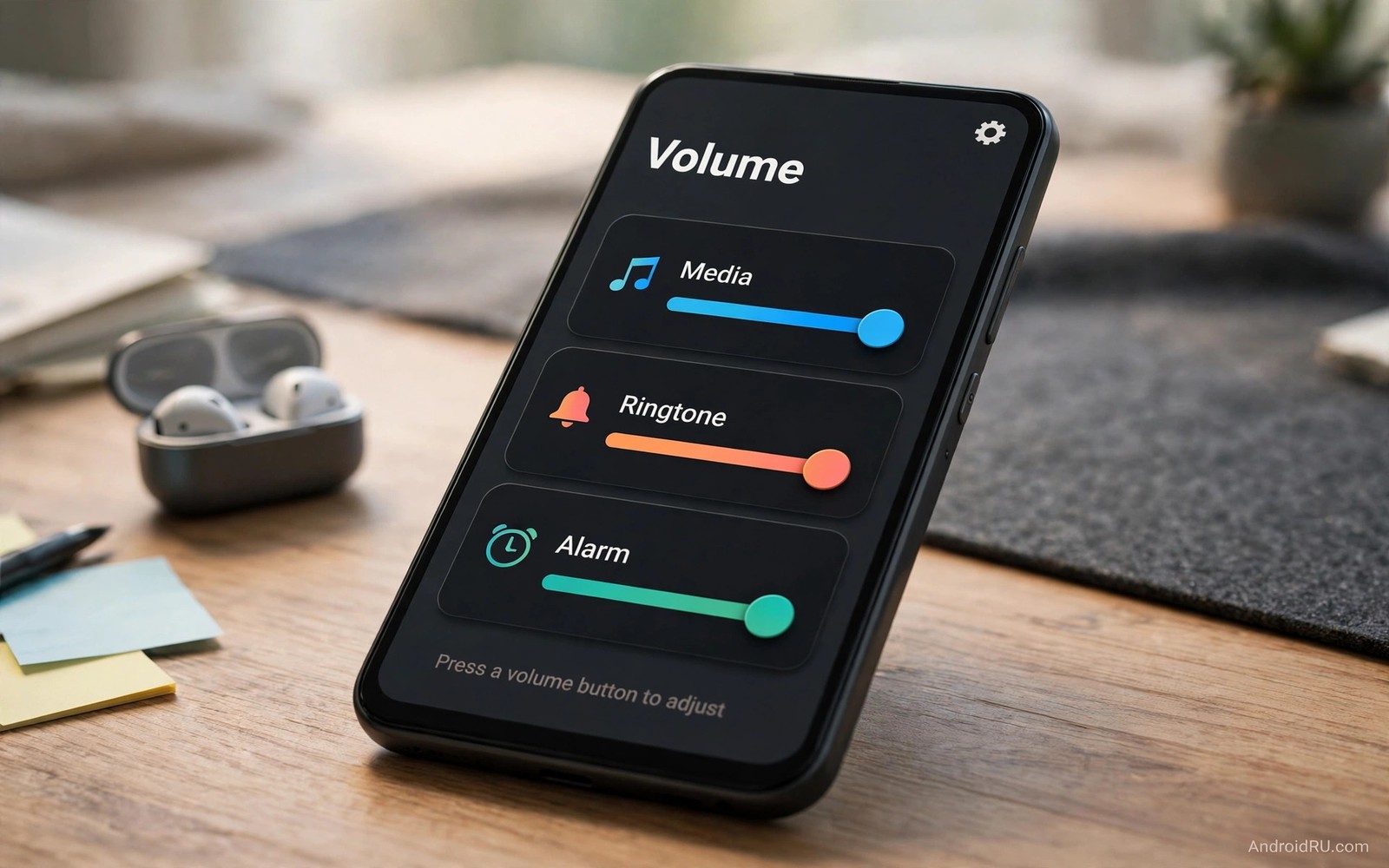
The stock volume panel does one job and it does it plainly. Press a volume key and a small bar appears. Expand it and you see sliders for media and ringtone and alarm. The design is functional but it is cramped and it hides the stream you need behind an extra tap. A stylish alternative can show every stream at once and it can match your theme. The right panel makes volume control feel instant rather than fiddly.
Volume streams matter because they control different parts of your day. Media volume controls music and video. Ringtone volume controls incoming calls. Alarm volume controls morning wake ups. Notification volume controls message sounds. A good panel separates these streams clearly so you never lower the alarm when you meant to lower media. That separation is a safety feature as much as a style choice. A wrong slider at night can silence an alarm you needed.
This guide evaluates three styles that cover most tastes. A vertical side panel suits one handed use because it sits near the volume keys. A curved bottom panel suits large screens because it keeps sliders within thumb reach. A compact bubble panel suits minimal setups because it appears only when needed and vanishes fast. Each style is judged on speed and clarity and battery use. The winner depends on your hand and your habits and not on screenshots alone.
Vertical side panels for one handed control
A vertical panel appears beside the volume keys on the edge of the screen. Sliders run up and down in the same direction as your thumb movement. This alignment feels natural because pressing volume up moves the slider up. The panel can show media and ringtone and alarm in a single column. You can adjust any stream without expanding a hidden section. That direct access saves a tap every time.
Position is the key setting for this style. Place the panel on the same edge as your volume keys. Right handed users usually want it on the right edge. Left handed users want it on the left edge. Set the panel to appear close to the top third of the screen where your thumb rests when holding the phone. If the panel appears near the bottom then your thumb must stretch and the advantage disappears. Test the position while walking because one handed use matters most when your other hand is busy.
Size and contrast decide whether the panel is usable outdoors. Sliders should be wide enough to grab without precise aim. Labels should be large enough to read in sunlight. Use a semi transparent background that keeps the app behind it partly visible. A fully opaque panel hides too much context. A fully transparent panel loses its sliders against a busy app. A middle opacity with a subtle border usually works best.
Battery impact is low for this style because the panel only draws when you press a key. It does not run a constant overlay. Check battery usage after a week and it should be negligible. If usage is high then a background service may be polling for volume changes too often. Reduce polling or choose a panel that reacts to key events only. A volume tool should sleep until you need it.
Curved bottom panels for large phones
A curved bottom panel sits above the navigation area and spreads sliders horizontally or in a fan shape. This style suits large phones because the bottom of the screen is where thumbs naturally rest. It also suits landscape video watching because the panel does not cover the centre of the video. Sliders can be arranged as arcs that follow thumb rotation. That arc layout feels ergonomic once you try it for a day.
The main advantage is reach. Every slider is within a short thumb arc from the bottom corner. You do not need to reach to the top edge to change alarm volume. The main risk is accidental taps on navigation controls. A bottom panel that sits too low can overlap the home pill or the back gesture area. Set a bottom margin that lifts the panel above the navigation zone. Test back gestures and home gestures with the panel open to confirm they still work.
Customisation options for this style are often richer. You can change slider thickness and thumb shape and track colour. You can assign a long press on a slider to mute that stream. You can set a double tap to restore a saved volume preset. Presets are powerful for people who switch between work and home and night modes. Save a quiet night preset with low media and a loud alarm. Save a work preset with medium media and silent ringtone. Switching presets beats adjusting four sliders one by one.
Full screen apps need an exception for bottom panels. A panel that appears over a game control can cause a wrong tap at a critical moment. Set the panel to delay its appearance in games or to appear in a compact mode only. Test in a game you play often. The panel should help you lower game volume fast without blocking the pause button. If it blocks gameplay then the style is wrong for that app and an exclusion is the right fix.
Compact bubble panels for minimal setups
A compact bubble shows a single media slider by default and expands only when you tap it. This style suits minimal home screens because it adds almost no visual weight. The bubble can sit near the volume keys or float at a screen edge. Tap it once for media volume. Tap the expand icon for ringtone and alarm and notifications. The design trades one extra tap for a much cleaner appearance.
Speed depends on smart defaults. The bubble should always control media volume first because media is the stream you adjust most. It should switch to call volume automatically during a call. It should switch to alarm volume when you are inside the clock app. These context rules remove the need to choose a stream manually in most cases. A bubble that always shows the wrong stream is worse than a stock panel that shows all streams.
Accessibility matters for a small bubble. The tap target must be large enough for fingers of all sizes. The expanded sliders must be spaced so you do not drag the wrong one. Use haptic feedback on mute and on maximum volume so you can adjust without looking. A bubble that requires precise taps fails for users with large hands or with a case that narrows the screen edge. Test the bubble with your case on before you commit.
Pair the bubble with a clean overall setup for the best result. A minimal panel looks odd on a cluttered home screen with dozens of widgets. It shines on a tidy screen where every element has a purpose. You can coordinate it with icon only home screen ideas and with a simple wallpaper. The combined effect is a phone that feels quiet and controlled rather than busy and loud.
Which alternative wins for your daily routine
Choose the vertical panel if you adjust volume one handed often. It wins on speed for commuters and walkers. Choose the curved bottom panel if you use a large phone and you value presets. It wins on reach and on customisation. Choose the compact bubble if you value a minimal screen and you mostly adjust media volume. It wins on cleanliness and on simplicity. There is no universal winner because hands and routines differ.
Test each style for three days before deciding. Day one will feel strange for any new panel. Day two will show whether you reach for the right slider without thinking. Day three will reveal battery and conflict issues. Keep a short note of frustrations each evening. The style with the shortest frustration list is your winner. Do not judge by the first hour alone because novelty hides flaws.
Check update behaviour before you settle on a paid panel. Some panels break after a major system update and need weeks to fix. Read recent update notes and check whether the developer updates quickly. A panel that controls a core function like volume must be maintained. A beautiful panel that breaks every update is a liability. Choose a tool with a track record of fast fixes.
Finally keep the stock panel as a fallback in your mind. If a custom panel fails during a call then you can still use the volume keys and the system settings path. Know that path before you need it. Open settings and find sound and vibration. Practice lowering media volume from there once. That knowledge turns a panel failure from a crisis into a minor detour.
volume_preset_night = {"media": 30, "ringtone": 20, "alarm": 90}
volume_preset_work = {"media": 50, "ringtone": 0, "alarm": 80}
active_preset = volume_preset_night
print(active_preset["alarm"])
The code above is an original example created for this article to show how volume presets could be written as simple named values. It is a planning aid and not a setting you must apply on your phone.
Volume control also pairs well with fast system toggles and you can set up live status bar controls so muting and Bluetooth changes stay one swipe away.
Common mistakes
The biggest mistake is hiding the alarm slider to make the panel look cleaner. An alarm slider that is hard to find leads to missed alarms. Always keep alarm volume visible or clearly labelled. Style should never hide a stream that affects your morning. A panel that looks great but silences alarms is a failed design.
Another mistake is setting all sliders to maximum for a louder phone. Maximum media volume can distort small speakers and it drains battery faster. Set media to a comfortable level and use headphones for loud listening. Loudness is not a feature of a good panel. Clarity and control are the real features.
People also install two volume tools at once and wonder why panels flicker. One tool should own volume key handling. Disable volume features in launchers and themes when you use a dedicated panel. A single owner prevents overlapping panels and missed key presses. Check for conflicts on day one and remove the loser.
Frequently asked questions
Will a custom volume panel affect call volume?
A good panel handles call volume as a separate stream during calls. It should not change call volume when you adjust media volume outside a call. Test this with a test call. Adjust media before the call and confirm call volume stays independent. If streams mix then choose a different panel.
Do volume panels work on the lock screen?
Most panels work from the lock screen for media volume because media controls are allowed there. Ringtone and alarm changes from the lock screen depend on your security settings. Test lock screen behaviour with music playing. Pause and adjust volume from the lock screen. If a stream is blocked then adjust it after unlocking.
Can I use a custom panel with Bluetooth headphones?
Yes the panel controls the active output stream whether it is the speaker or headphones. Some panels show a separate Bluetooth volume indicator. Check that the panel updates when you connect headphones. If it shows speaker volume while headphones play then restart the panel tool. You can also pair the panel with custom quick settings tiles for fast Bluetooth toggling alongside volume control.
Conclusion
A stylish volume panel earns its place when it shows the right stream fast and keeps the alarm safe. Vertical panels win for one handed use and bottom panels win for large phones. Your concrete next step is to try a vertical panel for three days with media and alarm visible. If you adjust volume without opening settings during those days then you have found your replacement.

