

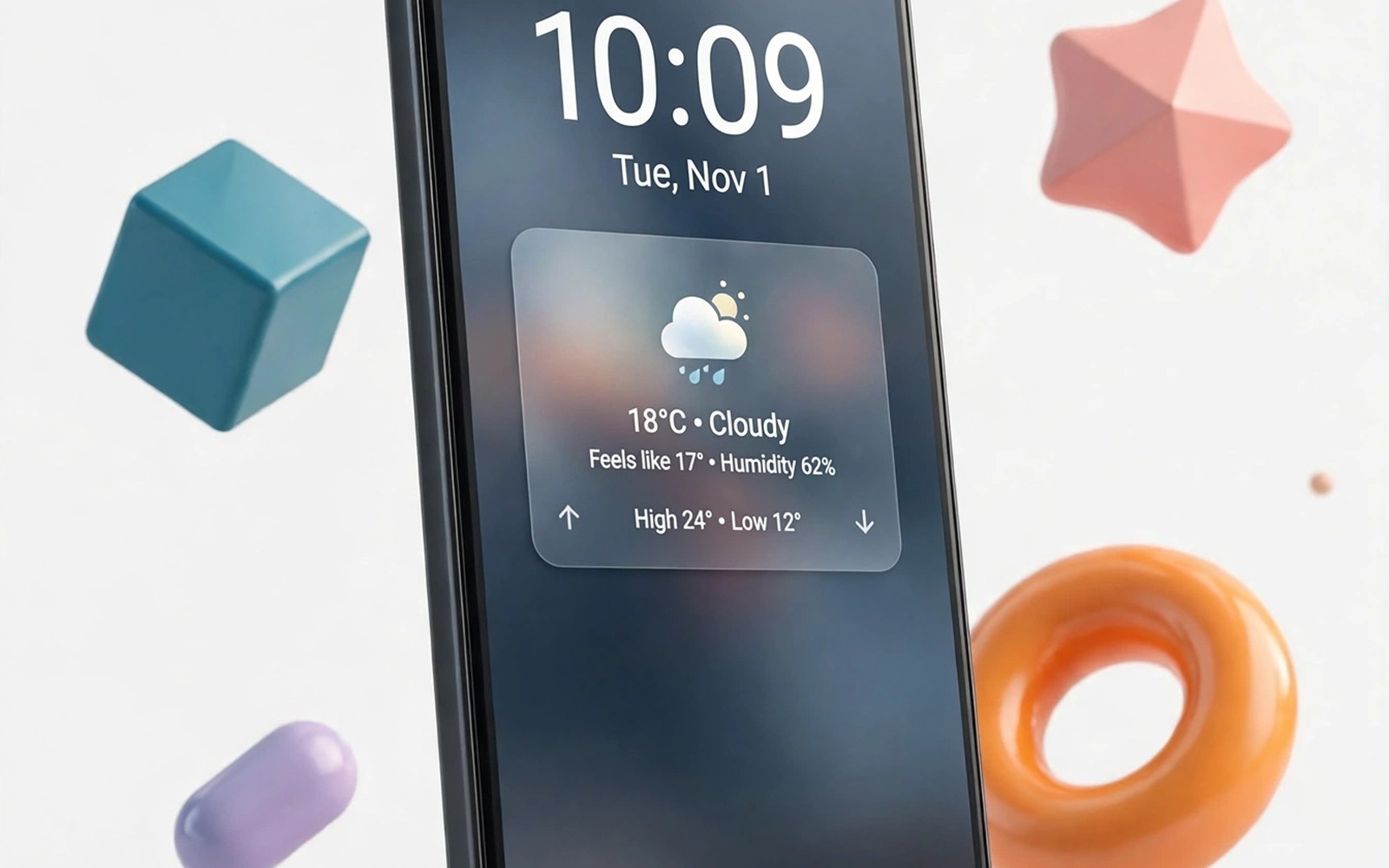
The lock screen is the most glanced surface on your phone. You see it dozens of times a day for a second or two. Most people leave it exactly as the factory set it and miss a quiet opportunity.
A pro lock screen answers three needs at once. It shows the next thing on your day. It opens the two tools you need without unlocking. It hides private message content from anyone standing nearby.
This guide builds that balance step by step. You will choose a wallpaper that stays readable. You will place shortcuts with intent. You will set notification rules that protect privacy without hiding urgent alerts.
Choose a wallpaper that serves the clock
Start with a wallpaper that is dark at the top where the clock sits. A photo with a bright sky behind the clock makes the time hard to read. Crop the photo so the calm area lands behind the clock and the busy detail sits near the bottom.
Test the wallpaper in bright sunlight and in a dark room. A lock screen must work in both extremes because you check it outdoors and at night. If the clock vanishes in either test then darken the top of the image or pick a simpler photo.
Wallpaper choice connects to the wider look in a minimalist aesthetic home setup which favors calm images and generous empty space. Borrow that calm for the lock screen even if your home screen stays busier.
Place two shortcuts and nothing more
Pick flashlight and camera as your two lock screen shortcuts. These are the tools you reach for without unlocking in real life. A third shortcut for a shopping app looks clever and gets used almost never.
Position the shortcuts where your thumbs naturally rest. On tall phones that means the bottom corners rather than the center. Practice opening the camera from the lock screen ten times until the motion feels automatic.
Shortcut discipline matches the control center ideas in a live control center in the status bar where every control must earn its place. A lock screen with two fast tools beats a lock screen with eight slow ones.
Set notification privacy with care
Set lock screen notifications to show the app name but hide the message content. You will know that a message arrived without exposing its text to a neighbor. Allow full content only for calendar reminders and alarm apps where the text itself is the alert.
Turn off lock screen notifications entirely for banking apps and password apps. Those alerts add no value on a locked screen and they leak context about your accounts. Check those apps after unlocking instead.
Review the result by locking the phone and asking a friend to send you a test message. Look at the lock screen from arm’s length. If you can read private words then tighten the setting before you call the job done.
Add one widget that earns its space
Add a single widget for the next calendar event or for music control. A calendar widget helps you plan the next hour without unlocking. A music widget lets you skip tracks while cooking or driving.
Do not add a widget for every interest. A lock screen widget competes with the clock for attention. One widget plus the clock plus two shortcuts is the full pro layout. Anything more belongs on the home screen.
Widget restraint is the same lesson as a smart At a Glance style widget where one glanceable block carries the day. Apply it here and the lock screen stays fast to read.
Lock screen configuration checklist
Work through this checklist in your lock screen settings. Each line is one decision to make before you move on. Change the wallpaper first because it affects every other choice.
wallpaper_top = dark and calm
clock_style = large and plain
shortcut_left = flashlight
shortcut_right = camera
notification_content = hidden
banking_notifications = off
widget = next event only
The checklist above was written for this guide to summarize the pro lock screen layout. It is not code to run. Use it as a settings card while you configure your own phone.
Match the lock screen to your daily schedule
A lock screen should change emphasis through the day. Morning needs calendar and weather at the top. Evening needs music controls and Do Not Disturb within reach. A single static layout cannot serve both perfectly.
Set a morning wallpaper with a bright calm tone that reads well in daylight. Set an evening routine where the lock screen dims earlier through system bedtime mode. The phone adapts to your rhythm instead of forcing one look all day.
Review lock screen notifications every Friday and remove apps that cried wolf all week. An app that sends five low value alerts daily trains you to ignore the lock screen entirely. Ignoring the lock screen defeats its purpose.
Test lock screen shortcuts with gloves on if you live in a cold climate. A shortcut that works barehanded but fails with gloves is useless for half the year. Choose larger touch targets for winter reliability.
Teach one trusted person how to use your emergency lock screen information. Medical details and an emergency contact on the lock screen help strangers help you. Keep the details minimal and update them yearly.
Lock screen safety for lost and stolen phones
A beautiful lock screen must also protect a lost phone and those two goals sometimes conflict. Widgets that show calendar details can leak your schedule to whoever finds the phone. Notification previews can leak message content and two factor codes. Review every lock screen element through the eyes of a stranger holding your lost phone. Anything that helps a stranger impersonate you or track you must go.
Emergency information deserves a deliberate exception to that rule. A lock screen message with a backup contact number helps an honest finder return the phone. Keep that message short and free of sensitive details. A first name and a backup number are enough. Avoid home addresses and full names and workplace details that help a thief more than a finder.
Biometric unlock settings interact with lock screen design in subtle ways. Face unlock that opens too eagerly can reveal notifications before you intend it. Fingerprint unlock that requires a deliberate press gives you control over when the lock screen yields. Choose the unlock method that matches how often strangers handle your phone in daily life.
Lock screen shortcuts also create security tradeoffs worth weighing. A camera shortcut is safe because it opens only the camera. A wallet shortcut can expose payment cards if it bypasses authentication. Check each shortcut for what it reveals without unlocking. Remove any shortcut that opens sensitive content without a second authentication step.
Practice the lost phone drill twice a year so the theory becomes habit. Lock the phone remotely from another device and confirm that location tracking works. Confirm that the lock screen message appears correctly after remote lock. A drill that reveals a broken setting is worth far more than a perfect lock screen design that fails in a real emergency.
Lock screens for different life stages
Lock screen needs change dramatically across life stages and a single design cannot serve them all. A student needs class schedules and assignment reminders at a glance. A parent needs family calendar events and school notifications. A retiree needs medication reminders and large readable time. Each stage deserves its own lock screen priorities reviewed yearly.
Young professionals benefit from lock screens that separate work and personal alerts cleanly. Work messages during personal evenings create stress when they appear as full previews. Hiding work preview content while showing personal previews creates a healthy boundary. That boundary protects personal time without missing truly urgent work calls that still ring through.
Parents of young children need lock screens that survive curious hands. A child who grabs a phone may tap shortcuts randomly. Lock screen shortcuts for camera are harmless but shortcuts for messages or payments are not. Audit shortcuts for child safety whenever children start handling phones regularly. Remove any shortcut that a child could use to send messages or make purchases.
Older adults benefit from lock screens with maximum readability above all else. Large bold time and high contrast icons matter more than widgets or shortcuts. A lock screen that an older adult can read without glasses serves independence. Test readability from two meters away because phones often sit on tables rather than in hands.
Travelers need lock screens that work across time zones and languages. A lock screen clock showing home time beside local time prevents missed calls across zones. Emergency information in the local language helps strangers assist during travel emergencies. Update lock screen emergency details before each major trip rather than relying on a stale home setup.
Finally revisit lock screen design after any major life event such as a new job or a move or a new child. Life events change which information matters at a glance within days. A lock screen review within the first week of a life event keeps the phone aligned with the new reality. Phones should adapt to life quickly because life does not wait for a convenient redesign moment.
Common mistakes
Lock screen customization fails in predictable ways. Avoid these.
- Adding six shortcuts that you cannot hit accurately without looking.
- Using a bright busy photo that hides the clock in sunlight.
- Showing full message text on the lock screen in public places.
- Stacking three widgets so the clock gets pushed off center.
- Forgetting to test the layout after a system update resets it.
Frequently asked questions
Can I use a different wallpaper for lock and home screens?
Yes on most Android phones because the wallpaper picker offers separate choices. Set a calm photo for the lock screen and keep a livelier image for the home screen if you prefer.
Will lock screen widgets drain battery?
One simple widget uses very little power because it updates rarely. Widgets that track location or refresh every minute cost more. Choose a calendar or music widget for the lightest result.
What if my phone lacks lock screen shortcuts?
Use a lock screen app from the official app store that adds shortcut buttons. Grant only the permissions it needs for shortcuts. Remove it if it shows ads on the lock screen.
Conclusion
Your lock screen now shows the time clearly and opens two tools instantly and guards private text. That is the pro standard. It took four decisions and no exotic tools.
Your concrete next step is to lock your phone right now and test both shortcuts and one incoming message. Fix anything that feels slow or exposed tonight while the settings are fresh in mind.

