

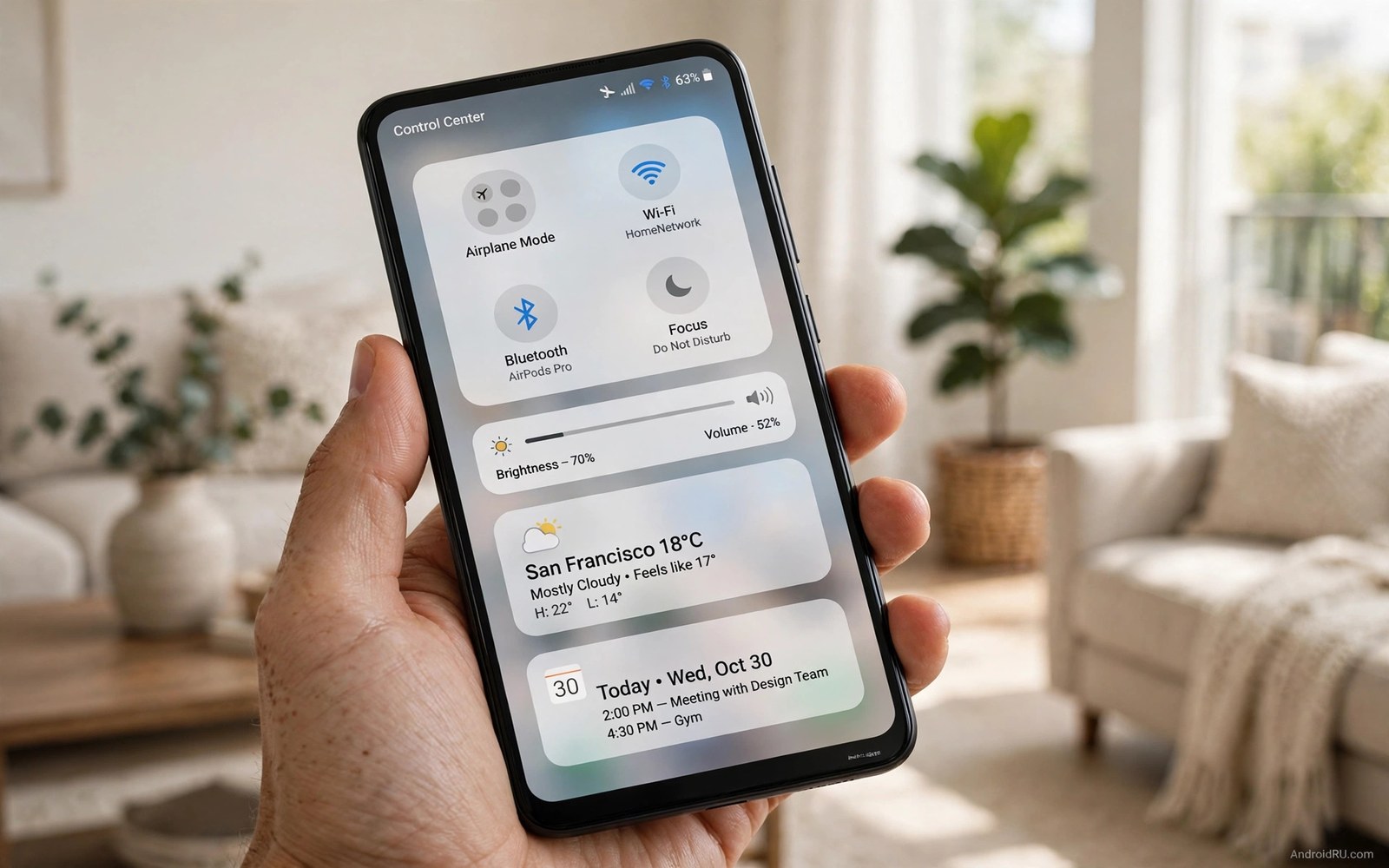
You do not need to switch platforms to enjoy the best ideas from iOS 18. Android lets you rebuild the control center and the lock screen and the home widgets with ordinary apps. The result keeps your Android apps and accounts while borrowing the polish you admired elsewhere.
This guide focuses on features that translate well. A swipe down control center with large toggles works on any phone. Tinted icons and a smart top widget work too. Features tied to deep system hardware will not translate and this guide will not pretend otherwise.
Expect a close cousin of the iOS 18 feel rather than a clone. Your notifications and settings remain Android underneath. That is a strength because you keep file access and default app choice and the customization freedom that made you choose Android.
Rebuild the control center first
Install a control center app that opens with a swipe down from the top right corner. Configure large tiles for Wi-Fi and Bluetooth and flashlight and screen brightness. Add a music card with play and skip buttons that stays visible while audio plays. Keep the panel to two pages at most so every control stays within one thumb reach.
Set the panel background to a soft blur over your wallpaper. A blurred panel reads as premium and hides wallpaper clutter behind the controls. Test the swipe gesture in several apps because some full screen apps reserve edge swipes for themselves. Adjust the trigger zone until the panel opens reliably nine times out of ten.
Control center polish pairs naturally with turning the status bar into a live control center which adds live information to the top of the screen. Combine the two carefully so the status bar and the panel do not duplicate the same controls.
Tint icons and tidy the home screen
Tinted icons are the most visible iOS 18 signature. Apply an icon pack with a single tint family and set the launcher to color icons from your wallpaper. Choose a muted tint for daily use because a loud tint tires the eyes quickly. Keep folder icons in the same tint so folders do not break the pattern.
Place large widgets for calendar and photos on the second home screen. Keep the first screen to apps only so the phone opens clean. Use widget stacks if your widget app supports them so one space can rotate between calendar and weather and reminders through the day.
For the widget layer itself the guide on smart At a Glance style widgets shows how a single glance widget can anchor the whole screen. Borrow the placement idea even if you choose different widget content.
Copy the lock screen ideas that matter
Add a large clock widget and two small shortcut buttons to the lock screen. Choose flashlight and camera because those are the two tools you need without unlocking. Keep notifications on the lock screen collapsed to a short stack so private message text stays hidden until you unlock.
Set a photo shuffle wallpaper if your lock screen app supports it. A rotating set of favorite photos keeps the lock screen fresh without manual effort. Limit the set to ten photos you genuinely like so a weak photo never surprises you in the morning.
Lock screen craft is covered in depth by customizing the lock screen like a pro which explains shortcut placement and notification privacy. Read it before you add more than two lock screen shortcuts.
Borrow the small touches last
Enable a dynamic island style notification bubble for music and timers if you like that look. Keep it small and centered so it never covers message text. Turn on a password app with Face style unlock if your phone supports biometric sign in for apps.
Finish with a messages style keyboard theme and a clean Safari style browser start page if your browser allows custom start pages. These touches are cosmetic but they complete the illusion when you hand the phone to a friend. They cost almost no battery and they are easy to revert.
Stop here and live with the setup for a week. The goal is a phone that feels fresh every day and not a demo that impresses once and annoys daily. Remove any borrowed feature that fights your Android habits.
Control center setup checklist
Use this checklist inside your control center app. Each line is one panel element to configure before you move on. Order matters because the trigger gesture must work before the tiles matter.
trigger = swipe down top right
tiles = wifi, bluetooth, flashlight, dnd
music_card = on
panel_pages = max 2
background = blur
lock_shortcuts = flashlight, camera
The checklist above was written for this guide to capture the control center configuration in one place. It is not program code. Work through it inside the settings screens of the app you chose.
Keep Android strengths while borrowing iOS ideas
Borrowing iOS ideas should never cost you Android strengths. Keep default app choice for browser and messaging and maps. That choice is the single biggest practical advantage Android holds over a closed system.
Keep file access through the file manager for downloads and documents. iOS style polish does not require giving up the ability to move a file where you want it. Test file access after installing any theme app to confirm nothing broke.
Keep split screen multitasking even though the borrowed look favors single app focus. Split screen remains useful for copying details between apps. A borrowed control center does not need to remove real multitasking power.
Keep the back gesture behavior you already know. iOS style apps sometimes push their own navigation patterns. If a theme app changes back behavior globally then remove it and find a lighter alternative.
Review permissions for every borrowed look app once a month. Theme apps often request broad access at install time. Revoke anything that is not needed for the feature you actually use.
What iOS borrowing cannot fix on Android
Borrowed looks cannot fix the real differences between platforms and pretending otherwise leads to disappointment. Notification management remains fundamentally Android underneath any iOS style panel. Android groups notifications by app and channel while iOS groups them by time and thread. A borrowed panel changes the surface but the grouping logic stays Android. Accept that logic and learn its strengths instead of fighting it with theme apps.
Privacy controls also differ in ways no theme can hide. Android permission prompts and background access rules follow Android policy regardless of how the control center looks. An iOS style toggle for location still triggers Android permission dialogs when an app requests it. Understanding the real permission model matters more than matching toggle shapes.
App quality differences survive theming as well. Some apps simply behave better on one platform because developers prioritize differently. A borrowed lock screen cannot make an Android app gain a feature its developer never built for Android. Check feature parity for your five most used apps before investing heavily in a borrowed look.
Update timing is another unchangeable difference. Android updates arrive through manufacturers on their own schedules. No theme app accelerates security patches or major version upgrades. If fast updates matter most to you then the honest answer is a phone with a strong update promise rather than a theme.
The wise approach is to borrow presentation and keep platform judgment separate. Enjoy the control center polish and the tinted icons for what they are. Judge Android on its real strengths such as default app choice and file access and hardware variety. A borrowed look plus honest platform judgment gives you the best of both worlds without self deception.
Borrowed looks and long term software support
A borrowed iOS look depends on third party apps that may lose support over time. Theme apps and control center replacements need updates for each new Android version. An app abandoned by its developer may break after a major system upgrade. Check update history before building your daily workflow around any borrowed look app. An app updated within the last few months is a safer foundation than a beautiful app untouched for a year.
System upgrades also change the APIs that theme apps rely on. Accessibility services and overlay permissions evolve with each Android release. A control center app that worked perfectly on one version may lose its trigger gesture on the next. Keep a fallback plan that restores the stock control center quickly after an upgrade. A fallback plan turns a broken theme into a minor annoyance rather than a day without controls.
Security updates deserve attention when using borrowed look apps with broad permissions. An app with accessibility access can read screen content in theory. That power demands trust in the developer and regular security review. Remove any theme app that changes ownership or starts requesting new permissions without a clear feature reason. Ownership changes sometimes precede unwanted behavior changes.
Backup discipline protects borrowed looks better than any single app choice. Export control center settings and widget layouts and icon choices to a notes file. After a phone reset or a major upgrade that file rebuilds the borrowed look in an evening. Without it you will spend days rediscovering settings you once knew by heart.
Long term satisfaction with a borrowed look comes from treating it as a renewable style rather than a permanent identity. Styles evolve and platforms evolve. Revisit the borrowed look every six months and ask whether it still serves you. A style kept by habit alone eventually feels stale. A style renewed deliberately stays fresh because each renewal reflects your current taste and needs.
Finally consider what happens if you switch platforms for real one day. A borrowed look eases that transition by familiarizing you with the other platform visual language. You will already know its control patterns and widget style. That familiarity is a genuine benefit of borrowing even if you never switch. Treat the borrowed look as education as well as decoration.
Common mistakes
Borrowing another platform look creates predictable mistakes. Avoid these.
- Installing a fake system update app that promises a full operating system change.
- Granting accessibility access to every theme app without checking what it can read.
- Copying the look so closely that Android gestures stop working as expected.
- Adding three control center apps that fight over the same swipe gesture.
- Choosing a loud icon tint that looks great once and strains the eyes daily.
Frequently asked questions
Is this legal and safe?
Yes when you use ordinary apps from the official app store and grant only needed permissions. Avoid apps that claim to replace your operating system. They cannot do that without root and they often hide unwanted behavior.
Will my Android apps still work normally?
Yes because only the surface changes. Your apps and accounts and files stay untouched. If one theme app misbehaves then remove it and your phone returns to normal at once.
Can I get the exact iOS 18 animations?
No exact copy exists without deep system changes. Close approximations cover the control center and widgets and lock screen. Accept the approximation and keep the Android strengths underneath.
Conclusion
You now have the most useful iOS 18 ideas running on Android without root. The control center and the tinted icons and the lock screen shortcuts carry most of the feel. The rest is detail you can tune over time.
Your concrete next step is to open the control center ten times during normal use today and note any gesture that fails. Fix the trigger zone tonight and the borrowed feel will start to feel native.

