

A long gaming session turns a phone into a small heater. The processor runs at full speed. The graphics chip renders complex scenes. The screen stays bright for hours. The battery feeds all of that work and heats up as it discharges. Heat then slows the processor to protect itself. The game stutters. The battery drains faster. The phone feels hot in your hands. Cooling is not just about comfort. It protects performance and battery health at once.
Heat builds from several sources at the same time. The processor creates heat as it computes. The battery creates heat as it delivers high current. The screen creates heat as it stays bright. Charging during play adds a fourth heat source. Four sources together can push the phone past comfortable limits quickly. A phone that throttles early loses frame rate. A battery that stays hot loses capacity faster over months. Cooling habits break that cycle before it starts.
This article gives a practical cooling plan for massive game sessions. You will learn how to set up the phone before you play. You will learn which settings help most. You will learn how to play while charging without cooking the battery. You will also learn which accessories truly help and which ones waste money. The plan works for casual players and for long competitive sessions alike.
Why Gaming Heats A Phone So Fast
Games demand sustained performance unlike most apps. A chat app bursts briefly and then sleeps. A game runs the processor and graphics chip continuously. Continuous load means continuous heat. The phone has no rest periods to shed heat. Small phone bodies have little room for cooling. Heat therefore accumulates minute by minute. After thirty minutes the phone may already feel warm. After two hours it may throttle hard.
Network play adds radio heat on top of processor heat. An online game sends and receives data constantly. The mobile radio or Wi-Fi radio stays active the whole session. A weak signal forces the mobile radio to transmit harder. That extra radio heat joins processor heat inside the same small body. Offline games avoid radio heat but still heat the processor heavily. Online games on weak signal are the hottest combination of all.
High graphics settings multiply the heat. Maximum frame rate and maximum detail force the graphics chip to work hardest. Shadows and reflections and particle effects each add load. A phone that renders at 120 frames per second heats far more than one capped at 60 frames. The visual gain from maximum settings is often small on a small screen. The heat cost is large. Capping settings is one of the fastest cooling wins available.
Set Up The Phone Before You Play
Start with a cool phone. Do not begin a long session right after fast charging. Fast charging already heated the battery. Give the phone ten minutes to cool after charging ends. Start the session near full charge so you can play unplugged for a while. Unplugged play removes charging heat entirely. That single choice often keeps the phone cooler than any accessory can.
Close background apps before you play. Background sync and downloads compete for processor time and heat. Close social and shopping apps fully. Turn on Do Not Disturb to stop alert bursts. Each alert wakes the screen and processor briefly. Dozens of alerts across a session add heat and distraction. A quiet phone plays cooler and better.
Play in a cool room when you can. Room temperature sets the starting point for cooling. A hot room leaves no headroom for heat to escape. A fan blowing across the phone helps a lot. Airflow removes heat from the surface steadily. A phone on a hard table cools better than a phone on a bed or sofa. Soft surfaces trap heat underneath. A hard surface plus moving air is a free cooling system that works every time.
Settings That Cut Heat Without Ruining Play
Cap the frame rate to 60 frames per second for long sessions. Most players barely notice the difference from higher rates during long play. The processor load drops sharply at the cap. Heat drops with it. Battery life rises as well. Save maximum frame rates for short competitive matches. Use the cap for marathon sessions where endurance matters more than peak smoothness.
Lower graphics detail one step below maximum. Turn off the heaviest effects first. Shadows and reflections cost a lot of heat for a small visual gain. Keep textures at a level that still looks sharp. The game will look nearly as good and run far cooler. Test each setting change for ten minutes and watch the phone temperature. A setting that keeps the phone merely warm beats a setting that makes it hot.
Lower screen brightness to a comfortable level. Full brightness adds heat and drains the battery fast. A moderate brightness indoors looks fine and saves power. Turn off auto brightness hunting if it jumps often. A stable moderate level beats a brightness that spikes to maximum repeatedly. On bright outdoor days accept higher brightness as a trade. Indoors there is no reason to run at maximum.
Charging During Play Without Cooking The Battery
Playing while charging is the hottest pattern of all. Charging heat plus gaming heat can push the battery to stressful levels. Avoid it when you can. Play unplugged until the battery falls low. Then pause the game and charge while you rest. A fifteen minute break lets the phone cool and charge at once. You return to a cooler phone with more charge. That break pattern beats continuous hot play for both health and performance.
When you must play while charging use a slow charger. A standard charger adds far less heat than a fast charger. The phone may still drain slowly during heavy play. That slow drain is acceptable for a short session. The battery stays cooler than it would on a fast charger. Remove a thick case during charged play. A case traps heat against the body. A bare phone sheds heat faster to the air.
Watch for heat warnings during charged play. If the phone feels very hot then stop at once. Let it cool before you continue. A phone that throttles heavily is telling you it needs a break. Ignoring that signal risks faster battery aging. It can also cause a sudden shutdown during a match. A short cooling break protects both the match result and the battery. For the heat side of charging in general see the hidden reason phones get hot while charging because the same heat sources stack during gaming.
Accessories That Truly Help
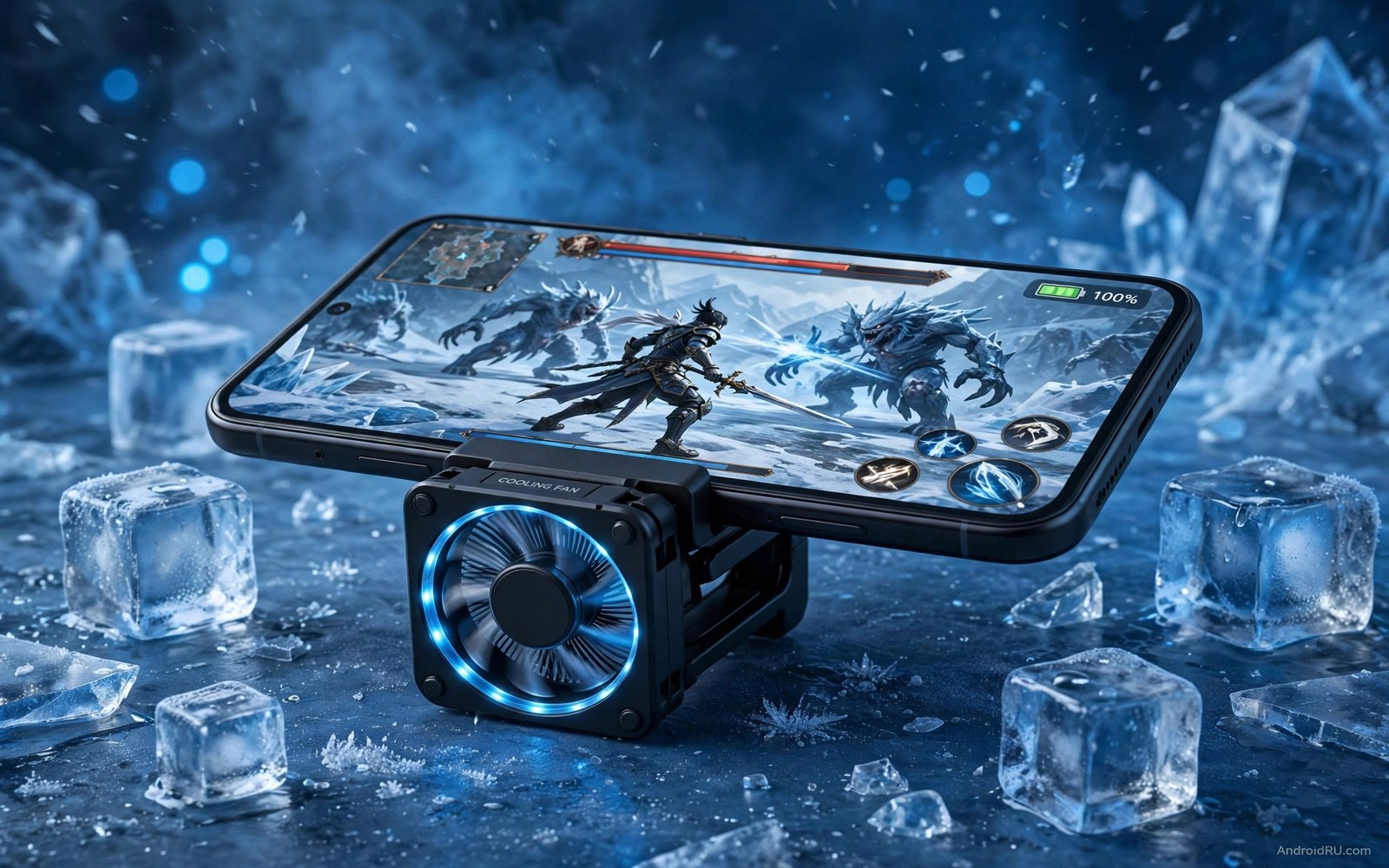
A clip-on cooling fan helps more than most accessories. It blows air directly across the hot back panel. Active airflow removes heat faster than passive cases can. Choose a fan that clips securely without blocking buttons. Test it for a session and feel the back panel after an hour. A real fan keeps the panel noticeably cooler. A decorative fan that barely moves air helps little. Airflow volume matters more than looks.
A simple phone stand helps too. A stand holds the phone upright with air around all sides. A phone lying flat on a table traps heat underneath. A stand exposes the back to air and to a fan. A metal stand can also act as a small heat sink. The gain is modest but free once you own a stand. Pair a stand with a room fan for a strong cheap cooling setup.
Thermal cases promise cooling but results vary widely. A case that adds bulk without airflow can trap more heat than it removes. Test any thermal case carefully. Play for an hour with the case and an hour without it. Compare back panel warmth and throttle behaviour. Keep the case only if it clearly helps. A bare phone with airflow often beats a bulky case. Do not trust marketing claims without your own test.
Cooling Habits For Marathon Sessions
Take a break every hour during a marathon. Five minutes of rest lets the phone cool meaningfully. Close the game fully during the break. A game left paused still holds memory and may keep background tasks alive. A full close lets the processor rest. Use the break to charge briefly if needed. A short cool charge beats a long hot charge for battery health.
Split long sessions across the day when you can. Two two hour sessions with a cool gap beat one four hour session for heat. The battery also lasts longer across split sessions. Your hands and eyes benefit too. Marathon play is a test of endurance for both player and phone. Planned breaks protect both.
Watch the phone temperature trend over weeks. A phone that heats faster than it used to may have an aging battery or a clogged vent area. Clean the charging port area gently and check for case damage. A battery that swells needs urgent attention. Heat plus swelling is a safety warning not a performance issue. Stop using that phone and seek repair at once. For battery safety signs see how to spot a damaged battery early and treat any swelling sign as urgent.
Gaming cooling routine
1. Cool phone fully before long session
2. Close background apps and alerts
3. Play on hard surface with airflow
4. Cap frame rate at 60 for marathons
5. Lower graphics one step below max
6. Play unplugged when possible
7. Use slow charger if charging while playing
8. Break five minutes every hour
The routine above was written for this article as a plain summary of the cooling steps. It uses only settings and habits plus optional fan gear. Follow it for your next long session and compare throttle behaviour with your previous session. A cooler phone holds frame rate longer and ends the session with more battery left.
Extreme power saving can rescue a phone that still overheats despite these steps. For a rescue mode that stretches the last charge see how to enable extreme power saving mode and use it only when you must finish a session on a low battery. Cooling plus saving together beat either alone in an emergency.
Common mistakes
Many players charge with a fast charger while gaming for hours. That pattern stacks charging heat on gaming heat. The battery stays hot for the whole session. Play unplugged or use a slow charger instead. A short break to charge beats hours of hot play.
Another mistake is playing on a bed or sofa. Soft surfaces trap heat underneath the phone. A hard table with airflow cools far better. A simple stand plus a fan beats an expensive case on a soft surface every time.
Some players run maximum graphics for marathon sessions. Maximum settings heat the phone fastest and trigger throttling sooner. A one step lower setting looks nearly as good and holds performance longer. Save maximum settings for short matches.
A final mistake is ignoring throttling as normal. Throttling is a warning that heat is too high. Take a break when frame rate drops sharply. A cool phone returns to full speed. A hot phone stays slow and ages its battery faster.
FAQ
Does a cooling fan really help a phone?
A real clip-on fan helps because it moves air across the hot back panel. Airflow removes heat steadily. A weak decorative fan helps little. Test the fan by feeling the back panel after an hour. A clear cooler feel confirms the fan works for your phone.
Is it safe to play while charging?
Playing while charging is safe in short bursts with a slow charger. Long fast charged play heats the battery heavily. That heat ages the battery faster and can trigger throttling. Pause to charge when you can. Use a slow charger when you must play plugged in.
Why does my phone slow down after an hour of gaming?
The phone slows down to protect itself from heat. Sustained gaming pushes temperature up until the system caps processor speed. Cooling the phone restores speed. Cap frame rate and lower graphics and improve airflow to delay throttling. A cooler phone holds speed longer.
Conclusion
Gaming heat comes from processor and graphics and screen and radio and charging together. No single fix removes all of it. A cool start and a hard surface and airflow and capped settings each cut a share. Unplugged play removes charging heat entirely. Breaks let the phone recover between hours. Fans and stands add real help when chosen by test not by marketing.
Your concrete next step is to set up your next session differently. Cap frame rate at 60 and lower graphics one step. Play on a hard surface with a fan nearby. Play unplugged until you need a charge. Note whether the phone stays cooler and holds frame rate longer after an hour.

