

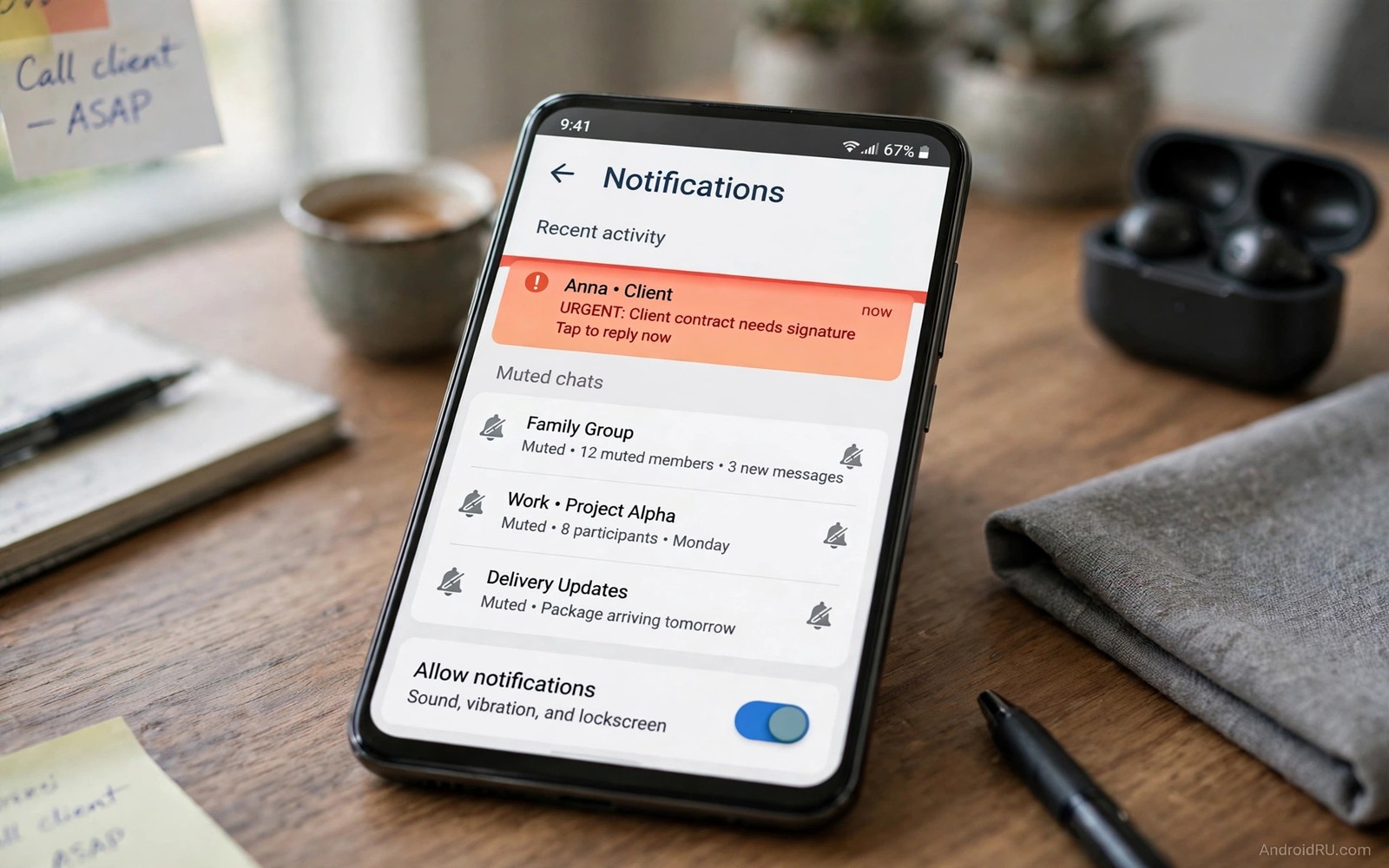
A group chat erupts during dinner. A shopping app pings about a sale. A game begs you to return. Your partner message hides under the noise. The usual response is muting everything. Silence feels peaceful for an hour. Then a delivery driver call goes unanswered and a work alert goes unseen. Total silence solves noise by creating risk.
Android offers a precise middle path. You can mute one chat inside an app while keeping other chats loud. You can mute promotions while keeping order updates. You can silence a whole app at night while letting starred contacts break through. Precision beats the mute-all button every time.
This guide builds a notification setup that respects your attention. You will sort alerts into loud and quiet and silent buckets. You will use channels and conversations and Do Not Disturb exceptions. You will finish with a phone that interrupts you only when the interruption earns it.
Mute one conversation instead of the whole app
Long press the noisy chat notification when it arrives. Tap the mute or silence option for that conversation. The app keeps notifying for other chats. The muted chat still delivers messages silently to the app. You read them when you choose rather than when the chat chooses.
Find the same control inside the chat itself. Open the chat and tap its name or settings menu. Look for notifications or mute options. Choose a duration when offered. One hour suits a heated debate. One week suits a holiday group. Permanent mute suits a channel you read on your own schedule.
Use channels to split one app into quiet and loud parts
Modern apps split alerts into channels. A shopping app may use one channel for promotions and another for delivery updates. Open app info and tap Notifications. The channel list shows each type with its own sound and vibration setting. Turn off the promotion channel. Keep the delivery channel loud.
A news app may use channels for breaking news and daily digests. Keep breaking news loud during work hours. Silence the digest until evening. Channel control turns one noisy app into several polite apps. Review channels after every major app update because updates sometimes add a loud new channel.
Let starred contacts break through Do Not Disturb
Open Do Not Disturb settings and find the people exceptions. Add family members and close colleagues as starred contacts. Allow calls and messages from starred contacts during quiet hours. Allow repeat callers as a second safety net. A second call within fifteen minutes usually means urgency rather than spam.
Test the exception before you rely on it. Ask a starred contact to message you during Do Not Disturb. Confirm the alert arrives with sound. Test a non-starred contact too and confirm silence. A tested exception protects sleep without blocking a real emergency.
Schedule quiet hours that match your life
Do Not Disturb schedules should follow your real routine. Set sleep hours from bedtime to wake time. Add a work focus schedule for deep work blocks. Add a dinner schedule if evenings matter most. Each schedule can carry its own exception list. Work schedules allow colleagues. Sleep schedules allow family only.
Review schedules monthly because routines shift with seasons and jobs. A schedule from a previous job may silence a current manager. A sleep schedule from winter may start too late in summer. Ten minutes of review per month keeps quiet hours aligned with the life you actually live.
Audit notifications weekly with the history screen
Open Settings and then Notifications and review the recent list. The list shows which apps interrupted you most in the last day. Any app with dozens of alerts and zero value earns a channel review. Demote its loud channels to silent. Remove its badge if the icon count stresses you.
Treat the audit as hygiene rather than punishment. Apps change behaviour with updates and campaigns. A quiet app can turn noisy during a sale season. A weekly glance catches the change early. Your attention stays yours when you inspect it on a schedule.
Build notification profiles for life roles
Roles deserve distinct notification profiles. A work profile allows colleagues and work apps. A family profile allows family contacts only. A sleep profile allows nobody except starred emergencies. Profiles turn one phone into several focused tools.
Switch profiles with schedules or manual toggles. Work schedules run during office hours automatically. Family profiles run during dinner manually. Sleep profiles run nightly on a schedule. Automation removes the daily burden of remembering toggles.
Test each profile with a real message from each group. A work message during family profile should stay silent. A family message during work profile should stay silent. Testing proves the filter works before it matters. Untested profiles fail at the worst moments.
Review profiles when roles change. A new job changes the work group. A new school term changes family timing. Profiles that match current life feel invisible. Profiles from an old life create daily friction.
Silence apps during focus time
Focus time needs a hard boundary against pings. Enable Do Not Disturb for the focus block. Allow only the project channel that matters for the task. Silence everything else without guilt. Focus blocks produce work that fragmented hours cannot match.
Place the phone face down during focus blocks. A lit screen tempts glances even in silence. Face down removes the visual trigger entirely. A drawer works even better for deep work. Physical distance reinforces the digital boundary.
Batch notification checks between focus blocks. Check messages once per hour rather than per ping. Batching preserves attention while keeping response times reasonable. Colleagues adapt to hourly replies quickly. Most messages tolerate an hour of patience.
End focus blocks with a deliberate notification review. Open each silenced app once and clear the backlog. A deliberate review prevents backlog anxiety. The review also catches anything the filter missed. Focus plus review beats constant partial attention.
Review notification settings monthly
Notification settings drift silently as apps update and campaigns change behaviour. A monthly review catches new loud channels before they establish noisy habits. Open notification settings on the first Sunday of each month. Scan the recent notification list for apps that interrupted most often. Any app with high interruption and low value earns immediate demotion to silent delivery.
Monthly reviews should include Do Not Disturb exception lists as well as app channels. Contacts change jobs and relationships change importance over months. An exception list from six months ago may silence a current manager or disturb sleep for a former colleague. Updating exceptions monthly keeps quiet hours aligned with present life rather than past life. Present alignment is the whole purpose of exception lists.
Check muted conversations during the monthly review for messages that deserved attention. A muted group may have carried important news during a busy month. Skimming muted chats monthly catches missed deadlines without restoring noise. Monthly skims balance silence against awareness perfectly. Awareness without interruption is the ideal notification state.
Document monthly changes in a single short note for future reference. A note recording which channels were silenced prevents repeated investigations of the same apps. Patterns across months reveal apps that repeatedly regain loud channels after updates. Repeat offenders deserve uninstallation rather than repeated silencing. Documentation turns monthly reviews into long term strategy.
Celebrate months where notifications felt balanced rather than constantly adjusting settings. A balanced month proves the system works and needs no further tuning. Constant adjustment without satisfaction signals a deeper problem with app choices. Removing a noisy app beats endlessly tuning its channels. Balance is the goal and tuning is only the means.
adb shell dumpsys notification | grep -i channel
adb shell settings get global zen_mode
adb shell cmd notification list
The commands above are a generic illustration for reading notification state from a computer. They show the kind of channel data a technician inspects during troubleshooting. Everyday users should use the on-screen notification settings instead.
Custom launchers reduce noise by keeping only essential icons on the home screen. Back tap gestures silence a chat quickly without opening any settings menu. Phone warning signs teach owners which alerts deserve sound and which deserve silence.
Common mistakes
The biggest mistake is muting an entire app because one chat annoyed you. The app may carry delivery alerts and security codes you need. Mute the chat or the channel instead. Precision keeps useful alerts alive while killing the noise.
Another mistake is setting Do Not Disturb with no exceptions. Emergencies do not respect schedules. Starred contacts and repeat callers form a safety net that costs nothing. An exception list turns a wall into a filter.
A third mistake is forgetting muted chats exist. A muted work group can hide a deadline shift for days. Check muted chats once daily during work hours. A quick skim catches important shifts without restoring the noise.
FAQ
Why do muted chats still show a badge count?
Muting controls sound and vibration and banners. Badge counts are a separate setting on many phones. Open app info and notification settings to disable badges for that app or channel. The messages remain readable inside the app without any icon pressure.
Can I mute notifications only at night?
Yes and Do Not Disturb schedules are the right tool for that job. Set a sleep schedule with family exceptions. The schedule silences noise automatically each night and restores normal alerts each morning without daily effort.
Do muted notifications still arrive when I open the app?
Yes and that is the design. Muting changes delivery and not receipt. Messages wait inside the app for your next visit. You lose interruption and keep information which is the exact balance this guide teaches.
Conclusion
Open notification settings now and pick your noisiest app. Mute one chat or one promotion channel inside it. Add one starred contact exception to Do Not Disturb before tonight. Those three moves take ten minutes.
Your phone will grow quieter in the right places and stay loud in the right places. Dinner will stop buzzing. Emergencies will still reach you. That balance is the whole goal. Precision muting gives you attention back without asking you to disappear.

