

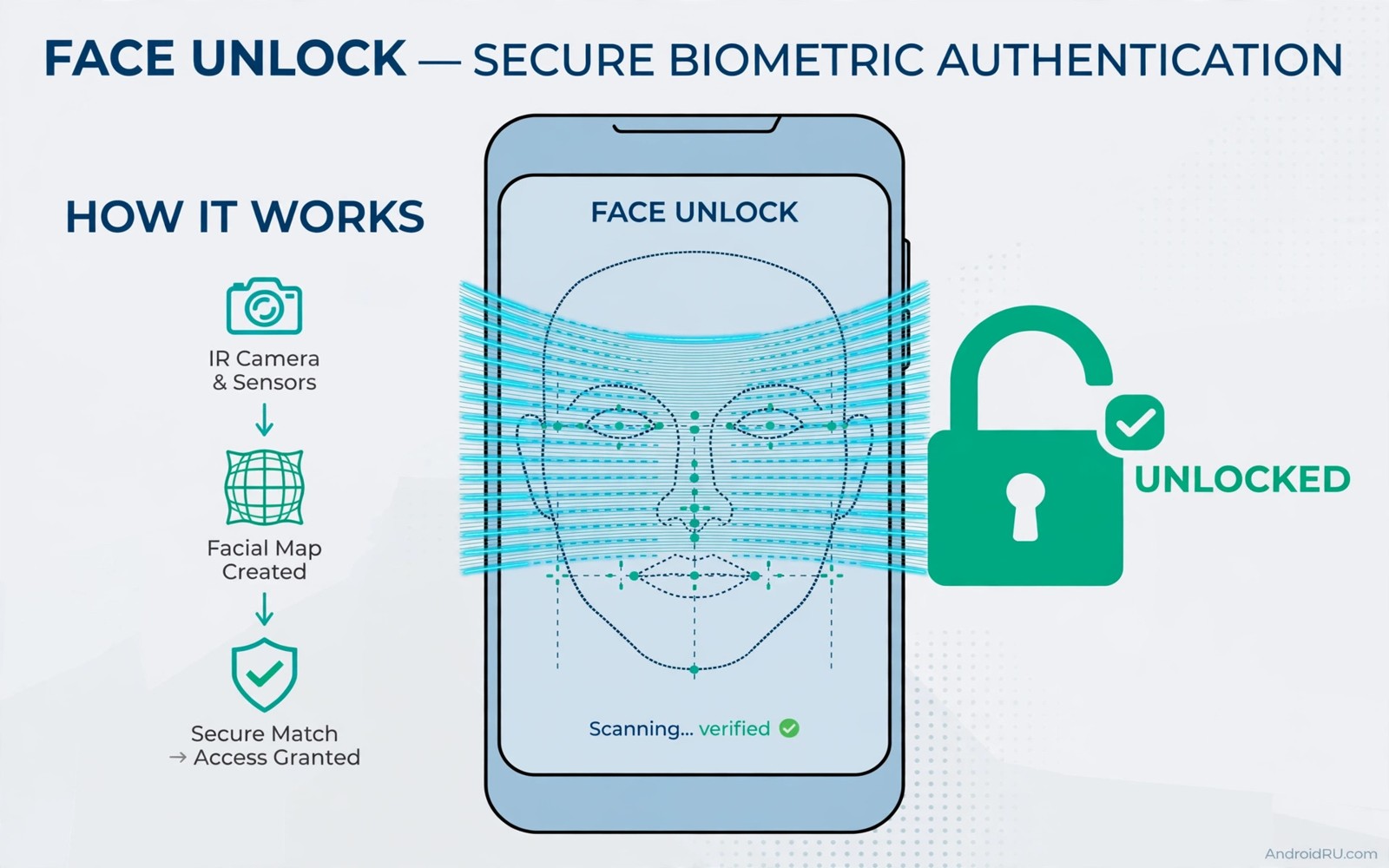
Face unlock feels fast and futuristic on a modern phone. You glance at the screen and the phone opens. Then you open a banking app and it asks for a fingerprint or PIN. The app seems to ignore face unlock completely. That gap frustrates owners who prefer face recognition. It usually comes from biometric security classes rather than a bug.
Android divides biometrics into classes by security strength. Strong biometrics meet strict spoof resistance tests. Weak biometrics include some face systems that use only a camera. Apps that handle money or sensitive data may require strong biometrics. A weak face system cannot satisfy that requirement. The app then falls back to fingerprint or PIN by design.
This guide explains how to get face unlock working where possible. It covers system face setup and app biometric settings. It covers fallback options when face class is too weak. It also covers safer alternatives that keep convenience without weakening security. Understanding classes prevents wasted effort on unsupported apps.
Set up system face unlock correctly
Open Settings and then Security and then Face unlock. Enrol your face in good lighting with a neutral expression. Follow prompts to turn your head slowly. A careful enrolment improves recognition accuracy. A rushed enrolment causes frequent failures. Re-enrol after a major appearance change like glasses or a beard.
Check face unlock settings for liveness and attention options. Require eyes open where your phone offers it. That option stops unlocking while you sleep. It also reduces spoofing with photos on some systems. Keep the phone software updated for biometric improvements. Updates often improve face recognition accuracy and security.
Test face unlock on the lock screen first. Lock the phone and glance at it normally. It should unlock quickly without a swipe. If lock screen face fails often then app face will fail too. Fix enrolment before troubleshooting apps. A clean system enrolment is the foundation for all app use.
Enable biometrics inside each app
Open the app that lacks face unlock and find its security settings. Look for Biometric login or Fingerprint login in settings. Many apps label the toggle by fingerprint even when face works. Turn the toggle on and authenticate with your current method. Restart the app and test login again. Face unlock should appear if the app accepts your face class.
Some apps need a fresh login after enabling biometrics. Log out and log back in with password once. Enable biometric login during that fresh session. That sequence links the biometric to the account correctly. Skipping the fresh login can leave the toggle inactive. A clean login fixes many mysterious biometric failures.
Check app updates for biometric improvements. Developers add face support in updates over time. An app that lacked face support last year may support it now. Update the app and recheck its security settings. A new version may also fix a broken biometric toggle. Keep apps updated for the best biometric support.
Biometric convenience pairs with strong fallback security. Learning about the setting you must enable before your phone gets lost reminds you to protect the device itself. A strong PIN backs up every biometric method. Face unlock should never replace a strong fallback.
Understand weak versus strong face systems
Weak face systems use a front camera image only. They are convenient but easier to spoof with a photo. Strong face systems use depth sensors or infrared mapping. They resist photo spoofing far better. Pixel and some flagship phones use strong face hardware. Many mid range phones use camera only face unlock.
Apps can query the biometric class before offering face login. A banking app may accept only strong biometrics. A notes app may accept weak face without issue. That difference explains why face works in one app and not another. It is a security policy rather than a random bug. Respect that policy for money apps especially.
Do not try to trick an app into accepting weak face. Modified frameworks that fake strong biometrics break security. They can also break banking apps and system updates. They can expose accounts to spoofing attacks. A fingerprint or PIN is safer than a faked strong face. Use the method the app trusts.
Use practical alternatives when face is blocked
Fingerprint unlock is the best alternative on most phones. It is fast and widely accepted as strong. Enrol two fingers for reliability in different grips. Use a thumb and an index finger for flexibility. Fingerprint works in rain and low light better than face in some cases. It also works when wearing a mask.
Smart Lock and trusted devices can reduce unlock friction. Trusted places can keep the phone unlocked at home. Trusted devices can keep it unlocked near a watch. Use these features only in truly safe locations. A trusted place at home is safer than a trusted place in public. Review trusted settings after moving house.
Password managers with biometric unlock bridge many gaps. Unlock the manager with face or fingerprint once. Autofill then handles app logins securely. The manager stores strong unique passwords for each app. That workflow is often faster than typing passwords. It also improves security across all accounts.
Settings > Security > Face unlock > Enrol face
App > Settings > Security > Biometric login > On
App > Log out > Log in again > Enable biometric
Settings > Security > Fingerprint > Add fingerprint
This snippet shows a standard Android settings path pattern for face unlock setup. It lists system enrolment before app biometric toggles. Use it as a checklist while you enable face login. Menu names can differ slightly by phone brand. The core ideas stay the same across Android devices.
After setup test three apps with different sensitivity levels. Test a notes app and a shopping app and a banking app. Note which apps accept face and which require fingerprint. That pattern reveals your face class clearly. Accept fingerprint for sensitive apps without frustration. Security policies protect your money for a reason.
App lock tools can add face protection to apps that lack it. Learning about how to lock any app without third party apps shows official lock options. A system app lock can use biometrics for extra apps. That lock adds convenience without faking app support. Use official locks rather than modified tools.
Choose biometrics for different app types
Different apps deserve different biometric choices. Banking apps deserve the strongest available method. Shopping apps can use a convenient method with purchase limits. Notes apps can use face unlock for speed. A single biometric for every app ignores risk differences. Tailoring methods by app type balances safety and convenience well.
Set purchase confirmation to a strong method always. A fingerprint confirmation for purchases prevents accidental orders. It also prevents a child from buying with a glance. Check purchase settings inside shopping apps. Enable biometric confirmation for every purchase where offered. Convenience should never bypass purchase approval.
Use face unlock for low risk apps that you open often. A news app or notes app suits face unlock well. Frequent opens benefit most from glance speed. Low risk data limits the harm if spoofed. Keep face unlock for apps where speed matters most. Reserve fingerprint for apps where money moves.
Review biometric settings after changing phones. A new phone may offer a stronger face system. Re-enrol biometrics fresh on the new device. Do not transfer biometric templates blindly if offered. Fresh enrolment ensures accuracy on new hardware. Test each sensitive app after enrolment on the new phone.
Consider accessibility needs when choosing biometrics. Fingerprint sensors can fail for worn fingerprints. Face unlock can fail in low light or with masks. A PIN fallback must remain strong and memorable. Choose the method that works reliably for your hands and face. Reliability matters as much as theoretical strength for daily use.
Accessibility tools can improve biometric reliability. Learning about hidden accessibility features every power user needs reveals aids for unlock and interaction. Those aids help users with motor or vision needs. Combine aids with a strong PIN fallback. A usable security setup beats a theoretically perfect one that fails daily.
- Use strongest biometrics for banking and purchases.
- Use face unlock for frequent low risk apps.
- Enable biometric purchase confirmation everywhere.
- Re-enrol biometrics fresh on a new phone.
- Keep a strong memorable PIN as fallback.
Common mistakes
- Expecting camera only face to pass strong biometric checks.
- Enrolling face in poor light and blaming apps for failures.
- Skipping a fresh login after enabling biometric login.
- Using a modified framework to fake strong face support.
- Disabling a strong PIN because face unlock feels easier.
- Trusting Smart Lock in a public place that is not safe.
FAQ
Why does face unlock work on lock screen but not in apps?
Lock screen accepts weak face for convenience. Sensitive apps may require strong biometrics only. Your face system class decides app eligibility. Fingerprint usually meets strong requirements where face does not.
Can I upgrade weak face to strong face?
No face class depends on phone hardware. Camera only systems stay weak by design. Depth sensor systems offer strong face. A new phone is the only path to a stronger face class.
Is fingerprint safer than weak face?
Fingerprint is generally stronger than camera only face. It resists photo spoofing better. It also works in more lighting conditions. Use fingerprint for banking and sensitive apps.
Quick check before you finish
Re-enrol your face in good lighting today if recognition feels unreliable. Open one banking app and enable biometric login there. Test whether it accepts face or asks for fingerprint. Use fingerprint for that app if face is not accepted. Accept the result as a security policy rather than a failure. Strong apps protect money by requiring strong biometrics.
Conclusion
Face unlock support depends on hardware class and app policy. Careful enrolment improves system recognition first. App biometric toggles enable face where the class qualifies. Strong apps rightly require fingerprint or PIN when face is weak. Fingerprint and password managers offer fast safe alternatives. Respect security policies rather than forcing unsupported methods.
Your concrete next step is to re-enrol your face in good lighting today. Open one banking app and enable biometric login there. Test whether it accepts face or asks for fingerprint. Use fingerprint for that app if face is not accepted and move on.

