

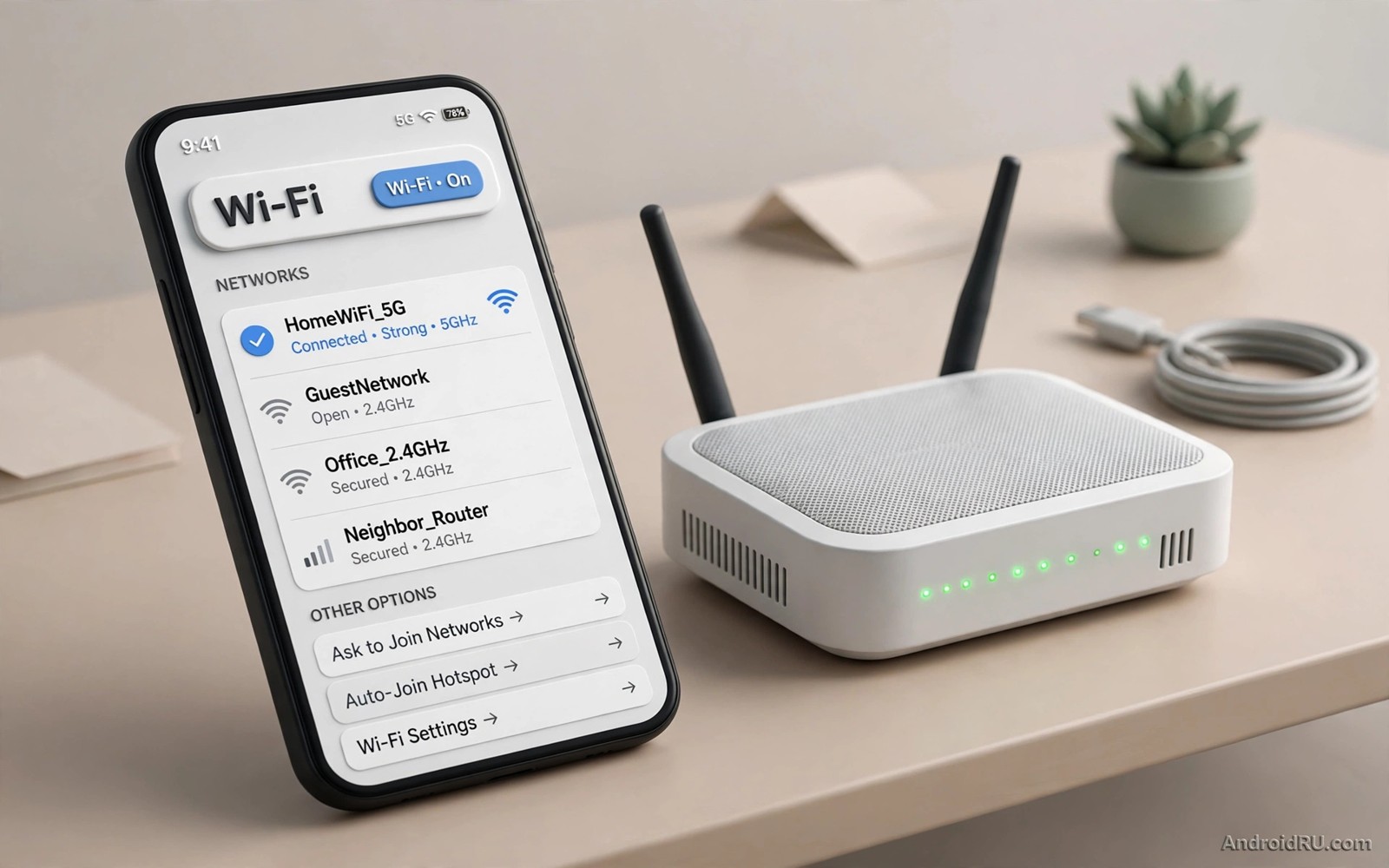
You need the Wi-Fi password for a guest or a new laptop. The password was entered months ago and forgotten since. Your Android phone still knows it. Android lets owners view saved network details in seconds. You only need to know where the setting lives. This guide shows the official path plus safe sharing options.
Modern Android stores saved networks under Wi-Fi settings. Tapping a saved network shows its details. A share button reveals the password after lock authentication. That authentication proves you own the device. It stops a stranger from reading passwords from an unlocked phone. The whole process takes about ten seconds once you know the steps.
Do not use this method on a phone you do not own. Viewing passwords on someone else phone without permission violates trust. Sharing a network password also deserves care. A guest with the password can use your network and see connected devices. Share only with people you trust. Change the password if a trusted guest later becomes untrusted.
View a saved password in Settings
Open Settings and then Network and then Wi-Fi. Make sure Wi-Fi is turned on. Find the network name in the saved networks list. Tap the network name or its gear icon to open details. Look for a Share button on the details screen. Tap Share and confirm with fingerprint or PIN.
After authentication Android shows a QR code for the network. Below or beside the code the password appears in plain text on many phones. Read the password and type it into the new device. Do not screenshot the QR screen on a shared phone. A screenshot could leak the password later through gallery sharing. Close the screen after you finish.
Some brands hide the password behind the QR code only. In that case scan the QR code with the new device camera. The new device connects without typing the password. That method is actually safer than reading the password aloud. It avoids errors from complex passwords. It also avoids shouting a password across a room.
Share Wi-Fi with QR and Nearby Share
QR sharing is the best method for guests with a camera phone. Open the network share screen as above. Let the guest scan the QR code with their camera. Their phone will prompt to join the network. Confirm the join on the guest phone. The guest connects without ever seeing the password text.
Nearby Share can send Wi-Fi details to a nearby Android device. Open the share screen and choose Nearby Share where offered. Select the nearby device from the list. Accept the share on the receiving device. The network joins automatically after acceptance. This method suits a family member setting up a new phone.
For a laptop without a camera type the password manually. Read it carefully from the share screen. Note capital letters and symbols exactly. Wi-Fi passwords are case sensitive. A single wrong character causes a failed connection. Double check the password before blaming the router.
Network sharing pairs with good device protection. Learning about the setting you must enable before your phone gets lost protects saved networks if the phone is lost. A locked phone keeps saved passwords safe. An unlocked lost phone exposes every saved network.
Find passwords for networks not currently connected
Saved networks include past networks your phone remembers. Open Wi-Fi settings and look for Saved networks. That list shows networks from homes and offices and cafes. Tap any saved network to view or share it. You can also forget a network from that list. Forgetting removes its password from the phone.
Clean the saved list regularly for security. Old cafe networks can auto connect in unsafe places. A phone that auto connects to a spoofed network risks data theft. Forget networks you no longer visit. Keep only home and work and trusted family networks. A short saved list is safer and easier to manage.
Some phones store saved networks under a different menu name. Search Settings for Saved networks if you cannot find the list. Search for Share Wi-Fi if the share button is hidden. Brand menus vary but the feature exists on modern Android. A quick search saves minutes of menu hunting.
What to do when the password will not show
Older Android versions did not show saved passwords easily. Android 10 and later added the share feature widely. Update your phone if it runs a very old version. An update may add the share button at once. Check for system updates under About phone. A supported phone should offer this feature.
Work or school networks may block password viewing. Managed networks use enterprise settings that hide passwords. Contact your IT admin for a managed network password. Do not try to bypass enterprise controls. Those controls protect a whole organisation network. A personal phone method should not override them.
Root methods for password viewing exist but carry risk. Rooting can break banking apps and updates. It can also expose the phone to malware. Avoid root just to view a password. Use the router admin page instead for a home network. The router label often shows the default password as well.
Settings > Network > Wi-Fi > Saved networks
Saved network > Share > Fingerprint or PIN
QR code > Scan with new device camera
Settings > Network > Wi-Fi > Forget old networks
This snippet shows a standard Android settings path pattern for Wi-Fi password viewing. It lists saved networks before share authentication. Use it as a checklist while you find a password. Menu names can differ slightly by phone brand. The core ideas stay the same across Android devices.
After sharing test the new device connection at once. Open a web page on the new device to confirm internet access. If it fails then recheck password case and symbols. If it still fails then restart the router and try again. A router restart fixes many temporary connection faults. Do not change router settings without noting original values.
Wi-Fi safety also involves public network caution. Learning about settings you must turn off for maximum privacy helps you review auto connect and scanning. Turn off auto connect for public networks. Use a trusted VPN on open networks when needed. Home password sharing is safe only on trusted networks.
Manage Wi-Fi networks for travel and guests
Travel creates a growing list of saved networks quickly. Hotels and cafes and airports each add a network. A long saved list slows Wi-Fi selection. It also increases auto connect risks. Review the saved list after each trip. Forget networks from places you will not revisit. A short list connects faster and safer.
Guest networks deserve a separate approach at home. Many routers offer a guest network feature. A guest network isolates visitors from your main devices. Share the guest password instead of the main password. Guests still get internet access fully. Your printers and storage stay protected from guest devices. Enable guest mode in router settings if offered.
Change your home Wi-Fi password after a large gathering. A party guest list may include people you barely know. A changed password revokes access cleanly. Update your own devices with the new password. Update the guest network password separately. Regular changes after gatherings protect long term network safety.
Label saved networks clearly for family members. A network named after a router model confuses guests. Rename home networks to a clear house name. Rename work networks to a clear office name. Clear names prevent accidental joins to neighbour networks. They also help children connect correctly without help.
Test Wi-Fi sharing before guests arrive. Share the network to a spare phone and confirm connection. Check that the QR code scans in normal room light. Fix any issue before the gathering starts. A pretested share avoids awkward troubleshooting with guests waiting. It also confirms the password has not changed since last use.
Public Wi-Fi login pages need special care. Learning about how to bypass public Wi-Fi login pages instantly covers captive portal handling. Public networks differ greatly from home networks. Use extra caution on any open network. A home sharing routine does not transfer safely to public Wi-Fi.
- Forget travel networks after each trip.
- Use a guest network for visitors at home.
- Change home password after large gatherings.
- Rename networks with clear house and office names.
- Test sharing to a spare phone before guests arrive.
Common mistakes
- Trying to view a password on a phone you do not own.
- Screenshotting a QR password screen on a shared phone.
- Reading a complex password aloud across a room.
- Keeping dozens of old cafe networks saved forever.
- Rooting a phone just to view one saved password.
- Ignoring case sensitivity when typing a password manually.
FAQ
Do I need root to view a saved Wi-Fi password?
No modern Android shows saved passwords through Wi-Fi share. Authenticate with fingerprint or PIN to view it. Root is unnecessary and risky for this task. Use the official share screen instead.
Can I share Wi-Fi without showing the password?
Yes QR sharing lets a guest connect without seeing text. The guest scans the code and joins directly. Nearby Share offers a similar password free method. Both methods protect the password from casual viewing.
Why does a work network hide its password?
Managed networks use enterprise controls for security. Those controls hide passwords from users. Contact IT admin for managed network access. Do not bypass enterprise controls on a work device.
Quick check before you finish
Open Wi-Fi settings and find your home network share screen. Authenticate with fingerprint or PIN and confirm the password appears. Share it to a spare device by QR scan to test the flow. Then forget two old networks you no longer visit. That short cleanup improves both security and Wi-Fi selection speed. Repeat the cleanup after every trip.
Conclusion
Saved Wi-Fi passwords are easy to view on your own Android phone. Settings plus share plus lock authentication reveals them in seconds. QR sharing connects guests without exposing text. Nearby Share helps nearby Android devices join fast. Clean old saved networks regularly for safety. Respect managed network controls at work and school.
Your concrete next step is to open Wi-Fi settings now and find your home network share screen. Authenticate and confirm the password appears. Then forget two old networks you no longer visit. That cleanup takes less than a minute.

