

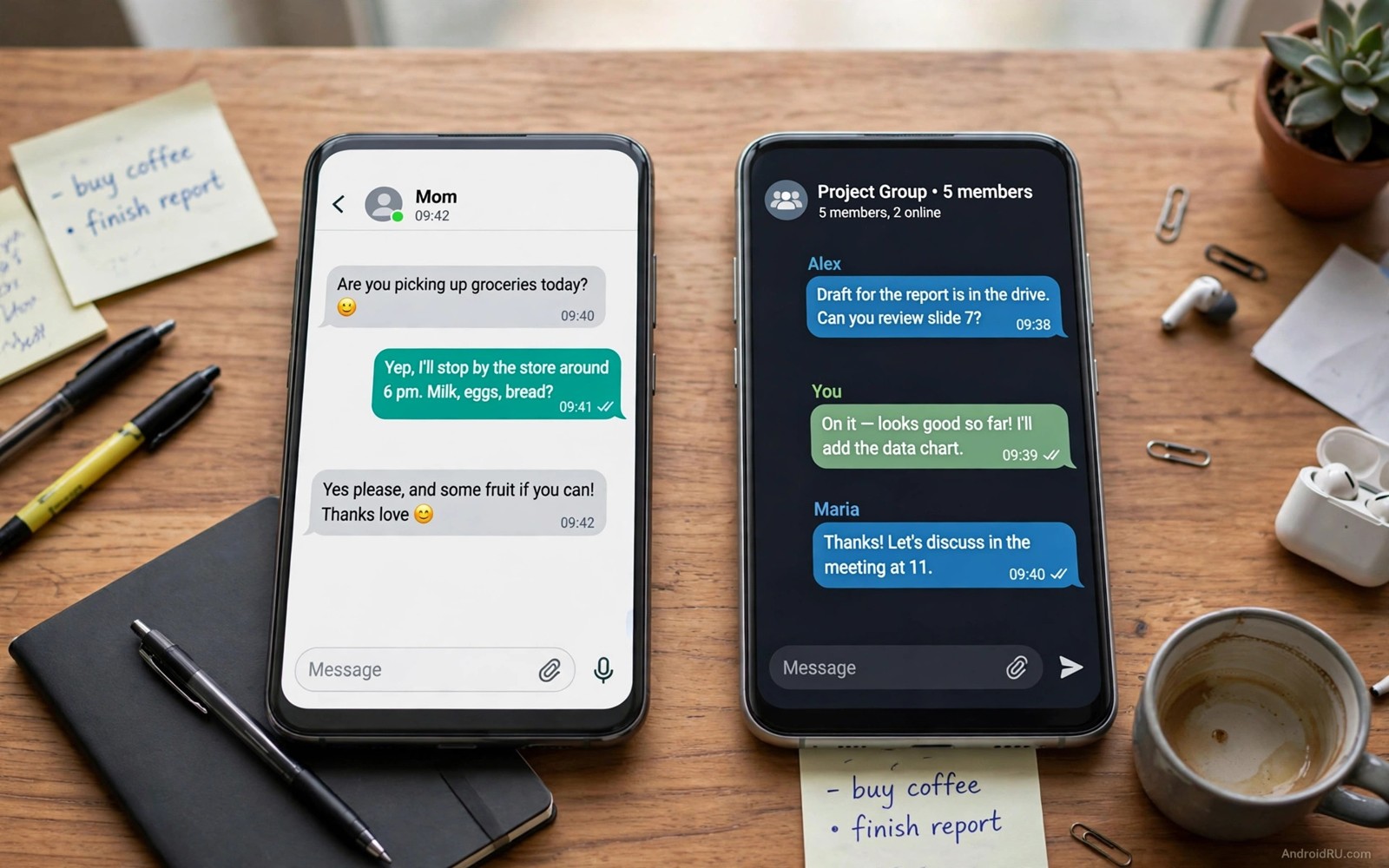
The Secret Hack to Run Two Accounts on Any Social App
Work messages and personal messages should never share one inbox. I learned that the hard way when a client brief landed in the middle of a family group chat and I answered it with the wrong tone, from the wrong account, in front of the wrong people. A second account on the same phone fixes that mess cleanly. You keep work and life apart without carrying two phones, paying for a second line, or logging out and back in ten times a day.
The trick is that there is no single hack. Android gives you four different paths to a second login, and each one fits a different situation. Built-in account switching is the fastest route when the app supports it. Dual app tools on Samsung, Xiaomi, OnePlus and Oppo clone an app into a second icon. A work profile builds a fully separate space on one device. Third-party cloning apps fill the gaps, but they carry real risks. This guide walks through all four, with the exact menu names, the settings to check, and the mistakes that get accounts locked.
By the end you will know which method fits your phone and your apps, how to set it up in about ten minutes, and how to organise two inboxes so you never send a work reply from your personal account again.
How Built-In Account Switching Works on WhatsApp, Instagram, Facebook and Telegram
Always check the app itself before you install anything else. Built-in account switching uses official code, official notifications and official backup, so it is the safest path by a wide margin. Open the app, tap your profile picture or the account menu, and look for Add account, Switch account or Log in to another account. Most major social apps now hide this option one or two taps deep, and many people never notice it is there.
WhatsApp added multi-account support on Android in 2023, and it works better than most people expect. Tap your profile picture, tap the small arrow next to your name, then Add account. You register the second number, verify it by SMS or call, and WhatsApp keeps both numbers in one app. Each account gets its own chats, calls, status updates and notification settings. Switching takes two taps. I run a personal number and a business number this way, and after a week the two-tap switch became muscle memory. The catch is that each account needs its own phone number, and you cannot run two accounts on the same number.
Instagram multiple profiles and Facebook Pages in one app
Instagram has supported up to five logins in one app for years. Long-press your profile picture at the bottom right, tap Add Instagram account, and sign in. Each profile keeps its own feed, stories, direct messages and notification settings. Push notifications arrive for all logged-in profiles, and you can set a different alert for each one. Facebook works the same way for personal profiles and Pages: switch between a personal profile and a business Page from the profile menu, and Page managers can post, reply and read insights without logging out of their personal account.
The practical detail most guides skip is notification control. After adding a second profile, open Settings, then Notifications, and check each account separately. Some apps mute the second account by default, and some merge alerts into one stream that hides which account received the message. Set a distinct sound for the work profile and keep the personal one softer. That one change saves you from opening the wrong inbox at midnight.
Telegram, X and TikTok account switching
Telegram supports three accounts in one app with some of the cleanest switching anywhere. Tap the hamburger menu, tap the arrow next to your name, and tap Add Account. Each Telegram account keeps its own chats, folders, notification rules and saved messages. X lets you add up to five accounts from the profile menu and switch with a long-press on the avatar. TikTok supports multiple logins the same way, though its switching menu sits under Profile, then the menu icon, then Switch account. For creators, this matters: a personal TikTok and a brand TikTok can live side by side, each with its own drafts, analytics and inbox.
What to check after adding a second account in the app
Run three checks before you trust the setup. First, send a test message from each account to a friend and ask them to confirm which account sent it. Second, ask that friend to reply to both accounts and confirm that both notifications arrive. Third, upload a photo from each account and confirm it posts to the right profile. These checks take five minutes and they catch the two most common problems: muted second-account notifications and posting from the wrong profile.
Built-in switching has one honest limit. Both accounts share the same app, the same cache and the same storage. They are not fully isolated, and a logout from one account can occasionally affect shared settings. For daily personal-plus-business use that is fine. For strict client separation, a work profile is the better tool, and it is covered below.
Dual Apps and Dual Messenger on Samsung, Xiaomi, OnePlus and Oppo
When an app has no built-in switching, your phone itself may offer the second copy. Samsung calls it Dual Messenger. Xiaomi calls it Dual apps. OnePlus calls it Parallel Apps. Oppo and Realme call it App Cloner. The names differ, but the idea is the same: the system duplicates the app, gives the clone its own icon with a small badge, and lets you sign in to the second copy with a different account. Both copies run at the same time, and each one gets its own notifications.
This method shines for apps that only allow one login, such as some regional messaging apps, dating apps and shop-owner accounts. It also suits two phone numbers on one device, where each number needs its own WhatsApp or Telegram login and the app itself only supports one number per install. I have used Dual Messenger for a shop account for two years, and the second icon with its orange badge has never confused me about which inbox I was opening.
Samsung Dual Messenger setup step by step
On a Samsung phone, open Settings, tap Advanced features, then tap Dual Messenger. You will see a list of supported apps with a toggle next to each one. Turn on the toggle for the app you want to duplicate. Samsung asks whether the second copy may use a separate contacts list; say yes if you want work contacts kept apart from personal contacts. A second icon appears in the app drawer with a small badge in the corner. Open it, sign in with your second account, and test it with a message before you rely on it. Dual Messenger supports WhatsApp, Telegram, Facebook, Messenger, Snapchat, Skype and several others, though the exact list changes with software updates.
Xiaomi Dual Apps and OnePlus Parallel Apps
On Xiaomi phones, open Settings, tap Apps, then tap Dual apps. Toggle on the app you need, and a second icon appears on the home screen with a small badge. Xiaomi lets you clone a wider range of apps than Samsung, including some apps Samsung refuses to duplicate. On OnePlus, open Settings, tap Apps, then tap Parallel Apps, and toggle the apps you want cloned. Oppo and Realme phones put the same tool under Settings, then Apps, then App Cloner. In every case, the clone shares the phone but keeps separate login data, so both accounts stay signed in at once.
When dual app copies refuse to work
Some apps block duplicated copies for security reasons. Banking and payment apps often refuse to run inside a clone, and a few social apps limit features in the second copy, such as live location or video calls. If a feature breaks, use built-in switching instead, or move that account into a work profile. Never force a blocked app with a risky third-party tool. A forced login can trigger a security check that locks the account for days, and recovering a locked business account is far more painful than living with one login.
Work Profiles and Secure Folder for Strict Separation
A work profile creates a separate managed space on Android. Work apps live in their own tab inside the app drawer, work data stays apart from personal data, and you can pause the whole profile with one toggle when the working day ends. That pause is the feature I value most. Turn the profile off at 6 p.m. and work notifications stop completely, without deleting anything. Turn it back on in the morning and everything is waiting.
Work profiles suit freelancers with client accounts, staff who manage company social pages, and anyone who must keep client data apart from personal chats. They also suit parents who share a phone with family and want a locked work area. The separation is stronger than a simple clone, because the system itself enforces the boundary between the two spaces.
Setting one up takes more steps than a clone. Android offers an official setup path: open Settings, tap Accounts, and look for Work, or install the setup flow your employer or device admin provides. Island and Shelter are well-known tools that create a work profile for personal use without an employer, and they use the official Android work profile system rather than hacking the app. Do not use a random profile app from an unknown developer. A bad admin app can gain broad control over your device, and that risk is not worth saving five minutes.
Samsung Secure Folder as a second account vault
Samsung phones offer Secure Folder, which stores a second copy of an app behind a PIN, pattern or fingerprint. Add a social app to Secure Folder, sign in with your second account, and that copy lives in an encrypted area of the phone. It is isolated better than a simple clone, and the lock adds privacy on a shared phone. Learning about how to lock any app without third party apps adds another privacy layer to a second account, because a locked work copy stays private even when family members borrow your device.
Pause the work profile after hours without losing anything
Open the app drawer, find the Work tab, and use the toggle at the bottom to pause the profile. Paused work apps stop syncing, stop notifying, and disappear from the share menu until you turn the profile back on. Your personal side keeps working normally. This is the cleanest work-life boundary Android offers, and it costs nothing.
Third-Party Cloning Apps and the Risks You Should Know
Third-party cloning apps such as Parallel Space, Dual Space, 2Accounts and Clone App duplicate almost any app, including apps your phone refuses to clone. That promise comes with real risks, and you should understand them before you type a password into one. A clone runs the copied app inside its own container, which means the cloning app sits between you and the social app. It can see messages, media and login tokens that pass through it. A clone can also break after the social app updates, leaving you locked out until the clone developer catches up.
Account bans are a real possibility. Some social apps detect unofficial copies and flag the login as suspicious. WhatsApp in particular has warned users against modified and unofficial clients, and an account flagged for unofficial access can face temporary restrictions. That is why clones belong at the bottom of the list, used only when built-in switching, dual apps and work profiles have all failed for a specific app.
How to judge a cloning app before you trust it
Check permissions before you trust any cloning tool. A clone that asks for full device access, accessibility control, or permission to draw over every app deserves suspicion. Read recent reviews and filter for login failures, lost messages and accounts that stopped receiving notifications. Test with a low-value account first, never with your main business account. Never enter banking credentials into a cloned app, and never use a clone for payment or money apps. The convenience is not worth the risk for anything tied to money.
If you do use a clone, keep it updated, keep its permissions minimal, and keep a backup of anything important outside the clone. Export chats regularly, because a clone that breaks after an update can take its stored data with it. And if the social app later adds built-in switching, move to the official path at once and delete the clone.
Step-by-Step: Set Up a Second Account on Any Social App in 10 Minutes
This is the order I use on every phone I set up. It takes about ten minutes, and it avoids the trial-and-error loop that wastes an evening.
- Open the social app and look for Add account in the profile menu. If it exists, sign in there and stop. You are done, and this is the safest setup available.
- If the app has no switching, open Settings and search for Dual apps, Dual Messenger, Parallel Apps or App Cloner. Turn on the toggle for your app, open the second icon, and sign in with the second account.
- If your phone has no dual app tool, set up a work profile or Secure Folder, install the app inside that space, and sign in there.
- Only if all three official paths fail, consider a third-party clone, test it with a spare account first, and check its permissions carefully.
- Send a test message from each account, confirm both notifications arrive, and upload a photo from each account to confirm you are posting from the right one.
- Set a distinct notification sound and a different profile photo for each account, so a glance tells you which inbox is active.
Pick the method that matches how separate the accounts must be
Personal plus side business usually needs only built-in switching. A shop account with its own phone number usually needs a dual app copy. Client work with confidentiality rules needs a work profile or Secure Folder. An app with no official support and no dual app support is the only case where a third-party clone makes sense, and even then only for a low-value account. Match the strength of the separation to the stakes of mixing the accounts up.
Fix notifications before they cost you a client message
After setup, open Settings, then Apps, and check notification permission for both copies of the app. On many phones the second copy starts with notifications silenced, and on some phones battery optimisation kills the clone in the background. Turn off battery optimisation for the copy that handles work messages, and allow background data for it. Then ask a friend to message both accounts and confirm both alerts arrive within a minute.
Organise Two Accounts Without Sending From the Wrong One
Two accounts create a new risk: sending from the wrong one. A work reply sent from a personal account looks unprofessional. A personal photo sent to a work group is embarrassing. Clear visual cues prevent most of these mistakes. Use different profile photos for each account, and use different theme colours where the app allows it. A glance should tell you which account is active before your thumb hits send.
Set distinct notification sounds for work and personal accounts. A work sound should feel urgent but not alarming. A personal sound should feel relaxed. Distinct sounds let you triage without looking at the screen, and they help during meetings when you cannot check the phone. Silence work sounds after hours while keeping personal sounds on. Readers often pair dual accounts with a gesture that changes how you multitask on mobile to switch apps faster, and fast switching reduces the friction of two inboxes when you jump between work and personal tasks.
Keep work contacts and personal contacts apart
Keep contacts separate where the app allows contact groups. Work contacts belong in work chats, and personal contacts belong in personal chats. Avoid forwarding work files into personal chats, and avoid forwarding personal photos into work chats. Separation protects privacy in both directions, and it simplifies searching for old messages later, because you know which account holds which conversation.
Back up both accounts separately every month
Back up important chats from both accounts separately. Export work chats to a work folder and personal chats to a personal folder. A single mixed backup creates confusion during restore, and separate backups protect work data if a personal account is lost. Check backup status monthly for both accounts, and confirm the backup actually ran instead of assuming it did.
Review both accounts weekly for missed messages. Open the second account even on busy days, because a second account that goes unchecked defeats its purpose. Set a daily check time for the less used account. Morning and evening checks catch most urgent items, and a short routine prevents a backlog from building up.
Battery, Storage and Notification Problems With Two Accounts
Two copies of an app can use more battery than one copy, though the extra use is usually modest for messaging apps. Media-heavy copies drain faster, because each copy syncs its own media, caches its own images and runs its own background service. Restrict background use for the less important copy, and keep media auto-download off for the work copy unless you need every file immediately.
Storage doubles up too. Each copy keeps its own cache, its own downloaded media and its own database. On a phone with 128 GB of storage and two WhatsApp copies full of group media, that adds up fast. Open Settings, then Storage, and check each copy once a month. Clear the cache of the copy you use less, and turn off auto-download for large videos in groups you only read occasionally.
Why the second account stops notifying you
The most common complaint about dual accounts is silence: the second account stops notifying. The usual causes are battery optimisation killing the background copy, a data saver blocking background sync, or the app’s own notification setting being muted for the second login. Fix them in order: allow background data, exempt the app from battery optimisation, and re-check notification settings inside each account. Hidden controls often support better organisation, and learning about hidden settings that change daily use reveals notification and account tools that help you shape alerts for each account.
Common mistakes that cause locked accounts and lost messages
- Using an unofficial clone for a banking or payment account.
- Adding a second account and leaving its notifications muted for weeks.
- Mixing work and personal contacts inside one cloned app.
- Trusting a clone that asks for full device access.
- Forgetting which copy sent a message to a client.
- Logging into a second account on a borrowed phone and forgetting to sign out.
One more mistake deserves a warning of its own: signing in to a second account on a borrowed or shared phone. It feels quick, but the account often stays signed in after you hand the phone back. Always sign out, and remove the account from the device before you return it.
Frequently Asked Questions About Running Two Accounts on One Phone
Can I run two accounts in every social app?
Most social apps support switching or dual copies, including WhatsApp, Instagram, Facebook, Telegram, X and TikTok. A few apps block clones for security reasons, and banking apps almost always refuse duplicated copies. Check built-in switching first for each app, then try your phone’s dual app tool, and use a work profile when a clone is blocked. There is no method that works for literally every app, but the three official paths cover the vast majority.
Will dual apps drain more battery?
Two copies can use more battery than one copy, but the extra use is usually modest for messaging apps, often too small to notice in daily use. Media-heavy copies drain faster because each copy syncs its own photos and videos. Restrict background use for the less important copy, turn off auto-download for large media, and exempt only the work copy from battery optimisation. If battery life drops sharply after enabling a clone, check which copy sits at the top of the battery screen and restrict it.
Is it safe to use two accounts on one phone?
Official switching and official dual tools are safe, because they use code from the app developer and the phone maker. Unofficial clones carry higher risk, because the cloning app sits between you and your account and can read what passes through it. Keep sensitive accounts on official paths only, use a secure folder for extra isolation when needed, and never enter banking credentials into a cloned app.
Do I need two phone numbers for two WhatsApp accounts?
Yes, each WhatsApp account needs its own phone number for verification, and you cannot register the same number twice. The second number can be a second SIM, an eSIM, or a number from a second phone you own. WhatsApp sends a verification code to that number once, and after that the account runs on your main phone without the second SIM being present, though you will need the number again if you ever re-verify.
Can my employer see my personal account through a work profile?
No, a work profile separates the two sides. Your employer or device admin can manage apps and data inside the work profile, but they cannot see your personal apps, photos or messages outside it. That separation is enforced by Android itself. If you created the work profile yourself for your own business, nobody else manages it at all.
Your Next Step: Add the Second Account Today
Two accounts on one phone should feel simple and safe. Built-in switching is the best start for most people. Dual app tools add a second icon when switching is missing. Work profiles give strict separation for business use. Clones are a last resort with real privacy risks. Choose the mildest method that meets your need, and do not reach for a stronger tool than the situation requires.
Your concrete next step is to open your most used social app now. Look for Add account in its profile menu. Add the second account there if the option exists. If it does not exist, search Settings for Dual apps and enable one copy today. Then send a test message from each account, set a distinct notification sound for each one, and enjoy an inbox where work and life finally stop colliding.

