

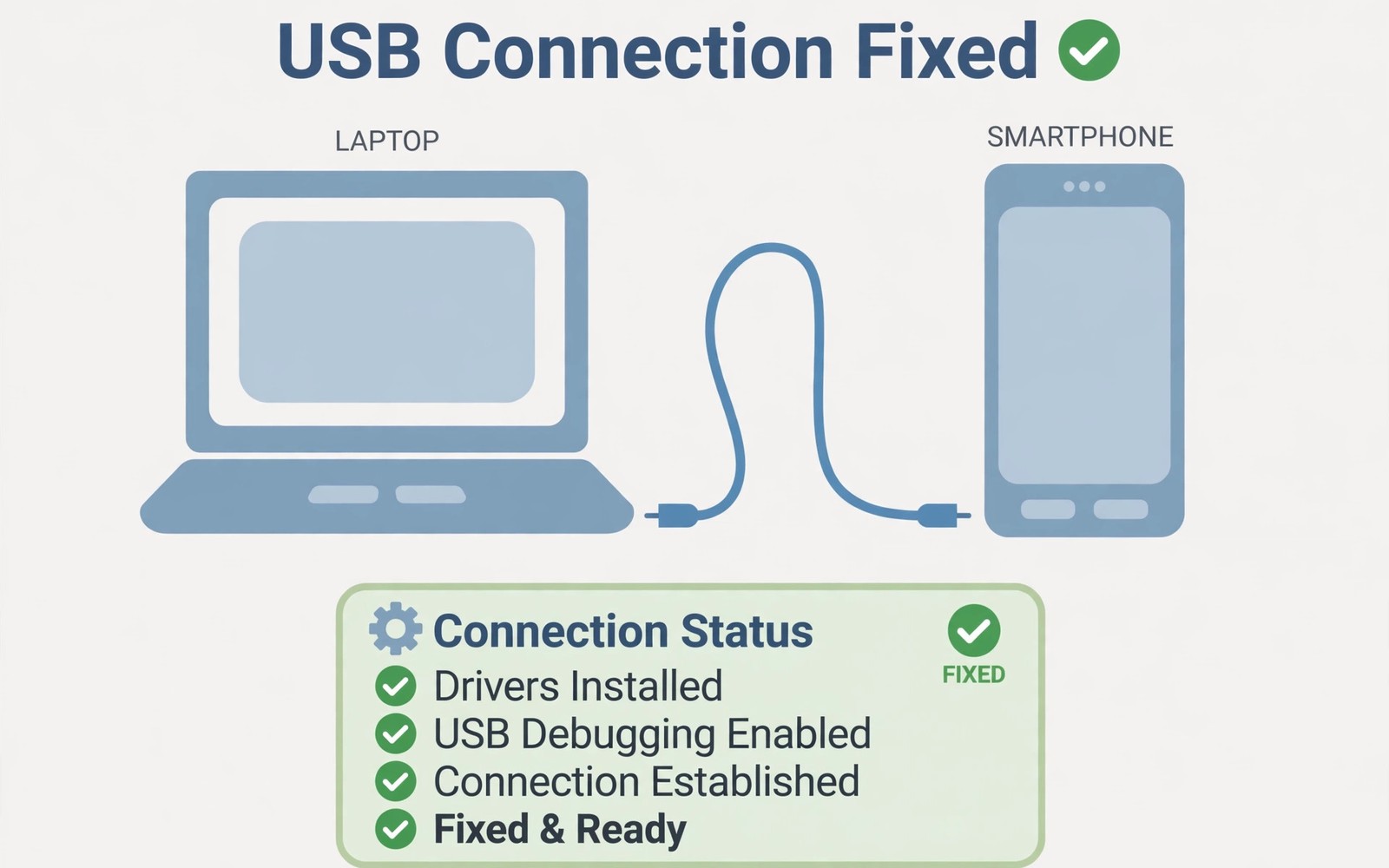
A phone that will not connect frustrates any workflow. The PC may show an unknown device error. Or it may show nothing at all. Most causes are simple and fixable with patience.
Drivers and ports cause most connection failures. Cables cause many of the rest. Settings on the phone can also block access. This guide isolates each cause in order. Readers who want a wider view can also explore phone storage as drive for a related setup.
First Checks Before Deep Fixes
Try another USB port on the PC first. Front ports on desktops can lack power. Rear ports connect directly to the main board. A direct port often solves silent failures.
Try another cable and confirm it carries data. Some cables charge only and lack data wires. A known good cable removes doubt fast. Keep one trusted data cable for testing.
Phone Settings That Block USB
Unlock the phone and check the USB mode prompt. Pick file transfer and not charging only. Allow the PC when a trust prompt appears. Denying trust blocks all data access.
Enable developer options only if a guide requires it. USB debugging helps advanced tools diagnose faults. Turn it off after troubleshooting ends. Leaving it on widens attack surface.
Driver Problems on Windows
Open device manager and look for warning icons. A yellow icon signals a driver problem. Right click the device and update the driver. Windows may find a generic driver that works.
If Windows fails then install the maker driver package. Phone makers publish USB drivers for Windows. Download only from the maker support pages. Restart the PC after driver install.
adb devices
# list connected Android devices
# empty output means check cable first
# try another port before reinstalling drivers
The snippet above follows standard operating system documentation and widely shared setup guides. It shows a typical pattern rather than a vendor specific promise. Results can vary by device model and system version. Always test a small change before you rely on it daily.
Port and Hardware Faults
Dust in a phone port can break the connection. Clean the port gently with dry air. Never use metal tools inside the port. A damaged port needs professional repair. A related workflow is covered in remote phone control for readers who want more depth.
Test the phone on another PC if possible. If it fails everywhere then the phone side is suspect. If it works elsewhere then your PC needs attention. Isolation saves wasted driver reinstalls.
Mac and Linux Connection Notes
Mac systems need a transfer utility for Android files. Install the utility and grant it access. Linux systems often detect phones without drivers. Permissions may still block normal user access.
On Linux check user group membership for USB access. Add your user to the plugdev group if needed. Log out and back in after group changes. Then reconnect the phone to test.
When to Seek Repair
Seek repair if the port feels loose or wobbly. Seek repair if no cable works on any PC. Software fixes cannot repair bent pins. A repair shop can quote port replacement cost.
Back up over Wi-Fi before a repair visit. Repair may wipe the phone in some cases. Cloud backup protects photos and chats. Confirm backup completion before handing over the device.
A Calm Troubleshooting Order
Change one thing at a time and test after each. Port then cable then mode then driver. This order finds the fault fastest. Random changes waste time and confuse results.
Device Manager Diagnostics on Windows
Device Manager reveals driver problems visually. Yellow warnings mark troubled devices clearly. Error codes guide specific fixes precisely. Code 43 signals device reported problems. Code 28 signals missing drivers entirely. Research the exact code before random fixes.
Hidden devices in Device Manager confuse diagnosis. Show hidden devices to reveal stale entries. Remove ghost entries for old phones. Ghost entries can hijack new connections. Clean device lists improve detection reliability. Restart after removing ghost entries always.
USB Cable Quality and Data Lines
Cheap cables often omit data wires entirely. Charging works while data fails completely. Test cables with a known good device. A cable that fails data on one device fails generally. Label charge only cables to avoid confusion. Keep data cables separate from charge cables.
Cable length affects signal quality noticeably. Very long cables degrade USB signals. Keep data cables under two meters ideally. Active cables extend range for special cases. Most desk setups need short cables only. Short quality cables solve many mysteries.
USB Port Power and Hub Issues
Unpowered hubs split power across devices thinly. Phones may connect then disconnect repeatedly. Powered hubs supply stable current per port. Use powered hubs for phone connections. Direct PC ports remain the most reliable. Hubs add failure points unnecessarily sometimes.
Front panel ports use internal cables that degrade. Rear ports connect directly to motherboards. Test rear ports before suspecting drivers. A working rear port implicates front wiring. Front wiring repairs need technician help usually. Rear ports are the diagnostic gold standard.
Android USB Modes Explained
Android offers several USB modes for connections. Charging only blocks data access completely. File transfer enables storage access fully. USB tethering shares mobile data instead. MIDI mode suits music equipment connections. Photo transfer mode limits access to images.
Default USB mode settings persist across connections. Set file transfer as default if desired. Developer options control default mode choices. Changing defaults speeds repeated connections. Remember security implications of permissive defaults. A stolen phone with permissive USB leaks data.
Driver Signing and Windows Updates
Windows requires signed drivers for security. Unsigned drivers fail installation silently sometimes. Disable signature enforcement only temporarily. Re enable enforcement after testing drivers. Permanent disabling weakens system security greatly. Signed maker drivers are always preferable.
Windows updates sometimes replace working drivers. A working driver may break after updates. Roll back drivers through Device Manager. Note the working driver version first. Version notes speed future rollbacks greatly. Updates help security but can disrupt hardware.
When Hardware Repair Is Necessary
Bent port pins resist all software fixes. Physical damage needs hands on repair. Attempting forceful insertion worsens damage. Stop using damaged ports immediately. Professional repair replaces the port assembly. Costs vary by phone model greatly.
Intermittent connections often signal loose ports. Wiggling cables temporarily restores contact. Temporary contact is not a solution. Continued wiggling damages pins further. Schedule repair before total failure occurs. Early repair preserves data access options.
USB Debugging Risks and Benefits
USB debugging enables advanced device control. Developers need debugging for app testing. Debugging also bypasses some security protections. Authorized computers gain deep device access. Revoke authorizations for unknown computers promptly. Debugging authorization lists need periodic review. Review authorizations monthly for safety.
Debugging should stay disabled for ordinary users. Enable it only during troubleshooting sessions. Disable it immediately after sessions end. Temporary enabling limits exposure windows. Permanent enabling invites opportunistic attacks. Security hygiene favors minimal enabled features. Disable what you do not actively use.
Thunderbolt and USB-C Port Confusion
USB-C ports vary in capabilities confusingly. Some ports support video and data fully. Others support charging only despite identical shapes. Thunderbolt ports offer highest capabilities generally. Check port symbols for capability clues. Lightning symbols indicate Thunderbolt support often. Manuals clarify port capabilities definitively.
Cables also vary despite identical connectors. Thunderbolt cables cost more for higher speeds. USB 2 cables limit speeds drastically. Match cable capability to port capability. Mismatched cables bottleneck connections silently. Quality cables matter for data transfers. Label cables by capability for clarity.
Windows Fast Startup and USB Detection
Fast startup caches driver states between boots. Cached states sometimes break USB detection. Full shutdowns clear problematic cached states. Restart through shift shutdown for full resets. Full resets fix mysterious detection failures. Try full shutdown before driver reinstalls. Simple resets solve surprising numbers of issues.
Fast startup benefits boot speed modestly today. SSDs boot quickly without fast startup. Disabling fast startup rarely hurts performance. Consider disabling it on troublesome systems. Stable USB detection outweighs seconds saved. Reliability beats marginal speed gains always.
BIOS USB Settings and Detection
BIOS settings can disable USB ports entirely. Legacy USB support affects older devices. XHCI settings control modern USB controllers. Incorrect BIOS settings block all USB devices. Reset BIOS defaults when USB fails system wide. Defaults restore sane USB configurations usually. Document custom BIOS settings before resets.
BIOS updates sometimes fix USB compatibility issues. Update BIOS only when troubleshooting indicates need. BIOS updates carry small bricking risks. Follow manufacturer instructions precisely always. Never interrupt BIOS update processes. Interrupted updates damage motherboards severely.
macOS Android File Transfer Alternatives
Mac Android transfer utilities vary in quality. Official utilities offer basic functionality reliably. Third party tools add features like previews. Open source tools appeal to technical users. Choose utilities from reputable developers only. Reputable tools protect data during transfers. Research developer reputation before installing tools.
Mac Finder cannot browse Android storage natively. Transfer utilities bridge this gap necessarily. Wireless methods bypass Finder limitations elegantly. Cloud sync offers Finder native folders. Choose wireless or cloud for Finder comfort. Native Finder workflows feel most Mac like. Comfort matters for daily transfer habits.
USB-C Alternate Modes and Detection
Alternate modes enable video and audio over USB-C. Detection failures may stem from mode negotiation. Faulty cables fail mode negotiation silently. Quality cables negotiate modes reliably. Test alternate modes with known good cables. Cable quality affects advanced USB features. Basic charging works with inferior cables deceptively.
Docking stations complicate alternate mode detection. Docks require firmware updates occasionally. Outdated dock firmware breaks phone detection. Update dock firmware through manufacturer tools. Firmware updates fix compatibility issues often. Check dock compatibility with phone models. Compatibility research prevents dock disappointments.
System Restore and Driver Rollback
System restore points rescue driver disasters effectively. Create restore points before driver changes. Restore points revert drivers and settings. Personal files remain untouched during restores. Restore points expire after storage limits. Create fresh points before major changes. Restore discipline saves troubleshooting hours.
Driver rollback options exist in Device Manager. Rollback returns to previous driver versions. Rollback helps when updates break devices. Note working versions before updating drivers. Version notes guide rollback decisions quickly. Document driver versions during successful setups. Documentation accelerates future troubleshooting significantly.
Start with one small change today and build from there. A steady setup beats a rushed overhaul every time. You can also read Phone Link setup to round out your plan. Once the basics feel natural you can add more advanced options at your own pace.

