

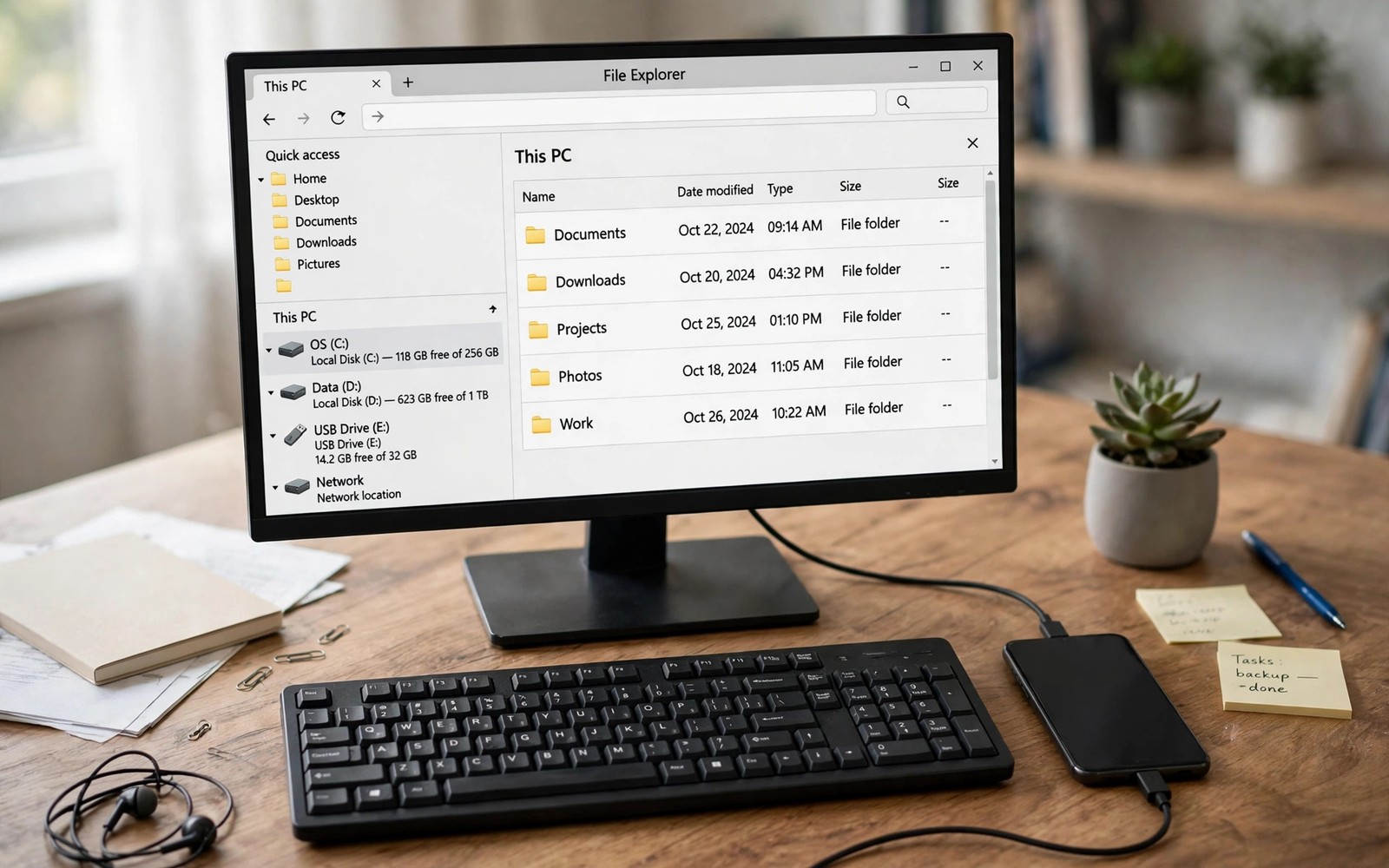
Opening phone files through a cable app feels clunky. A virtual drive feels far more natural. Your phone storage appears beside local drives. You browse and copy files like any folder.
Several methods create this drive view. Network sharing works over Wi-Fi. USB tools can mount storage directly. Cloud folders mimic a drive too. Pick by speed and privacy needs. Readers who want a wider view can also explore automatic photo sync for a related setup.
What a Virtual Drive Gives You
File explorer shows phone folders in a familiar tree. You can open photos without importing them first. You can drag files both ways with ease. Search across phone files from the desktop.
A drive view also helps backup scripts. You can copy whole folders on schedule. Manual app imports cannot match that ease. Power users gain the most from drive access.
Network Sharing Method
Some phone apps share storage over local Wi-Fi. The PC maps the share as a network drive. You browse it in file explorer normally. Speed depends on your home network.
Set a strong password for the share. Anyone on your network could probe it. Turn off sharing when you finish transfers. A share left on is a quiet risk.
USB Mount Method
USB mode mounts phone storage for direct access. Connect with a data cable and pick file transfer. The PC sees the phone as a storage device. Copy speeds beat Wi-Fi for large folders.
Keep the phone unlocked during USB access. A locked phone may hide storage from the PC. Use a direct USB port for stability. Hubs can drop large transfers unexpectedly.
net use Z: \\phone\storage /persistent:no
# example Windows drive mapping command
# replace phone with your device name
# remove mapping when transfers finish
The snippet above follows standard operating system documentation and widely shared setup guides. It shows a typical pattern rather than a vendor specific promise. Results can vary by device model and system version. Always test a small change before you rely on it daily.
Cloud Folder Method
Cloud sync folders appear as local folders on PC. Phone uploads land there automatically. You gain drive style access with cloud backup. Internet speed limits large transfers. A related workflow is covered in Android Mac file transfer for readers who want more depth.
Cloud folders also work when devices are apart. A file uploaded on travel appears at home. This suits remote workers well. Local methods win for huge video files.
Organizing a Mounted Phone Drive
Do not edit system folders on the phone drive. Stick to photos and documents folders. Moving system files can break apps. If unsure then copy and not move files.
Create clear folders for imports on the PC side. Sort by date or project after copying. Delete temporary copies after verification. A tidy import habit prevents duplicates.
Fixing Drive Access Problems
If the drive does not appear then check the share address. A changed phone IP breaks mapped drives. Use a fixed IP or a device name. Re-map the drive after network changes.
If files appear read only then check share permissions. The phone app may grant read access only. Enable write access in the app settings. Restart the share after changing permissions.
Choosing Your Drive Method
Daily browsing suits network sharing well. Large backups suit USB mounting best. Remote access suits cloud folders best. Mix methods by task for the best balance.
SMB Sharing from Android Explained
SMB protocol shares folders over local networks. Some Android apps act as SMB servers. PCs connect using standard network paths. No special PC software is needed. Speed matches home network quality closely. SMB suits Windows homes particularly well.
SMB shares need authentication for safety. Set a username and strong password. Anonymous shares invite network snooping. Restrict shares to specific folders only. Full storage shares expose system files. Folder limits reduce damage from breaches.
FTP and SFTP Options for Power Users
FTP servers on phones offer simple file access. FTP lacks encryption for passwords though. SFTP encrypts both data and credentials. Power users should prefer SFTP always. FTP suits isolated home networks only. Public networks demand SFTP or VPN protection.
FTP clients on PCs browse phone files easily. Drag and drop works in most clients. Bookmark the phone server for quick access. Save credentials in the client securely. Rotate server passwords periodically. Stale passwords linger in old clients.
WebDAV as a Drive Alternative
WebDAV exposes phone storage over HTTP protocols. Windows maps WebDAV as a network location. It feels similar to a mapped drive. Performance lags behind SMB slightly. Compatibility across systems is excellent though. WebDAV suits mixed OS households well.
WebDAV over HTTPS encrypts transfers properly. Plain HTTP WebDAV leaks file contents. Enable HTTPS whenever the app supports it. Self signed certificates trigger warnings often. Accept warnings only for your own server. Never ignore warnings for unknown servers.
Mounting on macOS and Linux
macOS Finder connects to network shares natively. Use the connect to server dialog. Enter the phone share address carefully. Save favorites for repeated connections. Finder remembers recent servers helpfully. Linux file managers offer similar network browsing.
Linux command line mounting offers scriptable access. Mount shares in scripts for backups. Unmount cleanly after backup completion. Stale mounts cause confusing errors later. Automate mount and unmount together always. Scripts should handle failures gracefully.
Sync Versus Mount: Which Fits You
Mounting shows live phone files without copying. Syncing copies files to the PC disk. Mounting saves PC disk space greatly. Syncing allows offline access to files. Travelers need synced copies offline. Desk users enjoy mounted live access more.
Editing mounted files risks corruption on disconnects. Copy files locally before editing important work. Edit the local copy and copy back after. This habit prevents half saved documents. Network drops during saves corrupt files silently. Local editing is the safe pattern.
Securing a Mounted Phone Drive
A mounted drive grants broad file access. Anyone using the PC sees phone files. Lock the PC when leaving the desk. Disconnect the mount after sensitive work. Unmounted drives hide phone content completely. Disconnecting is the simplest protection available.
Firewall rules should block share ports publicly. Shares must listen on home networks only. Public Wi-Fi shares invite attacks quickly. Disable sharing before joining public networks. A forgotten enabled share is dangerous. Check share status before travel always.
Mounting Phones on ChromeOS
ChromeOS connects Android phones through link features. Phone files appear in Files app. Integration feels native on Chromebooks. Students benefit from Chromebook phone links. School Chromebooks may restrict phone connections. Check school policies before relying on links. Personal Chromebooks offer fullest integration.
ChromeOS phone hubs show notifications and messages. Recent photos appear for quick access. Tethering activates from Chromebook settings. Hub features simplify phone Chromebook pairing. Pairing takes minutes through account settings. ChromeOS integration rivals Windows phone links. Chromebook users enjoy growing ecosystem benefits.
Wireless Drive Access Over VPN
VPNs extend home drive access remotely securely. Connect VPN then mount phone shares. Remote mounting works like local mounting. Speed depends on internet upload rates. Home upload speeds limit remote performance. Large files transfer slowly remotely inevitably. Remote access suits small files best.
VPN security protects share credentials in transit. Public networks cannot intercept VPN traffic. Configure VPN servers on home routers. Router VPNs provide always available access. Test VPN mounting before travel departures. Pre travel tests prevent remote frustrations.
Automating Backups from Mounted Drives
Backup scripts copy mounted phone folders nightly. Scheduled scripts run while users sleep. Morning logs confirm backup success daily. Failed backups trigger alert notifications. Alerts enable prompt troubleshooting action. Automated backups remove human forgetfulness. Consistency is backup reliability foundation.
Backup scripts should verify copied file integrity. Checksums detect corrupted copies reliably. Compare checksums after each backup run. Mismatches trigger recopy attempts automatically. Integrity verification prevents false backup confidence. Verified backups restore successfully when needed.
File System Differences and Compatibility
Android storage uses file systems PCs understand. ExFAT and FAT32 dominate removable storage. Internal storage abstracts file systems away. Network shares hide file system details. Compatibility issues rarely trouble users today. Legacy systems may struggle with large files. Modern systems handle phone files smoothly.
File name characters differ across operating systems. Colons in names break Windows compatibility. Avoid special characters in phone file names. Rename problematic files before transfers. Simple alphanumeric names transfer universally. Naming discipline prevents transfer errors completely.
Sharing Mounted Drives with Others
Mounted drives can share to household members. Network shares support multiple simultaneous users. Permissions control who edits shared files. Read only access suits family photos. Edit access suits collaborative projects only. Permission design prevents accidental deletions. Shared access needs thoughtful permission planning.
Guest access should expire automatically ideally. Temporary shares for visitors need time limits. Manual revocation often gets forgotten unfortunately. Calendar reminders prompt share reviews. Review shares monthly for stale access. Stale shares accumulate security risk silently. Regular reviews maintain share hygiene.
Phone Storage as Backup Target
Phones can receive PC backups over networks. Large phone storage suits document backups. Phone backups supplement primary backup systems. Redundant copies across devices improve safety. Phones travel with owners providing offsite copies. Traveling backups protect against home disasters. Offsite copies are backup best practice.
Backup rotations should include phone copies periodically. Weekly phone backups capture recent work. Monthly full backups preserve complete archives. Rotation schedules balance storage and safety. Automated rotations remove human forgetfulness. Automation ensures backups happen consistently. Consistent backups restore successfully reliably.
Drive Mapping on Public Networks
Public networks expose mapped drives to risks. Attackers scan public networks for shares. Disable drive mappings before public use. VPNs encrypt mappings on public networks. VPN protection is mandatory for public shares. Never map drives openly on public Wi-Fi. Public caution protects private files effectively.
Hotel networks often block file sharing ports. Blocked ports prevent drive mapping entirely. VPNs bypass port blocks usually. Test VPN drive access before travel. Pre travel testing prevents remote frustrations. Alternative cloud access suits blocked networks. Flexibility beats single method dependence always.
Start with one small change today and build from there. A steady setup beats a rushed overhaul every time. You can also read driver connection fixes to round out your plan. Once the basics feel natural you can add more advanced options at your own pace.

