

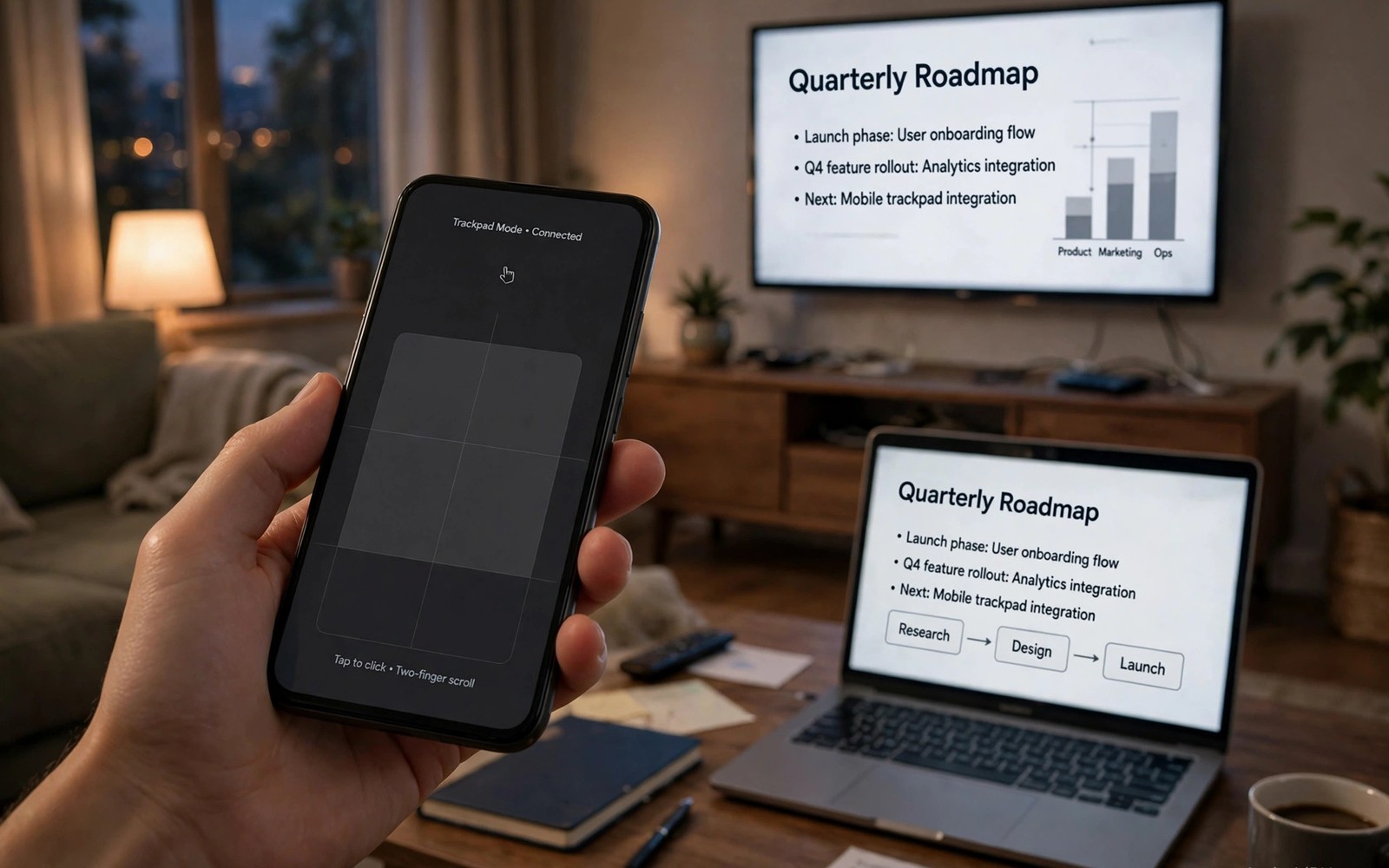
A phone in your hand can steer your PC. It works as a trackpad and a remote. You can control slides from across the room. You can also browse from the couch with ease.
Trackpad apps connect over Wi-Fi or Bluetooth. Your finger moves the PC cursor. Taps act as clicks on screen. This guide sets up a smooth remote experience. Readers who want a wider view can also explore remote phone control for a related setup.
How Phone Trackpads Work
The phone app sends touch data to the PC. A receiver on the PC moves the cursor. Gestures map to scroll and click actions. The link must be fast to feel natural.
Wi-Fi gives good range inside a home. Bluetooth suits close range desk use. Both need the receiver running on the PC. Without it the phone cannot connect.
Setting Up a Trackpad App
Install the receiver on your PC first. Then install the phone app from the store. Connect both to the same network. Pair with the code shown on the PC.
Test cursor movement on an empty desktop area. Try tap to click and two finger scroll. Adjust sensitivity until motion feels right. High sensitivity suits large screens better.
Gestures Worth Learning
One finger moves the cursor across the screen. Two fingers scroll pages up and down. A quick tap clicks the current item. A long press can open context menus.
Some apps add media keys for playback. Play and pause sit beside volume controls. Presentation mode adds next and previous slide. Learn five gestures well and ignore the rest.
xinput list
# list PC input devices on Linux
# confirm the virtual trackpad appears
# test movement before presenting
The snippet above follows standard operating system documentation and widely shared setup guides. It shows a typical pattern rather than a vendor specific promise. Results can vary by device model and system version. Always test a small change before you rely on it daily.
Using It as a Presentation Remote
Stand near the audience and advance slides calmly. A phone remote frees you from the podium. Keep slides simple for remote control. Complex demos still need a real desk setup. A related workflow is covered in second display options for readers who want more depth.
Check battery before a long presentation. A dead remote mid talk is stressful. Keep a spare clicker for critical talks. Redundancy protects important moments.
Media Control from the Couch
Control video playback without reaching for a keyboard. Pause and volume live on your phone screen. Skip tracks during music sessions with ease. The PC stays connected to speakers or TV.
Lock the phone screen layout for media use. Accidental taps can pause at bad times. Some apps offer a lock mode for this. Use it during movies and long playlists.
Fixing Lag and Drops
If the cursor lags then move closer to the router. Switch to a 5 GHz network for less congestion. Close heavy downloads on the PC. Bandwidth helps the cursor feel instant.
If pairing fails then check firewall settings on the PC. Firewalls can block the receiver port. Allow the receiver app through the firewall. Restart the receiver after changing rules.
Trackpad or Real Mouse
A phone trackpad suits travel and presentations. A real mouse suits long editing sessions. Use each tool for its strength. Your phone remote is a bonus and not a full replacement.
Bluetooth Trackpad Mode Versus Wi-Fi Mode
Bluetooth mode works without a Wi-Fi network nearby. It suits airplanes and offline rooms well. Range stays shorter than Wi-Fi mode though. Wi-Fi mode covers larger rooms easily. It needs a shared network to function. Choose Bluetooth for travel and Wi-Fi for home.
Bluetooth pairing sometimes drops after sleep. Reconnect from the phone app quickly. Wi-Fi connections survive sleep better usually. Both modes need the PC receiver running. A stopped receiver blocks both connection types. Check receiver status before troubleshooting the phone.
Keyboard Mode for Text Entry
Many trackpad apps include a full keyboard mode. Type long text on the phone keyboard directly. This helps when the PC keyboard is out of reach. Phone keyboards suit short messages best. Long documents still deserve a real keyboard. Use phone typing for searches and chat replies.
Autocorrect on phone keyboards can alter PC text unexpectedly. Disable autocorrect for technical typing sessions. Code and passwords suffer most from autocorrect. Proofread phone typed text before sending. A quick read catches autocorrect surprises. Accuracy matters more than typing speed here.
Controlling Media Centers and HTPCs
Home theater PCs benefit hugely from phone remotes. You control playback without a wireless keyboard. The phone also shows now playing information. Browse libraries from the couch comfortably. A phone remote replaces several physical remotes. One device controls the whole media center.
Keep the phone charged during movie nights. A dead remote interrupts viewing badly. Enable battery saver exceptions for the remote app. Dim the phone screen during playback. A bright phone distracts other viewers. Considerate remote use improves shared viewing.
Accessibility Uses for Phone Trackpads
Phone trackpads help users with limited desk mobility. A phone in hand replaces reaching for a mouse. Large touch targets help users with tremor. Custom sensitivity helps users with limited precision. Accessibility settings deserve exploration by everyone. Small tweaks can transform usability dramatically.
Voice control combined with a trackpad offers more options. Voice handles commands while touch handles pointing. This combination suits many motor impairments. Test combinations with the actual user present. Prescribed setups often miss personal preferences. Personal testing reveals the best combination.
Security for Remote Input Tools
Remote input tools accept commands from the network. An attacker on the network could inject input. Use strong pairing codes and passwords always. Disable the receiver when not in use. A disabled receiver cannot accept input. Treat remote input like an unlocked keyboard.
Public networks demand extra caution for remote tools. Avoid remote input on hotel and cafe networks. Attackers share those networks with you. Use a personal hotspot for remote control instead. Hotspots isolate your devices from strangers. Isolation is the simplest protection available.
Trackpad Apps for Different Operating Systems
Windows receivers are the most common trackpad targets. Mac receivers exist but vary in polish. Linux receivers often come from open source projects. Check receiver support for your exact system. A phone app without a PC receiver is useless. Verify both sides before installing anything.
Cross platform households need tools with all receivers. One tool across systems simplifies family help. Family members learn one app instead of three. Consistency reduces support calls dramatically. Pick the tool with the widest receiver coverage. Coverage beats minor feature differences here.
Trackpad Precision Settings
Precision settings control cursor speed sensitively. High speed suits large monitors well. Low speed suits precise photo editing. Adjust speed per task type ideally. Task specific speeds improve accuracy noticeably. Save presets for common task types. Presets switch quickly between activities.
Acceleration curves affect cursor feel subtly. Linear curves suit gamers and designers. Accelerated curves suit casual browsing better. Test curves for a week each. Personal preference dominates curve choices. No universal best curve exists truly. Experimentation reveals personal optima.
Using Phones as Keyboards for Smart TVs
Smart TVs lack convenient text input methods. Phone keyboards enter search terms easily. Trackpad apps often include keyboard modes. Search streaming libraries from phones comfortably. TV remotes frustrate text entry notoriously. Phone keyboards rescue TV search experiences. Families appreciate easier TV searching greatly.
TV trackpad control needs line of sight rarely. Wi-Fi control works through walls sometimes. Bluetooth control needs closer proximity usually. Choose connection type by room layout. Open plan rooms suit Wi-Fi control. Small rooms suit Bluetooth control fine.
Presentation Clickers Versus Phone Remotes
Dedicated clickers offer physical buttons reliably. Phone remotes offer richer displays additionally. Clickers never run out of apps or updates. Phones offer timers and notes alongside. Hybrid use combines both strengths effectively. Use clickers for critical talks primarily. Use phones for casual presentations comfortably.
Clicker batteries last months without charging. Phone batteries drain during long talks. Charge phones fully before presentations always. Carry clickers as backups for phones. Backup plans protect important presentations. Redundancy is professionalism in presenting.
Remote Control for Digital Signage
Digital signage PCs often hide behind displays. Phone remotes control them without keyboards. Staff update signage content remotely easily. Restaurants change menus from phones quickly. Retail stores adjust promotions instantly. Remote control simplifies signage management greatly. Small businesses benefit most from simplicity.
Signage PCs need locked down remote access. Restrict remote tools to staff devices. Strong passwords protect public displays. Public displays attract pranksters otherwise. Prank content damages brand reputation quickly. Security for signage deserves serious attention.
Gaming with Phone Trackpads
Phone trackpads suit casual PC games adequately. Strategy games work well with trackpad control. Fast action games need real mice. Trackpad latency hurts competitive gaming. Casual gaming tolerates latency gracefully. Match game genre to input method. Genre matching prevents frustration effectively.
Custom button layouts help mobile game control. Map frequent actions to phone buttons. Layouts should mirror game controls intuitively. Practice layouts before competitive sessions. Familiar layouts improve reaction times. Unfamiliar layouts cause costly mistakes.
Trackpad Use for Accessibility Testing
Accessibility testers evaluate apps with varied inputs. Phone trackpads simulate limited mobility inputs. Testers discover navigation barriers through trackpads. Barriers include tiny touch targets frequently. Large targets improve accessibility for everyone. Testing with trackpads reveals real barriers. Real barriers need real input diversity.
Keyboard only navigation testing complements trackpad testing. Some users navigate without mice entirely. Tab order logic matters for keyboard users. Logical tab orders follow visual layouts. Illogical orders confuse keyboard navigation badly. Test tab orders during development regularly. Early testing prevents costly redesigns later.
Trackpad Battery and Connectivity Tips
Trackpad apps drain phone batteries during use. Dim phone screens to extend sessions. Lower screen brightness saves significant power. Close background apps before long sessions. Background apps compete for battery resources. Power management extends remote control usability. Manage power proactively for long events.
Connection drops interrupt trackpad control suddenly. Reconnect quickly through app reconnect buttons. Persistent drops signal network problems usually. Switch networks when drops repeat frequently. Stable networks underpin reliable remote control. Test networks before critical presentations always. Preparation prevents live connection embarrassments.
Start with one small change today and build from there. A steady setup beats a rushed overhaul every time. You can also read stream phone audio to PC to round out your plan. Once the basics feel natural you can add more advanced options at your own pace.

