

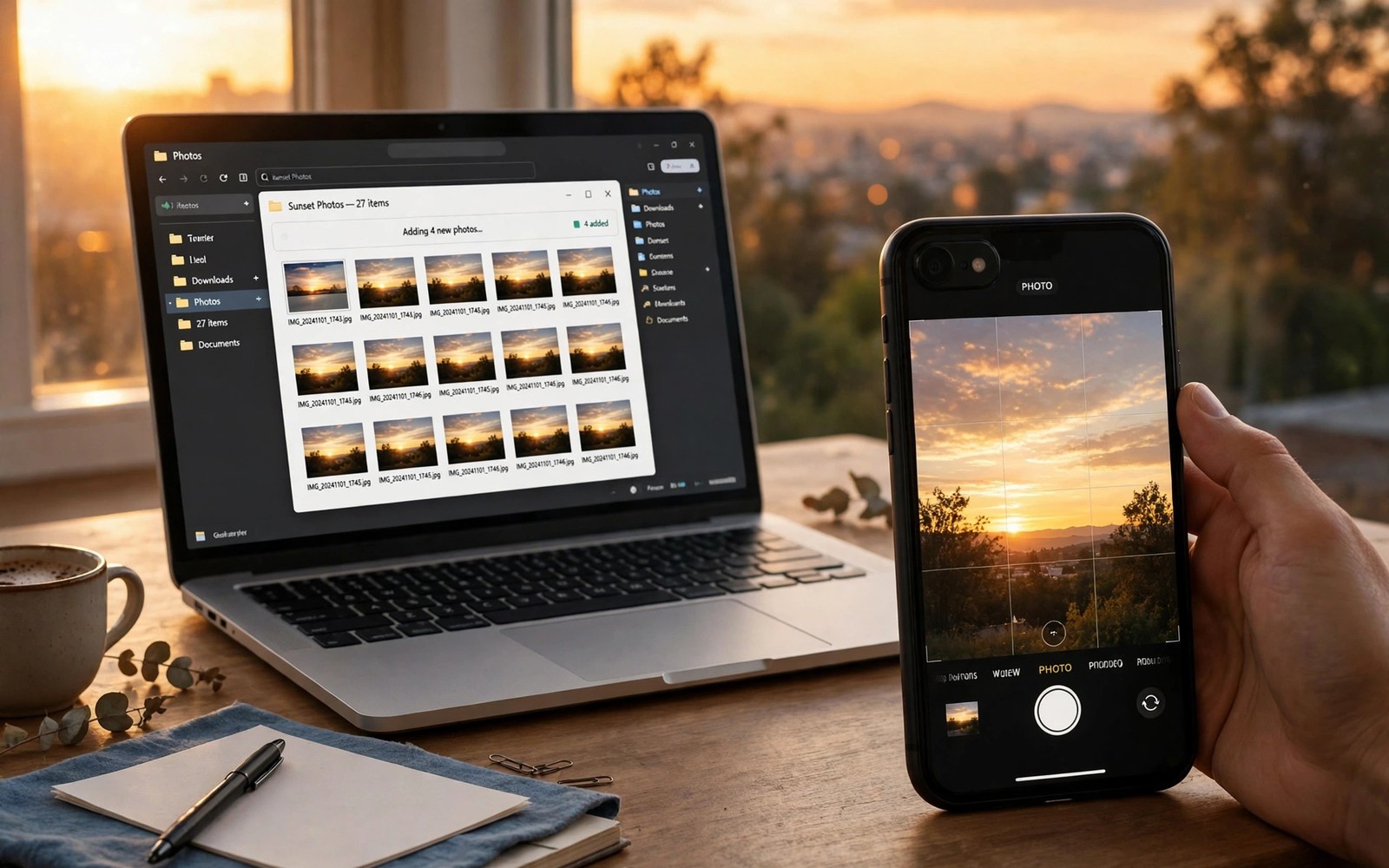
Photos pile up on phones faster than we organize them. A full phone slows down and risks lost memories. Auto sync moves new photos to your laptop. You gain space and a safer backup at once.
Good sync runs quietly in the background. You take a photo and it appears on the laptop. No manual copy step is needed. This guide sets up a system you can trust. Readers who want a wider view can also explore Android Mac file transfer for a related setup.
Why Auto Sync Beats Manual Copy
Manual copy gets skipped on busy weeks. Backlogs grow until the task feels huge. Auto sync prevents that backlog entirely. Each photo moves soon after capture.
Auto sync also protects against phone loss. Recent photos already sit on the laptop. A lost phone hurts less when copies exist. Think of sync as quiet insurance.
Cloud Sync Options
Cloud photo services sync across phone and laptop. Install the app on both devices. Turn on camera upload on the phone. Photos appear in the laptop folder soon after.
Check upload quality settings before you start. Some services compress photos by default. Full quality needs more storage space. Pick quality based on how you print and edit.
Local Network Sync Options
Local sync tools move photos over home Wi-Fi. They avoid cloud storage limits. They also keep photos inside your house. This suits privacy minded users well.
Set the laptop folder as the sync target. The phone app watches the camera folder. New files copy when both devices share Wi-Fi. A nightly sync window keeps traffic low.
rsync -av --progress /sdcard/DCIM/ ~/Photos/phone/
# example pull for local photo backup
# add --delete only with great care
# verify counts before removing originals
The snippet above follows standard operating system documentation and widely shared setup guides. It shows a typical pattern rather than a vendor specific promise. Results can vary by device model and system version. Always test a small change before you rely on it daily.
Organizing Photos on Arrival
Sort incoming photos into dated folders automatically. Many tools support date based folder rules. Use year and month folders for simple browsing. Event folders work for trips and projects. A related workflow is covered in phone storage as drive for readers who want more depth.
Delete blurry shots during a weekly review. A short review keeps the library lean. Keep favorites in a separate folder. This habit makes finding old photos easy.
Storage and Backup Rules
Watch laptop disk space as photo counts grow. A full disk can stop sync silently. Set alerts for low disk space. Archive old years to an external drive yearly.
Keep a second backup beyond the laptop. An external drive or a second cloud copy works. One copy is a risk and not a backup. Two copies in different places are far safer.
Fixing Sync Stalls
If new photos stop appearing then check battery settings. Power saving can pause background uploads. Allow background activity for the sync app. Then take a test photo to confirm.
If only some photos sync then check folder selection. The app may watch one camera folder only. Some phones store screenshots elsewhere. Add extra folders if you need them synced.
A Photo System That Lasts
Pick one sync method and stick with it. Mixing tools creates duplicates fast. Review folders monthly for errors. A steady system beats a perfect system you abandon.
Choosing Sync Quality for Photos
Original quality preserves every pixel for printing. It consumes cloud storage quickly though. High quality compression saves space with minor loss. Social sharing rarely reveals compression differences. Printing large photos reveals compression clearly. Choose original for photographers and high for casual shooters.
Video quality settings matter even more than photos. Original video files can reach gigabytes quickly. Compressed video still looks good on phones. Large screen playback reveals compression artifacts. Keep originals for wedding and travel films. Compress everyday clips without guilt.
Syncing Screenshots and Downloads Too
Camera folders are not the only phone folders. Screenshots hold receipts and confirmations. Download folders hold tickets and forms. Sync apps often ignore these folders by default. Add them manually if they matter to you. A complete backup covers more than camera shots.
Too many synced folders create clutter on the laptop. Sync only folders you actually review. Exclude meme and temp folders ruthlessly. A focused sync stays organized naturally. Review folder lists quarterly for creep. Clutter grows silently without reviews.
Face and Location Organization After Sync
Photo apps on laptops offer face grouping features. They cluster familiar faces automatically. Location maps show photos by place taken. These tools turn folders into memories. Enable them only if you trust the provider. Face data is sensitive biometric information.
Manual albums beat automatic grouping for projects. Create albums for trips and events by hand. Add captions while memories stay fresh. Future you will appreciate short captions. A sentence per album saves hours of guessing. Organization is a gift to your future self.
Syncing Across Two Laptops
Some users sync photos to both work and home laptops. Cloud sync handles two laptops easily. Local sync needs each laptop configured separately. Keep one laptop as the primary archive. Use the second as a convenience copy only. Clear roles prevent sync conflicts.
Conflicts arise when both laptops edit the same photo. Cloud systems usually keep both versions. Rename edited versions clearly to avoid confusion. A suffix like edited helps identification. Delete losing versions after comparison. Prompt cleanup prevents duplicate chaos.
Protecting Photos with Encryption
Cloud photo storage encrypts data in transit. At rest encryption varies by provider. End to end encryption offers the strongest privacy. It may limit web preview features though. Balance privacy against convenience honestly. Family photos deserve strong protection by default.
Local encrypted drives protect laptop photo archives. Enable full disk encryption on the laptop. A stolen laptop then reveals nothing usable. Keep the recovery key somewhere safe offline. Without it even you cannot recover files. Encryption without key management is a trap.
Year End Photo Archiving Ritual
Archive each year into a dated external folder. Verify the archive opens before deleting laptop copies. Label drives by year range clearly. Store one drive away from home ideally. Offsite storage protects against fire and theft. A yearly ritual beats vague good intentions.
Print a small selection of favorite photos yearly. Prints survive digital format changes gracefully. A printed album needs no password or charger. Choose twenty favorites per year only. Curation forces you to pick real memories. Future generations will treasure printed selections.
Syncing Photos to Network Attached Storage
Network storage offers private photo archives at home. Phones sync to NAS devices over Wi-Fi. NAS drives hold terabytes cheaply compared with cloud. Families share one NAS photo library easily. Access controls protect private folders per member. Home archives avoid monthly cloud fees entirely. Upfront NAS cost pays back within years.
NAS sync apps vary in reliability greatly. Test sync with a small album first. Verify files appear with correct dates. Date preservation matters for photo organization. Some apps reset dates during transfer. Reset dates destroy chronological sorting completely. Choose apps preserving original timestamps carefully.
Editing Photos After Laptop Sync
Laptop editors offer tools phones lack entirely. Batch rename tools organize large imports fast. Keyword tagging aids future search greatly. Tag faces locations and events consistently. Consistent tags create a searchable archive. Searchable archives save hours over years. Tagging effort pays back repeatedly.
Non destructive editing preserves original files safely. Editors store edits as instructions separately. Originals remain untouched for future re-edits. Destructive editing overwrites originals permanently. Always prefer non destructive workflows for memories. Memories deserve reversible editing choices always.
Sharing Synced Photos with Clients
Photographers sync client photos to laptops rapidly. Same day delivery impresses clients greatly. Select favorites before full gallery delivery. Favorites show professionalism and curation skill. Deliver galleries through private links securely. Password protected galleries prevent unauthorized access. Professional delivery builds repeat business reliably.
Client galleries need clear expiration policies. Set gallery availability windows explicitly. Expired galleries reduce long term storage costs. Clients download favorites before expiration dates. Remind clients before galleries expire. Clear policies prevent awkward retrieval requests.
Photo Sync for Social Media Creators
Creators shoot content on phones constantly daily. Laptop sync enables desktop editing workflows. Desktop editors produce polished content faster. Polished content performs better on platforms. Sync speed affects posting schedules directly. Fast sync supports timely trend participation. Trends reward creators who post quickly.
Raw footage sync consumes storage rapidly though. Delete failed takes after sync completes. Failed takes clutter archives unnecessarily. Keep only usable footage long term. Storage discipline supports sustainable creation. Clutter slows every future search task.
Recovering Accidentally Deleted Photos
Sync copies protect against accidental phone deletions. Deleted phone photos survive on laptops. Restore from laptop folders quickly after accidents. Check laptop trash for recently synced deletions. Some sync tools mirror deletions dangerously. Mirroring deletes laptop copies too unfortunately. Choose sync modes preserving laptop copies safely.
Cloud trash retains deleted photos temporarily. Restore within retention windows promptly. Retention windows vary by service greatly. Learn your service retention period now. Waiting too long loses photos permanently. Act on deletions immediately always.
Syncing Photos from Multiple Phones
Families sync photos from several phones together. Shared laptop folders merge family memories. Duplicate photos appear across phones often. Deduplication tools identify identical files reliably. Remove duplicates after verifying originals remain. Merged libraries tell complete family stories. Complete stories beat fragmented phone albums.
Child phone photos need parental review before merging. Review content for appropriateness and privacy. Shared folders expose photos to family. Children deserve privacy discussions early. Agree sharing rules as a family. Rules protect trust while sharing memories. Family photo sharing needs consent conversations.
Photo Metadata Preservation During Sync
Metadata includes dates locations and camera settings. Sync tools may strip metadata accidentally. Stripped metadata destroys chronological organization. Verify metadata after first sync batches. Check dates on sample photos carefully. Preservation failures need tool changes promptly. Metadata is photo memory infrastructure.
Location metadata raises privacy concerns for sharing. Shared photos may reveal home locations. Strip location data before public sharing. Keep location data in private archives. Private archives benefit from location search. Public sharing demands location removal always. Privacy aware sharing protects families effectively.
Start with one small change today and build from there. A steady setup beats a rushed overhaul every time. You can also read cloud workspace documents to round out your plan. Once the basics feel natural you can add more advanced options at your own pace.

