

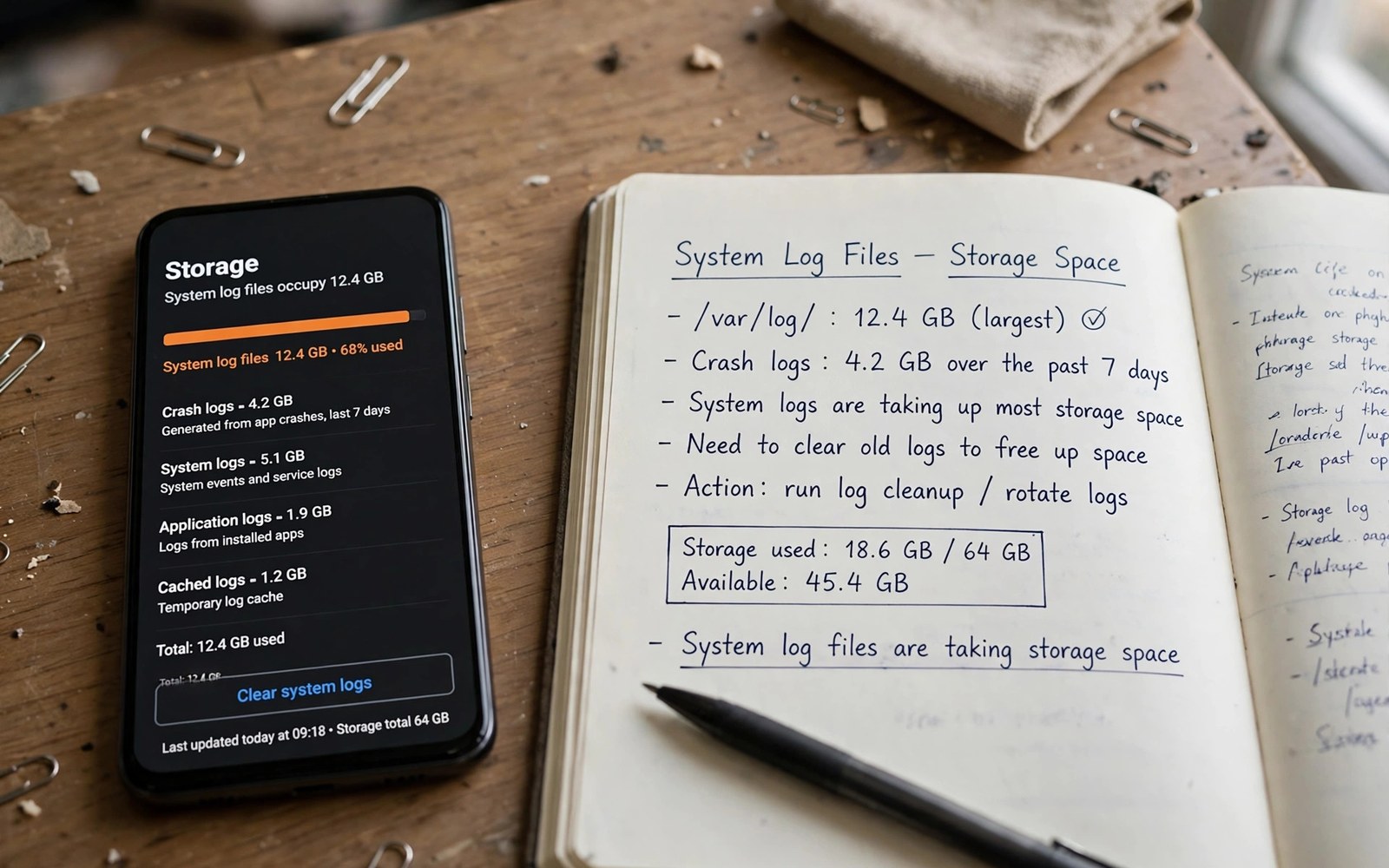
How System Logs and Crash Dump Files Take Up Storage Space
Open the storage screen on an Android phone that feels full, and you will see the usual suspects: photos, videos, apps, and a vague category called System or Other that never quite explains itself. Somewhere inside that vague category, quietly growing, are the system logs and crash dump files this article is about. They are not junk in the usual sense. They are the phone’s own diary, written every time an app crashes, a service restarts, or something goes wrong behind the scenes. On a healthy phone they stay small and roll over on their own. On a phone with a misbehaving app, they can grow into gigabytes before anyone notices.
I first ran into this properly on a phone that kept warning me about low storage even after I had deleted photos and cleared app caches. The storage analyser showed a large block I could not open, and the usual cleanup tools barely touched it. The culprit turned out to be a single app crashing in a loop overnight, writing a fresh crash report every few minutes while I slept. The fix took ten minutes once I understood what I was looking at. This article gives you that understanding: what these files are, where they live, why they balloon, and how to check and clear them safely, with and without root.
One warning up front, because it matters more than any single tip here: logs and crash dumps are diagnostic files, not trash. Deleting the wrong folder can hide the evidence a developer needs, or in rare cases break a service that expects its files to be there. The safe approach is to measure first, find the app or service that is generating the growth, fix that cause, and only then clear the files that are already there. Clearing without fixing the cause is like bailing out a boat without plugging the leak.
What System Logs and Crash Dumps Actually Are on Android
Android is a busy system. Dozens of services run at once, apps start and stop, radios switch on and off, and the kernel keeps track of hardware events. Logging is how all of that activity gets recorded in a form a human or a developer can read later. A log line is a short text entry with a timestamp, a tag naming the component that wrote it, and a message describing what happened. A crash dump is the heavier cousin: when an app or a native process dies unexpectedly, the system writes a detailed snapshot of what it was doing, including the call stack, the registers, and the memory state at the moment of the crash.
Both exist for good reasons. Without logs, a developer whose app crashes on your phone would have no way to know why. Without crash dumps, a native crash in a game engine or a camera driver would leave no trace at all. The trade-off is storage. Text logs are small individually, a few dozen bytes per line, but a phone can write thousands of lines a minute when something is wrong. Crash dumps are larger, often hundreds of kilobytes to several megabytes each, and a crashing app can produce dozens of them in a day. Multiply that across weeks and the numbers start to matter, especially on a phone with 64 GB or 128 GB of storage.
It helps to separate two kinds of growth. Normal growth is slow and self-limiting: logs rotate, old entries are discarded, and crash reports are capped. Abnormal growth is fast and open-ended: a single app in a crash loop, a system service logging an error thousands of times a second, or a failed update that retries forever. The rest of this article is mostly about telling those two apart, because the fix for normal growth is a routine cleanup, while the fix for abnormal growth is finding and stopping the thing that is generating the files.
logcat Buffers: Where Everyday Log Lines Live and How Big They Get
Most Android log lines live in logcat, the system’s logging service, which keeps them in circular buffers held in memory. A circular buffer has a fixed size. When it fills up, the oldest lines are discarded to make room for new ones. That design is the reason normal log growth does not eat your storage: the buffers live in RAM, not on disk, and they roll over constantly. On most phones the main buffer holds somewhere in the range of a few hundred kilobytes to a few megabytes, which sounds small until you realise it is being rewritten all day.
The size of those buffers is configurable, and the setting lives in Developer options under Logger buffer sizes. The default on many phones is 256 KB per buffer, and the options usually run from 64 KB up to 16 MB. Raising the buffer gives developers more history to read when debugging, but it also uses more RAM, not storage, so it is not the lever to pull when you are short of disk space. Lowering it saves a little RAM and nothing on disk. That distinction trips up a lot of cleanup advice online, which treats the buffer size as if it controlled a folder on disk. It does not.
What does reach the disk is a different matter. Some manufacturers, and some apps, write log copies to files in storage, and those files do not roll over as neatly as the in-memory buffers. A phone that has been running for months can accumulate log files from system updates, failed installs, and diagnostic tools that were never cleaned up. Those files are the ones that actually show up in your storage totals, and they are the ones this article helps you find.
Main, System, Radio, and Events Buffers Explained
logcat is not one buffer but several, each with its own job. The main buffer carries most app logs. The system buffer carries messages from system services. The radio buffer carries telephony and mobile data events. The events buffer carries structured system events, and the crash buffer carries crash-related lines. When you run a logcat command you can choose which buffer to read, and that choice matters, because a radio problem will not show up in the main buffer and a crashing app may leave its clearest trace in the crash buffer.
For storage purposes, the important fact is that all of these are memory buffers by default. They vanish on reboot. If your storage problem survives a restart, the cause is not logcat itself. It is a file on disk, written by something else, and the next sections name the usual suspects.
How Long a Buffer Keeps Lines Before They Roll Over
That depends on how chatty the phone is. On a quiet phone with a 256 KB buffer, lines can survive for hours. On a phone with an app logging errors in a tight loop, the same buffer can roll over in seconds, which is why developers who chase a crash often raise the buffer size first and reproduce the problem second. For a storage investigation, the practical takeaway is the opposite: if the buffer is rolling over that fast, the phone is generating an enormous amount of log traffic, and that traffic is worth investigating even if the buffer itself is not eating disk space.
A read-only logcat dump you can save to your computer
The safest way to look at logs is to copy them off the phone without changing anything on it. With developer options and USB debugging enabled, a single command saves the current log to your computer, where you can search it in peace. This is the approach I use first, because it leaves the phone untouched and gives me a file I can keep.
adb logcat -d -b main -v time > logcat-main.txt
adb logcat -d -b crash -v time > logcat-crash.txt
adb shell dumpsys dropbox --print > dropbox-list.txt
Tombstones, DropBox, and the Crash Files That Survive a Reboot
When a native process crashes on Android, the system writes a tombstone file. The name is grim and accurate: it is a marker for a dead process. A tombstone contains the signal that killed the process, the fault address, the contents of the CPU registers, a backtrace showing which functions were running, and a list of the memory maps the process had open. That is a lot of detail, and it is why a single tombstone can run to hundreds of kilobytes. A game engine or a camera library that crashes repeatedly can leave a trail of them.
DropBox is the system’s other crash store, and despite the name it has nothing to do with the cloud storage service. It is a local service that collects structured crash and event records, including app crashes, ANR reports, and system events, and keeps them in a small database with attached files. Developers and support teams read DropBox entries to understand crashes that happened days ago, long after the in-memory logcat buffers have rolled over. The entries are capped in number, but the files attached to them can still add up on a phone with a chronic crashing app.
Both stores exist because some crashes need to survive a reboot to be useful. A phone that crashes and restarts overnight should still be able to tell its owner, or its manufacturer, what happened. The cost is disk space, and the cost is only worth paying while the files are fresh and relevant. A tombstone from six months ago, for an app version you no longer have, is archaeology, not diagnostics.
Reading a Tombstone Without Breaking Anything
You can read a tombstone the same way you read any text file, provided you have access to its folder. On a rooted phone, the files sit in plain view and can be copied off for inspection. On a non-rooted phone, direct access is blocked, which is by design: these files can contain memory contents from a crashed app, and the system does not hand them to every app that asks. The practical route for most people is the bug report, which the system can generate on request and which bundles the relevant crash data into a file you can share with a developer.
DropBox Entries and ANR Traces
An ANR, or Application Not Responding report, is written when an app freezes for too long, usually five seconds on the main thread, and the system offers to wait or close it. ANR traces list what every thread in the app was doing at that moment, which is invaluable for a developer and fairly large as a file. A phone with an app that ANRs daily will accumulate these alongside its crash dumps, and they belong on the same checklist when you are hunting for growth.
Why clearing the dropbox folder needs care on some phones
On some devices, the DropBox store is managed by the system and cleans itself up. On others, especially older or heavily customised phones, entries can linger. Clearing them is usually safe, since they are historical records, but do it through the system’s own tools or a bug report reset where possible, rather than deleting the folder itself. Deleting the folder can break the service that expects it to exist, and the system may recreate it anyway on the next crash.
/data/log, /data/tombstones, and Other Folders That Grow Quietly
The folders where crash and log files accumulate are not in the shared storage you browse with a file manager. They live in protected directories that only the system and root can read, which is why the storage screen lumps them into a vague category instead of naming them. Knowing their names still helps, because it tells you what a storage analyser is actually pointing at when it reports a large System block, and it tells you what an ADB command or a root file manager is looking at.
| Location | What lives there | Typical size | Safe to clear |
|---|---|---|---|
| /data/tombstones | Native crash snapshots with backtraces | Kilobytes to a few MB each | Yes, with root, old files only |
| /data/system/dropbox | Crash and event records with attachments | Usually a few MB in total | Yes, old entries, preferably via system tools |
| /data/log | Manufacturer and kernel log files | Varies widely by maker, can reach GB | Yes, with root, after finding the cause |
| /data/anr | ANR traces from frozen apps | Kilobytes to MB per trace | Yes, old traces only |
| /data/misc/logd | Persistent logd buffers on some devices | Usually small, grows if logging is verbose | Only if you understand the setting |
| /sdcard/Android/data/*/cache | App caches, including some app-written logs | Can reach GB for heavy apps | Yes, per app, through Settings |
The largest of these on many phones is /data/log, a folder some manufacturers use for kernel and modem logs that can grow without any visible limit. I have seen reports of this folder reaching several gigabytes on phones with a noisy modem or a driver that logs an error on every wake-up. The folder is not part of stock Android in the same form on every device, which is why one phone can have the problem badly and another never sees it at all. If your phone is from a maker known for verbose logging, this folder belongs at the top of your checklist.
Readers who want a visual way to find the big folders can start with storage analyzer utilities, which map your storage into a treemap or a sorted list so the largest blocks stand out. A good analyser will not show you the protected folders directly without root, but it will show you the size of the System block and the largest app folders, which is usually enough to tell whether logs or something else is the problem.
Why Log Files Balloon After a Crash Loop or a Failed Update
A crash loop is the single most common cause of sudden log growth, and it works exactly the way it sounds. An app starts, hits the same error, crashes, and the system restarts it, or the user taps it again, and the cycle repeats. Each crash writes a tombstone, a DropBox entry, and a burst of log lines. Ten crashes an hour is a nuisance. A hundred crashes overnight, while the phone sits on a bedside table trying to sync, is a storage event. The app does not need to be malicious for this to happen. A corrupted database, a bad update, or a permission the app suddenly cannot get can all put it into the same loop.
Failed updates cause a related pattern. A system update that downloads but fails to install will often retry, and each attempt can leave behind log files and partial downloads. An app update that fails partway can leave the app in a state where it crashes on every launch, which feeds straight back into the crash loop above. The storage warning that follows can feel unfair, because the user did nothing except accept an update, but the mechanism is straightforward: the phone kept careful notes about a failure it could not fix on its own.
Heavy apps add their own weight to this picture. A large game with gigabytes of additional files writes more logs simply because it does more: more assets to load, more network calls, more chances for something to fail and be recorded. That does not make games the villain of this story, but it does mean a phone full of big games has more moving parts to generate diagnostics. Readers who want the wider picture on game storage can read about heavy mobile games storage, which covers the additional files themselves, while this article covers the logs those apps leave behind.
How to Tell a Crash Loop From Normal Logging
The signature of a crash loop is repetition: the same app, the same error, the same timestamp pattern, over and over. Open the battery screen and look for an app using power in the background when it should be idle. Open the app list and check whether one app has an unusually large data size for its category. Check the crash count in the developer bug report, or simply notice whether the same app has crashed visibly more than once in a day. One crash is an accident. The same crash five times is a pattern, and patterns have causes worth finding.
Time of day is another clue. Growth that happens overnight, while the phone is idle, usually points to a background service or a scheduled sync, not to something you did while using the phone. Growth that happens during a single gaming session points to the game. Growth that started the day after an update points to the update. Match the timing to the suspect and you will usually find the cause faster than any scanning tool can.
Checking Log and Crash Dump Size Safely Without Root
Most readers do not have root, and most readers do not need it. The no-root checks below will tell you whether logs are your problem, how big they are, and which app is behind them, all without touching a protected folder. Start here even if you do have root, because the measurement step is the same either way, and it keeps you from deleting files before you know what they are.
First, take a baseline. Open Settings, then Storage, and write down the total used, the System figure, and the free space. Then restart the phone and check again after an hour of normal use. If the System figure grew by hundreds of megabytes in that hour, something is writing logs or dumps at an unusual rate, and the next steps will help you name it. If it barely moved, your storage problem lives somewhere else, and the logs are a distraction.
Second, use a storage analyser to see the shape of the problem. The analyser cannot open protected folders, but it can show you the largest app folders, the largest caches, and the size of the System block. If one app’s data is far larger than its peers, open that app’s storage screen and look at the split between app size, user data, and cache. A cache that regrows to hundreds of megabytes within hours of clearing it is a symptom, not a storage category, and it often belongs to an app that is logging heavily or crashing in the background.
Using a Storage Analyser to Find the Big Folders
A good analyser sorts by size and lets you drill into a folder to see what is inside it. Look for folders full of small text files with names that include log, crash, tombstone, or a date stamp. Look for a single folder that holds thousands of files instead of a few large ones. That pattern, many small files, is the fingerprint of log growth, and it looks very different from a folder holding three large video files. The analyser will also show you the other large consumers on the phone, which is useful context: if your offline videos are taking 20 GB and your logs are taking 300 MB, the logs are not the problem worth solving first.
What the Settings Storage Screen Will Not Show You
The built-in storage screen groups protected log folders under System, and it does not break that group down. That is a deliberate design choice, not a bug: the system does not want casual users deleting files it needs. The trade-off is that the screen can make a log problem look like a mystery. When the System figure is several gigabytes larger than it was when the phone was new, and no app accounts for the growth, logs and crash dumps are a reasonable suspect, and the ADB steps in the next section can confirm or rule them out.
While you are measuring, do not forget the ordinary large files that share the same phone. Downloaded videos and music for offline playback can quietly take more space than a year of logs. Readers sorting out that side of the problem can read about offline streaming downloads, which covers how to find and remove them. Clearing those first often frees more space than any log cleanup, and it leaves the diagnostic files intact for the day you actually need them.
Cleaning Up With ADB and Root: Commands That Work and Lines You Should Not Cross
ADB, the Android Debug Bridge, is the tool that makes the no-root investigation precise. It lets you ask the phone questions that the Settings app will not answer, and it lets you clear specific log stores without touching anything else. You need a computer, a USB cable, developer options enabled, and USB debugging switched on. None of that modifies the phone permanently, and every command below is read-only except where it says otherwise.
The first commands measure. The second set clears the in-memory log buffers, which is safe and immediate, though it only affects RAM and not disk storage. The third set, for rooted phones, deals with the files on disk. Keep the three sets separate in your head. Measuring is always safe. Clearing a memory buffer is safe. Deleting files on disk is where care is required, because the system will not stop you from deleting something it needs if you have root.
adb shell du -sh /data/tombstones /data/anr /data/log
adb shell ls -lt /data/tombstones | head -20
adb logcat -c
adb shell pm clear com.example.crashingapp
The first line reports the size of the three main crash and log folders. The second lists the newest tombstones, so you can see which app they belong to and how recent they are. The third clears the in-memory logcat buffers. The fourth clears the cache and data of a single crashing app, which is often the real fix: it removes the corrupted state that put the app into its crash loop, and the logging stops because the crashing stops. Replace the example package name with the real one, and only run that last command when you are sure the app’s data is backed up or expendable.
Commands That Are Safe on a Rooted Phone
With root, you can remove old tombstones and ANR traces, and you can trim the manufacturer log folder once you have identified the cause of its growth. Remove files, not folders. The system expects those folders to exist, and deleting a folder can break the service that writes to it. Remove the oldest files first, keep the most recent few in case a developer asks for them, and check the folder size again afterwards to confirm the gain. If the folder regrows within a day, stop deleting and go back to finding the cause, because you are treating a symptom.
Lines You Should Not Cross, Even With Root
Do not delete the whole /data/log folder, do not delete files inside /data/system except the DropBox entries you understand, and do not turn off logging entirely by setting the log buffer to its smallest value and disabling every diagnostic service. A phone with no logs is a phone that cannot be diagnosed the next time something breaks, and the next break will be harder to fix because of it. The goal is to keep logging at a sane size, not to silence the phone completely.
Clearing one crashing app instead of wiping the whole phone
A factory reset is the most commonly suggested fix for storage problems, and it is almost always the wrong first step. It erases every account, every setting, and every app, to solve a problem that usually belongs to one app. Clear that app’s data, or uninstall and reinstall it, and watch the log growth for a day. If the growth stops, you have fixed the problem with a tenth of the disruption. Save the reset for the day when several unrelated things are broken at once.
What to do when the folder regrows within a day
Regrowth is information, not failure. It tells you the generator is still running. Note which files reappeared and when, match them to the app or service named inside them, and deal with that app: update it, clear its data, revoke a permission it is fighting over, or uninstall it. If the files name a system service, check for a pending system update, because manufacturers often fix noisy logging in a patch. If nothing helps, take a bug report and send it to the manufacturer or the app developer, because at that point the evidence you have is exactly what they need.
Frequently Asked Questions About Android Logs, Crash Dumps, and Storage
What is the difference between a log file and a crash dump file on Android?
A log file is a running diary of events, written as short text lines while the phone works. A crash dump, such as a tombstone, is a detailed snapshot written once, at the moment a process dies, and it includes the call stack, registers, and memory maps. Logs are small, frequent, and usually held in memory. Crash dumps are larger, rarer, and stored on disk, which is why they are the ones that actually consume storage.
How much storage do system logs and crash dumps normally use?
On a healthy phone, the total is usually modest, in the range of tens to a few hundred megabytes, and it stays roughly flat because old files rotate away. A total in the low gigabytes, or a figure that grows by hundreds of megabytes in a single day, is not normal and points to a crash loop, a noisy system service, or a manufacturer log folder without a size cap. Measure the folders listed in the table above before deciding which case you are in.
Can I delete tombstone and log files without root?
Mostly no, and that is by design. The folders are protected, and the Settings app offers no button for them. What you can do without root is clear the logcat buffers, clear the data of the crashing app, and remove the app itself if it keeps crashing. Those steps usually stop the growth, which matters more than deleting the old files, and they leave the phone in a state a developer can still diagnose.
Why does my phone still show low storage after I cleared every app cache?
Because caches and logs live in different places and are cleared by different actions. Clearing app caches removes temporary files that apps can rebuild, but it does not touch tombstones, DropBox entries, or manufacturer log folders. If the storage screen still shows a large System block after a cache clear, the next step is the ADB measurement in this article, which will show whether those protected folders are the missing space.
Should I install a cleaner app to remove log and crash files automatically?
Be careful, because this is where the cure can be worse than the problem. Many cleaner apps cannot reach the protected folders either, so they delete caches and files you actually wanted while reporting a large cleanup total. Others run constantly in the background, using battery and writing their own logs. A cleaner that promises to free gigabytes with one tap is usually measuring caches, not logs. Use the manual steps in this article instead, and if you do use a cleaner, pick one that shows you exactly what it will delete before it deletes anything.
A Monthly Routine That Keeps Log Growth Under Control
The routine that works is short enough to do in ten minutes, once a month. Check the storage screen and write down the System figure. Open the battery screen and look for an app working hard in the background. Check whether any app has crashed more than once that week, and if one has, clear its data or update it. Delete offline files you no longer need, and restart the phone. That is the whole routine, and it catches a crash loop in its first month instead of its sixth, when the files have already grown into gigabytes.
The deeper lesson is that logs and crash dumps are not the enemy. They are the phone trying to tell you something, and the message is usually worth reading before you delete it. A phone that logs a lot is a phone with a problem worth finding, whether that problem is a single buggy app, a failed update, or a driver that needs a patch. Fix the cause, clear the files it left behind, and keep the monthly check. Your storage will stay under control, and the next time something goes wrong, the diary will still be there to explain what happened.

