

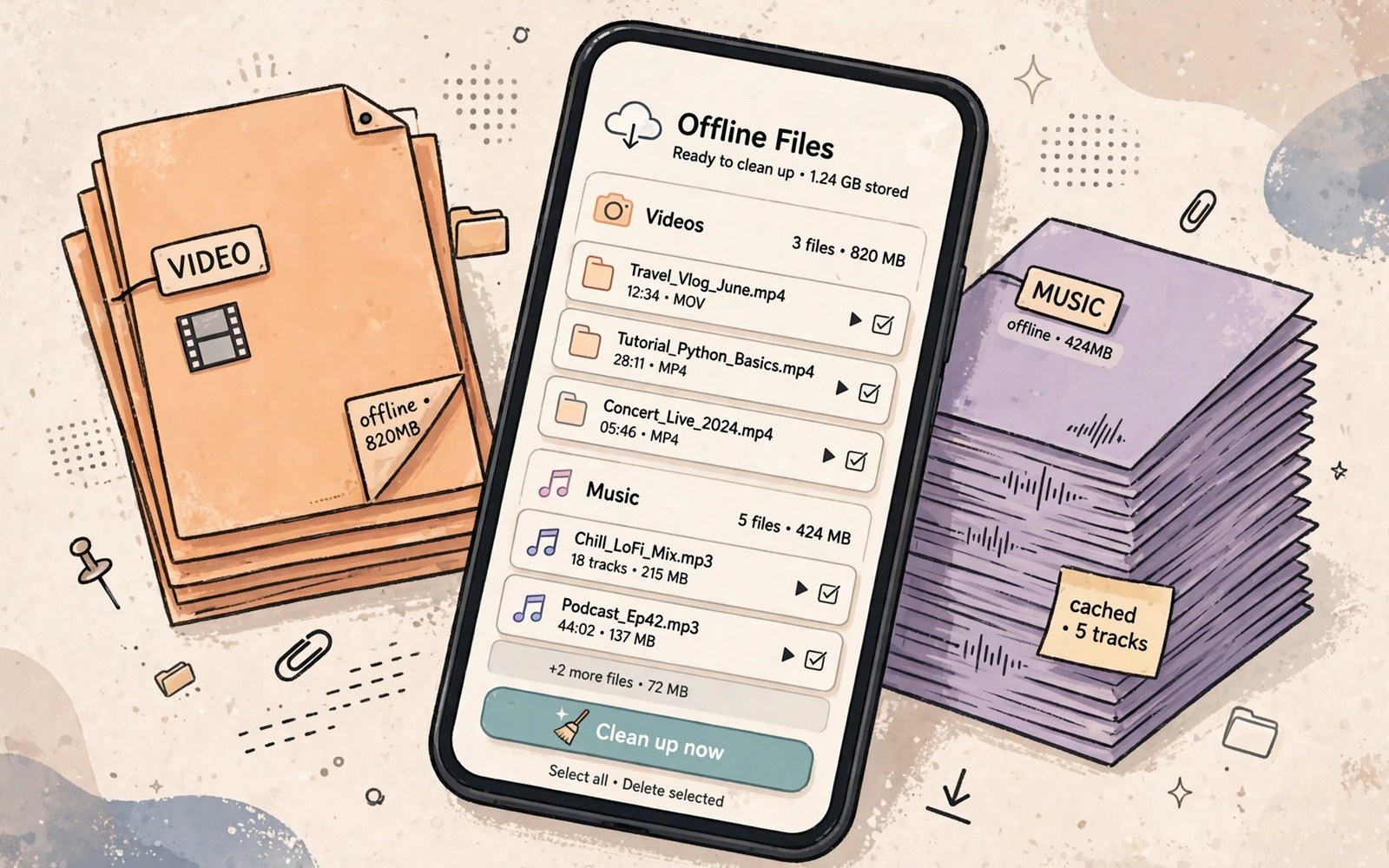
Many Android owners judge a phone by one number in a settings menu and that habit can mislead even careful users. The topic of offline streaming downloads deserves a calmer look because the system works with goals that differ from a desktop computer. Streaming apps store downloaded shows and songs on the device so they play without a network connection. When you understand that design choice then everyday decisions become easier and less stressful.
For the wider picture you can also read about cloud storage integration and system updates reserved storage and duplicate files because each topic shares storage and memory settings with this guide.
What This Topic Means in Plain Terms
The plain meaning of offline streaming downloads is simpler than the technical language suggests. Streaming apps store downloaded shows and songs on the device so they play without a network connection. The system tries to balance speed and battery life and storage health at the same time. A single setting rarely controls the whole result because many parts of Android share the same resources. That is why a fix that helps one phone can feel useless on another phone with different apps and habits.
A good mental model starts with the job that Android must do in the background. Apps need memory to stay ready and storage to hold files and processor time to respond to taps. Downloads from months ago can stay on the phone long after the show was watched and the trip ended. A clear view of those three needs helps you choose actions that help rather than actions that only change a number on screen.
How Android Handles This Behind the Scenes
Android watches app use and it ranks apps by how recent and how important each app is to the owner. A foreground app gets the highest care because it is the app on screen right now. A recent background app gets the next level of care because the owner may return to it in a moment. An old cached app gets the lowest care because it can be rebuilt from storage when needed.
This ranking shapes every result that you see in daily use. A quick review per app frees large blocks of space in minutes while playlists and history stay intact. The system can close a cached app without warning when memory gets tight and that action is normal rather than a fault. A phone that closes old apps quickly may still feel fast because the apps that matter stay ready. A phone that keeps too many apps alive may feel slow when a new app needs memory at once.
Signs That You Need to Act
Most owners do not need to act every day and a quiet phone is often a healthy phone. Action becomes useful when a pattern repeats across days rather than when one odd moment appears. Downloads from months ago can stay on the phone long after the show was watched and the trip ended. Watch for the same trouble in the same situation because a repeat pattern points to a real cause. A one time slowdown after a large update may simply reflect background work that ends on its own.
- Apps reload from the start after a short switch away from offline streaming downloads.
- The phone feels warm during light use for no clear reason.
- Updates fail with a storage warning even after small deletions.
- The camera refuses to save a photo at an important moment.
- A favourite app loses its place after a phone call or a game.
- Battery use rises sharply without a change in daily habits.
A Safe Step by Step Routine
A safe routine works in small steps and it checks the result after each step. Start with the largest and clearest items first because they give the biggest gain with the least risk. Avoid deleting system files by hand because a wrong deletion can break an app or a feature. Back up photos and chats before a larger cleanup so a mistake stays easy to undo.
- Open the storage or memory screen and note the starting numbers.
- Sort apps by size or by use and find the largest few items.
- Remove downloads and offline files that you no longer need.
- Clear cache for one misbehaving app and test it before wider changes.
- Restart the phone once and check whether the problem pattern returns.
- Repeat the check after one day to confirm that the gain lasts.
- Keep a short note of what you changed for the next cleanup.
Settings Worth Checking
Settings menus differ by phone maker yet the key screens share the same ideas across Android versions. The storage screen shows how much room each group of files uses and it often links to a cleanup tool. The apps screen shows per app size and cache and data so you can act on one app at a time. The battery screen can reveal an app that works hard in the background while you do other tasks.
Developer screens add detail for curious owners yet they also add risk when changed without care. A background limit can keep fewer apps alive and it can also cause more reloads if set too low. A running services view shows which apps hold memory right now and it helps you spot one heavy app. Leave advanced toggles alone unless you understand the result and you can reverse the change quickly.
Common Mistakes to Avoid
The most common mistake is treating every warning as a reason for a drastic reset. A factory reset can help in rare cases yet it also erases setup and accounts and saved work. Another mistake is installing several cleaner apps at once because each cleaner adds its own background work. A third mistake is deleting folders with unknown names because those folders may hold app data that cannot be rebuilt.
- Deleting a whole app folder instead of using the app settings.
- Clearing data for an app that holds the only copy of your work.
- Trusting a cleaner app that promises a huge speed boost.
- Formatting a card without a backup of photos and chats.
- Changing developer limits to extreme values without testing.
How to Keep Things Healthy Over Time
Healthy habits beat one time heroic cleanups because storage and memory change every day. A short monthly check keeps small growth from turning into a full storage crisis. Review downloads at the end of each month and remove files that served a single trip or project. Review offline downloads after a holiday or a long series because those files often outlive their purpose.
App choice also shapes long term health in a quiet way. An app that you open daily earns its space while an app that you never open only adds update work. Uninstalling one unused heavy app can free more room than many small cache clears combined. A quick review per app frees large blocks of space in minutes while playlists and history stay intact. A phone with room to breathe updates smoothly and it keeps your favourite apps ready when you need them.
A Simple Check You Can Run
The check below gives you a quick view of the current state without changing any files. Run each line in order and note the values that stand out from the rest. A single high value is a clue rather than a verdict and a repeat check after one day gives a stronger signal. Use the result to pick one app or one folder for the next safe step.
Settings > Storage > Apps
Streaming app > Downloads > Edit
adb shell du -sh /sdcard/Android/data/*
When a Deeper Fix Is the Right Call
A deeper fix becomes the right call when a pattern survives safe steps and a restart and a cache clear. A persistent crash in one app may need an app update or a reinstall after a backup of its data. A persistent storage warning after large deletions may point to a failing card or a system fault that needs maker support. A persistent battery drain may point to a faulty app version rather than to memory settings.
Before a deeper step make a fresh backup and note the app version and the phone model and the steps that you already tried. That note saves time when you ask for help and it stops you from repeating a step that already failed. Downloads from months ago can stay on the phone long after the show was watched and the trip ended. A careful record also helps you see whether the trouble started after one update or one new app. Small records turn guesswork into a clear path forward.
Real Life Examples That Make It Clear
Imagine a morning commute where you switch between maps and music and messages in quick succession. Android keeps those recent apps ready so each switch feels instant and the journey stays smooth. If the system had to rebuild each app from storage then every switch would pause and the commute would feel broken. Streaming apps store downloaded shows and songs on the device so they play without a network connection. That everyday flow shows why ready memory matters more than an empty meter.
Imagine a second case where a phone has almost no free room left after a long trip. Photos fail to save and a large update waits for days and a favourite game reloads from the start. The owner may blame the phone age yet the real cause is the lack of working room for normal tasks. A modest cleanup in that case restores the same phone to a smooth state without any new hardware. A quick review per app frees large blocks of space in minutes while playlists and history stay intact.
Questions Owners Ask Most Often
Owners often ask whether they should clear cache every day and the short answer is no for most phones. Cache exists to speed up repeat work and clearing it daily only forces the phone to rebuild the same files again. A targeted cache clear helps when one app misbehaves yet a daily ritual across all apps adds work without a clear gain.
Owners also ask whether more memory always means a faster phone and the answer depends on how the phone is used. A phone with modest memory can feel fast when apps are light and habits are simple. A phone with large memory can still feel slow when storage is full or when one heavy app drains power in the background. Balance across memory and storage and battery gives the best daily result.
A final common question is whether a single tool can fix every storage and memory problem at once. No single tool can replace a quick review of downloads and offline files and unused apps. Tools help you see the picture clearly yet the owner still makes the final choice about what to keep. That choice is the part that protects photos and chats and saved work.
A Simple Weekly Routine
A weekly routine keeps offline streaming downloads under control without turning phone care into a chore. Pick one quiet moment each week and open the storage screen for a quick glance at the largest items. Remove one or two items that clearly served their purpose and then close the screen and move on with your day. A routine that takes two minutes will survive far longer than a rare cleanup that takes two hours.
During that weekly glance also check whether one app grew far faster than the rest of your apps. A sudden jump in one app often points to new offline files or a new cache habit after an update. A quick look inside that app can reveal downloads that you can remove or a setting that you can change. A quick review per app frees large blocks of space in minutes while playlists and history stay intact. Small weekly wins add up to a phone that stays ready for photos and updates and new apps.
The steps above follow the approach described in the official developer documentation for this platform and they reflect the standard behaviour of the system as it is designed to work for everyday owners.

