

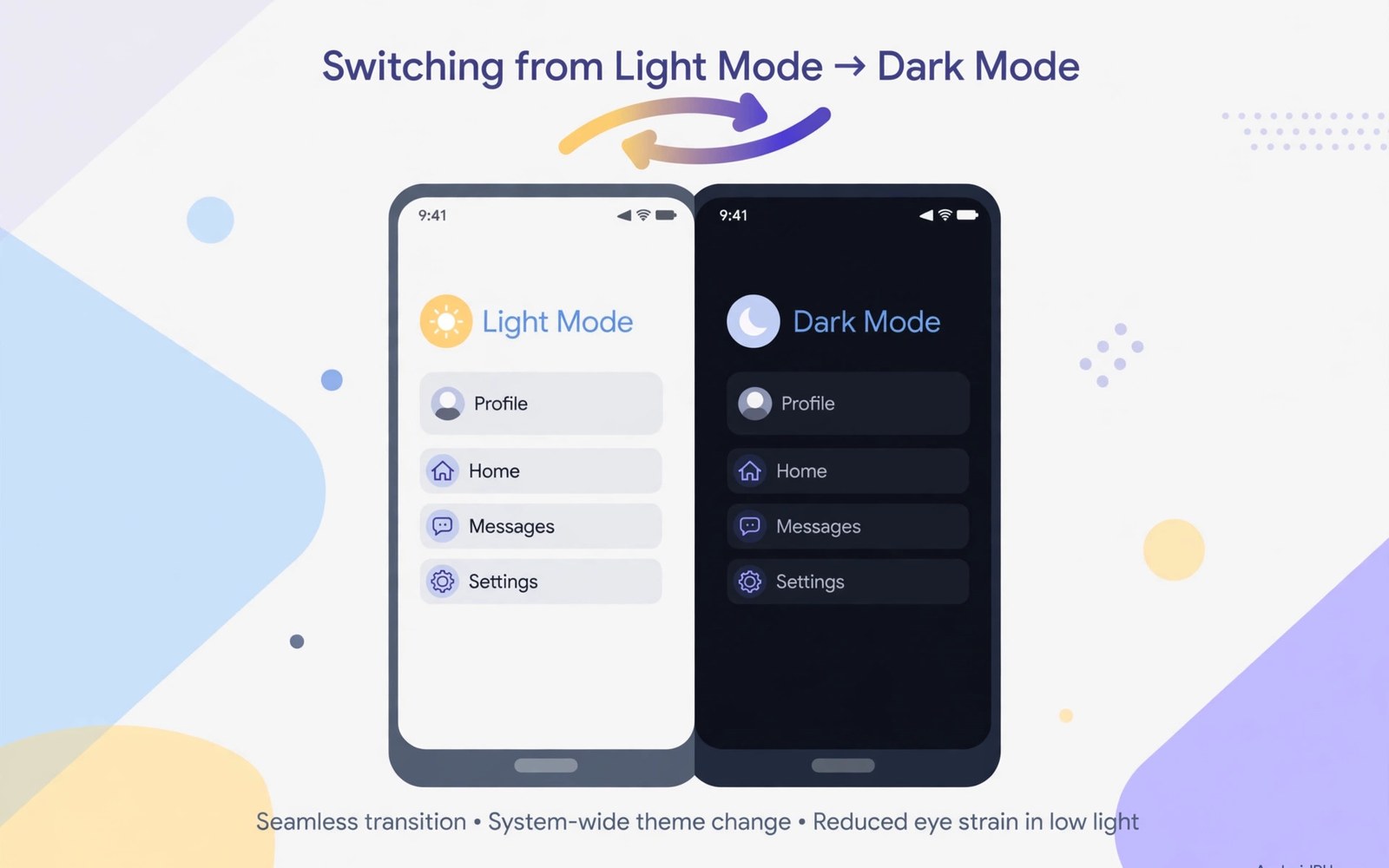
Dark mode turns bright screens into dark backgrounds. White text sits on dark panels instead. Many people find it easier on the eyes at night. It can also save battery on OLED screens. This guide shows how to enable it everywhere it works.
System dark mode controls the settings and system apps. Supported third party apps follow the system setting automatically. Other apps need their own dark setting turned on. A few apps lack dark mode entirely. This guide covers all three cases.
Dark mode is not a cure for eye strain alone. Screen brightness and break habits matter more. Dark mode helps most in dim rooms. Bright rooms may favour light mode for readability. This guide helps you choose wisely per situation.
Turn On System Dark Mode
Open Settings and search for Dark theme or Dark mode. Tap the setting and turn it on. The system interface switches to dark at once. Settings and notifications adopt dark backgrounds. Supported apps follow on their next launch.
Some phones place dark mode under Display settings. Others place it under Wallpaper and style. Use Settings search when the path differs. The toggle name varies slightly by brand. The effect stays the same across phones.
Schedule Dark Mode Automatically
Open dark mode settings and look for Schedule. Choose sunset to sunrise for automatic switching. The phone uses location and time to set the switch points. A custom schedule suits fixed work hours better. Set start and end times that match your routine.
Automatic scheduling removes daily toggling. The phone turns dark in the evening without a reminder. It returns to light mode in the morning. Test the schedule for two days before trusting it. Adjust times if the switch feels too early or late.
adb shell cmd uimode night yes
# use Display settings for normal daily control
Enable Dark Mode in Individual Apps
Apps that ignore the system setting need their own toggle. Open the app settings and search for theme. Choose Dark or Follow system. Follow system keeps the app in sync with schedules. Dark forces dark mode even in daytime.
Check popular apps one by one after system setup. Browser and email apps often hide theme settings deep in menus. Social apps usually offer theme under appearance. A short pass through favourite apps completes the setup. Note apps that lack any dark option.
Fix Apps That Stay Bright
An app may stay bright after a system change until restart. Close the app fully and reopen it. The app should adopt dark mode on relaunch. Update the app if it still stays bright. Dark support may have arrived in a newer version.
If an app never offers dark mode then use system force dark when available. Developer options include a force dark override on some phones. Forcing can cause odd colours in some apps. Test forced apps carefully before keeping the override on.
Dark Mode and Battery Life
OLED screens save power with dark pixels. Each dark pixel uses less energy than a bright one. Savings grow with time spent in dark apps. LCD screens save little because the backlight stays on. Battery benefit depends on your screen type.
Do not expect dramatic battery gains from dark mode alone. Brightness level matters more than theme. Lower brightness a little for real savings. Combine dark mode with sensible brightness for the best result. Track battery for a week to judge the effect.
Readability in Dark Mode
Dark mode can reduce glare in dim rooms. It can also reduce contrast for some users. Choose apps with strong text contrast. Avoid themes with grey text on black backgrounds. Grey text strains eyes more than bright white text on dark panels.
Increase font size slightly if dark text feels harder to read. Larger text restores readability without losing dark benefits. Test reading in your usual evening light. A theme that looks stylish may still tire your eyes. Comfort beats style for long reading sessions.
Dark Mode for Bedtime Use
Dark mode helps bedtime phone use feel calmer. Combine it with reduced brightness and a warm screen tint. Night light or eye comfort modes add warmth. Warmth reduces blue light before sleep. Keep bedtime phone use short regardless of theme.
Turn on Do Not Disturb alongside dark mode at night. Quiet notifications protect sleep better than any theme. Place the phone face down when not in use. Small habits support rest more than settings alone. Dark mode is one part of a bedtime routine.
Return to Light Mode When Needed
Light mode suits bright outdoor use better. Sunlight washes out dark screens faster. Switch to light mode manually for outdoor reading. A schedule will return to dark mode in the evening. Manual overrides do not break the schedule permanently on most phones.
If dark mode causes headaches then stop using it. Eye comfort varies between people. No theme suits everyone equally. Use light mode with lower brightness instead. Comfort and health matter more than following a trend.
History of Dark Interfaces
Early computer screens used dark backgrounds by necessity. Light backgrounds arrived with paper-like design trends. Dark themes returned with OLED screens and night use. Modern dark mode blends old ideas with new technology. History cycles between dark and light preferences.
Developers once designed only light interfaces. Dark support required extra design work. System level dark mode simplified that work. Apps now follow a single system signal. Design effort shifted from duplication to polish.
Dark Mode and OLED Versus LCD
OLED pixels emit their own light individually. Dark pixels on OLED use almost no power. LCD panels use a backlight for the whole screen. Dark pixels on LCD still block backlight partially. Power savings differ sharply by panel type.
Check your phone panel type in specifications. OLED owners gain most from dark mode. LCD owners gain comfort more than battery. Both groups gain reduced glare at night. Panel knowledge sets realistic expectations.
Dark Mode in Cars and Outdoors
Dark mode suits car dashboards at night. Bright screens distract drivers after dark. Android Auto follows dark themes for safety. A dark car screen reduces glare on windscreens. Safety benefits outweigh style in vehicles.
Outdoors in sunlight dark mode struggles. Sunlight washes out dark text faster. Light mode offers better outdoor contrast. Switch manually for outdoor reading sessions. Context beats a fixed theme preference.
Customising Dark Mode Colours
Some phones offer dark theme colour accents. Accents tint buttons and highlights. Choose an accent with good contrast. Low contrast accents disappear on dark backgrounds. Test accents in dim light before settling.
Wallpaper choice affects dark mode appearance. Dark wallpapers blend seamlessly with dark themes. Bright wallpapers clash with dark panels. Choose a dark wallpaper for a unified look. Unity makes dark mode feel intentional.
Dark Mode for Developers and Readers
Developers often prefer dark code editors. Dark editors reduce eye fatigue during long sessions. Syntax colours pop against dark backgrounds. Readers of long articles share similar preferences. Dark reading suits evening sessions best.
Long reading still needs breaks regardless of theme. Follow a break schedule for eye health. Look away every twenty minutes briefly. Dark mode helps comfort but does not replace breaks. Habits matter more than themes for eye health.
When Dark Mode Causes Problems
Dark mode can hide low contrast buttons in some apps. Forced dark themes cause the worst cases. Turn off forcing for affected apps. Report broken themes to app developers. Developer feedback improves future dark support.
Some users experience headaches with dark themes. Flicker on OLED at low brightness can contribute. Raise brightness slightly to reduce flicker. Try light mode if headaches persist. Health always outranks aesthetic preference.
Dark Mode for Ebook Reading
Ebook readers offer their own dark themes. Reader dark themes suit long evening reading. System dark mode may not affect reader apps. Set the reader theme inside the app. A consistent dark reader reduces eye strain at night.
Adjust reader brightness separately from system brightness. Reading apps often include their own brightness slider. Lower reader brightness for bedtime reading. Warm page tones complement dark themes well. Reader settings deserve individual attention.
Dark Mode and Wallpaper Dimming
Bright wallpapers clash with dark system themes. Some launchers dim wallpapers in dark mode. Dimming unifies the home screen appearance. Enable wallpaper dimming when offered. A dimmed wallpaper lets dark widgets stand out.
Choose a dark wallpaper if dimming is unavailable. Dark wallpapers need no dimming to match. Abstract dark images suit dark themes best. Avoid busy bright photos for dark setups. Wallpaper choice completes the dark experience.
Dark Mode and Screen Burn-In
Dark mode can reduce burn-in risk on OLED screens. Static bright elements cause burn-in over years. Dark themes reduce brightness of static bars. Navigation bars and status icons benefit most. Dark mode alone does not eliminate burn-in completely.
Combine dark mode with moving wallpapers for best protection. Hide navigation bars when the phone offers that option. Vary app usage rather than showing one static screen for hours. Burn-in prevention is a long term habit. Dark mode contributes one useful layer to that habit.
Dark Mode Setup Checklist
Complete dark mode with this short list.
- Turn on system dark mode in Settings.
- Set a sunset or custom schedule.
- Set favourite apps to follow system theme.
- Restart apps that stay bright.
- Adjust font size for comfortable reading.
- Combine dark mode with lower brightness at night.
This checklist gives a consistent dark experience. It covers system and app levels together. Review app themes after major app updates.
Dark mode looks best with a matching lock screen. Learn how to customize lock screen widgets and notification display for a consistent style.
For calmer evenings see how to silence your phone automatically during meetings and how to split screen on Android for multitasking.
The steps above follow the approach described in the official developer documentation for Android devices. The documentation covers dark theme behaviour and app theme handling in general terms. Phone brands add their own display menus on top of that shared system.
Dark mode works best as a system wide habit. Turn it on and schedule it for evenings. Set apps to follow the system theme. Adjust brightness and font size for comfort. With those steps your phone stays easy on the eyes day and night.

