

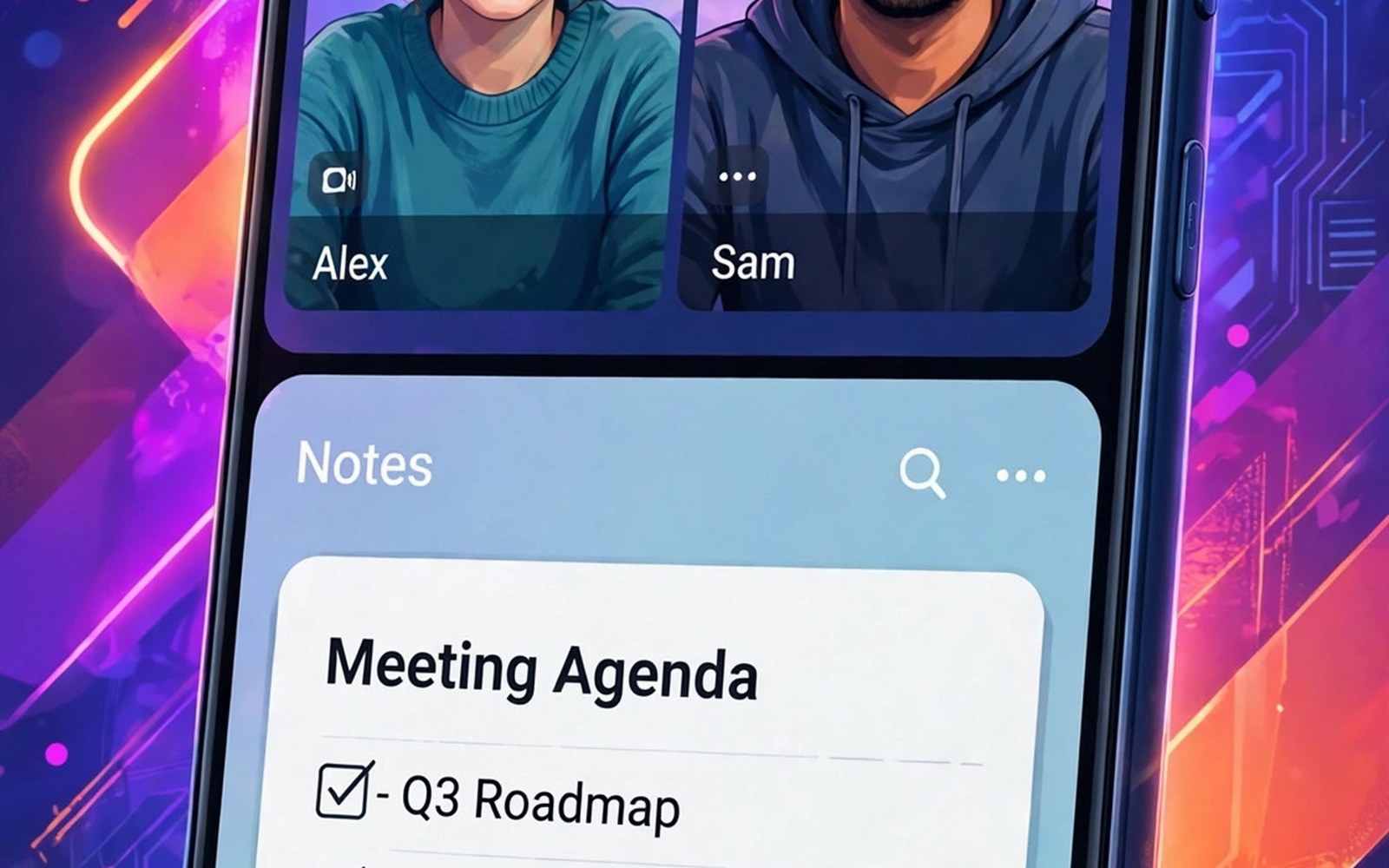
Split screen shows two apps at once on one phone. You can watch a video while you take notes. You can compare prices in two shops side by side. You can copy details from a message into a form. This guide shows how to start and control split screen easily.
Most modern Android phones support split screen from the recent apps screen. The exact gesture differs by brand. Some phones use a long press on an app icon. Others use a menu in the recent apps view. The result is the same two pane layout.
Split screen works best on larger phones and tablets. Small screens feel cramped with two apps open. Landscape mode gives each app more width. Portrait mode gives each app a taller narrow pane. Try both orientations and pick the one that suits the task.
Start Split Screen From Recent Apps
Open the first app you want to use. Swipe up and hold to open recent apps. Tap the app icon at the top of its card. Choose Split screen from the menu that appears. The first app moves to the top or left pane.
Now tap the second app from recent apps or the home screen. The second app fills the other pane. Both apps stay active at the same time. You can tap either pane to focus it. The focused pane shows a brighter divider edge on some phones.
Use the Divider to Resize Panes
Drag the divider bar between the apps to resize them. Give more space to the app you read most. Give less space to a reference app you glance at. The divider snaps to the middle if you drag near centre. Some phones offer a quick swap button near the divider.
Double tapping the divider on some phones swaps the apps. Swapping helps when you move from reading to typing. Test the divider gestures on your phone model. Gestures differ slightly between brands. A short test saves confusion during real work.
adb shell settings put global enable_freeform_support 1
# split screen itself needs no command on most phones
Pair Apps That Work Well Together
Video plus notes is a classic split screen pair. Watch a tutorial on top while you write steps below. Browser plus calculator suits price comparisons. Message plus map suits meeting a friend in a new place. Choose pairs where one app supplies info and the other captures it.
Avoid pairing two heavy games at once. Heavy apps compete for memory and battery. The phone may close one app to free resources. Pair one heavy app with one light app instead. Notes and browser apps are light partners for video and maps.
Exit Split Screen Cleanly
Drag the divider fully to one edge to close the other app. The remaining app expands to full screen. Alternatively open recent apps and swipe away one pane. Some phones offer an exit button near the divider. Use whichever method feels fastest.
Closing split screen does not close both apps. The remaining app stays open in full screen. The closed pane app stays in recent apps. You can reopen it later from recent apps. This behaviour protects unsaved work in the closed pane.
Fix Apps That Refuse Split Screen
Some apps block split screen by design. Video apps with strict playback rules may refuse. Banking apps may block it for security. The system shows a message when an app is unsupported. You cannot force those apps without risky modifications.
Try a different app for the same task when one refuses. A browser version of a service often supports split screen. A notes app can replace a blocked editor. Keep a fallback app in mind for important tasks. Flexibility matters more than forcing one app.
Split Screen in Landscape Mode
Rotate the phone to landscape for wider panes. Landscape suits two document apps side by side. It also suits video plus chat during a live stream. Each pane gets enough width for readable text. Portrait suits reading plus quick typing better.
Lock orientation if the phone flips accidentally during work. Open quick settings and lock rotation. Unlock it when you finish the task. A stable layout reduces eye strain. It also stops the divider from jumping during typing.
Save Battery During Multitasking
Two active apps use more battery than one. Lower screen brightness a little during long sessions. Close the second app when you no longer need it. Turn off background refresh for apps you rarely use. These steps extend a split screen session noticeably.
Heat also rises with two heavy apps open. Remove a thick case during long multitasking work. Heat throttling can slow both apps. Take a short break if the phone feels hot. A cool phone keeps both panes smooth.
Split Screen on Tablets and Foldables
Tablets give split screen room to breathe. Each pane feels like a small phone screen. Foldables offer even more width when unfolded. Drag and drop between panes works on many tablets. You can drag text or images from one app to another.
Use the taskbar on tablets to launch a second app fast. Pin your favourite pairs to the taskbar when supported. A pinned pair starts both apps together. This shortcut saves repeated setup time. It turns split screen into a daily habit.
History of Multitasking on Phones
Early phones ran one app at a time only. Switching apps meant closing the previous one. Multitasking arrived gradually through system updates. Split screen marked a major step forward. Users could finally see two apps together.
Tablets pushed multitasking further with floating windows. Phones borrowed those ideas in simplified form. Foldables now offer near tablet multitasking. The trend points toward more flexible layouts. Split screen remains the simplest useful form.
Split Screen for Study and Research
Students benefit hugely from split screen study. A lecture video plays while notes fill the other pane. Research articles sit beside a writing app. Copying quotes becomes a glance rather than a switch. Study sessions feel smoother and faster.
Keep a consistent layout for study sessions. Video on top and notes below works in portrait. Browser left and notes right works in landscape. Consistent layouts build muscle memory. Memory frees attention for learning itself.
Split Screen for Shopping Comparisons
Shopping comparisons suit split screen perfectly. Two shops show the same product side by side. Prices and shipping details align for easy comparison. No app switching hides a price while checking another. Decisions become faster and more accurate.
Watch for different product variants across shops. One shop may show a bundle price. Another may show a single item price. Compare like with like carefully. Split screen reveals differences that switching would hide.
Split Screen and Accessibility
Split screen helps users who need large text in one app. A magnifier app can sit beside a reading app. Large text plus a reference app reduces scrolling. Users with attention difficulties benefit from a fixed layout. Two visible panes reduce memory load.
Test split screen with accessibility services turned on. Some services change how panes behave. Screen readers may read panes in a fixed order. Learn that order before relying on it for work. Accessibility testing prevents surprises during important tasks.
Managing Notifications in Split Screen
Notifications can cover a pane at the worst moment. Turn on Do Not Disturb for focused split screen work. Allow only urgent contacts to break through. A quiet session protects concentration. Check notifications in a break between tasks.
Banner notifications shrink the active pane temporarily. That shrink can disrupt typing or reading. Disable banners for chatty apps during work. Keep banners only for truly urgent apps. A calm notification policy improves multitasking quality.
Split Screen Limits Worth Knowing
Split screen cannot show three apps at once on most phones. Some tablets offer three pane layouts. Phones stay limited to two panes for readability. A third pane would shrink text too much. Two panes remain the practical phone limit.
Some apps pause video when they lose focus. A video pane may freeze while you type in the other. Test video behaviour before a long session. Picture in picture offers an alternative for video. Use picture in picture when split video pauses.
Split Screen for Messages and Maps
Messages plus maps form a practical split screen pair. A friend sends an address in chat. Maps beside chat shows the route instantly. No switching loses the address from view. Navigation starts faster with both panes visible.
This pair also helps during travel meetups. One pane tracks the friend location. The other pane holds meeting details. Updates in chat appear without leaving maps. Coordinating in real time feels effortless with both visible.
Floating Windows as a Next Step
Some phones offer floating windows beyond split screen. A floating window hovers over a full screen app. It suits quick calculator or chat checks. Floating windows do not replace split screen for sustained work. They suit brief glances better than long tasks.
Try floating windows after mastering split screen. Open a small window for a quick reply. Close it to return to full screen focus. Floating plus split covers most multitasking needs. Together they make a phone feel like a flexible workspace.
Split Screen Quick Start
Follow this short sequence for your first split screen session.
- Open the first app you want to keep visible.
- Open recent apps and choose Split screen.
- Tap the second app to fill the other pane.
- Drag the divider to balance both panes.
- Rotate to landscape if text feels cramped.
- Drag the divider to an edge to exit.
This sequence works on most Android phones. Brand menus may rename a step. The core flow stays the same across devices.
Multitasking gets smoother with a tidy system underneath. Read how to enable developer options and USB debugging for advanced controls that can help during testing.
For a consistent look try how to enable dark mode across the system and apps and how to customize lock screen widgets and notifications.
The steps above follow the approach described in the official developer documentation for Android devices. The documentation covers multi-window behaviour and app compatibility in general terms. Phone brands add their own recent apps menus on top of that shared system.
Split screen turns a phone into a small workstation. Start from recent apps and balance the divider. Pair a heavy app with a light one. Exit by dragging the divider to an edge. With practice the whole flow takes only a few seconds.

