

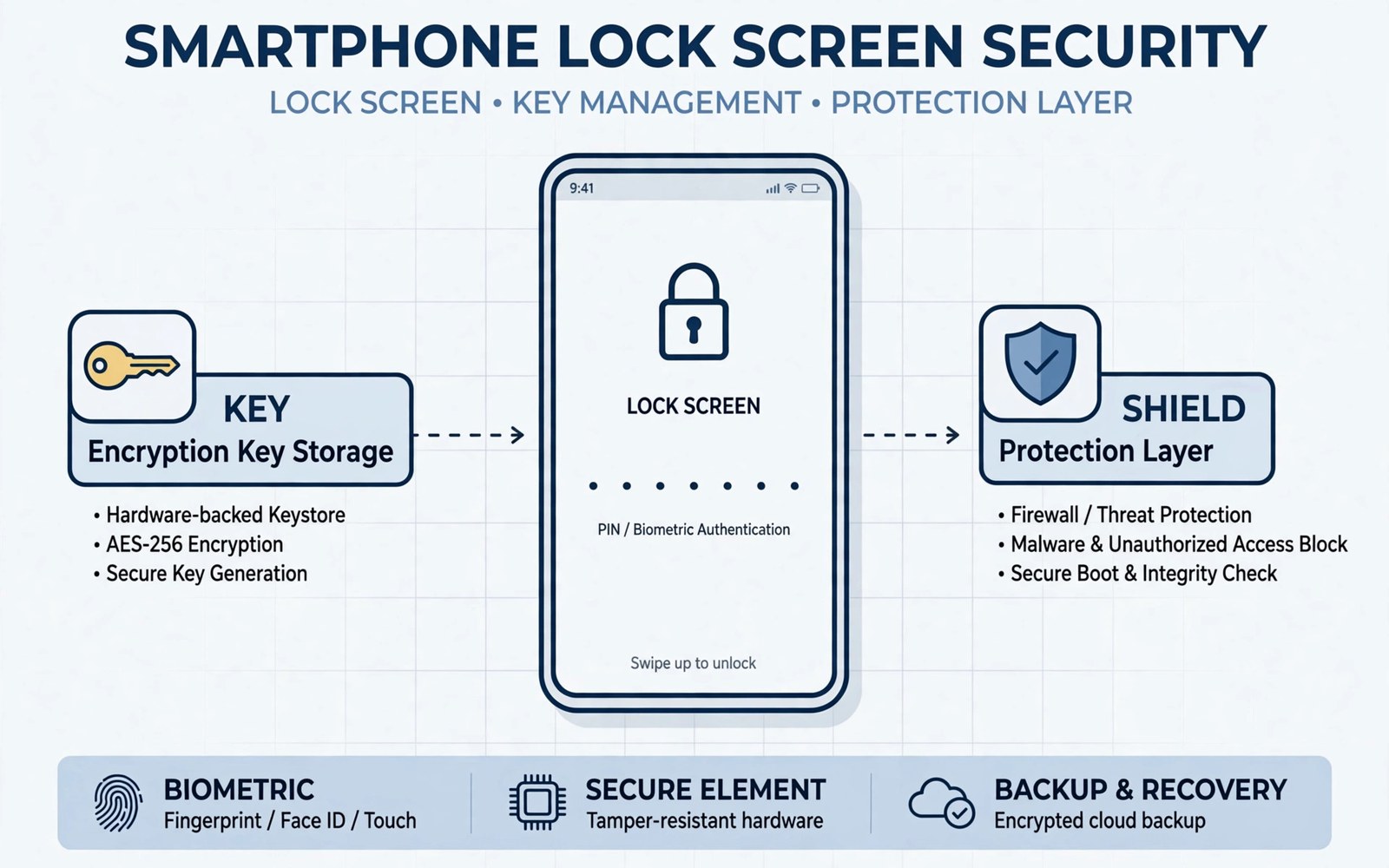
Encryption protects your data when the phone is locked. A custom ROM must handle encryption correctly at first boot. Sometimes the new system asks for a passcode you never set. Sometimes it rejects a passcode you know is right. These cases feel alarming. Most have a clear explanation and a safe path forward.
Android encrypts user data with keys tied to your lock screen credential. The system stores those keys in a secure area. A new ROM must read that area correctly. If the ROM changes the secure setup, old keys may not unlock. That mismatch causes a passcode prompt that never accepts your code. Understanding this link prevents panic.
Never guess passcodes repeatedly without a plan. Many phones wipe or lock out after repeated failures. Check your backup status before trying more guesses. If your data is backed up, a reset is safe. If your data is not backed up, stop and think before any wipe. A wipe is final for encrypted data.
This article explains common cases in order. It starts with first boot prompts. It covers forgotten credentials. It covers encryption changes after flashing. It ends with safe reset steps. Follow the case that matches your screen.
When you are ready to go further, read about installing MicroG as a lightweight services alternative and compare it with the plan you made for your own phone.
Why A New ROM Asks For A Passcode
A ROM flash can leave old encrypted data in place. The new system sees encrypted data and asks for the credential. That credential should be your old PIN or pattern. Enter it carefully once. If it works, the system decrypts data and continues boot. If it fails, do not keep guessing blindly.
A dirty flash over an encrypted system often causes this prompt. A clean flash with a data wipe avoids it. The wipe removes old encrypted data entirely. The new system then creates fresh encryption keys. That fresh start is why guides recommend a data wipe for major changes.
When Your Correct Passcode Fails
A correct passcode can fail when the secure area changed. A new ROM may use a different secure setup. A changed vendor set may alter key handling. In those cases the old keys no longer match. The system cannot tell a wrong code from a mismatched key setup. Both look like a failed unlock.
Try the exact credential you used before flashing. Check for keyboard layout issues with PIN entry. Check whether you used a pattern instead of a PIN. A pattern and a PIN are different credentials even when they feel similar. If one fails, try the other only if you truly set it.
Forgotten Passcode After Flashing
A forgotten passcode on an encrypted phone is a hard problem by design. Encryption exists to block access without the credential. No safe trick recovers data without it. Anyone who promises a trick likely wants to sell you malware. Accept the design and protect your backup instead.
If you have a backup, reset the phone through recovery. Wipe data and install the ROM fresh. Restore from backup after first boot. If you lack a backup, a reset still recovers the phone but not the data. That loss hurts. It also teaches the value of a tested backup.
When you are ready to go further, read about how custom ROMs manage display calibration and refresh rates and compare it with the plan you made for your own phone.
Encryption And First Boot Setup
Set a new lock credential during first setup. Choose a PIN you can remember and write it in a safe place. A strong PIN protects encrypted data. A forgotten PIN locks you out of that same data. Balance strength with memory. A PIN you forget is worse than a slightly simpler PIN you recall.
Enable backup for your new setup right away. Back up photos and contacts and app data. Test a restore on another device if possible. A fresh ROM is the best time to build a backup habit. Do not wait until the next flash to start backing up.
Handle Pattern And Biometric Confusion
Biometric unlock depends on a fallback credential. Fingerprint and face unlock cannot replace the PIN after a reboot. The system always asks for the PIN or pattern after a restart. That rule surprises users who only use fingerprints daily. Remember your fallback credential before flashing.
A pattern drawn in the wrong direction fails even when it looks right. Slow down and draw it deliberately. Clean the screen and dry your hands for fingerprint fallback. If biometrics fail, the PIN remains the path in. Keep that PIN in a password manager you can reach from another device.
Reset Safely When Recovery Is Possible
Boot to recovery and confirm the data wipe option. Wipe data only after you accept data loss. Reinstall the ROM if the system also needs repair. Reboot and complete setup fresh. Restore your backup step by step. Test basic features before restoring everything.
Do not wipe extra partitions during a passcode reset. Wiping system partitions adds risk without helping decryption. Wipe only data as the guide directs. If recovery itself asks for a credential, that credential is your old lock credential. A recovery prompt and a system prompt use the same encrypted data.
- New ROM may ask for your old credential
- Key mismatch can reject a correct passcode
- Forgotten credential means data cannot be recovered
- Set a memorable PIN at first setup
- Remove lock credential before major flashes when advised
When you are ready to go further, read about flashing a generic system image step by step and compare it with the plan you made for your own phone.
Prevent The Problem Next Time
Remove your lock credential before a major flash when the guide advises it. Some guides recommend removing the PIN before flashing. That step avoids key mismatch on first boot. Re-add the credential after the new system boots cleanly. Follow the guide for your ROM on this point.
Keep a written backup plan with your flash notes. Note your credential hint in a safe place. Note your backup location and date. Note the ROM version and vendor version. A short note set prevents most encryption surprises. Preparation beats recovery every time.
Encryption Types: File Based Versus Full Disk
Modern Android uses file based encryption. Different files unlock at different boot stages. Device encrypted files unlock early for system services. Credential encrypted files unlock after you enter your PIN. That split lets alarms and calls work before unlock. It also protects personal files until unlock. File based encryption replaced older full disk encryption. The older method locked everything until unlock. The newer method balances function and security.
A custom ROM must handle both encryption classes correctly. A bug in credential handling blocks personal files. A bug in device handling blocks early services. Symptoms differ by class. Early service failures point to device encryption issues. Personal file failures point to credential issues. That distinction guides diagnosis. Note which files fail to guide helpers.
Encryption keys live in hardware backed storage on many phones. That storage resists extraction even with physical access. A ROM change cannot export those keys. It can only use them through proper interfaces. A mismatched interface loses access. That loss is permanent for old data. Design choices make recovery impossible by intent. Security demands that impossibility.
Passcode Recovery Myths To Ignore
Some guides promise passcode bypass tools for encrypted phones. Those tools rarely work on modern encryption. Many carry malware payloads. Others wipe data while claiming to preserve it. Treat bypass promises as scams. No legitimate tool defeats strong encryption without the credential. That fact protects your data from thieves too. It also means your backup is your only recovery path.
Factory reset protection adds another layer after a wipe. The phone may ask for the previous Google account after reset. That check deters theft. It also traps legitimate owners who forget account details. Note your account credentials before flashing. Store them in a password manager reachable from another device. Account recovery takes time. Preparation avoids that delay.
Some users try to guess patterns with automated tools. Automated guessing triggers lockout protections. It can also wipe data after repeated failures. Manual guessing with a short candidate list is safer. Try only credentials you truly used. Stop after a few failures and reassess. Brute force against encryption wastes time and risks data.
Encryption After Changing ROM Projects
Changing ROM projects often changes encryption handling. A new project may use different key management. Old encrypted data may not unlock under the new project. That is why project changes usually need a data wipe. A wipe removes old keys cleanly. The new project creates fresh keys. Fresh keys avoid mismatch entirely. Accept the wipe as part of project switching. Backup makes the wipe painless. Without backup it becomes painful.
Some users try to keep data across project changes with dirty flashes. That attempt often ends at a passcode prompt. The prompt rejects the correct credential. The user then faces a wipe anyway after wasted effort. Starting with a planned wipe saves that wasted effort. Planned wipes also allow proper backup. Unplanned wipes happen under stress. Stress causes mistakes. Plan the wipe and keep control.
After a project change, set a new credential immediately. Do not leave the phone without a lock. An unlocked phone exposes fresh data. Set a PIN you remember. Enable backup right away. A new project deserves a new security routine. Build that routine on day one. Day one habits persist. Delayed habits rarely start. Start security early.
Encryption And Device Repair Scenarios
Repair centres may need to access a phone for hardware testing. Encrypted phones block that access without credentials. Share credentials with repair staff only through trusted channels. Better yet, back up and wipe before repair. A wiped phone gives repair staff full access. It also protects your data. Wiping before repair is standard advice. It prevents data exposure during service. It also prevents repair delays from lockouts.
Screen damage complicates encryption access. A broken screen may block PIN entry. Data recovery then needs specialised tools. Those tools cannot defeat strong encryption. A backup remains the only reliable recovery path. Broken screen cases teach backup importance harshly. Regular backups prevent that harsh lesson. Back up before damage happens. Damage timing is unpredictable. Backup timing is controllable.
Motherboard failure ends encryption recovery entirely. Keys in hardware backed storage die with the board. No software can resurrect them. Cloud backups survive board failure. Local backups on the phone do not. Keep at least one backup off the device. Off device backups survive hardware death. That survival is their purpose. Treat off device backup as mandatory.
adb reboot recovery
adb shell rm /data/system/locksettings.db
fastboot format userdata
adb reboot system
The steps above follow the approach described in the official developer documentation for this platform and in the security guides for device encryption.

