

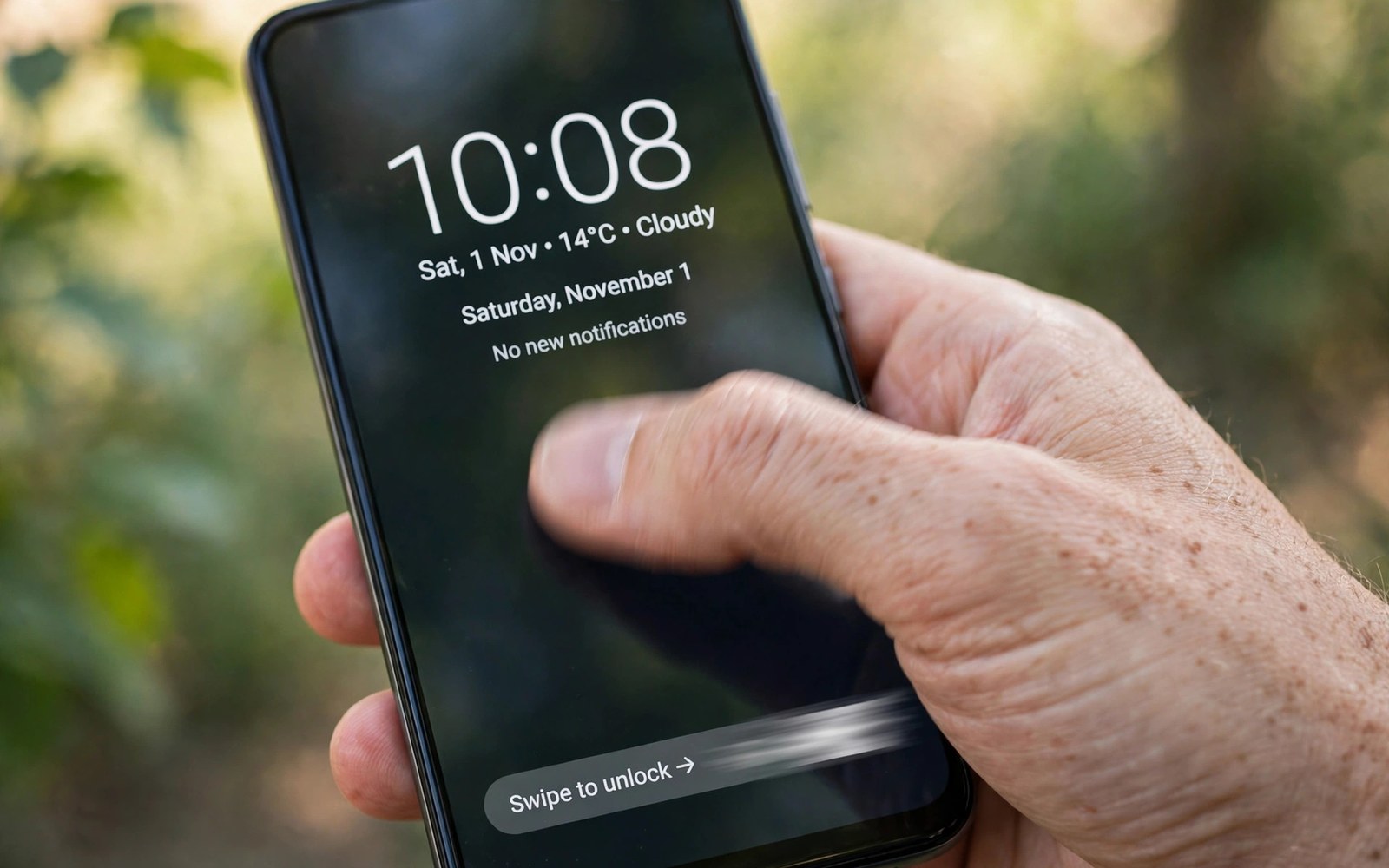
Gestures turn the lock screen and status bar into shortcuts for daily tasks. A swipe on the status bar can open quick settings. A swipe on the lock screen can launch the camera. A double tap can lock the phone instantly. Stock Android offers a fixed set of such gestures. LSPosed modules expand that set with custom options. Users can assign actions to gestures that stock Android ignores. That expansion makes one hand use faster and more personal. It also introduces conflict risks that need careful testing. This article explains the gesture system and safe customization habits.
Gesture handling starts with touch events on a screen area. The system receives raw touch coordinates and movement. It interprets a sequence as a tap or a swipe or a long press. SystemUI owns gesture handling for the status bar and lock screen. App windows own gestures inside their own content. A module hooks SystemUI gesture handling to add new interpretations. It can map an unused swipe direction to a new action. It can change the threshold for an existing gesture. It can add a gesture zone in a previously dead area. Each change alters how touch input maps to actions. Small threshold changes can feel large in daily use.
Lock screen gestures differ from status bar gestures in security context. The lock screen guards access to the device. A gesture there must not bypass authentication. A camera shortcut on the lock screen is safe because the camera runs in a limited mode. A message shortcut that opens full content would be unsafe. Good lock screen modules respect that boundary. They offer shortcuts to limited functions only. They keep full app access behind unlock. Users should reject modules that promise full app access from a locked screen. That promise breaks the security model of the lock screen itself.
Status Bar Gesture Options
Status bar gestures use a thin strip at the top of the screen. That strip is always reachable regardless of the open app. A swipe down opens notifications on stock Android. A swipe down with two fingers opens quick settings directly. Modules can add more mappings to that strip. A swipe left or right could switch to the previous app. A double tap could lock the screen. A long press could open a chosen app. These mappings save time because the strip is always present. Users do not need to return home to trigger them. That always available quality is their main advantage.
Status bar gestures must avoid conflicts with app content near the top. Some apps place tabs or controls just below the status bar. A gesture that starts too low may trigger an app control instead. A gesture zone that is too tall may steal app taps. Good modules let users adjust the gesture zone height. A thin zone reduces app conflicts. A tall zone improves reliability for large fingers. Test the chosen height inside apps with top controls. A browser with top tabs is a good test case. A game with top buttons is another. Adjust until both app use and gesture use feel natural.
Double tap to lock is the most popular status bar gesture. It lets users lock the phone without reaching the power button. That convenience matters on large phones. It also matters when the power button wears out. Test double tap timing carefully after enabling it. A timing that is too short triggers accidental locks. A timing that is too long feels unresponsive. Find a middle value that matches your tapping speed. Accidental locks during reading are the main complaint for this gesture. A slightly longer timing usually solves them.
Lock Screen Gesture Options
Lock screen gestures use the full screen while the device stays locked. A swipe up unlocks on many devices. A swipe from a corner can launch the camera. A swipe from the opposite corner can launch a voice assistant. Modules can add shortcuts to other limited functions. A flashlight toggle is a safe lock screen shortcut. A music control is another safe choice. Both work without exposing personal content. A calendar preview may expose private events and needs caution. Evaluate each shortcut for what it reveals before enabling it. The lock screen should reveal as little as possible by default.
Clock and widget gestures add another lock screen layer. A tap on the clock might expand calendar details. A swipe on a widget might switch between widget pages. These gestures make the lock screen informative without unlocking. They also risk exposing data to anyone holding the phone. A calendar expansion that shows meeting titles reveals work details. A message widget expansion that shows text reveals private chats. Keep lock screen widgets minimal for that reason. Show counts and titles sparingly. Hide message content until after unlock. Privacy on the lock screen outweighs convenience in most cases.
Lock screen modules interact with biometric unlock in subtle ways. A gesture that runs during fingerprint reading may delay unlock. A gesture zone that overlaps the fingerprint area may block scans. Test fingerprint unlock after every lock screen change. Test face unlock as well when the device supports it. Test PIN entry for completeness. Any unlock method that degrades deserves immediate attention. Revert the most recent change and test again. Unlock reliability is non negotiable for a daily phone. A beautiful lock screen that slows unlock is a failed customization.
Gesture Conflicts And How To Resolve Them
Gesture conflicts arise when two handlers claim the same touch sequence. SystemUI and an app may both want a swipe from the edge. A module may add a gesture that stock Android already uses. The result can be a gesture that fires the wrong action. It can also be a gesture that fires nothing at all. Resolving conflicts starts with identifying the competing handlers. Disable the new module and test the stock gesture alone. Re-enable the module and test the new gesture alone. Compare results to find the overlap. Narrow the module gesture zone or change its direction to avoid the overlap. A distinct direction often resolves the conflict cleanly.
Navigation gestures add a third competitor for edge swipes. Android navigation uses edge swipes for back actions. A lock screen or status bar gesture near an edge may collide with navigation. Test edge gestures inside apps that use navigation heavily. A reading app with page swipes is a good test. A map app with pan gestures is another. If navigation breaks then move the custom gesture inward. An inward zone avoids the navigation edge entirely. It may feel less natural at first. Users adapt to an inward zone faster than they adapt to broken navigation.
Related interface work appears in material on SystemUI customization with LSPosed modules. That topic covers status bar and shade layout in detail. Gesture work builds on that layout foundation. A gesture zone must match the visual layout it serves. A mismatch between visual and touch areas confuses users. Keep visual cues aligned with gesture zones. A visible handle or hint helps users discover a gesture. An invisible gesture zone frustrates users who cannot find it.
Designing A Personal Gesture Set
Design a gesture set from daily routines rather than from novelty. List the actions you perform most often on the phone. Locking and camera and flashlight often top that list. Music control and quick settings follow closely. Assign gestures to those actions first. Leave rare actions without a gesture. A gesture set with three reliable mappings beats a set with fifteen forgotten ones. Users remember a small set naturally. They must consult notes for a large set. Notes defeat the speed purpose of gestures. Keep the set small and memorable.
Choose gesture directions that feel natural for each action. A downward swipe fits opening a panel below. An upward swipe fits dismissing or unlocking. A double tap fits a toggle like lock or flashlight. Natural mappings reduce learning time. Unnatural mappings cause errors under hurry. Test new mappings during a busy day rather than a calm test. Hurry reveals whether a mapping feels intuitive. A mapping that fails under hurry will fail when it matters most. Replace it with a more natural direction promptly.
- Assign gestures to daily actions like lock and camera first.
- Keep the total gesture set small enough to remember naturally.
- Choose directions that match the action they trigger.
- Test gestures inside apps with top controls and edge swipes.
- Keep lock screen shortcuts limited to safe functions only.
- Verify fingerprint and face and PIN unlock after every change.
- Adjust gesture zone height to balance reliability and app conflicts.
- Remove gestures that cause accidental triggers during normal use.
Testing Gestures Thoroughly
Gesture testing needs real world conditions rather than desk taps. Test while walking and holding the phone one handed. Test with a case that changes edge reach. Test with wet or cold hands when relevant to your climate. Real conditions reveal accidental triggers that desk tests miss. A gesture that works at a desk may fail on a bus. A gesture that feels precise indoors may misfire outdoors. Record which conditions cause failures. Adjust zone size or timing to cover the worst common condition. A gesture set should work in daily life rather than in a lab.
Test gestures across screen states as well. A status bar gesture should work from the home screen and inside apps. A lock screen gesture should work with notifications present and absent. Notifications change lock screen layout and touch targets. A gesture that works on an empty lock screen may fail on a full one. Test both states explicitly. A gesture that fails when notifications stack is unreliable. Reliability across states is the test that matters most for daily use. Users will not remember state dependent exceptions.
Gesture test routine
Home screen: status bar gestures work reliably
Inside apps: no conflict with top controls or navigation
Lock screen empty: shortcuts work and unlock stays fast
Lock screen full: gestures work with notifications present
One hand: gestures reachable without shifting grip
Walking: no accidental triggers during normal movement
The steps above follow the approach described in the official developer documentation for the framework and its module system. That material explains scope and process loading in general terms. It also describes how modules attach to app processes at startup. Readers who want deeper detail can consult the same documentation directly. The guidance here adds gesture design and conflict testing. It does not replace module specific instructions from each author. Always read those instructions before changing gesture handling.
Accessibility Benefits Of Custom Gestures
Custom gestures offer real accessibility benefits for many users. A user with limited reach can lock the phone with a status bar tap. A user with limited dexterity can launch the camera with a large swipe. A user who struggles with small buttons can use broad gesture zones. These benefits make gestures more than a novelty. They adapt the phone to the body rather than forcing the body to adapt. Accessibility users should prioritize reliability over variety. One reliable gesture that works every time beats five clever ones that misfire. Test with the actual grip and motion that the user employs daily.
Gesture customization should also consider visual feedback for accessibility. A gesture without feedback leaves users unsure whether it registered. A brief vibration or a visual ripple confirms the action. Modules that offer feedback options deserve preference for accessibility use. Feedback should be subtle enough not to annoy. It should be clear enough to confirm success. Test feedback with sound off and with the screen dimmed. A gesture system that communicates clearly in all states serves every user better. Clear feedback is a universal design win.
For related customization topics explore top LSPosed modules for advanced users and scope selection inside the LSPosed app. Those topics show how gesture modules fit beside broader module choices. They also show how scope keeps gesture changes contained. A small reliable gesture set plus tight scope produces a phone that feels personal and stable. That combination is the goal of all interface customization work.

