

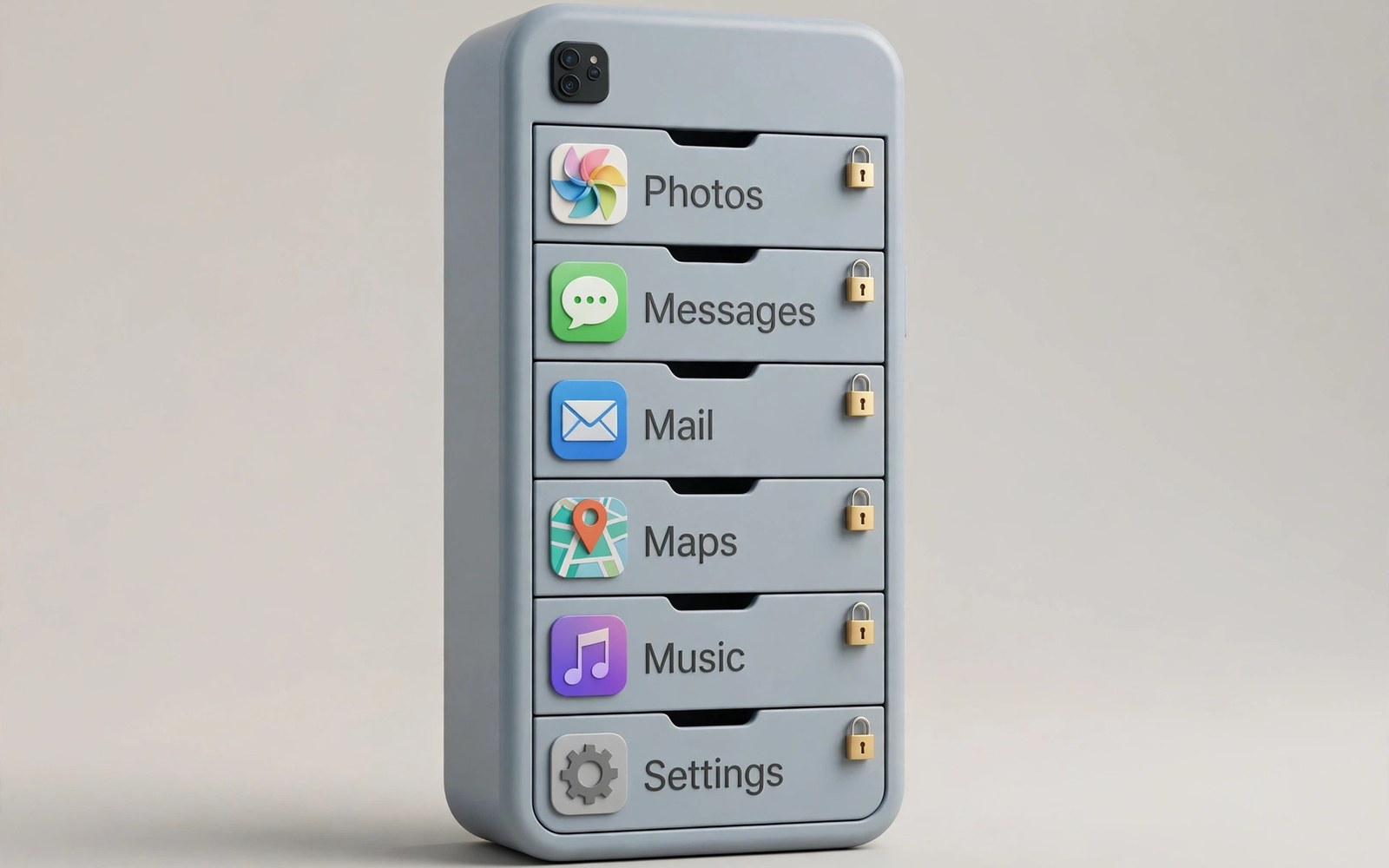
How Scoped Storage Restricts Apps from Browsing Entire File Systems
A few years ago I installed a simple photo editor on my phone, gave it the one storage permission it asked for, and only later realised what that tap had actually granted. The app could open my documents folder, scroll through my downloads, and read files that had nothing to do with editing a photo. Nothing in the permission dialog said any of that. The dialog just said storage. That quiet overreach was normal on old Android, and it is exactly what scoped storage was built to end.
Scoped storage is Android’s answer to a plain question: why should a flashlight, a game, or a photo editor be able to wander through your whole file system? Under this model each app gets its own private sandbox, shared files live behind specific permissions, and anything else reaches an app only when you hand it over yourself, one file at a time. Think of this as Android scoped storage explained without the developer jargon. This article explains how scoped storage works on Android in plain terms, what apps can see on Android 11 and later, and what you should check on your own phone today.
You will get the timeline from Android 10 to Android 14, the four places an app can still reach, the difference between the photo picker and a gallery permission, and a short audit you can finish in fifteen minutes. If you have ever wondered why apps cannot see my files on Android the way they used to, or why a trusted app suddenly shows an empty folder, the answer is here.
What Scoped Storage Changed in Android 10 and Android 11
Google introduced scoped storage in Android 10, which shipped in September 2019, and made it mandatory for apps targeting Android 11, released in September 2020. The short version of scoped storage Android 10 vs Android 11 is simple: Android 10 introduced it, and Android 11 made it mandatory. The first release let developers opt out temporarily with a manifest flag called requestLegacyExternalStorage. That escape hatch closed the moment an app targeted API level 30. From that point on, the old model of one broad storage permission opening the whole shared storage was gone for good.
Before the change, a single permission, READ_EXTERNAL_STORAGE, let an app list nearly everything in external storage, because external storage behaved like one shared pool. A photo app could read your documents. A game could scan your downloads. A shady utility could quietly inventory files it had no business touching. Users approved the permission for one feature and rarely understood the full breadth of what they had granted. Developers grew used to that broad access, and the system offered no middle path between all and nothing.
The new model splits storage into zones with different rules. An app reads its own app-specific directory freely, with no permission at all. It reaches shared media through the MediaStore API and a media permission. It reaches any other single file through the system file picker, which you control. And it reaches everything only through a special all files access grant that lives in Settings, not in a pop-up. Here is the shift in one view:
| What an app wants | Before Android 10 | After scoped storage |
|---|---|---|
| Its own private files | Free access inside shared storage | Free access in its app-specific directory only |
| Another app’s private folder | Readable with one storage permission | Blocked entirely, even with permissions granted |
| Your photos and videos | Whole library with one permission | By media type, or only the photos you pick |
| A document in Downloads | Listed and opened directly | Only through the system picker, one file at a time |
| Every file on the phone | One permission covered it | Needs the special all files access grant in Settings |
| Files left after uninstall | Often stayed behind in shared folders | Private app folder is deleted with the app |
That table is the whole story in miniature. The phone did not take away features. It took away silent browsing. Every legitimate job an app needs to do still has a path, but the path now runs through you.
The Four Places an App Can Still Reach on Your Phone
People sometimes describe scoped storage as a wall, and that picture is wrong in a useful way. It is not a wall. It is a set of four doors, each with its own key, and you hold three of the keys. Knowing which door an app is knocking on tells you whether its request is reasonable or a red flag.
Its Own App-Specific Directory
Every app gets a private folder that belongs to it alone, under Android/data and its own package name, plus its internal storage. On Android, the app-specific directory is the one place an app can always reach, and the one place no other app can enter. In short, the app-specific directory Android gives each app is private by design, and that app-specific storage is the foundation the whole model stands on. No permission is needed for an app to read and write there, and no other app can open that folder. When you uninstall the app, that folder is deleted with it. People often ask what happens to app data when you uninstall an app, and the answer is that the private folder goes with it, while files you created in shared storage stay yours. That is why uninstalling an app is now the cleanest way to delete private app folders by uninstalling unused apps: the leftovers that used to pile up in hidden corners simply vanish.
That said, this privacy has a side effect worth knowing. On Android 11 and later, even a file manager with broad access cannot freely open another app’s folder inside Android/data. If you ever need to rescue a file from an uninstalled app’s folder, the time to do it is before you uninstall, while the app itself can still reach it.
Shared Media Through MediaStore
Photos, videos, and audio live in shared collections managed by MediaStore. An app that wants to browse your library asks for a media permission, and since Android 13 that permission is split by type. An app can ask for images without audio, or video without images. That split is the point: a music player has no reason to see your photos, and a photo editor has no reason to see your voice recordings.
One detail catches people out. An app can always read and change the media files it created itself, with no permission at all. So a camera app can show you the photos it just took, and a voice recorder can play back its own recordings, even before you grant anything. The permission only matters for files other apps created.
Single Files Through the Storage Access Framework
The Android Storage Access Framework explained simply: the Storage Access Framework, usually called SAF, is the system file picker. When an app needs a document, a PDF, or a file from Downloads, it should open the picker and let you choose. You tap the exact file, the app gets access to that file only, and it learns nothing about the files sitting next to it. That is how to give an app access to one file only, and it is the single most important habit in this whole article.
The picker also works in reverse. When an app saves a file for you, it can ask where the file should go, and you pick the folder. The app writes that one file and gains no standing right to browse the folder later. Think of the picker as a courier: it carries one parcel, then leaves.
When the Picker Is the Right Answer
If a messaging app asks for a document, a PDF reader asks for a file, or an editor asks for one photo, the picker is the correct path. A broad permission for that job is overkill. If the app refuses to work without broad access for a one-file job, that refusal is information about the app, not about your phone.
When the Picker Feels Slow
Handing over files one at a time can feel tedious when you are moving a dozen documents after a phone restore. The fix is not to grant broad access and forget about it. Move the files you actively need into standard folders, grant them through the picker as you need them, and leave the archive alone until you actually open it. Slow and deliberate beats fast and exposed.
Android 13 and Android 14 Media Permissions, Explained by Type
Android 13, released in August 2022, replaced the single READ_EXTERNAL_STORAGE permission with three granular media permissions. These are the Android 13 media permissions READ_MEDIA_IMAGES, READ_MEDIA_VIDEO, and READ_MEDIA_AUDIO in practice: one runtime permission per media type, so an app declares exactly which kinds of media it needs. An app now declares exactly which kinds of media it needs, and the system asks you about those kinds only. The Android 13 READ_MEDIA_VIDEO permission covers video files only, so a gallery app that wants video must ask for it separately, and the old legacy storage permission no longer opens anything by itself. A gallery app asks for images and video. A music player asks for audio. A photo editor that asks for audio too should make you pause and ask why.
Android 14, released in October 2023, went one step further with selected photos access. That three-choice dialog is Android 14 selected photos access at work, and the partial access it grants is recorded as a separate flag, not as full library access. When an app requests READ_MEDIA_IMAGES or READ_MEDIA_VIDEO on Android 14 or later, the dialog offers three choices: allow all, allow limited access, or do not allow. Limited access means you pick specific photos and videos, and the app sees only those. Behind the scenes the system grants a flag called READ_MEDIA_VISUAL_USER_SELECTED, which marks the grant as partial. You can expand the selection later from the app’s permission screen, and a well-built app will offer a visible way to add more photos instead of failing silently.
That partial option is the one most people should use for apps they do not fully trust. A social app that wants a profile picture does not need your whole camera roll. A meme maker does not need your family albums. Granting selected photos access for your gallery keeps the feature working while the rest of your library stays invisible. If an app shows an empty gallery after you chose limited access, that is usually the app mishandling a partial grant, not a bug in your phone. Open its permission settings, tap the media permission, and add the photos it needs.
One more change from Android 13 is worth a sentence. READ_EXTERNAL_STORAGE is deprecated on new versions, and apps targeting current API levels are expected to use the granular media permissions or the picker instead. If you see an old app still asking for the legacy storage permission, treat it as a sign the app has not been updated for the current rules, and check whether a newer alternative exists.
The System Photo Picker: Sharing Without a Permission
The photo picker is the quiet hero of this whole model, and most people have already used it without knowing its name. If you only need to know how to share one photo with an app on Android, the picker is the whole answer, and here is how to use the Android photo picker the next time an app asks for a photo: tap the picker, choose the photo, and done. When an app opens the system picker, you browse your full library in a system screen, tap the photos or videos you want to share, and the app receives access to those items only. The app declares no media permission, shows no permission dialog, and faces no Play policy questions about broad access. That is Android photo picker vs gallery permission in one sentence: the picker grants chosen items, the permission grants a library.
The picker is available on Android 11 and later, and it was backported through Google Play services to much older phones, so even a device that never received a new Android version may offer it. Developers are expected to prefer it whenever the job is picking a few items rather than managing a library. Only a gallery app, a backup tool, or an editor that genuinely works across your whole collection has a real reason to ask for library-wide access.
For you, the practical rule is simple. When an app opens the picker, use it happily. When an app asks for full media access to perform a one-photo job, say no and look for the picker option inside the app. If the app has none, that is a design choice by its developer, and you are allowed to judge it.
Why the Picker Beats a Permission for Most Jobs
A permission is a standing grant. Once given, it stays until you revoke it, and the app can browse the library in the background whenever it likes. A picker grant is a single act: you chose these three photos, for this one purpose, right now. There is nothing to remember to revoke later, because there is nothing standing to revoke. That difference is the whole privacy argument, and it is why Google’s own guidance pushes developers toward the picker first.
When an App Asks for All Files Access
Some apps ask for a special level called all files access, backed by the MANAGE_EXTERNAL_STORAGE permission. So what is MANAGE_EXTERNAL_STORAGE, exactly? It is the permission behind the all files access screen, and the all files access Android permission is the most powerful storage grant on the phone. It restores broad browsing power close to the old model: the app can read and write almost all shared files, including documents and downloads. It still cannot open other apps’ private folders inside Android/data, which is a limit even this powerful permission respects. You grant it in a special settings screen, never in a pop-up, which is itself a signal that the system considers it serious.
Google Play restricts this permission to a narrow set of app categories: file managers, backup apps, antivirus tools, and similar utilities whose core job genuinely needs the whole file system. An app that declares it without qualifying can be rejected from the store, and that policy has only tightened since Android 11. So when an ordinary app asks for it, the question to ask is not whether the app is nice, but what feature could possibly need the whole file system.
File Managers and Backup Tools May Genuinely Need It
A file manager moves, renames, and deletes files across folders, so it cannot do its job through the picker alone. A backup tool must read every photo to copy it safely. Those are legitimate reasons, and the right response is to grant the access to exactly one manager and one backup tool you trust deeply, then stop. Check the backup tool’s privacy policy for encryption claims, and prefer backups that encrypt data before upload, so a server leak does not expose your photos.
How to Check Who Has It Right Now
Open Settings, then Apps, then Special app access, then All files access. The list shows every app holding the grant. If you see a cleaner, a player, a wallpaper app, or a game on that list, you have found a problem. Tap the app and switch the grant off, then open the app and see whether anything you actually use breaks. In my experience, almost nothing breaks, because the app never needed the access in the first place.
Red Flags When an Ordinary App Demands Broad Access
A cleaner app that wants to delete junk files does not need to read your documents. A music player that wants to find songs everywhere does not need your downloads folder. A photo editor that wants all files access to edit one image is asking for something wildly out of proportion. The pattern is consistent: the broader the request, the weaker the justification tends to be. Deny the request, use the picker for the single file, and watch whether the app still works. If it works, you have your answer. If it refuses, you have a better answer: find another app.
Also watch for apps that ask right at first launch, before you have used any feature. A legitimate file manager asks when you first try to browse outside its own folder. A legitimate backup tool asks when you set up your first backup. An app that demands broad access before showing you anything is collecting the grant while you are still deciding whether to trust it. That timing alone is worth a denial.
What Scoped Storage Means for Photo Apps, Messaging Apps, and File Managers
The rules sound abstract until you map them onto the apps you open every day. Three kinds of apps show the model most clearly, because each one touches your files in a different way and each one has a different correct grant.
Photo Apps: Editors Need One Image, Galleries Need a Library
A photo editor needs the image you chose to edit. It does not need your entire camera roll, your screenshots, or your travel albums to do that job. That is why a photo editor cannot see my whole gallery anymore, and why that is a feature rather than a bug. Scoped storage plus selected access enforces that limit: the editor sees chosen images only, and it cannot scan birthdays or boarding passes sitting beside them. That limit also protects screenshots stored next to photos, which often contain passwords, codes, and private conversations.
A gallery app is the opposite case. Its whole job is browsing the library, so a media permission for images and video is reasonable. The check is still worth doing: open the Permission Manager media view and look at which gallery apps hold full access. If you have two gallery apps and only use one, revoke the other’s media permission. A backup app forms the other real exception here, since it must read every photo to copy it. Scoped storage backup app access is the one broad grant worth keeping, for a single tool you trust, and it belongs to that one tool, not to every app that can open a JPEG.
Messaging Apps: Media In, Whole Storage Out
Messaging apps handle files friends send you every day: photos, videos, voice notes, documents. Scoped storage messaging app file access follows a simple rule, media in and whole storage out, and scoped storage and WhatsApp downloads are a good example: incoming files land in the app’s own area or in Downloads, not in a folder the app can browse freely. Scoped storage limits what messaging apps can scan. They can access media you share through them, and they can save incoming files to their own storage or to Downloads. They cannot browse unrelated folders for content, and they cannot read photos you never sent to anyone. Grant messaging apps media access by type only, and deny broad file access for messaging tools entirely. A chat app needs shared media, not your whole storage.
Chat downloads deserve their own habit. A contract, a boarding pass, or a medical form that arrives in a chat lands in a chat folder and sits there for years. Move sensitive chat documents to a locked folder promptly, and delete chat downloads you no longer need. A yearly cleanup of chat storage prevents silent accumulation of files you forgot existed, and scoped storage makes that cleanup easier because each app’s downloads are fenced off from the rest of the system.
File Managers: One Trusted Manager Is Enough
File managers need broader access than ordinary apps by design. Scoped storage file manager access works differently from every other grant: it is limited by the special access approval you give explicitly in Settings, and it still cannot open other apps’ private folders. That deliberate step matters: a casual app cannot trick its way into file manager powers, and only a settings visit grants them. Keep exactly one trusted file manager with broad access, and review that grant every month. Remove the grant from managers you stopped using, and uninstall the managers themselves. One manager is enough for most people, and two managers with broad access double the risk for zero benefit.
Watch out for managers that bundle a cleaner, a player, and a vault into one app and use that bundle to justify broad access. The file management part may be legitimate while the cleaner part is an excuse. If the app’s main value is cleaning junk, it can do that job through the picker and media access. Broad access is for moving your files, not for scanning them for advertising profiles.
A Fifteen-Minute Storage Audit You Can Do Today
Reading about permissions is useful. Checking your own phone is better. This audit takes about fifteen minutes, needs no extra app, and leaves your phone measurably safer. It is also how to check app storage permissions on any Android phone, using only the settings screens that already ship with the system. Do it once now, then repeat it monthly, because apps update, permissions drift, and new installs quietly ask for things you would not grant if you were paying attention.
- Open Settings, then Privacy, then Permission manager, then Files and media. This screen lists every app that can touch your storage, grouped by what it holds.
- Tap each app that shows Allow all or full media access. Ask one question per app: does this app manage a library, back up files, or manage files for a living? If the answer is no, change it to selected photos or deny it outright.
- Open Settings, then Apps, then Special app access, then All files access. Any app on this list that is not your one file manager or your one backup tool gets switched off. This step is how to revoke all files access from apps that never needed it, and it is the single highest-value minute in the whole audit. Test the app afterwards to confirm nothing you use broke.
- Open the storage settings and look at what is actually taking space. Delete the installers, the duplicate downloads, and the app caches of apps you no longer open. A tidy storage layout helps scoped apps find files and helps you find files without app help.
- Uninstall two apps you have not opened in three months. Their private folders vanish with them, their permissions vanish with them, and your phone gets a little quieter. Repeat this step every month and the audit gets shorter each time.
Keep the habit alive through a monthly audit of installed app permissions. Put a recurring reminder on your calendar for the first Sunday of the month, and treat it like changing the batteries in a smoke alarm: boring, quick, and the thing that saves you when it matters. That is how to audit app permissions monthly without spending your Sunday on it.
Start With the Permission Manager, Not With Guessing
The Android permission manager storage settings live under Settings, then Privacy, then Permission manager, and they group apps by what they hold, so you can spot the broad grants in seconds instead of opening every app’s settings page one by one. Start there, fix the worst three grants, and only then dig into individual apps. Momentum matters more than completeness on the first pass.
Revoke One Grant at a Time and Test
If you revoke five permissions at once and something stops working, you will not know which one mattered. Change one grant, open the app, try the feature you care about. If it works, move on. If it breaks, you have learned exactly what that app needs, and you can grant back the narrowest option that fixes it.
Scoped Storage for Developers: What Changed Behind the Scenes
Users feel the results, but developers did the work, and the work was real. The scoped storage developer changes behind all of this were genuine engineering work, not a settings tweak. An app can no longer build a file path like /storage/emulated/0/Download/report.pdf and expect it to open. It must request the specific media types it needs, use the picker for documents, store private data in its own folders, and use MediaStore to create shared media files. Apps that still demand broad access years after Android 11 are not just old-fashioned; they are a quality signal. Modern apps should work inside scoped limits, and most honest developers finished that migration long ago.
That migration also changed how apps behave when something goes wrong. An app that assumes full library access will show an empty gallery when the user chose limited access on Android 14. An app that assumes it can list Downloads will find nothing. Good apps handle partial grants gracefully: they show the selected photos, offer a button to add more, and never pretend the phone is broken. When you see an app fail this way, the failure belongs to the app, and the fix is an update from its developer, not a broader grant from you.
For users, the benefit of all this engineering is simple. Adapted apps request less data by design, load faster because they scan less storage, and leak less when breached because they hold less. The whole ecosystem improves as adaptation spreads, and your install choices reward the developers who did the work. Support adapted apps, and avoid apps that fight scoped storage without a reason.
What About Old Files in Legacy Folders
Old files may sit in folders that new apps cannot reach. A document saved years ago may hide in a legacy folder, and a scoped app may fail to find it through browsing. The system picker solves that gap: open the picker, navigate to the old file, and grant access to that file alone. That picker step is how to move old files after scoped storage, one file at a time, and it beats granting broad access for a one-off rescue. Repeat the step for each legacy file you need, and consider moving active documents into standard folders while you are at it. A tidy layout helps scoped apps find files and helps you find them without app help.
Backup restores test the same boundary. A restored app should regain its own private files, not broad access to other files, so you may notice missing files after a restore. Walk through the key files, re-grant access only for the ones you actively need, and leave the archive ungranted until you open it. Restore day is an ideal audit day: use it to rebuild a clean permission state from scratch instead of re-granting everything at once.
Frequently Asked Questions About Scoped Storage
Why can an app no longer see my files in Downloads?
Downloads is shared storage, and scoped storage blocks apps from listing it freely. There is no single Android Downloads folder access permission anymore; the picker replaced it, and that replacement is deliberate. An app that needs a file from Downloads should open the system picker so you can choose that file. If the app has no picker option and insists on a broad permission, the app was built for the old model. Granting all files access fixes the symptom and recreates the privacy problem, so the better move is to use the picker or switch to an app that supports it.
Can apps read other apps’ data on Android?
No. That is the core guarantee of the model. One app cannot open another app’s private folder, even with storage permissions granted. The only exceptions are the system itself and a backup tool you explicitly authorised, and even the all files access grant does not open other apps’ folders inside Android/data. If an app claims it can clean or read another app’s private data, that claim should make you suspicious, not impressed.
How to find which apps have all files access on your phone?
Open Settings, then Apps, then Special app access, then All files access. The screen lists every app holding the grant, with a toggle per app. Menu names vary slightly by brand: Samsung calls the path Settings, then Apps, then the three-dot menu, then Special access. Xiaomi and other brands keep the same Special app access screen under Apps or Privacy. If you cannot find it, search Settings for all files and the screen will appear.
Does scoped storage slow my phone down?
For most people it does the opposite. Apps that used to scan your entire storage on launch now scan a much smaller area, so they open faster and use less battery. The one place you may feel a cost is the first time you hand files to an app one by one through the picker, which takes a few extra taps. That cost disappears once your active files live in standard folders, and the privacy gain is permanent.
What to Check on Your Phone Today
Scoped storage did the heavy lifting for you. Your job now is small and specific: open the permission manager, switch your photo and messaging apps to the narrowest grant that still works, keep exactly one file manager and one backup tool with broad access, and uninstall the apps you no longer open. That is the whole routine, and it takes less time than reading this article did.
Start with the single most valuable check. Open Settings, go to Special app access, then All files access, and look at the list. If anything there surprises you, switch it off right now and test the app. That one screen tells you more about your phone’s privacy than any scanner or cleaner ever will, and fixing it is the concrete next step you can finish before you put the phone down.

