

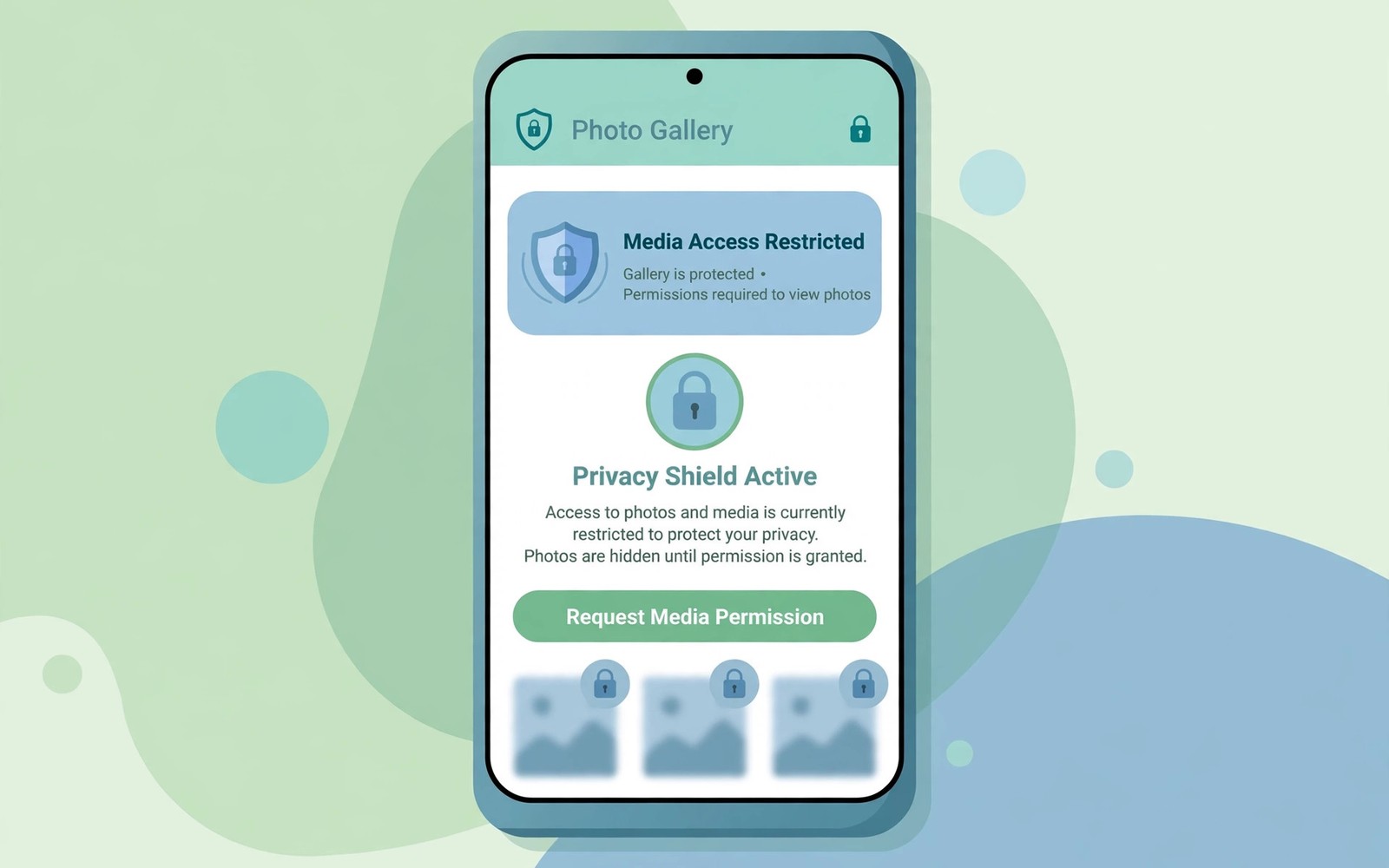
Your photo gallery holds far more than pictures. It holds travel memories and family moments. It holds screenshots with private details. It holds documents you photographed in a hurry. Giving an app full gallery access hands over all of that at once.
Modern Android lets you share only selected photos instead. An app sees the images you pick and nothing else. That choice protects the rest of your library. It also protects photos you forgot you stored. Selective access is one of the strongest privacy tools on the phone.
How Full Media Access Works
Full access lets an app read every image and video on the device. It can scan metadata such as time and place. It can build albums without asking again. It can upload content in the background when allowed. That breadth suits a backup app. It does not suit a simple filter app.
Many apps request full access out of habit. Developers pick the broadest option to avoid edge cases. Users approve it to reach a feature faster. Both sides skip the narrower choice. Selective access fixes that lazy default.
Using Selected Photos Access
When an app asks for photos, look for the selected photos option. Tap it and pick only the images that app needs. A social post needs one or two images. A profile update needs one image. A collage needs the few images in the design.
You can add more photos later from the app permission screen. You can also remove photos from the selection. The app loses sight of removed images at once. That control lasts across sessions. It turns a one-time grant into an ongoing choice.
Protecting Truly Sensitive Images
Some images deserve stronger protection than selection alone. Identity documents and medical photos fall in that group. Keep those images in a locked folder when your gallery offers one. A locked folder hides them from most apps. It also hides them from casual viewers of your phone.
Delete screenshots that contain passwords or codes. Move them to a secure notes app instead. Review your gallery each month for forgotten sensitive shots. Old images often outlive their purpose. Deletion is the only certain protection.
Grant selected photos only
When prompted choose:
Select photos and videos
Pick only the needed images
What Apps Can Still Learn
Selected access still reveals the images you chose. An app can read metadata inside those images. Location tags inside a photo can reveal where it was taken. Strip location data before sharing travel photos when privacy matters. Most gallery apps offer a remove location option.
An app can also infer interests from your picks. A fitness photo suggests a hobby. A baby photo suggests a family stage. That inference is limited to what you shared. It cannot reach the rest of your library. Selective sharing keeps the inference narrow.
Teaching the Habit to Others
Show a friend the selected photos option on their phone. Most users have never noticed it. They tap allow all photos by default. One demo changes that habit for good. They will pick the narrow option next time without prompting.
Children need this lesson early. They share photos freely with new apps. Teach them to ask why an app needs photos at all. A game rarely needs any photo access. A chat app needs only the photo being sent. That rule is easy to remember.
Photo Sharing Rules That Protect You
Metadata Hidden Inside Your Photos
Every photo can carry hidden metadata beyond the image itself. The camera may store time and date inside the file. It may store location coordinates inside the file. It may store device model and lens details inside the file. Viewers rarely see this metadata on screen. Apps with photo access can read it easily. A single shared photo can therefore reveal more than its pixels. A travel album can reveal an entire itinerary. A home photo can reveal an address. Strip metadata before sharing photos outside trusted circles. Most gallery apps offer a strip option before sending.
Screenshots carry a different metadata risk. A screenshot may capture notifications at the top of the screen. It may capture a private message preview. It may capture a code or a balance figure. Cropping the image removes visible leaks but not always hidden data. Check screenshots before sharing them anywhere. Crop out notification areas and sensitive corners. Delete screenshots that served their purpose already. Old screenshots accumulate into an accidental archive. That archive deserves the same care as the photo library.
Locked Folders and Hidden Albums
Locked folders hide sensitive images from most apps. A locked folder uses device authentication to open. Apps with photo permission cannot browse inside it. Casual viewers of your phone cannot browse it either. Move identity documents into a locked folder at once. Move medical photos and private notes there too. Keep only shareable memories in the main gallery. That split reduces exposure from any single grant. Even full gallery access then misses the most sensitive items. Locked folders are a simple and powerful layer.
Hidden albums differ from locked folders on some phones. A hidden album may only remove images from the main view. Apps with broad access might still find them. Check how your phone implements hiding before relying on it. Prefer a true locked folder with authentication. Test it by granting a test app photo access. Try to find a locked image through that app. If the app cannot see it then the folder works. If it can see it then choose stronger protection. Verification beats assumption for sensitive storage.
Backups and Deleted Photos
Photo backups can preserve images you thought you deleted. A deleted photo may linger in a trash folder for weeks. A backup service may keep its own copy even longer. Check trash retention settings in your gallery app. Empty trash after deleting sensitive images. Check backup settings for the same images. Delete from the backup copy as well when needed. Deletion on one device does not guarantee deletion everywhere. Treat backups as a second library that needs its own cleanup.
Shared albums add another copy to manage. A shared album gives others access to your images. Removing yourself from the album may not delete their copies. Ask recipients to delete sensitive images after viewing. Prefer single shares over permanent albums for sensitive content. A single share expires in attention if not in storage. Permanent albums invite future browsing. Choose the sharing method that matches the sensitivity. Low sensitivity suits albums well. High sensitivity suits single controlled shares.
Photo Access for Editing and Social Apps
Editing apps need photos to perform their job. A filter app needs the image you want to edit. It does not need your entire library to do that. Grant selected photos for each editing session. Add new images only when you edit them. Remove old selections when the edit finishes. That workflow keeps the editing app narrow. It also prevents the app from scanning unrelated memories. A disciplined selection habit beats a broad grant every time.
Social apps push hard for full gallery access. They want fast uploads without repeated picks. That speed costs your whole library. Resist the push by choosing selected photos each time. The extra taps take seconds per post. The protection lasts across the whole library. Social apps also scan photos for face and place data. Narrow access limits what their scanners can learn. Your memories deserve that small friction. Convenience should never cost an entire archive.
Photo Access for Cloud Backup Apps
Cloud backup apps need broad photo access to function. They must see every new photo to upload it. That broad need is genuine for backup purposes. Grant broad access only to a backup provider you trust deeply. Check whether backups use end to end encryption. Encryption protects photos even if provider servers leak. Check whether the provider scans photos for advertising. Ad scanning backup providers deserve no broad grant. Choose a backup provider that charges money rather than selling data. Paid backup aligns provider incentives with your privacy.
Backup timing controls add another layer of protection. Schedule backups for Wi-Fi only to limit data exposure. Review backup inclusion settings for screenshots and videos. Exclude sensitive folders from automatic backup when possible. A backup that includes everything also leaks everything when breached. Selective backup of memories plus locked local storage for secrets balances safety and convenience. Test restore from backup before relying on it fully. A backup you cannot restore is a false promise. Test restores quarterly for peace of mind.
Photo Permissions and Face Recognition
Photo apps often run face recognition on your library. Face grouping can identify people across years of photos. That grouping creates a biometric map of your social circle. An app with full photo access can build that map silently. Selected photo access limits face grouping to chosen images. Disable face grouping inside photo apps when you do not need it. Face grouping offers convenience for finding people quickly. It costs a biometric profile of friends and family. That cost rarely earns its convenience for casual users. Keep face grouping off by default and enable it only for a clear purpose.
Face data also affects people who appear in your photos. Friends may not want their faces grouped and analysed. Their consent matters even when the photo is yours. Ask close friends before enabling face grouping on shared albums. Respect refusals by keeping grouping off for those albums. Privacy for photos is a shared responsibility. Your library holds other people faces and moments. Handle that shared content with the care it deserves. Consent based photo handling builds trust across friendships.
- Choose selected photos instead of full gallery access.
- Pick only the images needed for the current task.
- Store identity and medical photos in a locked folder.
- Delete screenshots that contain passwords or codes.
- Strip location data before sharing travel photos.
Photo control works with scoped storage limits on whole file browsing and the Permission Manager media view. Review the rest of your setup with a monthly audit of installed app permissions.
The steps above follow the approach described in the official developer documentation for modern Android privacy controls. That documentation explains each permission group in plain terms. It also describes how the system limits background access. Use it as a general reference when a menu name differs on your phone.

