

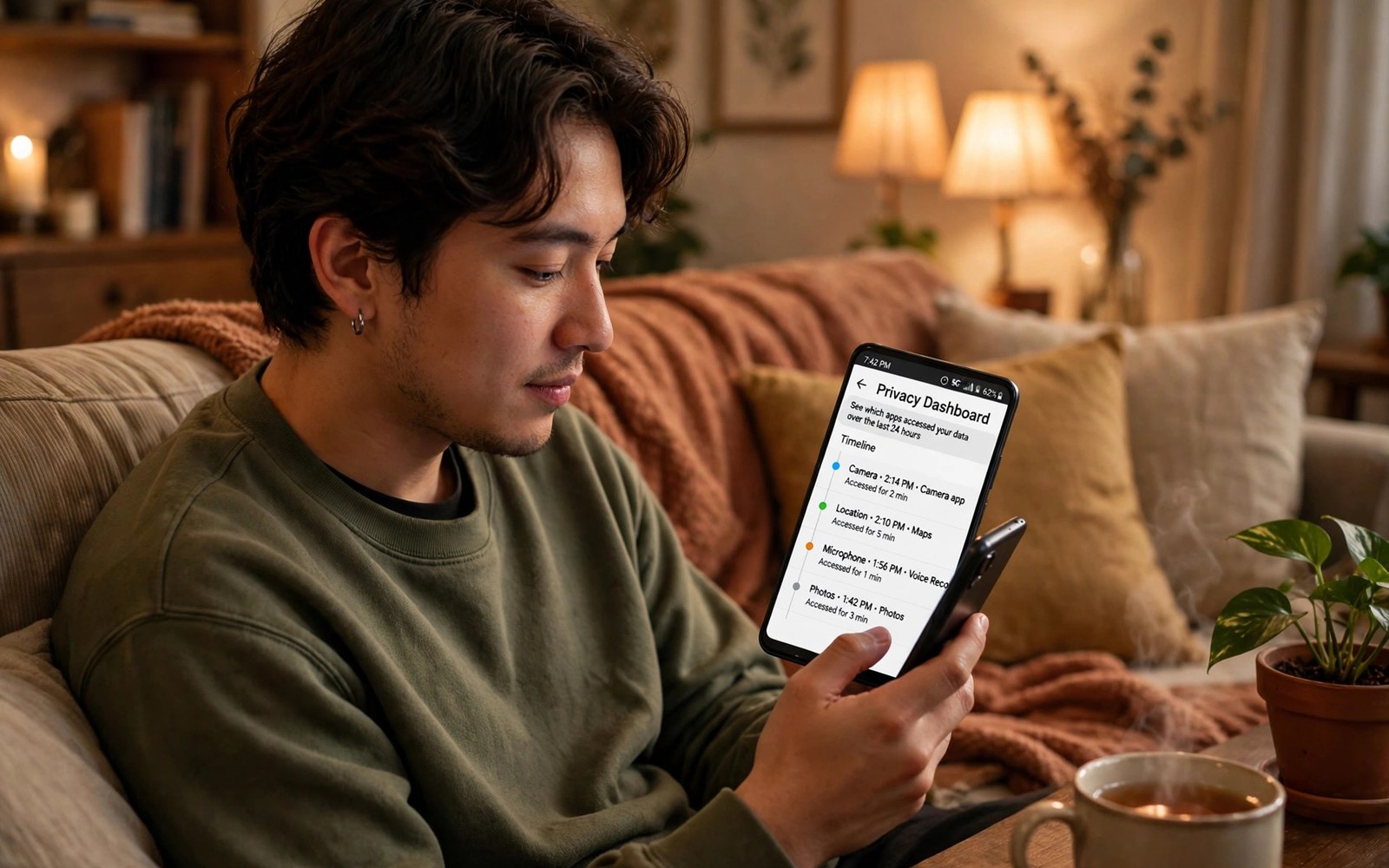
The Privacy Dashboard answers a question every user should ask. Which apps touched my data in the past day. It shows a timeline of sensor access in plain form. You can see camera use and microphone use and location use. You can tap any entry to reach that app controls.
Before this dashboard, access history was hard to find. Users guessed which apps behaved badly. Developers could hide behind vague prompts. The dashboard replaces guessing with evidence. It turns privacy from a feeling into a record you can read.
What the Dashboard Timeline Shows
The main view shows the past 24 hours by default. It groups access by permission type. Location entries show when an app read your position. Camera entries show when an app opened the lens. Microphone entries show when an app started listening.
Each entry lists the app name and the time. Tapping an entry opens the app permission screen. You can revoke access from that screen at once. The timeline also covers a full week on some phones. A longer view helps you spot slow patterns.
Reading Patterns Rather Than Single Events
A single camera entry during a video call is normal. Repeated camera entries at night are not normal. A single location entry during navigation is normal. Hourly location entries all day are not normal. Patterns reveal intent better than one event alone.
Compare entries against your own memory. Did you open that app at that hour. Did you expect that sensor to run then. If the answer is no then investigate further. Check the app reviews for similar reports. Check whether a recent update added a new feature.
From Timeline to Action in Seconds
The dashboard is useful only when it leads to action. Revoke access for apps with unexplained entries. Force stop an app that keeps triggering sensors. Uninstall an app that repeats the behaviour after a warning. Each action takes less than a minute.
Keep notes on apps you restricted and why. A short note helps you judge later prompts. If the app asks again you will remember the history. If a feature breaks you can restore access with context. Notes turn a one-time fix into lasting control.
Open the dashboard
Settings > Privacy > Privacy dashboard
Review:
Last 24 hours > Camera, Microphone, Location
Dashboard Limits You Should Know
The dashboard focuses on sensors and location. It does not show every data type in detail. Contacts access and file access may appear in other views. Clipboard reads appear as separate alerts on modern phones. Use the full Permission Manager for a complete picture.
The dashboard also cannot show data sent off the phone. It shows sensor access on the device only. Network traffic needs separate tools to inspect. Permission denial remains the strongest step. If an app never opens a sensor then it cannot leak that sensor data.
Making the Dashboard Part of Your Week
Open the dashboard every Sunday evening. Scan the past day for surprises. Scan the past week for repeat offenders. Fix the worst entry before you close the view. That small ritual beats a rare deep cleanup.
Share the habit with family members who use Android. Show them one real entry from their own phone. A real entry teaches faster than any lecture. They will start checking on their own after that. Privacy habits spread best through personal proof.
Weekly Dashboard Routine
Sensor Access Versus Other Data Types
The dashboard focuses on camera and microphone and location. Those three sensors reveal the most immediate private facts. Camera reveals surroundings and faces. Microphone reveals conversations and ambient sound. Location reveals movement and places. Other data types matter too but appear elsewhere. Contacts reveal your social circle. Files reveal documents and photos. Calendar reveals plans and meetings. Use the Permission Manager to cover those types. The dashboard plus the manager together give a fuller picture. Neither tool alone covers every data type.
Clipboard reads form a special case in this picture. Modern phones show a toast when an app reads copied text. That toast is separate from the dashboard timeline. It covers a brief but sensitive data type. A copied password can leak through one read. A copied address can leak through one read. Watch for clipboard toasts alongside dashboard entries. Both signals deserve the same quick response. Revoke access for apps that read without a clear paste action. That response protects the smallest and most sensitive data.
Interpreting Night and Idle Entries
Entries during sleep hours deserve the closest scrutiny. Your phone should rest when you rest. A camera entry at three in the morning rarely matches real use. A microphone entry at the same hour is equally strange. Location entries overnight may come from background tracking. Check which app produced each night entry. Revoke background access for night offenders first. Then check whether the app still works by day. A day-only app should never need night sensors. Night entries are the clearest signal in the whole timeline.
Idle entries during work hours also matter. A phone sitting on a desk should stay quiet. Sensor entries while you never touched the phone suggest background use. Some background use is legitimate for calls and alarms. Most background use is not legitimate for games. Compare idle entries against apps you left running. Close background apps that trigger sensors needlessly. A quiet idle phone is a healthy phone. It also saves battery and data through the day.
Dashboard Data and App Reputation
Dashboard evidence helps you judge app reputation fairly. A single strange entry may be a bug. Repeated strange entries suggest intent. Check store reviews after spotting a pattern. Other users may report the same behaviour. A pattern plus similar reports builds a strong case. Report the app through the store when evidence mounts. Reports help other users avoid the same trap. They also pressure developers to fix shady behaviour. Evidence beats rumour in every privacy dispute.
Developers sometimes explain dashboard entries in update notes. An update may add a feature that uses a sensor briefly. The note may describe that feature in plain terms. Read update notes when a trusted app surprises you. A fair explanation plus a useful feature may earn continued access. A vague explanation earns a revocation instead. Hold apps to the standard of clear reasons. Clear reasons build trust over time. Vague reasons erode it quickly.
Teaching Dashboard Checks to Family
Family members often ignore privacy tools until they see personal proof. Open the dashboard on their phone together. Show them one real entry from their own timeline. Ask whether they remember that session. A forgotten session sparks curiosity fast. A remembered session builds confidence in the tool. Either outcome teaches the habit better than a lecture. Repeat the demo after a month of normal use. They will likely check on their own by then. Personal proof beats generic advice every time.
Children need a simpler version of the same lesson. Show them the camera entry from a video call. Explain that the entry proves the camera ran then. Show them a game entry if one exists. Ask whether the game needed the camera at that moment. That question teaches critical thinking about apps. It also gives them language for future prompts. Privacy education works best through concrete examples. The dashboard supplies those examples for free.
Dashboard Timelines and Location Trails
Location entries in the dashboard deserve map level attention. A single entry shows a time but not a place detail. The app itself may hold the place detail internally. Cross-check location entries against your own memory of the day. A location entry during a commute makes sense. A location entry at midnight needs an explanation. Frequent entries from one app suggest background tracking. Infrequent entries suggest foreground use you likely started. The dashboard gives timing evidence for both patterns. Timing plus memory together reveal intent better than either alone.
Location trails across a week reveal routine structure. Morning entries cluster around home and work. Evening entries cluster around leisure places. A tracking app can infer that structure from timing alone. Precise coordinates are not needed for routine inference. That is why background location denial matters so much. The dashboard shows you the timing pattern an app sees. If the pattern looks too complete then narrow the grant. A sparser pattern protects routine privacy while keeping navigation working. Judge location apps by pattern completeness rather than single entries.
Exporting Dashboard Insights for Support
Dashboard evidence can help support teams diagnose problems. A camera entry pattern may explain battery drain. A microphone entry pattern may explain audio glitches. Screenshots of the timeline help support staff understand timing. Capture screenshots before revoking access for a buggy app. Support may need the original grant state to reproduce issues. Revoke access after support finishes diagnosis when the app misbehaves. Evidence based support beats vague complaints about privacy. Timelines turn feelings into facts for technical help. Facts get faster and better responses.
Evidence also helps when reporting apps to store teams. A report with dates and times carries weight. A report with only suspicion carries little weight. Note the app name and permission and time for each incident. Attach dashboard screenshots when the report form allows them. Clear reports protect other users from the same app. They also create a record if the developer disputes the claim. Documentation is a civic habit in app ecosystems. One good report can trigger a review that helps thousands.
- Open the Privacy Dashboard and scan the past 24 hours.
- Tap any surprising entry to open that app controls.
- Revoke sensor access for apps with no clear reason.
- Check the week view for repeat patterns.
- Note restricted apps so future prompts make sense.
The dashboard pairs with green camera and microphone indicators for live alerts and the Permission Manager for full control. Build the habit with a monthly audit of installed app permissions.
The steps above follow the approach described in the official developer documentation for modern Android privacy controls. That documentation explains each permission group in plain terms. It also describes how the system limits background access. Use it as a general reference when a menu name differs on your phone.

