

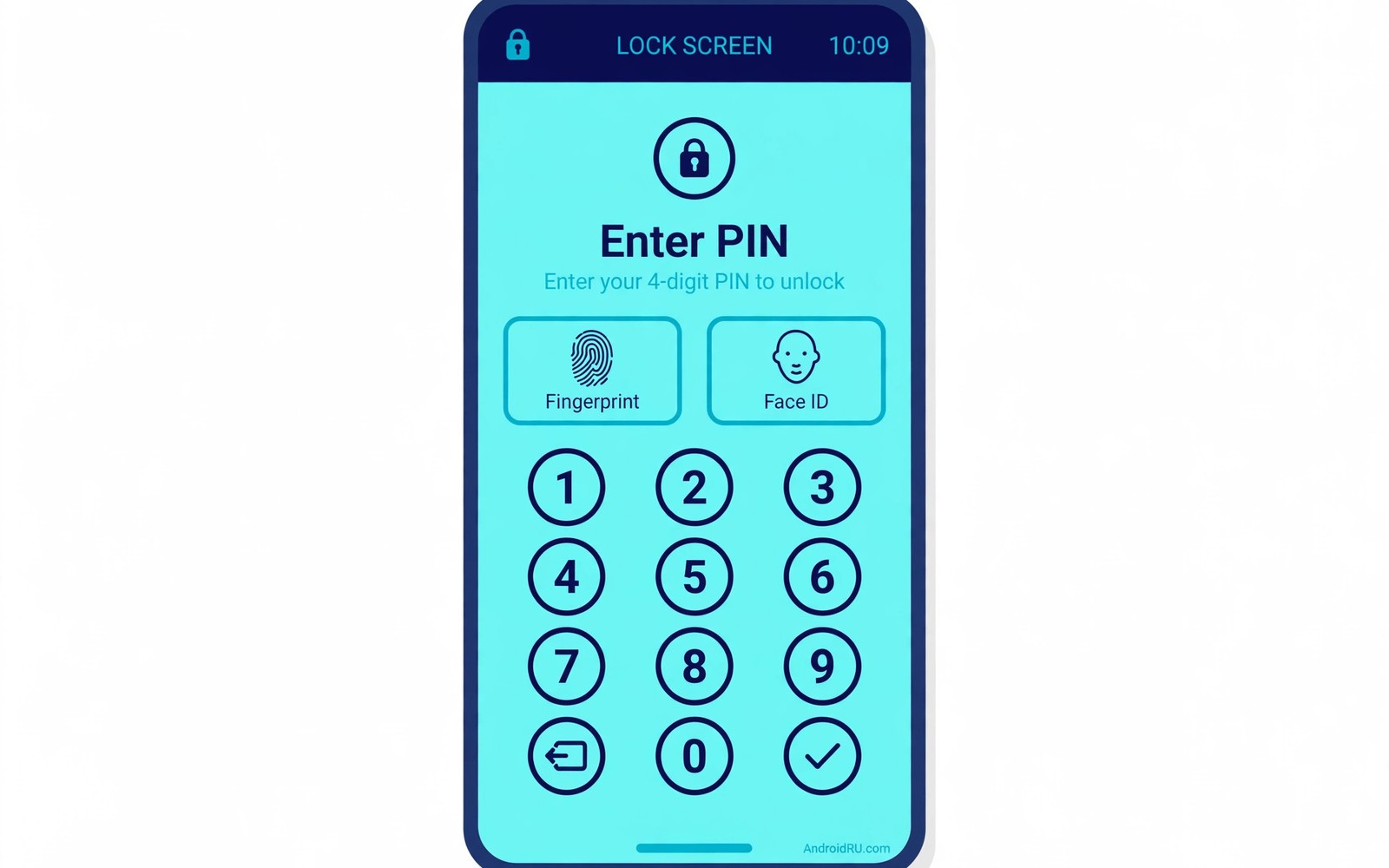
A stolen phone gives an attacker time and access. A weak lock lets them open apps and read data. A strong lock buys time to lock the device remotely. Physical security starts with the lock screen. This guide compares PINs and passwords and biometrics.
It also covers auto-lock and notification privacy. Small settings here protect a lot of data. Readers who lose a phone need a fast plan too. That plan pairs well with lost device steps for a full response.
PINs Versus Passwords
A four-digit PIN has only ten thousand combinations. Shoulder surfing and smudge patterns narrow it further. A six-digit PIN improves the odds a lot. A full password with letters and symbols is stronger still. The best method is one you can enter reliably.
Avoid birthdays and simple sequences for any lock. Avoid repeating the same code across devices. Change the code if someone may have seen it. A changed code costs a minute and restores safety. Treat your lock code like a house key.
Biometrics As A Convenience Layer
Fingerprints and face unlock speed up daily use. They work best beside a strong backup method. Biometrics can fail with wet hands or poor light. A fallback PIN then decides real security. Make that fallback strong rather than short.
Biometrics also raise a legal and safety nuance. Someone could hold your finger to the sensor. A strong password-only mode helps in risky moments. Most phones offer a lockdown option for this. Learn where that option sits before you need it.
Auto-Lock And Lock Screen Privacy
Auto-lock decides how long a phone stays open. A long delay invites access when you set it down. Thirty seconds suits most daily routines well. A shorter delay suits travel and busy places. Balance safety with the annoyance of frequent unlocks.
Lock screen notifications can leak private details. Hide sensitive content for messaging apps. Hide codes and previews for banking apps. A stranger should learn nothing from a locked screen. Check each app notification setting once.
- Set auto-lock to 30 seconds.
- Hide sensitive notification content.
- Hide message previews on the lock screen.
- Require unlock for notification actions.
- Turn off smart lock in risky places.
Lock screen checklist
Lock method: strong PIN or password
Auto-lock: 30 seconds
Notifications: sensitive content hidden
Smart lock: off for travel
Lockdown option: location learned
Backup method: strong and memorised
Smart Lock And Trusted Places
Smart lock keeps the phone unlocked in trusted spots. Trusted places and devices reduce unlock friction. That convenience also weakens physical security. A thief in a trusted place gains open access. Disable smart lock if you travel with sensitive data.
On-body detection keeps the phone unlocked while carried. It cannot tell who carries the phone. A snatched phone may stay unlocked under this mode. Turn it off for a stricter security posture. Convenience features deserve a risk review.
Encryption Behind The Lock
The lock screen works with storage encryption. Encryption scrambles data without the right key. A strong lock credential protects that key. A weak credential weakens the whole chain. That link explains why short PINs matter so much.
Restart the phone after a theft risk passes. A fresh boot state demands the full credential. That state gives stronger protection than a mere lock. Some features stay limited until first unlock. That limit is a deliberate safety trade.
If Someone Gets Your Phone
Act fast when a phone leaves your control. Use another device to locate and lock it. Change key account passwords from a safe device. Watch for sign-in alerts in the following days. A fast response limits what a finder can do.
Tell your carrier if the SIM may be abused. A swapped SIM can reset other accounts. Readers who want a full checklist can follow lost device steps step by step. Preparation today makes that stressful day far easier.
Physical access is the most direct attack on a phone. A strong lock and short auto-lock raise the cost. Hidden notifications stop casual snooping at a glance. Smart lock choices should match your real risk. Those settings turn a lost phone into a locked brick.
Lock Methods Compared In Detail
Pattern locks feel fast but leak through smudges. Finger trails on screens reveal pattern shapes. A thief can guess patterns from smudge marks. Clean the screen regularly if you use patterns. Better yet switch to a PIN or password. Patterns also offer fewer combinations than PINs. Short patterns fall to guessing quickly. Long patterns help but remain smudge-prone. Patterns suit low-risk users best of all. High-risk users should avoid patterns entirely. Readers who protect account recovery should also review account backup safety for restore planning. Lock choice is a daily security decision.
Passwords offer the strongest lock credential option. A long password resists guessing far better than a PIN. Passwords cost time on every unlock though. That friction tempts users toward weaker methods. Balance strength against daily unlock frequency. A passphrase of several words balances both needs. Words are easier to remember than random symbols. Length matters more than symbol complexity. Choose a passphrase you can type reliably. Reliability prevents lockouts and frustration.
Face unlock varies widely across phone models. Some systems use depth sensing for security. Others use simple camera matching only. Simple matching can fall to photos in tests. Check your model security level before relying on it. Depth-based systems resist photo attacks better. Even strong face unlock needs a backup method. Make that backup method strong as well. A weak backup undermines a strong biometric. The chain is only as strong as its weakest link.
Biometric failure modes deserve planning in advance. Wet fingers defeat fingerprint sensors often. Face unlock fails in darkness or with masks. Injuries can change fingerprints temporarily. A backup method must work in those moments. Memorise the backup method rather than writing it nearby. Test the backup method monthly for reliability. A tested backup prevents stressful lockouts. Plan for failure before failure arrives. That planning is part of lock security.
Lock Screen Features And Risks
Lock screen widgets can leak data subtly. Calendar widgets may show meeting details. Email widgets may show message previews. Music widgets may reveal listening habits. Review each widget for privacy impact. Remove widgets that show sensitive content. A clean lock screen reveals almost nothing. That minimalism is a privacy feature. Check widgets after installing new apps. New apps may add widgets automatically.
Voice assistants on lock screens carry risks. An assistant may read messages aloud nearby. It may place calls without full unlock. Strangers could exploit assistant access. Restrict assistant features on the lock screen. Disable sensitive actions without unlock. Test assistant behaviour from a locked state. Adjust settings until strangers learn nothing. Assistant convenience must not override privacy. A locked phone should stay locked in effect.
Emergency features balance safety against privacy. Emergency calls work without unlock by design. Medical info may show to first responders. That info helps in real emergencies greatly. Review medical info for oversharing risks. Include only details responders truly need. Allergies and conditions matter most. Home addresses matter less for responders. Keep emergency info minimal yet useful. That balance serves both safety goals.
Children and shared phones need lock thinking too. Shared tablets may hold adult accounts. A single lock protects all users equally. Separate user profiles add boundaries on tablets. Profiles keep adult data away from children. Set up profiles before sharing a device. Review profile permissions after setup. A profile boundary beats trust alone. Readers who secure SIM access should also review SIM PIN protection for number safety. Shared devices deserve structured boundaries.
Lock Screen Law And Safety
Lock screen access raises legal questions sometimes. Officials may request device unlock in places. Laws vary widely across jurisdictions. Know local rules before high-risk travel. A strong password offers stronger legal protection. Biometrics face different legal treatment often. Password-only modes help in sensitive moments. Learn lockdown features before travel. Lockdown disables biometrics temporarily. Temporary disabling adds legal safety.
Safety situations may require quick phone access. Emergency calls work without unlock always. Emergency info aids responders greatly. Balance emergency access against privacy. Include only essential medical details. Essential details include allergies and conditions. Exclude home addresses from emergency info. Addresses help responders less directly. Minimal emergency info serves both goals. Minimalism is a safety feature here.
Children locks need age-appropriate approaches. Young children need simple memorable codes. Simple codes suit low-risk child devices. Older children need stronger methods. Stronger methods protect school data better. Teach children code secrecy early. Secrecy habits start with device codes. Codes shared with friends lose protection. Friends may share codes further innocently. Early secrecy lessons last lifetimes.
Shared household devices need profile boundaries. Profiles separate adult and child data. Adult profiles need strong locks always. Child profiles need simpler access. Simpler access suits supervised use. Supervision compensates for weaker child locks. Review profile data separation regularly. Separation failures expose adult data. Regular reviews catch failures early. Boundaries need maintenance like locks.
Lockout recovery planning prevents stressful failures. Forgotten codes lock users out completely. Recovery options vary by device brand. Some devices offer account recovery paths. Others require factory resets after lockouts. Factory resets delete data without backups. Backups make lockout recovery painless. Keep backups current for lockout safety. Test recovery paths before emergencies. Tested paths prevent panic during lockouts.
Biometric enrolment quality affects reliability greatly. Enrol fingerprints in varied conditions. Enrol multiple fingers for redundancy. Redundancy helps when one finger fails. Face enrolment needs good lighting initially. Poor enrolment causes frequent failures. Failures tempt users toward weaker methods. Good enrolment sustains biometric convenience. Convenience sustains security habit use. Enrolment care pays daily dividends.
Lock Habits For Busy Lifestyles
Busy users unlock phones hundreds of times daily. Frequent unlocking tempts weaker lock methods. Weaker methods undermine all other protections. Biometrics balance speed and strength well. Strong backup methods support biometrics safely. Backup methods need memorisation and testing. Testing ensures backups work under stress. Stressful moments need reliable backups most. Reliable backups prevent lockout panic. Panic prevention is a security feature.
The steps above follow the approach described in the official developer documentation for Android security and privacy. That documentation explains the same controls in general terms for phone owners who want a safer device.

