

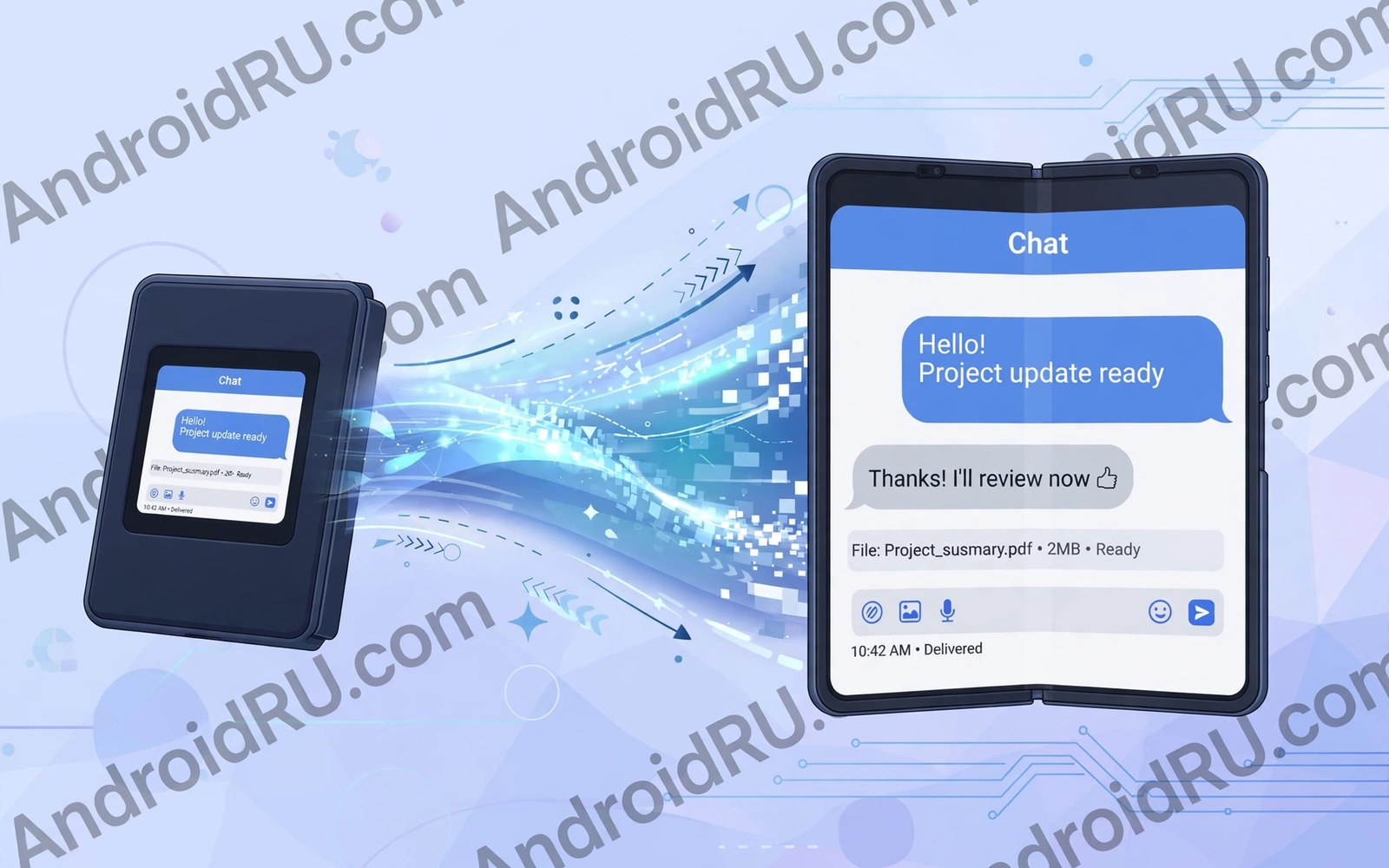
Here is a clear look at app continuity on foldables for anyone shopping or learning today.
App continuity on foldables keeps your task alive when the screen changes. You start a map on the small outer screen. You unfold the phone and the same map fills the big screen. No restart and no lost place should interrupt you. That smooth handover is the heart of foldable software.
Continuity sounds simple but it needs careful work from Android and app makers. The system must resize the window and move state to a new display. Apps must save scroll position and input and playback state. Most modern apps handle this well now. If multitasking still feels rough then read about multi-window multitasking tricks and learn window tricks that reduce switching.
Treat the sections below as a checklist for smarter ownership. Work through them one by one during your first month with a foldable. Small habits formed early protect screens and hinges for years. Revisit the checklist after system updates change settings or layouts. Good ownership is mostly steady routine rather than expert knowledge.
How Continuity Works Under the Hood
Android treats folding as a configuration change like rotation. The app window receives a new size and a new display context. Well built apps save their state before the change. The system then restores state into the resized window. The user sees one continuous app rather than a restart.
Display features tell the app about the hinge and posture. Apps can learn whether the phone is flat or half open. They can move controls away from the fold line. They can split content across the hinge for tabletop use. This data flow makes continuity feel smart rather than merely stretched.
What Good Continuity Feels Like
Good continuity keeps video playing across the fold. It keeps your typed text in place without loss. It keeps maps centred on the same street. It keeps chat scroll exactly where you left it. You should barely notice the transition during normal use.
Good continuity also works in reverse when you fold shut. The app should shrink to the outer screen without losing context. Music and calls continue without a pause. Navigation keeps guiding you to the same destination. That two way smoothness defines a polished foldable experience.
The snippet below saves a simple scroll position before a configuration change. Apps use patterns like this to keep your place across a fold. It shows why state saving matters more than screen size.
override fun onSaveInstanceState(outState: Bundle) {
    outState.putInt("scroll", recyclerView.computeVerticalScrollOffset())
    super.onSaveInstanceState(outState)
}
The code sample above follows the standard pattern shown in official Android developer guidance for saving view state. It is provided for learning and testing on your own device.
Why Some Apps Restart or Glitch
Some apps restart because they mishandle configuration changes. They treat a resize like a fresh launch and drop state. Older apps may lock orientation or screen size in code. Those locks fight the folding system and cause jumps. Games with fixed aspect ratios often letterbox instead of resizing.
Bugs also come from cached layouts that assume one screen size. An app may draw a phone layout on a tablet window. Buttons may sit under the fold or off screen. Developers fix these issues by testing on foldable emulators. Users can only update and report and work around the worst cases.
Fixes You Can Try Today
Update the problem app and your system software first. Many continuity bugs disappear with a single update. Clear the app cache if a glitch repeats after an update. Reopen the app and test the fold again in a calm moment. Note whether folding or unfolding triggers the fault.
Try locking the app to one screen for a tricky task. Start the task unfolded if the app prefers the big screen. Avoid folding mid payment or mid upload when possible. Use the recent apps screen to return if an app jumps. Report repeat faults with steps so makers can reproduce them.
Continuity Beyond Single Apps
Continuity also covers pairs of apps in split screen. A saved pair should reopen both apps in the same layout. Some launchers remember pairs across reboots. Others need you to recreate the pair each time. Learn your launcher behaviour before you rely on pairs for work.
Clipboard and drag state add another continuity layer. Copied text should survive a fold without loss. Dragged items should land in the right app after resize. Test these flows with your work apps early. Small continuity gaps can waste surprising time across a busy week.
A Simple Weekly Care Routine
A simple routine for app continuity on foldables needs no special tools or products. A microfibre cloth and a soft brush handle most cleaning tasks. Avoid sprays and solvents near hinge gaps and ports. Work in good light so small debris stays visible. Gentle tools protect coatings that aggressive cleaning would strip away.
Record hinge feel and screen condition in the same note each week. Short notes build a history that reveals slow changes. Compare this month against last month rather than relying on memory. Slow change often escapes notice without written records. That record also strengthens warranty and resale conversations later.
Settings Worth Reviewing This Week
Settings reviews for app continuity on foldables should start with display brightness and refresh rate. Adaptive brightness saves power and reduces screen ageing. A lower refresh cap suits reading days and travel days well. Reserve maximum smoothness for gaming and video sessions. These two settings shape daily battery life more than most apps.
Next review notification privacy on the cover screen and lock screen. Sensitive previews can appear where strangers might glance. Hide message content while keeping sender names visible. Check wallet and payment shortcuts for accidental triggers. Privacy settings deserve the same attention as battery settings.
Accessories That Help Most Owners
Accessory choices for app continuity on foldables work best when matched to your riskiest moments. Outdoor workers need rugged grip and hinge coverage. Office workers need slim cases and desk stands. Travellers need compact power and secure pockets. Style buyers may trade protection for thin design knowingly. Match gear to risk rather than to trends.
Avoid accessories that block hinge motion or trap heat during charging. Test every new accessory through a full fold cycle slowly. Check wireless charging after fitting cases and mounts. Remove any accessory that causes uneven motion at once. Safety and motion matter more than looks for folding phones.
Travel Habits for Folding Phones
Outdoor travel for app continuity on foldables needs weather awareness as well as power planning. Rain and dust demand pouches and quick wipes. Cold mornings demand pocket warming before folding. Hot afternoons demand shade during charging and video. Weather habits protect folding mechanisms across seasons.
Road trips add car mount and cable planning to the routine. Mounts must grip without pressing hinge edges. Cables should route away from folding motion. Passengers can use the large screen for maps and media. Driver attention must stay on the road at all times.
Planning Your Next Upgrade
Upgrade planning for app continuity on foldables should start a year before you intend to buy. Track hinge feel and battery health monthly during that year. Note which features you actually use and which you ignore. That record guides the next purchase better than marketing. Needs based upgrades save money and regret.
Compare trade-in values and private sale prices three months early. Early research reveals the best selling window for your model. Clean the phone and gather accessories and receipts meanwhile. A prepared seller negotiates from strength. Rushed sellers accept the first low offer.
Reading and Media Habits on Big Screens
A reading routine for app continuity on foldables should include regular breaks away from the screen. Follow a simple rule of looking away every twenty minutes. Stretch hands and wrists after long holding sessions. Adjust grip so the hinge never bears uneven pressure. Healthy habits protect both eyes and hardware over years.
Podcasts and audiobooks pair well with the cover screen during walks. Save the large screen for visual content that earns its size. Audio content needs no unfolding and saves battery. Mix media types across the day to balance power use. Variety keeps both screens useful rather than overworked.
Safety and Privacy on Two Screens
Data safety for app continuity on foldables includes backup and remote wipe readiness. Test remote locate and lock features before you need them. Keep backups current so loss never means data loss. Record serial numbers and purchase receipts in a safe place. Preparation turns theft or loss into an inconvenience rather than a crisis.
Charging safety also belongs in a privacy and safety review. Use certified chargers and avoid damaged cables entirely. Charge on hard surfaces where heat can escape freely. Never charge under bedding or inside closed bags. Safe charging protects battery health and household safety together.
Common Mistakes to Avoid
A common mistake is blaming the phone for every app restart. Many restarts come from one outdated app rather than the system. Test several apps before you judge continuity overall. Also read about hinge design and dust resistance to see how hinge health affects screen behaviour.
Another mistake is folding during payments and uploads without care. A resize glitch at the wrong moment can stall a transaction. Finish critical steps on one screen when possible. Check confirmation screens before you fold away.
Frequently Asked Questions
Why does my video restart when I unfold?
Video apps should keep playback state across a fold. A restart often means an outdated app or a strict battery setting. Update the app and exempt it from aggressive battery limits. Test again with a short clip before a long watch.
Can I force an app to stay on one screen?
Some phones offer per app settings for screen behaviour. Others rely on the app to handle resizing well. You can start the app on your preferred screen and avoid folding mid task. Report stubborn apps to their makers with clear steps.
Does continuity work for games?
Games vary because many lock aspect ratio for fair play. Some games resize smoothly and keep your session. Others letterbox with black bars on the big screen. Check game forums for foldable reports before long sessions.
Conclusion
Set a monthly reminder to revisit hinge care and battery habits from this guide. Monthly checks catch stiffness and drain before they become faults. A five minute review protects a device that cost a premium price. Consistency matters more than intensity for long device life. Make the reminder part of your normal phone routine.
Continuity is what makes a folding phone feel like one device rather than two screens glued together. Test your key apps in both directions during week one. Update often and report repeat faults with clear steps. Then read about camera limits inside thin foldables and learn battery habits that keep both screens running through long days.

