

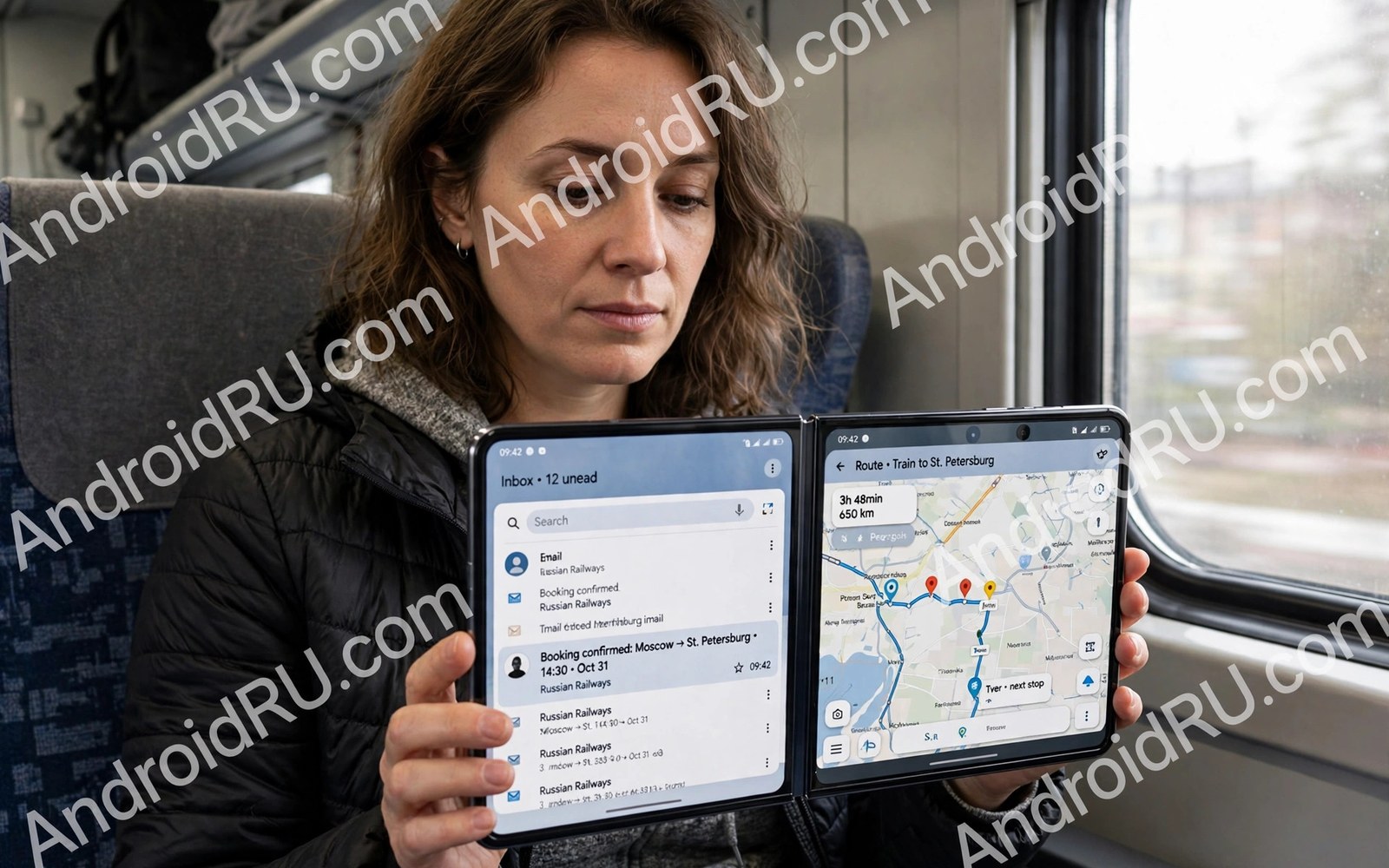
This article breaks down multi-window multitasking on foldables without jargon and without hype.
Multi-window multitasking on foldables turns a phone into a pocket desk. Two apps can share the big inner screen at readable sizes. A third app can float above them for quick notes. Drag and drop moves content without constant switching. The setup rewards a little practice with large daily time savings.
Most owners start with simple split screen and stop there. Saved pairs and floating windows unlock far more power. You can build a research desk and a travel desk and a work desk. Each desk opens with one tap when you need it. If app handover still confuses you then read about hinge design and dust resistance and fix continuity first.
Use this guide in short sittings rather than reading it all at once. Skim the headings and stop at the section that matches your current question. Try one tip from that section on your own phone before moving on. Hands on tests teach faster than reading specs alone. Return to the guide when a new question appears during ownership.
Split Screen Basics Done Right
Open the first app and then open the recent apps view. Choose split screen and pick the second app from the list. Drag the divider to give more room to the active app. Text stays readable when each app keeps at least half the width. Swap sides with the divider menu when your thumb needs a new reach.
Not every app supports split screen well. Video apps and readers usually behave best. Games and camera apps may refuse split mode. Test your daily pairs before you rely on them for work. A reliable pair beats a clever pair that crashes mid task.
Saved Pairs and Quick Launch
Saved pairs store two apps and their divider position together. You can launch the pair from the edge panel or home screen. Research pairs might combine a browser and a notes app. Travel pairs might combine maps and messaging. Work pairs might combine mail and calendar for planning.
Build pairs around real tasks rather than random apps. Name the task in your head before you pick apps. A pair should serve one goal from start to finish. Review your pairs monthly and delete stale ones. A tidy pair list opens faster than a crowded one.
The snippet below launches two apps side by side from code. It shows the intent flags that place apps into split screen. Developers use this pattern for pair shortcuts and task flows.
val options = ActivityOptions.makeBasic()
startActivity(firstIntent, options.toBundle())
startActivity(secondIntent, ActivityOptions
    .makeBasic()
    .setLaunchAdjacent(true)
    .toBundle())
The code sample above follows the standard pattern shown in official Android developer guidance for adjacent activity launch. It is provided for learning and testing on your own device.
Floating Windows for Quick Tasks
Floating windows sit above split screen apps for short jobs. A calculator or a chat window floats while you work below. Resize the float small so it never hides key content. Move it aside when you need the full app beneath. Close it when the quick task ends to restore focus.
Floating windows suit reference checks and quick replies. They suit timers and translators during reading. They do not suit long writing or detailed editing. Return to full screen for deep work sessions. Use floats as helpers rather than main workspaces.
Drag and Drop That Saves Time
Drag text and images between apps without copy menus. Long press content and drag it across the divider. Drop it into the target field or document. Photos drag into messages and notes with ease. Links drag into browsers and mail drafts just as fast.
Practice drag moves with unimportant content first. Learn how long a press the system expects. Learn which apps accept drops and which refuse them. Some apps need a second finger to scroll while dragging. That trick unlocks drops into long documents and chats.
Layouts for Work Travel and Study
Work layouts pair mail with calendar or documents. Keep the writing app wider than the reference app. Travel layouts pair maps with messaging or booking apps. Keep maps dominant while messages stay narrow. Study layouts pair a reader with notes for active recall.
Adjust brightness and font size for long split sessions. Large screens invite long use that strains eyes. Take short breaks and unfold only when the task needs space. Fold shut for quick checks to save battery. Good multitasking respects both focus and power.
A Simple Weekly Care Routine
A weekly care routine for multi-window multitasking on foldables starts with a soft dry cloth and five quiet minutes. Wipe both screens gently and check the hinge zone for lint. Look for new marks near the fold line under good light. Early marks tell you about pocket habits before damage grows. A calm weekly check beats an urgent repair visit later.
End the routine by testing hinge motion slowly through its full range. Motion should feel even from closed to open and back again. Note any new stiffness or sound in a phone note with the date. That log helps service teams judge faults months later. Finish by backing up photos and messages so a repair never risks memories.
Settings Worth Reviewing This Week
Review app permissions during your settings session for multi-window multitasking on foldables topics. Many apps request location and contacts without real need. Remove permissions that do not serve a clear purpose. Check background battery use for apps that rarely matter. Tighter permissions improve privacy and battery life together.
Check system update settings so security patches arrive promptly. Enable automatic updates over Wi-Fi when available. Review foldable specific settings for app continuity and multitasking. Test one changed setting on your own phone before changing more. Gradual tuning avoids confusion when behaviour shifts.
Accessories That Help Most Owners
A small accessory kit for multi-window multitasking on foldables can live in a desk drawer for daily use. Include a microfibre cloth and spare tips for stylus owners. Include a short cable for car top ups. Include a sleeve for bag transport on busy days. A ready kit removes friction from good habits.
Replace worn accessories before they cause damage rather than after. Frayed cables risk ports and battery health. Loose cases trap grit against hinge edges. Worn protectors catch stylus tips and fingers. Small replacement costs beat repair bills by a wide margin.
Travel Habits for Folding Phones
Travel habits for multi-window multitasking on foldables start with pocket discipline on the move. Keep the phone in a separate pocket away from keys and coins. Use the cover screen for navigation glances while walking. Unfold only when seated and ready for detailed work. That rhythm protects screens in crowded places.
Pack a small power bank and a short cable for long travel days. Download maps and media offline before leaving Wi-Fi. Lower brightness in dim cabins to save power and eyes. Close split screen pairs when tasks end. Travel preparation turns a foldable into a reliable companion.
Planning Your Next Upgrade
Future upgrade plans for multi-window multitasking on foldables should weigh software support length heavily. Longer support means security updates for more years. Check maker promises for your shortlist models. A cheaper phone with short support may cost more over time. Support length often beats minor spec gains.
Test shortlist models in a store with your own apps and pockets. Bring your case and stylus if you use them daily. Type and scroll and fold for ten minutes per model. Store lighting hides flaws that home use reveals. A careful store test prevents expensive disappointment.
Reading and Media Habits on Big Screens
Media organisation for multi-window multitasking on foldables saves time when the large screen invites browsing. Build watchlists and reading lists before leisure time starts. Curated lists prevent endless scrolling across a huge display. Delete finished downloads weekly to free storage. A tidy library makes leisure feel intentional rather than endless.
Share media thoughtfully from the large screen during family time. The big display suits showing photos to small groups. Cast to a television for larger groups instead of crowding around a phone. Respect privacy when showing personal albums in public. Good sharing habits make the screen a social asset.
Safety and Privacy on Two Screens
Safety habits for multi-window multitasking on foldables start with lock settings on both displays. The cover screen should hide sensitive message content by default. Fingerprint and face unlock should work reliably on either screen. Test unlock behaviour after fitting a new case. A secure cover screen prevents casual snooping in public places.
App lock features add a second layer for banking and messaging apps. Enable them for apps that handle money or private photos. Review which apps appear on cover widgets carefully. Widgets can leak calendar details and message previews. Privacy review deserves a place in every monthly routine.
Common Mistakes to Avoid
A common mistake is opening three apps and shrinking all of them. Tiny windows cause tapping errors and eye strain. Use two apps for real work and floats only for quick checks. Also read about camera limits inside thin foldables to protect the hinge during heavy daily use.
Another mistake is never saving pairs you use daily. Rebuilding pairs each time wastes the time multitasking should save. Save each proven pair on day one. Test the saved pair after system updates.
Frequently Asked Questions
Can I run three apps at once?
Most large foldables support two split apps plus a floating window. That gives three visible apps at once. Text gets small when all three compete for space. Use three apps for monitoring rather than deep work.
Why does one app refuse split screen?
Some apps block split screen for design or security reasons. Camera apps and some games commonly refuse. Try a floating window as an alternative view. Contact the maker if a work app blocks a key workflow.
Do split screen pairs drain battery faster?
Two active apps use more power than one app alone. Bright large screens add further drain. Keep sessions focused and close pairs when done. Lower brightness helps more than any other single setting.
Conclusion
Review your notes from this guide before your next phone decision. Pick the two habits that will help you most in the coming month. Put them into practice this week while the ideas stay fresh. Small steady steps beat grand plans that never start. Your future self will notice the difference in hinge smoothness and battery health.
Multitasking on a foldable pays off when pairs match real tasks. Build three reliable pairs this week for work and travel and study. Practice drag and drop with safe content until it feels natural. Then read about dual-battery life in thin foldables and check cover screen habits that save battery between big screen sessions.

